
Seeing the "Settings has stopped" error on your Galaxy S23 can stop you in your tracks. This usually means the Settings app has crashed or its data has become corrupted. The good news is you can almost always fix it yourself without losing any data.
Force Restart Your S23
This is the quickest fix and often the only one you'll need. A force restart clears out temporary glitches in the system memory that can cause apps like Settings to crash.
Press and hold the Volume Down button and the Side (power) button together for about 10 seconds. Keep holding until you see the Samsung logo appear on the screen, then let go. Your phone will boot up fresh.
Clear the Settings App Cache
Cache files help the Settings app load quickly, but they can get corrupted. Clearing them forces the app to rebuild fresh, clean data.
You'll need to get to the Apps menu. If the Settings app keeps crashing before you can navigate, try opening it through your notification panel. Pull down twice and tap the gear icon in the top right corner.
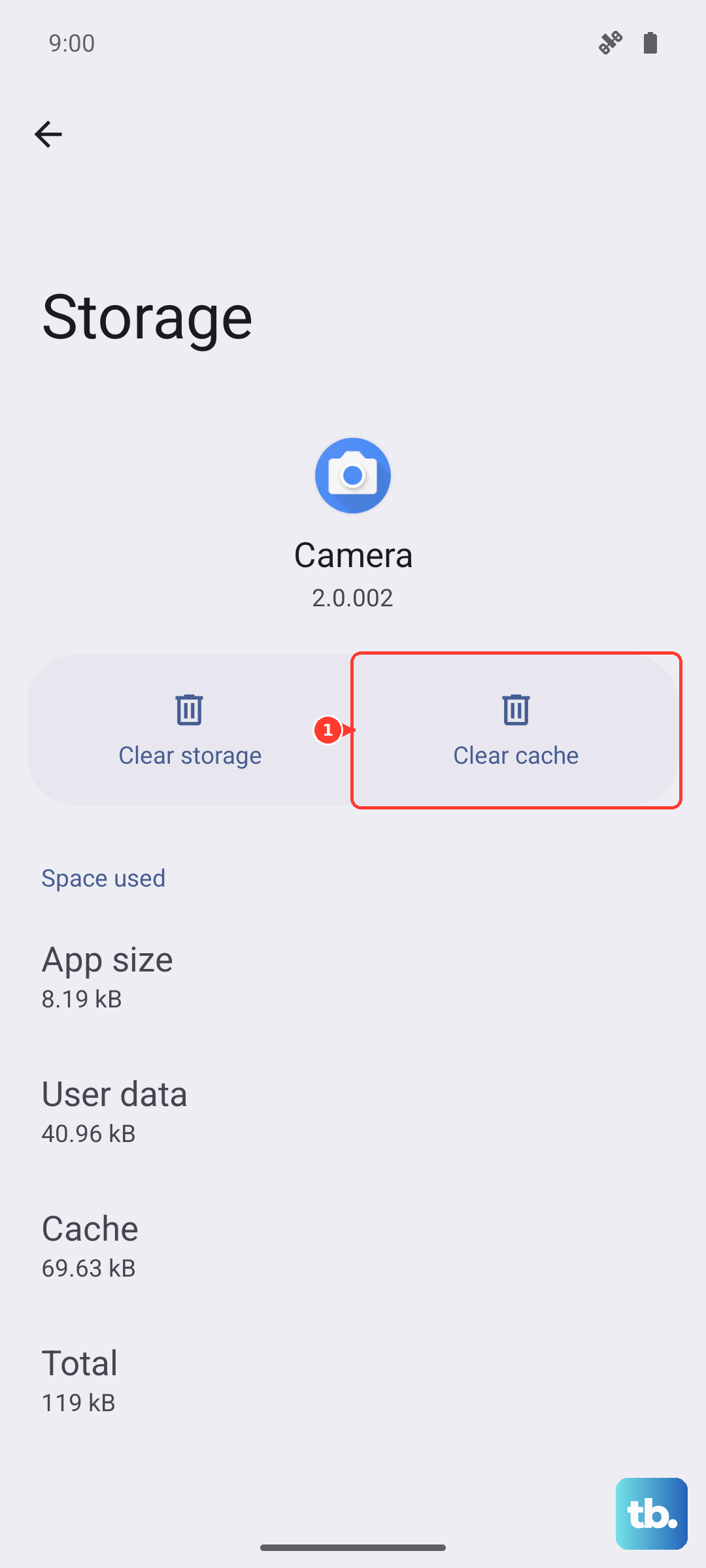
Once in Settings, go to Apps. Tap the search icon at the top and type "Settings". Select the "Settings" app (the one with the gear icon) from the list. Tap Storage, then tap Clear Cache. Don't tap "Clear Data" unless you've tried everything else, as that resets all your preferences.
Force Stop the Settings App
If the app is stuck in a bad state, forcing it to stop and restart can break it free. This is a harmless step that doesn't affect your data.
Navigate back to Settings > Apps and find the "Settings" app again. This time, tap Force Stop and confirm. The app will close completely. Now, just tap the Settings icon on your home screen or app drawer to reopen it normally.
Check for a Software Update
Samsung has been actively releasing updates for the S23, especially for One UI 6 based on Android 14, to fix various bugs. An outdated system can have conflicts that cause core apps to fail.
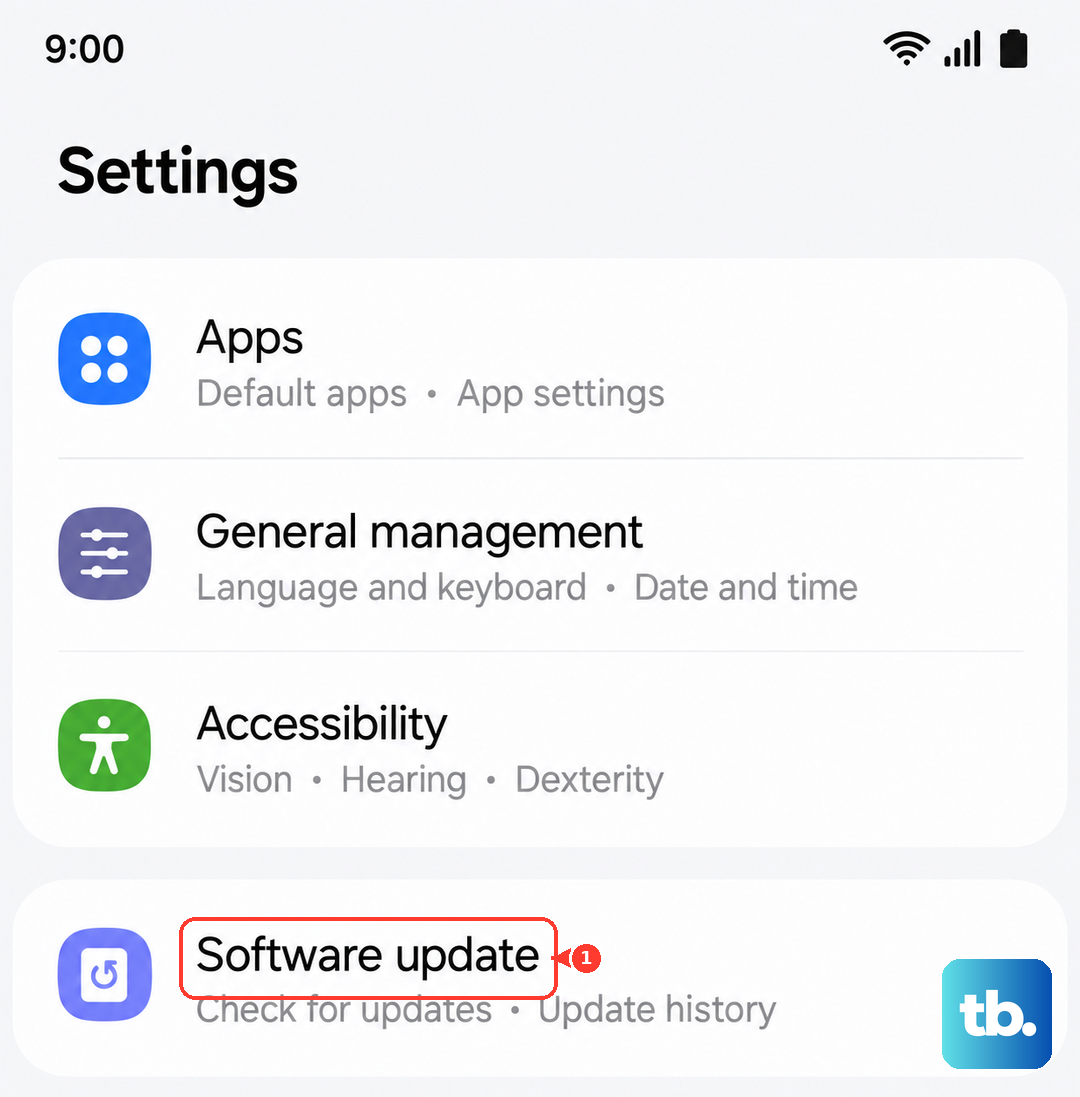
Even with a flaky Settings app, the update section often still works. Go to Settings > Software update and tap Download and install. If an update is available, let it install completely. Your phone will restart, and this alone has resolved the issue for many users after the Android 14 update.
Boot Into Safe Mode
This is a great way to check if a third-party app you installed is causing the conflict. Safe Mode temporarily disables all apps you downloaded.
To enter Safe Mode, press and hold the Side button until the power menu appears. Then, press and hold the "Power off" option on your screen. A "Safe Mode" prompt will appear, tap it to restart. If Settings works perfectly in Safe Mode, you know a downloaded app is the culprit.
You'll need to restart your phone normally to exit Safe Mode. Then, you can start uninstalling recent apps one by one to find the offender.
Reset App Preferences
This resets all your app permissions, default apps, and background restrictions back to factory defaults. It won't delete any personal app data, but you will have to re-grant permissions for things like camera and location access.
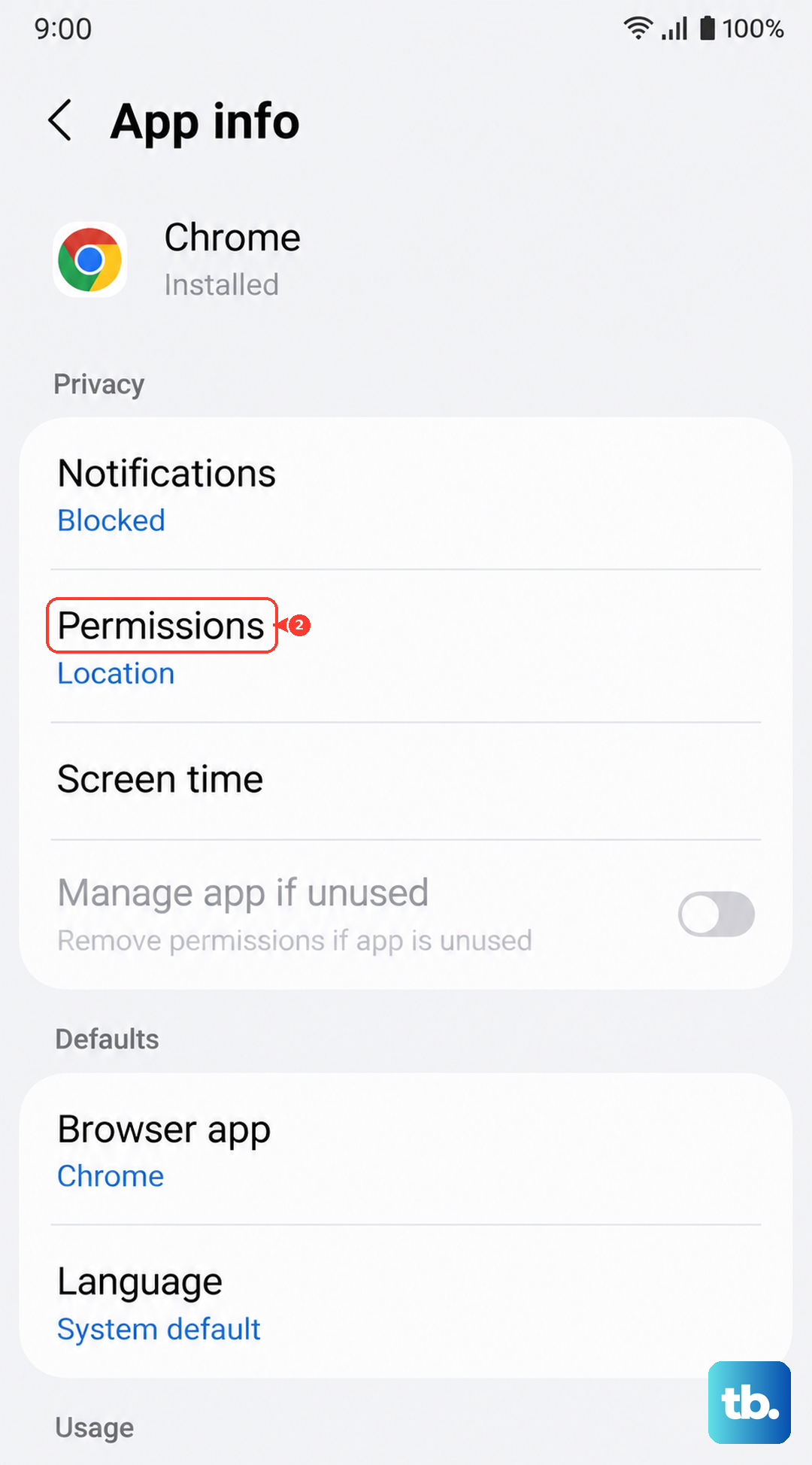
Go to Settings > Apps. Tap the three-dot menu in the top right and select Reset app preferences. Confirm the action. This can clear up conflicts between system services and the Settings app.
Wipe the Cache Partition
This is different from clearing a single app's cache. It clears the cached system data from the entire operating system, which can resolve deeper software issues. It's a safe and common troubleshooting step.
First, power off your S23 completely. Connect it to your computer with a USB-C cable. Press and hold the Volume Up button and the Side button together. When you see the Samsung logo, release only the Side button (keep holding Volume Up). This will boot you into Recovery Mode.
Use the volume buttons to navigate to "Wipe cache partition" and press the Side button to select it. Confirm, then select "Reboot system now" when it's done.