
When your Samsung Galaxy S23 apps start freezing or closing unexpectedly, it pulls you right out of whatever you were doing. This is a common headache, but it's usually something you can fix yourself without too much trouble. I'd start with a quick restart, as that clears out temporary glitches that can bog down One UI.
Force Stop the Problem App
If a single app is acting up, force stopping it is the fastest way to give it a clean slate. This completely closes the app and its background processes. Head to Settings > Apps, select the misbehaving app, and tap Force stop. Wait a moment, then open the app again from your home screen.
Check for Software Updates
Samsung has been pretty active with updates for the S23, especially after the Android 14 and One UI 6 rollout. An outdated system can cause conflicts with newer apps. Go to Settings > Software update and tap Download and install. It's a good habit to check this every couple of weeks.
You should also update your apps through the Galaxy Store or Google Play Store. Open the Play Store, tap your profile icon, and go to Manage apps & device. Look under "Updates available" and install them all. Developers constantly push out bug fixes.
Clear the App's Cache and Data
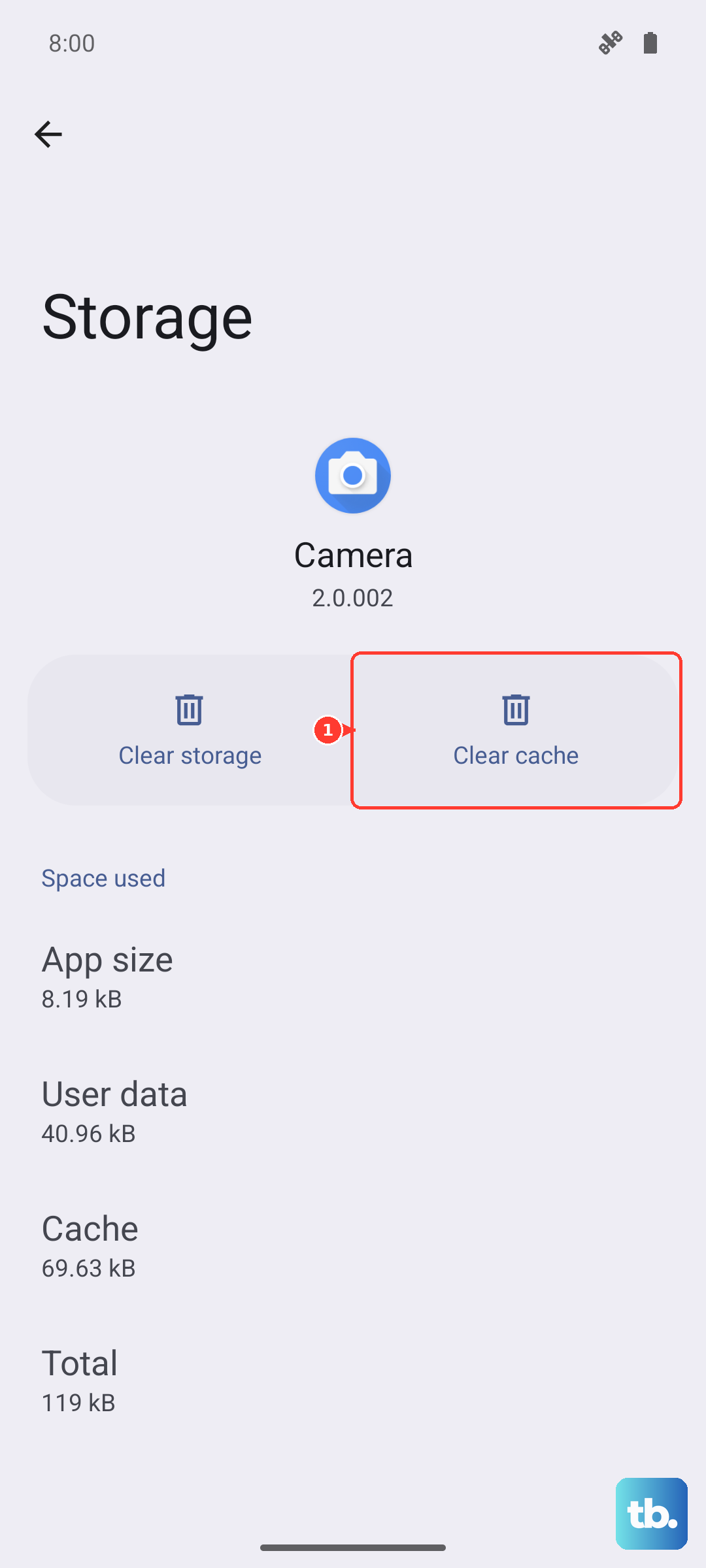
Over time, an app's cache, the temporary files it stores, can become corrupted. Clearing it is safe and won't delete your login info or saved data. For a more thorough reset, you can clear the app data, but be aware this will log you out and reset the app to its default settings.
To do this, go to Settings > Apps, find the app, and select it. Tap on Storage and you'll see the options for Clear cache and Clear data. Try the cache first, then relaunch the app. If it's still crashing, you can try clearing the data next.
Free Up Storage Space on Your S23
Your phone needs breathing room to operate smoothly. If your internal storage is nearly full, apps can freeze or crash because they can't write temporary files. Take a few minutes to clean house.
You can use Samsung's built-in maintenance tool. Go to Settings > Battery and device care > Storage. It will show you what's taking up space. Focus on clearing old downloads, offloading photos to the cloud, and uninstalling apps you haven't used in months.
Boot Into Safe Mode
This is a great way to figure out if a third-party app you downloaded is causing the problem. Safe Mode temporarily disables all apps you installed yourself. If your phone runs smoothly in Safe Mode, you know a downloaded app is the culprit.
To enter Safe Mode, press and hold the side key and Volume down key until the power menu appears. Then, press and hold the "Power off" option on your screen. You'll get a prompt to reboot into Safe Mode. Tap it. Once you're in, test the apps that were crashing. To exit, just restart your phone normally.
Reset All App Preferences
This resets your app-related settings to their defaults without deleting any app data. It can fix issues if you've accidentally denied an important permission. You'll just need to re-grant permissions like location or microphone when you use apps again.
Navigate to Settings > Apps, then tap the three-dot menu in the top right and select Reset app preferences. Confirm the action. This can clear up weird background restrictions that cause apps to stall.
Check for Network Issues
Apps that rely heavily on the internet, like social media or streaming services, can freeze if your connection is unstable. Try toggling Airplane mode on and off from the quick settings panel to reset your cellular and Wi-Fi radios.
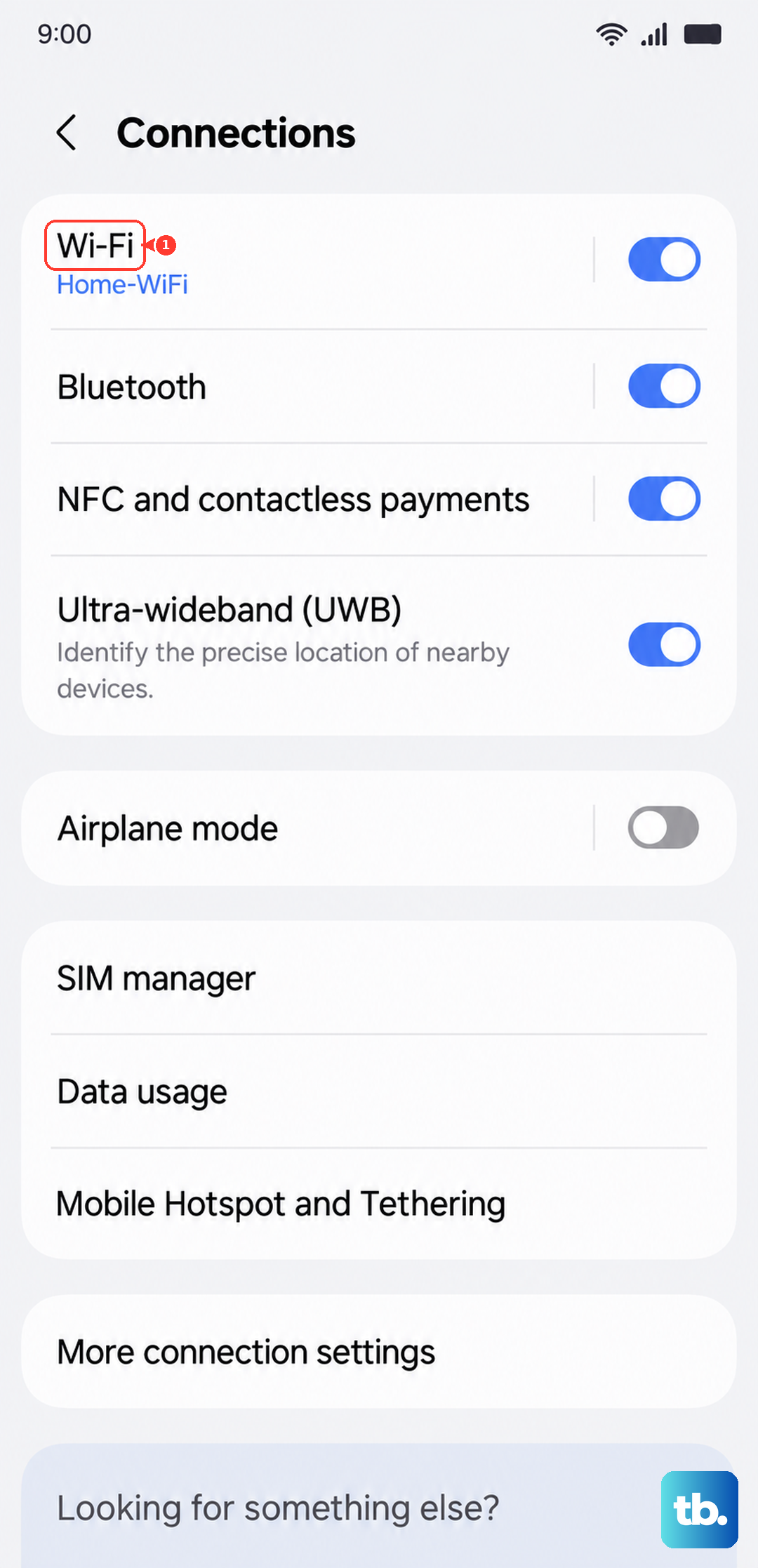
If you're on Wi-Fi, try forgetting the network and reconnecting. Go to Settings > Connections > Wi-Fi, tap on your network name, and select Forget. Then reconnect with the password. You can also try switching between Wi-Fi and mobile data to see if the problem follows the connection.
Uninstall and Reinstall the App
When an app is persistently broken, a fresh install often does the trick. This replaces all the app's files with a clean version from the store. Press and hold the app icon on your home screen, tap Uninstall, and confirm.
Then, open the Galaxy Store or Google Play Store, search for the app, and install it again. You'll need to log back in, but this often resolves deep-seated corruption that clearing cache can't fix.
Perform a Factory Reset
This is your last resort. A factory reset will wipe your S23 back to its original out-of-the-box state, so you must back up everything important first. Use Samsung Cloud or a computer to save your photos, messages, and app data.
Once backed up, go to Settings > General management > Reset > Factory data reset. Tap "Reset" and confirm. Your phone will restart and take several minutes to reset. After setup, restore your backup and reinstall your apps one by one to see if the problem returns.