
Press and hold the Volume Down button and the Side button together for about 10 seconds. Keep holding them until you feel the phone vibrate or see the Samsung logo appear. This force restart is the single most effective fix for a frozen or unresponsive touchscreen on the Galaxy A56, and I'd start with this one every time.
Start with a free touch screen tester to confirm where the screen actually responds. Knowing whether the fault is one region or the whole panel changes which steps below matter.
It essentially gives the phone's software a hard kick to get it moving again. This is especially common after a recent app update or a minor software glitch. The phone should restart normally once you release the buttons.
Clean the Screen and Your Hands
It sounds simple, but moisture, grease, or a dirty screen protector can completely disrupt the touch sensors. Take a soft, lint-free cloth and thoroughly clean the entire screen. Make sure your own hands are completely dry as well.
If you use a screen protector, check for any bubbles, peeling edges, or damage. A poorly applied or low-quality protector is a frequent culprit for touch issues. Try carefully removing it temporarily to see if the touchscreen starts working normally again.
Also, avoid using the phone with wet hands or in very humid conditions. The Galaxy A56's touchscreen can sometimes misinterpret moisture as touch input, leading to erratic behavior.
Boot Into Safe Mode
Safe Mode temporarily disables all third-party apps you've downloaded. If your touchscreen works perfectly in Safe Mode, you know a recently installed app is causing the conflict. To enter Safe Mode, first turn off your phone completely.
Now, press and hold the Side button to start turning it on. The moment you see the Samsung logo appear on the screen, immediately press and hold the Volume Down button. Keep holding it until you see "Safe Mode" in the bottom-left corner of the screen.
Navigate using the touchscreen in Safe Mode. If it works, restart the phone normally to exit Safe Mode, then try uninstalling apps you installed just before the problem started, one by one.
Check for Software Updates
Outdated software can contain bugs that affect touchscreen responsiveness. Since your A56 runs One UI 7 on Android 15, Samsung regularly releases patches for such issues. Go to Settings > Software update > Download and install.
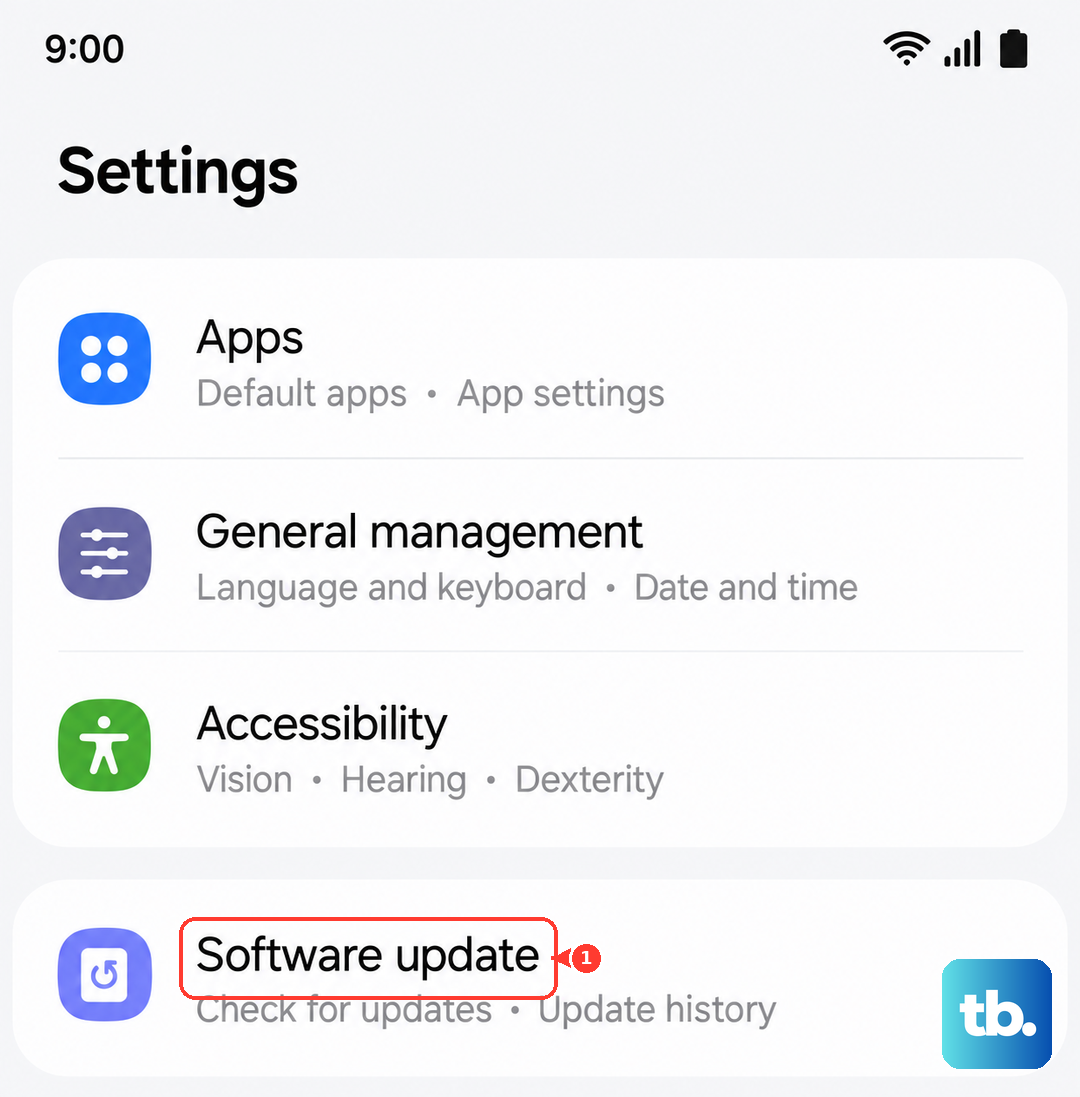
Make sure your phone is connected to Wi-Fi and has at least 50% battery before starting the update. If an update is available, install it and restart your phone. Many touchscreen problems are resolved with a simple software patch from Samsung.
If your touchscreen is completely dead and you can't navigate to this menu, you can use Samsung Smart Switch on a computer to update your phone's software, which might also resolve the underlying issue.
Remove Moisture From the USB-C Port
The Galaxy A56 has a moisture detection feature in its USB-C port. If it gets triggered, it can sometimes cause broader system glitches, including touchscreen problems. You'll typically see a water droplet icon in your notification bar if this is active.
First, power off the phone. Then, take a can of compressed air and gently blow into the USB-C port to dislodge any dust or moisture. You can also use a dry toothpick or a soft-bristled brush to carefully clean the port.
Let the phone sit in a dry, warm place for a few hours. Afterward, try turning it on again. Using a 25W PD charger that you bought separately can also help ensure a clean power connection, as the phone doesn't come with a charger in the box.
Calibrate the Touchscreen
While Samsung doesn't have a built-in calibration tool in settings for this, you can use a secret diagnostic menu. Open your Phone app and dial *#0*#. This will launch the service menu.
Tap on "Touch" to run the diagnostic. It will draw patterns on the screen for you to trace. This test helps identify if there are dead zones or if the touch input is being registered incorrectly by the hardware itself.
If you fail the test or see unregistered touches, it points more toward a hardware problem. If you pass the test but the screen still fails in normal use, the issue is almost certainly software-related.
Perform a Factory Reset
This erases all your personal data, so it's a last resort. If you can't use the touchscreen to navigate, you can use the hardware buttons. First, power off the Galaxy A56 completely.
Press and hold the Volume Up button and the Side button together. When you see the Samsung logo, release only the Side button but keep holding Volume Up. This will boot you into Recovery Mode.
Use the Volume buttons to navigate to Wipe data/factory reset and select it with the Side button. Confirm your choice. Once complete, select Reboot system now. This returns the phone to its original software state, eliminating any deep-seated software corruption.
Consider a Hardware Inspection
If all software fixes fail, the problem is likely physical. The most common causes are a damaged digitizer (the touch-sensitive layer under the glass) or a loose internal cable connection from a prior drop or impact.
Since the Galaxy A56 doesn't have wireless charging, you're solely reliant on that USB-C port for power. A physically damaged port from repeated plugging and unplugging can sometimes cause wider system instability, though this is less common.
Look for any visible cracks on the screen, even hairline ones, or areas that show discoloration. These are clear signs the screen assembly itself needs to be replaced by a professional technician.