
When your Samsung Galaxy A56 keeps closing apps unexpectedly, it pulls you right out of whatever you were doing. This can happen for a bunch of reasons, but it's usually a software hiccup that you can sort out yourself. I'd start with a quick restart, as that clears out temporary glitches more often than not.
For your A56, press and hold the Volume Down button and the Side button together for about ten seconds. Keep holding until you see the Samsung logo appear on the screen. This force restart is the same method used on the Galaxy S series and it's a great first step.
Update Your Apps and Software
Outdated apps are a prime suspect for crashes. Developers release updates to patch bugs and improve compatibility, especially with newer systems like One UI 7 on Android 15. Open the Google Play Store, tap your profile icon, and go to Manage apps & device.
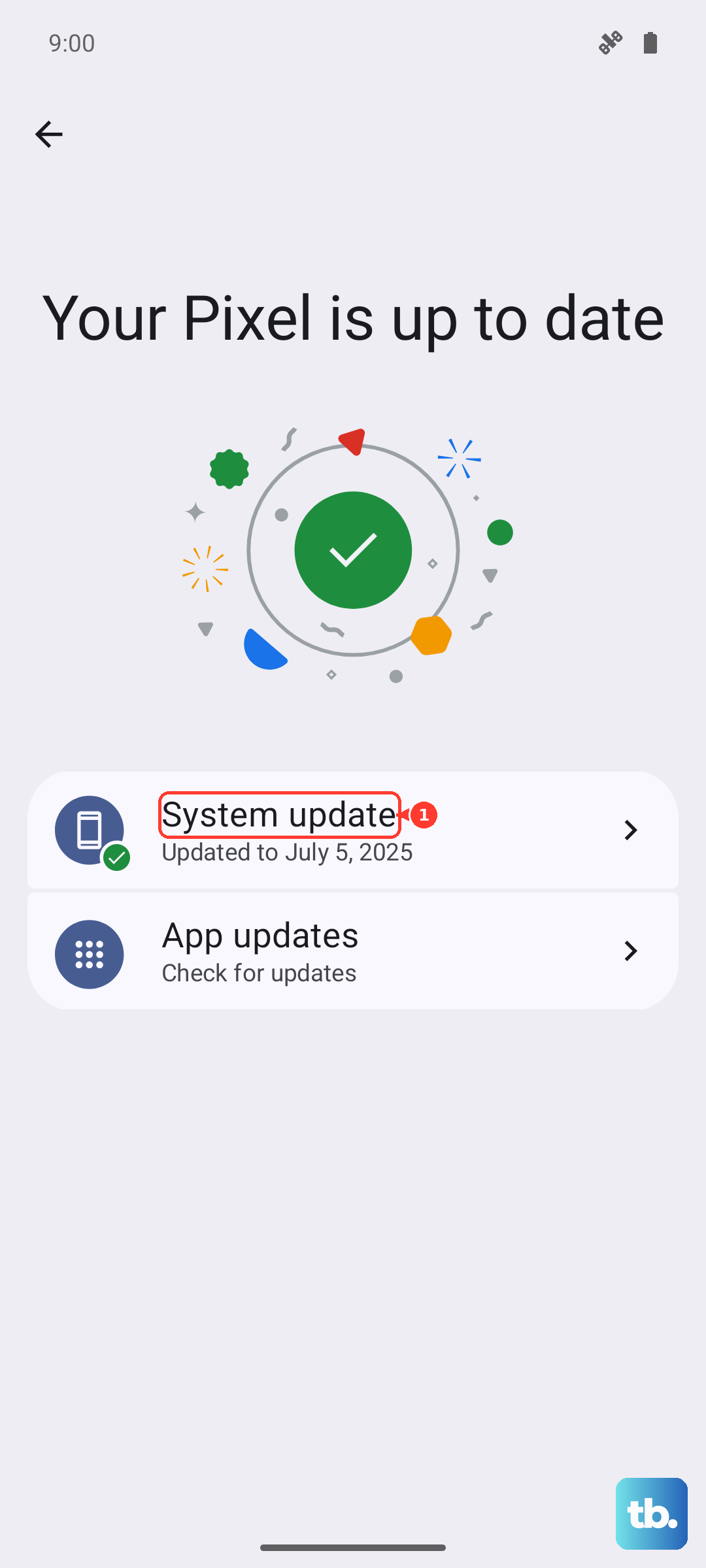
Look under "Updates available" and tap "Update all." It's also smart to check for a system update. Go to Settings > Software update and tap "Download and install." Keeping everything current prevents a lot of these random closures.
Free Up RAM and Storage Space
Your A56 might be closing apps to free up memory if you have too many running at once. You can check this easily. Swipe up from the bottom of the screen and hold to see your recent apps, then tap the "Close all" button at the bottom.
Low storage space can cause similar issues. Head to Settings > Device care > Storage. This tool will show you what's taking up space. If you're below 10% free space, consider offloading old photos to the cloud or deleting app caches.
Clear an App's Cache and Data
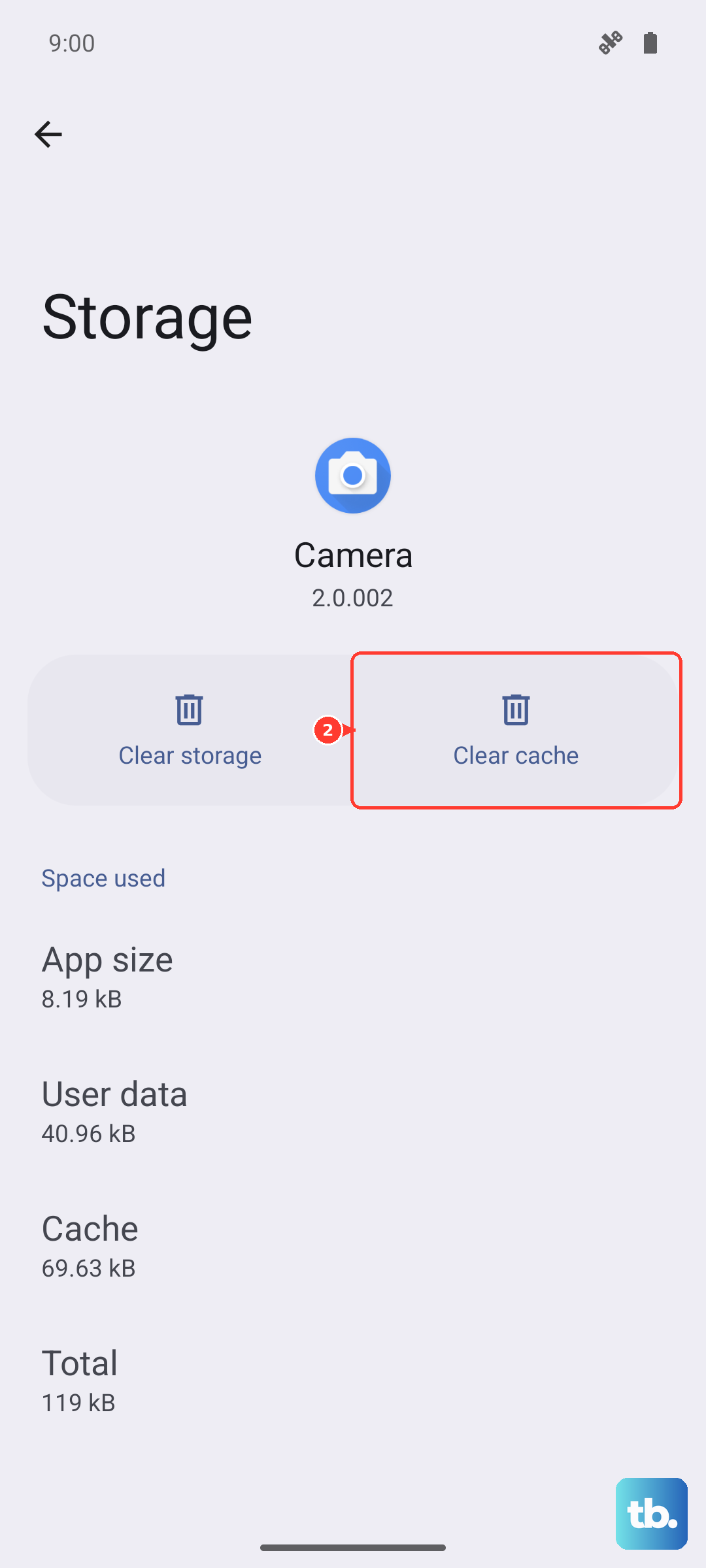
If one specific app keeps crashing, its temporary cache files might be corrupted. Clearing them gives the app a fresh start without deleting your login info. Go to Settings > Apps, find the troublesome app, and tap on it.
Tap Storage, then hit "Clear cache." If the problem persists, you can try "Clear data." Just be warned, clearing data will reset the app to its default state, so you'll need to sign back in and may lose some saved preferences.
Check for Problematic App Permissions
Sometimes an app crashes because it's being denied a permission it suddenly needs. Go back to Settings > Apps, select the app, and tap Permissions. Review the list and make sure key permissions, like Storage or Location, are allowed if the app requires them to function.
This is common after a major OS update, where app permissions can sometimes get reset or need re-evaluation for the new Android 15 environment.
Uninstall and Reinstall the App
When an app is persistently faulty, a clean reinstall is the most reliable fix. Press and hold the app's icon on your home screen, tap "Uninstall," and confirm. Then, head to the Google Play Store to download it again fresh.
This ensures you have the latest, clean version of the app files. It's the best way to rule out a deep-seated corruption in the app's installation on your specific device.
Boot into Safe Mode
If apps are crashing across the board, a third-party app you installed might be the culprit. Booting into Safe Mode temporarily disables all downloaded apps. Press and hold the power button until the power menu appears.
Then, press and hold the "Power off" option on your screen. You'll get a prompt to reboot to Safe Mode. Tap it. If the crashes stop in Safe Mode, you know a downloaded app is causing the conflict. You'll need to uninstall apps one by one to find the offender.
Reset All Settings
This is a stronger step before considering a full factory reset. It returns all your system settings (like network, Bluetooth, and display) to default without touching your personal data or apps. Go to Settings > General management > Reset > Reset all settings.
You'll need to re-enter Wi-Fi passwords and reconfigure things like ringtones, but it can resolve conflicts caused by a misconfigured system setting that's interfering with app stability.