
If your Samsung Galaxy A55 is getting uncomfortably warm, the first thing I'd try is a simple restart. Press and hold the Volume Down button and the Side button (power button) together for about 10 seconds until you see the Samsung logo appear. This force restarts the phone and can clear out any temporary software glitch that's making the processor work overtime and generate excess heat.
It's a quick fix that takes less than a minute and often resolves random overheating episodes. After it boots back up, give it a few minutes to see if the temperature starts to normalize.
Check What's Running and Close Apps
Your A55 can get hot when an app is stuck in a loop or using too much power in the background. Swipe up from the bottom of the screen and hold to see your recent apps. Swipe each app window up to close it. For a more thorough check, go into Settings > Battery and device care > Battery.
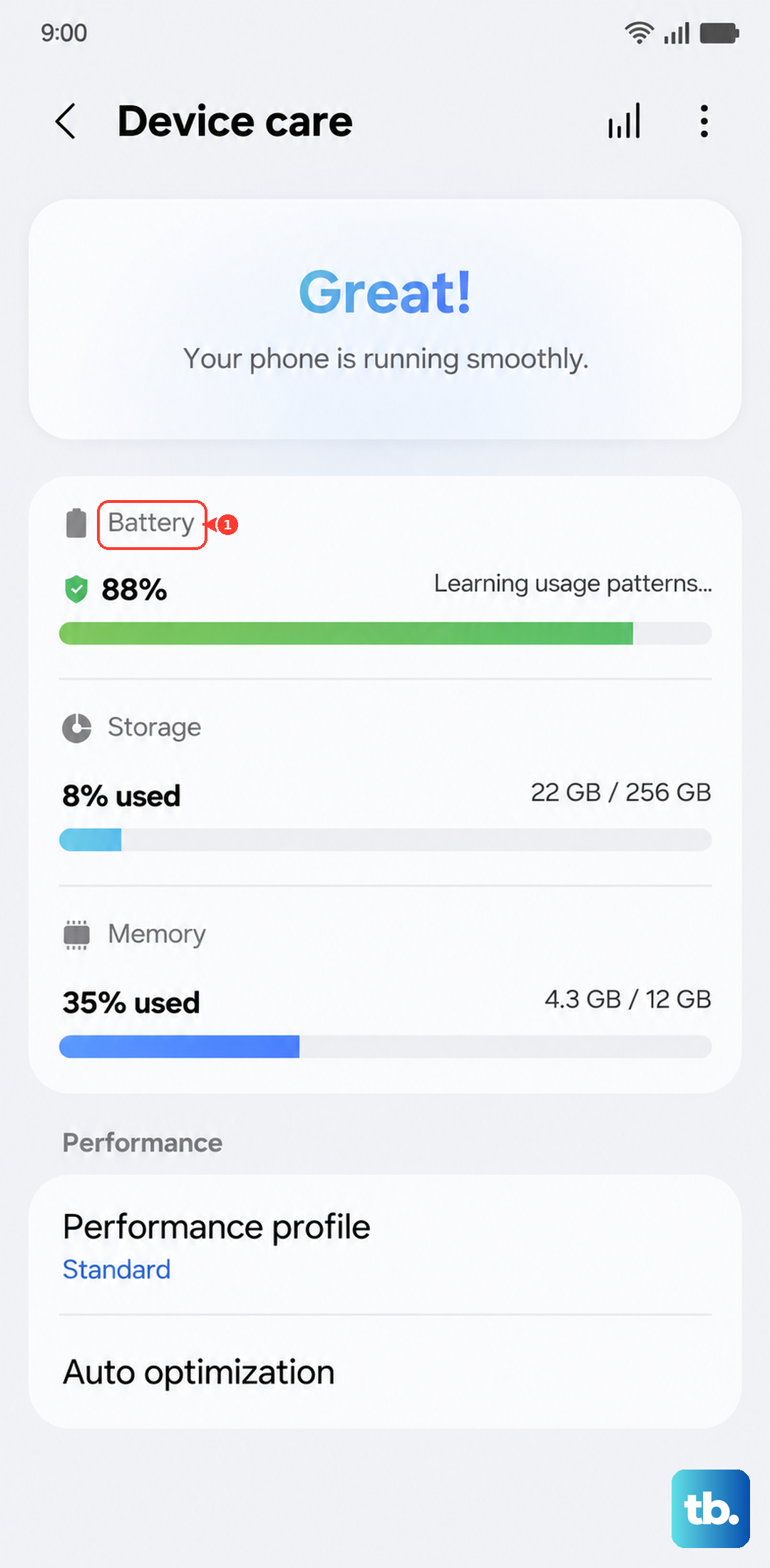
Tap on View details under the battery graph. This screen shows you exactly which apps have been using the most battery since your last full charge. If you see a game or social media app at the top of the list, that's likely the culprit. You can force stop it from its app info page if needed.
Stop Fast Charging Temporarily
Fast charging generates more heat than standard charging. If your phone is hot while plugged in, try turning this feature off. Go to Settings > Battery and device care > Battery > More battery settings.
Here, you can toggle off Fast charging. Your A55 will charge more slowly, but it will also stay much cooler. This is a good setting to disable overnight or if you notice the phone is consistently warm when charging. Remember, Samsung doesn't include a charger in the box, so make sure you're using a compatible 25W USB-C PD charger for the best and safest results.
Take Off the Phone Case
This is an easy one that people often overlook. A thick or poorly ventilated case acts like a winter coat for your phone, trapping all the heat it generates. If your A55 feels hot, take it out of its case for a while.
Let the phone cool down on a hard, flat surface. If the overheating stops without the case, you might need to switch to a slimmer, more breathable option, especially if you play games or use navigation for long periods.
Update Your Software
Software updates from Samsung frequently include optimizations for battery usage and thermal management. An outdated system can sometimes cause the processor to work inefficiently. To check, go to Settings > Software update > Download and install.
If an update is available, it's a good idea to install it. Make sure your phone is connected to Wi-Fi and has at least 50% battery before you start. These updates can squash bugs that lead to overheating.
Avoid Intensive Tasks in Hot Conditions
Your A55 is designed to handle tasks like gaming and video recording, but its cooling system has limits. If you're using it heavily in a hot environment, like playing a graphic-intensive game in direct sunlight or using the camera at the beach, it will heat up much faster.
Try to use it in the shade or indoors when performing demanding tasks. Also, avoid leaving it on your car dashboard or in other places where it can bake in the sun. The ambient temperature makes a huge difference.
Switch to a Lighter Performance Profile
One UI includes settings that let you prioritize battery life over raw speed, which also reduces heat. Open Settings and search for "Performance profile" or find it under Battery and device care settings.
You'll likely see options like Standard and Light. Switching to Light mode limits background activity and peak CPU performance. It's perfect for general browsing and social media, and it keeps your phone noticeably cooler during everyday use.
Check for a Problematic App
Sometimes, one specific app is the problem. If the overheating started after you installed a new game or app, that's a major clue. Try uninstalling that recent app to see if the issue goes away.
You can also boot your A55 into Safe Mode. This temporarily disables all third-party apps. Press and hold the Side button until the power menu appears, then tap and hold on the Power off option. Tap Safe mode when prompted. If the phone runs cool in Safe Mode, a downloaded app is causing the heat.
Inspect Your Charger and Cable
Since the A55 doesn't come with a charger, people often use old or underpowered ones. Using a charger that doesn't support Samsung's 25W fast charging protocol can cause the phone to heat up more as it negotiates power delivery. Make sure you're using a good-quality USB-C cable and a charger that supports USB Power Delivery (PD).
Also, take a quick look at the phone's USB-C port. The A55's port is less water-resistant than flagship models, so lint and pocket debris can easily get packed in there. A blocked port can cause a poor connection, leading to charging issues and extra heat. Gently clean it out with a dry toothpick or a can of compressed air.