Seeing "Not registered on network" on your Samsung Galaxy A36 is a real roadblock. It means your phone can't find or connect to your carrier's signal, so calls, texts, and mobile data won't work. This error can pop up for a few reasons, from a simple software hiccup in the new One UI 7 to a more stubborn SIM card problem.
Before we get into the steps, let's check one quick thing. Open your phone dialer and type *#06#. This shows your IMEI number. If it displays "null" or a string of zeros, that's a specific issue we'll address. If you see a proper 15-digit number, the fixes below are your best starting point.
Perform a Force Restart
I'd start with this one. A force restart is different from a normal reboot. It completely cuts power to the phone's components, including the cellular modem, and can clear temporary glitches that a standard restart might miss. On your Galaxy A36, press and hold the Volume Down button and the Power button together for about 10 seconds. Let go when you see the Samsung logo appear on the screen.
Wait for the phone to fully start up. This process takes about 30 seconds and often resolves the network error right away by forcing a fresh registration with the cell tower.
Toggle Airplane Mode
This is a quick trick that resets your phone's radio connections without a reboot. Swipe down twice from the top of your screen to open the full Quick Settings panel. Tap the Airplane Mode icon to turn it on. You'll see the airplane icon appear in your status bar.
Wait for about 15 seconds, then tap the Airplane Mode icon again to turn it off. Your phone will immediately try to reconnect to the mobile network. This is a great first step if the force restart didn't do the trick.
Check and Reseat Your SIM Card
A SIM card that's come slightly loose in its tray can cause this exact error. First, power your Galaxy A36 off completely. Locate the SIM tray on the frame of the phone. You'll need the SIM ejector tool that came in the box.
Gently insert the tool into the small hole to pop the tray out. Carefully remove the SIM card, inspect it for any visible damage or dirt, and then place it back in the tray. Make sure it's seated flush and not crooked. Push the tray firmly back into the phone until it clicks, then power the device back on.
Verify Your Mobile Plan Status
It's worth a quick check to make sure the problem isn't on your carrier's end. An unpaid bill, expired prepaid credit, or a plan provisioning error can show as "not registered on network." Try logging into your carrier's account portal from a computer or another phone.
You can also call customer service from a different phone. Just confirm your account is active and in good standing. This step saves you time troubleshooting your phone for an issue that's actually with your service.
Reset Your Network Settings
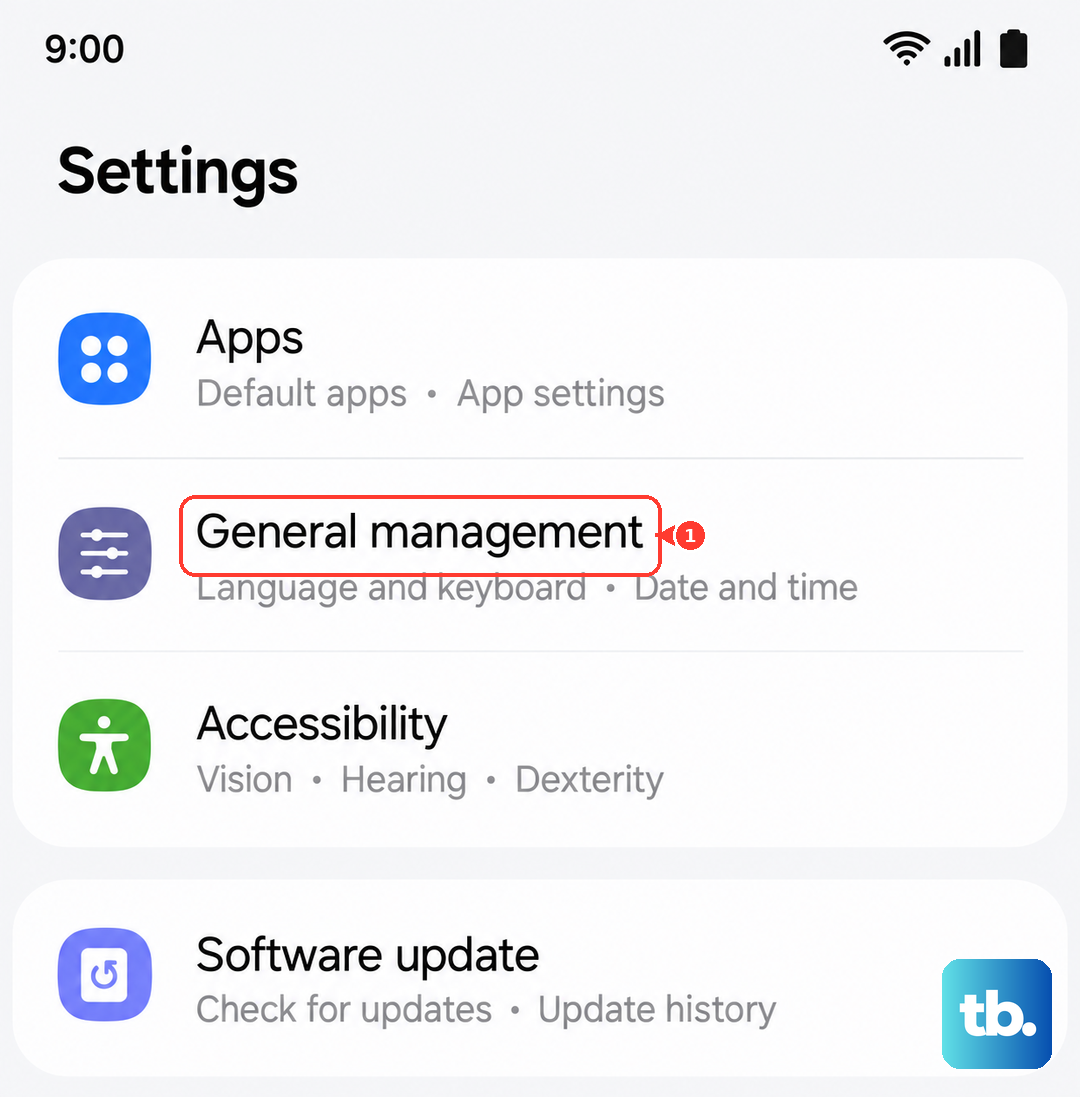
This clears out all your saved network configurations, which can get corrupted. You'll lose saved Wi-Fi passwords and Bluetooth pairings, but it won't touch your personal data like photos or messages. On your A36, go to Settings > General management > Reset > Reset network settings.
Tap the reset option and confirm. Your phone will restart. After it boots, you'll need to reconnect to Wi-Fi and re-pair Bluetooth devices, but this often fixes persistent cellular connection problems.
Manually Select Your Network Operator
Sometimes your phone gets stuck trying to register with a specific network tower or band. You can manually tell it which carrier to use. Go to Settings > Connections > Mobile networks > Network operators.
Tap "Search networks" and wait for the list to populate. Select your carrier's name from the list. This bypasses the automatic selection process and can force a successful registration. If you're in an area with spotty coverage, this is a useful trick.
Change Your Network Mode
If you're in an area with weak 5G coverage, your A36 might struggle to register on that band. Switching to LTE can provide a more stable connection. Navigate to Settings > Connections > Mobile networks > Network mode.
Instead of "5G/LTE/3G/2G (auto connect)", try selecting "LTE/3G/2G (auto connect)". This disables 5G. If your phone connects successfully, you know the issue is related to the 5G network in your location. It's also a good tip for improving battery life generally.
Update Your Phone's Software
Since the Galaxy A36 launched with One UI 7, there have been some initial bugs. Samsung regularly releases updates that fix connectivity issues. Make sure your phone is running the latest software. Go to Settings > Software update > Download and install.
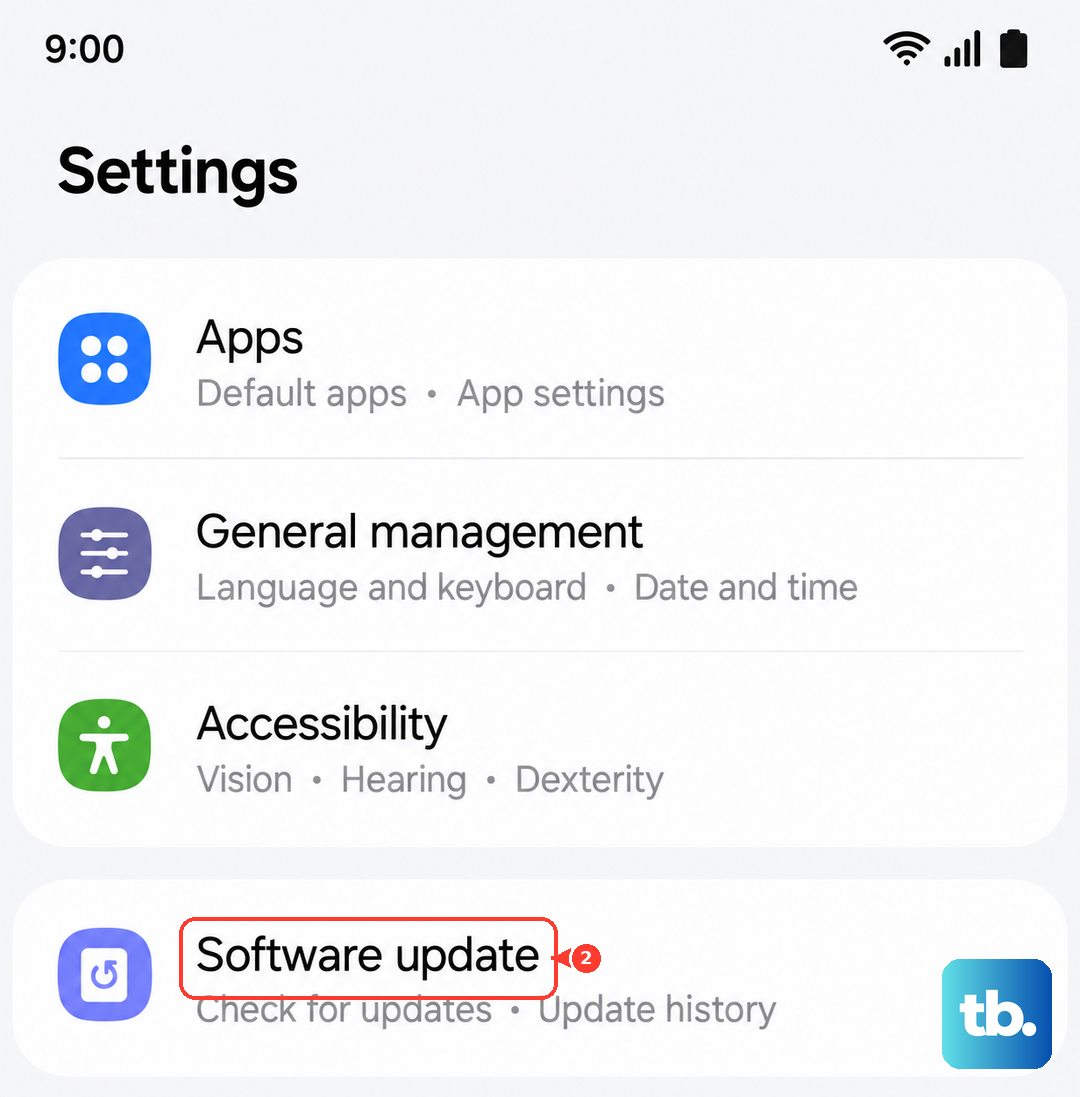
Connect to Wi-Fi and let the phone check for updates. If one is available, install it. The phone will restart during the process. A software update is one of the most common fixes for network registration errors that appear out of the blue.
Clear the Phone Services Cache
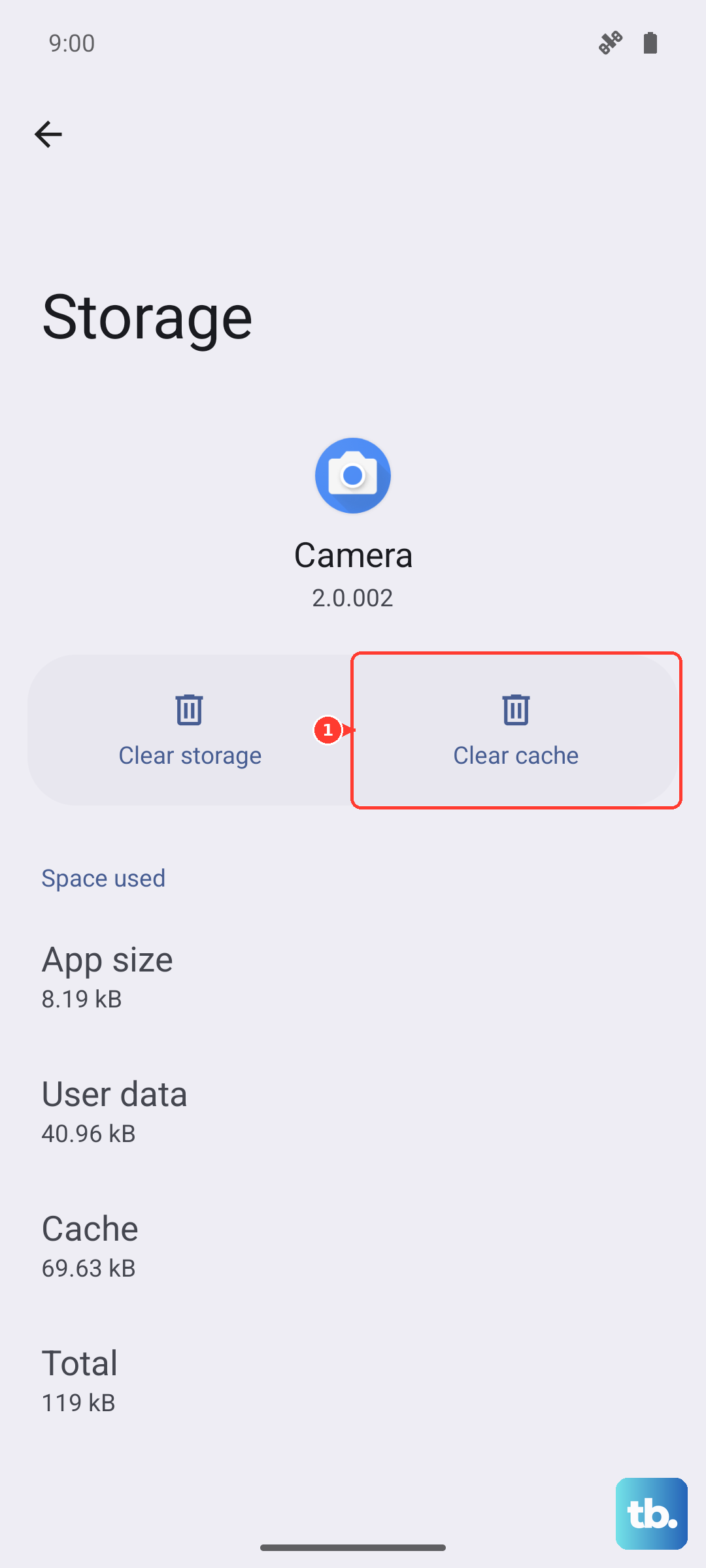
The app that manages your cellular connection can accumulate corrupted temporary data. Clearing its cache is safe and won't delete your call log or contacts. Head to Settings > Apps, then tap the filter icon and select "Show system apps".
Scroll down and find "Phone Services". Tap on it, then go to Storage > Clear cache. Do not tap "Clear data" or "Clear storage", as that is more drastic. After clearing the cache, restart your phone.
Test With a Different SIM Card
This step helps pinpoint whether the problem is with your SIM or the phone itself. If you can, borrow a working SIM card from a friend or family member who uses a different carrier. Power off your A36, swap in the borrowed SIM, and turn it back on.
If the new SIM card connects to the network without any "not registered" message, your original SIM card is likely faulty. You'll need to contact your carrier for a replacement. If the borrowed SIM also fails, the issue is with your phone's hardware or software.
Perform a Factory Reset
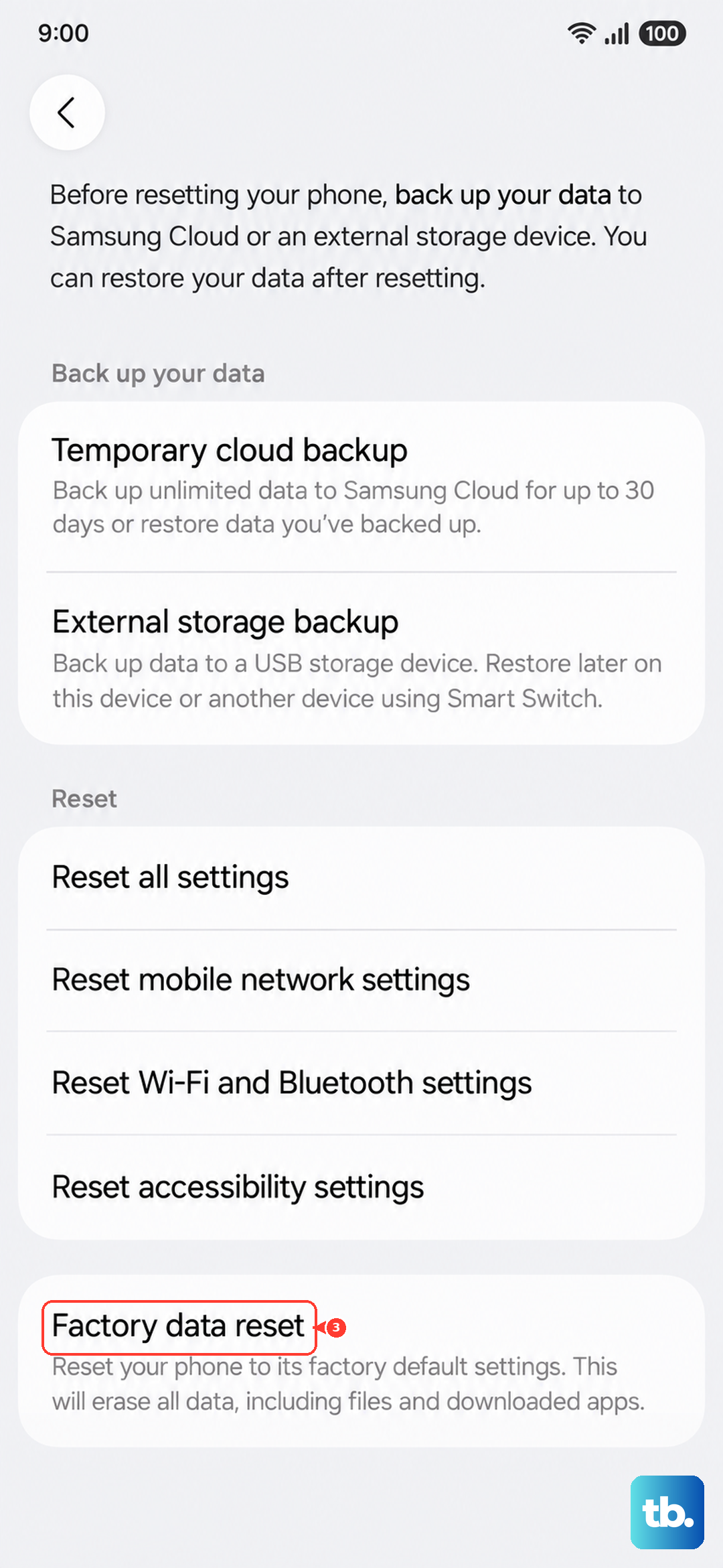
Consider this a last resort. A factory reset wipes your phone back to its original out-of-the-box state, removing any deep-seated software corruption. It is crucial to back up everything important first. Use Samsung Cloud or a computer to save your photos, contacts, and messages.
Once backed up, go to Settings > General management > Reset > Factory data reset. Follow the prompts to erase everything. After the reset, set up the phone as new without restoring a backup immediately. Try inserting your SIM to see if the network error is gone. If the problem persists after a clean factory reset, it strongly suggests a hardware issue with the phone's internal antenna or modem.