
When your Samsung Galaxy A36's email stops working, it's a major disruption. Missing important messages or being unable to send emails can halt your day. The good news is that most of these problems have simple fixes you can do yourself.
Before you dive into the deeper troubleshooting, let's cover the absolute basics. Make sure you have a solid internet connection, either via Wi-Fi or mobile data. It's also worth quickly checking if your email service provider, like Gmail or Outlook, is having a widespread outage. A quick web search for "[Your Email Service] down" can answer that.
Force Restart Your Phone
This is often the quickest fix for a temporary software hiccup, especially with the initial bugs some users reported after the One UI 7 launch. It doesn't erase any data. Just press and hold the Volume Down button and the Power button together for about 10 seconds. Release them when you see the Samsung logo appear on the screen.
Check Your Sync and Fetch Settings
Your phone controls how often it checks for new emails. If these settings are off, messages won't arrive automatically. Open the Samsung Email app, tap the three-line menu icon, and go to Settings. Select your email account and look for "Sync settings" or "Email check frequency."
Make sure sync is turned on for your account. For the check frequency, setting it to "Push" is ideal if your provider supports it, as emails arrive instantly. Otherwise, set it to a short interval like every 15 minutes. Also, go to your phone's main Settings > Accounts and backup > Manage accounts, select your email account, and ensure the sync toggle for "Email" is enabled.
Toggle Airplane Mode
This resets all your network connections in one go. Swipe down twice from the top of your screen to open the full Quick Settings panel. Tap the Airplane Mode icon to turn it on, wait for about 15 seconds, and then tap it again to turn it off. This can clear up minor connectivity glitches that might be blocking your email.
Close and Reopen the Email App
A simple app restart can clear its temporary memory and fix a minor freeze. Swipe up from the bottom of the screen and hold to enter the recent apps view. Find the Samsung Email app and swipe it all the way up or off the screen to close it. Then, tap its icon again to reopen it fresh.
Verify Your Email Account Password
Passwords can expire or change, especially if you use two-factor authentication. The easiest way to check is to open a web browser on your phone or computer and try to log into your email account's website. If you can't log in there, you'll need to reset your password through your provider's website first.
Once you have the correct password, you'll need to update it on your phone. Go to Settings > Accounts and backup > Manage accounts, tap your email account, and then tap "Account settings." Look for an option to update your password or re-enter your security credentials.
Check Mobile Data Permissions for Email
If emails only fail when you're not on Wi-Fi, the app might be restricted from using cellular data. Go to Settings > Connections > Data usage > Mobile data usage. In the app list, find "Email" (it might be listed as "Samsung Email" or "Android System") and make sure its toggle is switched on. Also, disabling unused 5G bands in your network settings can sometimes create a more stable connection for data-heavy apps like email.
Enable Background Data for the Email App
To receive emails when the app isn't actively open, it needs background data access. Go to Settings > Apps, find and tap "Samsung Email." Then, go to Mobile data and ensure "Allow background data usage" is enabled. This lets the app check for new messages even when you're doing other things.
Set Date and Time to Automatic
Incorrect date and time settings can break secure connections to email servers. Go to Settings > General management > Date and time. Make sure the "Automatic date and time" option is turned on. This ensures your phone's clock is always in sync, which is crucial for authentication.
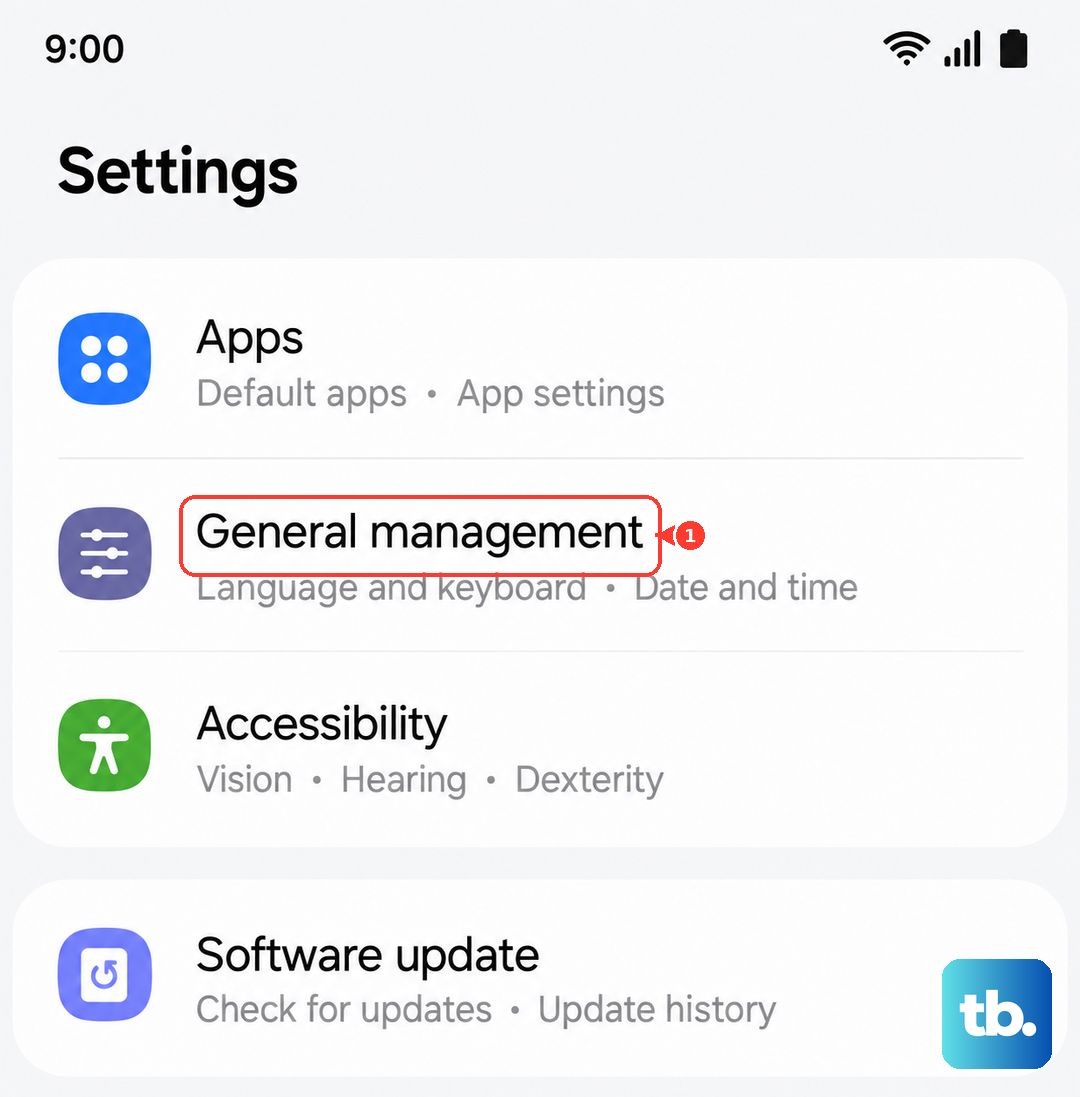
Check for App and System Updates
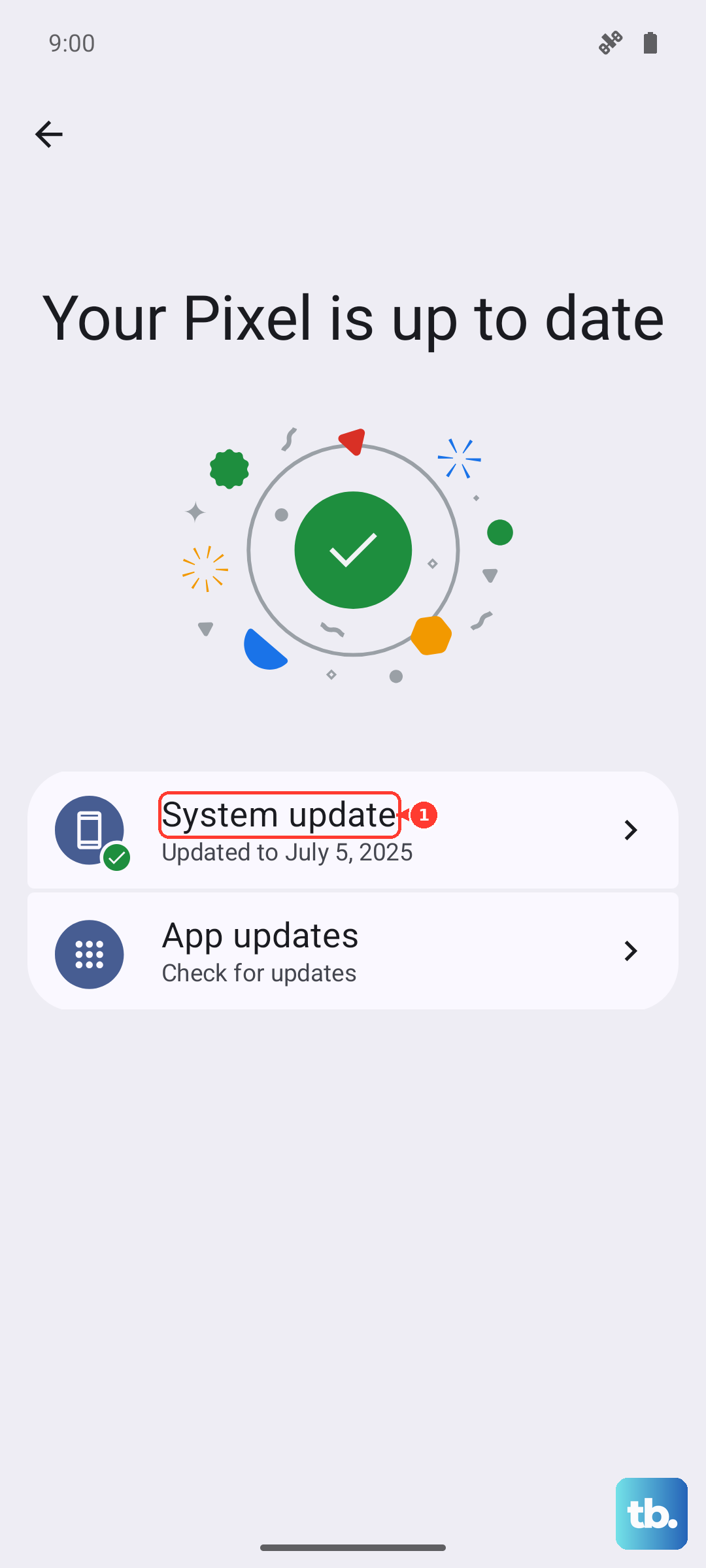
Outdated software is a common cause of bugs. Samsung frequently releases updates to fix issues in One UI. First, check for app updates: open the Galaxy Store, tap the menu icon, and go to "Updates." See if there's an update for "Samsung Email."
Next, check for the larger system updates that can resolve broader issues. Go to Settings > Software update > Download and install. If an update is available, it's a good idea to install it while your phone is charging. Using a USB-PD compatible 45W charger will get this done much faster.
Disable Battery Optimization for Email
Android's battery optimization can sometimes be too aggressive, putting apps to sleep and stopping them from syncing. Go to Settings > Apps, select "Samsung Email," and tap "Battery." Change the setting from "Optimized" to "Unrestricted." This tells your phone to let the email app run normally in the background.
Review Your Notification Settings
If emails are arriving but you're not getting alerts, the notifications might be muted. Go to Settings > Notifications > App notifications. Find and tap "Samsung Email." Here, make sure notifications are "Allowed" and not set to "Silent." You can also customize the alert sound and vibration from this menu.
Clear the Email App's Cache and Data
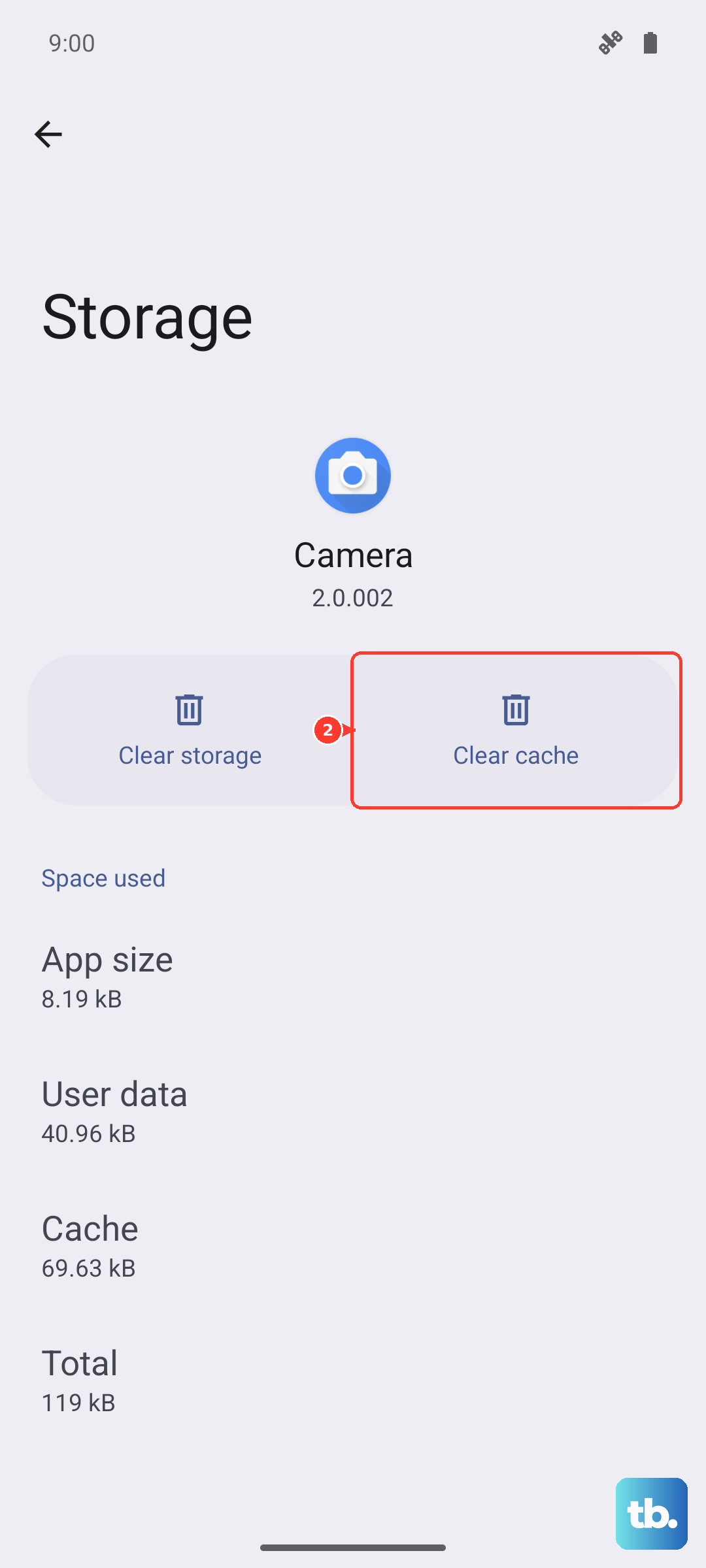
Corrupted temporary files can cause the app to misbehave. Clearing the cache is safe and won't delete your emails or accounts. Go to Settings > Apps, find "Samsung Email," and tap "Storage." Tap "Clear cache" first and test the app. If problems persist, you can tap "Clear data." Be aware that this will remove the app's settings and you'll need to set up your email accounts again, but your emails themselves are stored on the server and will sync back.
Remove and Re-add Your Email Account
This refreshes the connection between your phone and the email server. Open the Samsung Email app, go to Settings from the menu, and select the problematic account. Tap "Remove account" or "Delete account." Confirm, then go back to the app's settings and tap "Add account" to set it up again from scratch. This often resolves persistent sync errors.
Reset Your Network Settings
If you suspect a deeper network configuration issue, this will reset all Wi-Fi, mobile data, and Bluetooth settings to factory defaults. You'll need to reconnect to Wi-Fi networks afterward. Go to Settings > General management > Reset > Reset network settings. Tap "Reset settings" and confirm. This is a broader fix that can resolve connectivity problems affecting multiple apps.