
When your Samsung Galaxy A36 starts dropping apps left and right, it feels like the phone is fighting you. That sudden freeze and the "App isn't responding" message can happen for a bunch of reasons, but it's usually something you can fix yourself without too much hassle.
Let's start with the quickest thing you can do. Give your phone a fresh start by performing a force restart. Just press and hold the Volume Down button and the Power button together for about ten seconds. Keep holding until you see the Samsung logo appear on the screen.
This clears out the phone's temporary memory and stops any background processes that might be causing conflicts. I'd try this first, as it solves a lot of random glitches, especially with the newer One UI 7 software.
Update Everything on Your Phone
Outdated software is a prime suspect for app crashes. You need to check two places: the Google Play Store for your apps and your phone's own system settings.
Open the Play Store, tap your profile icon, and go to Manage apps & device. Look under "Updates available" and install everything. Then, head to your phone's Settings > Software update and tap "Download and install."
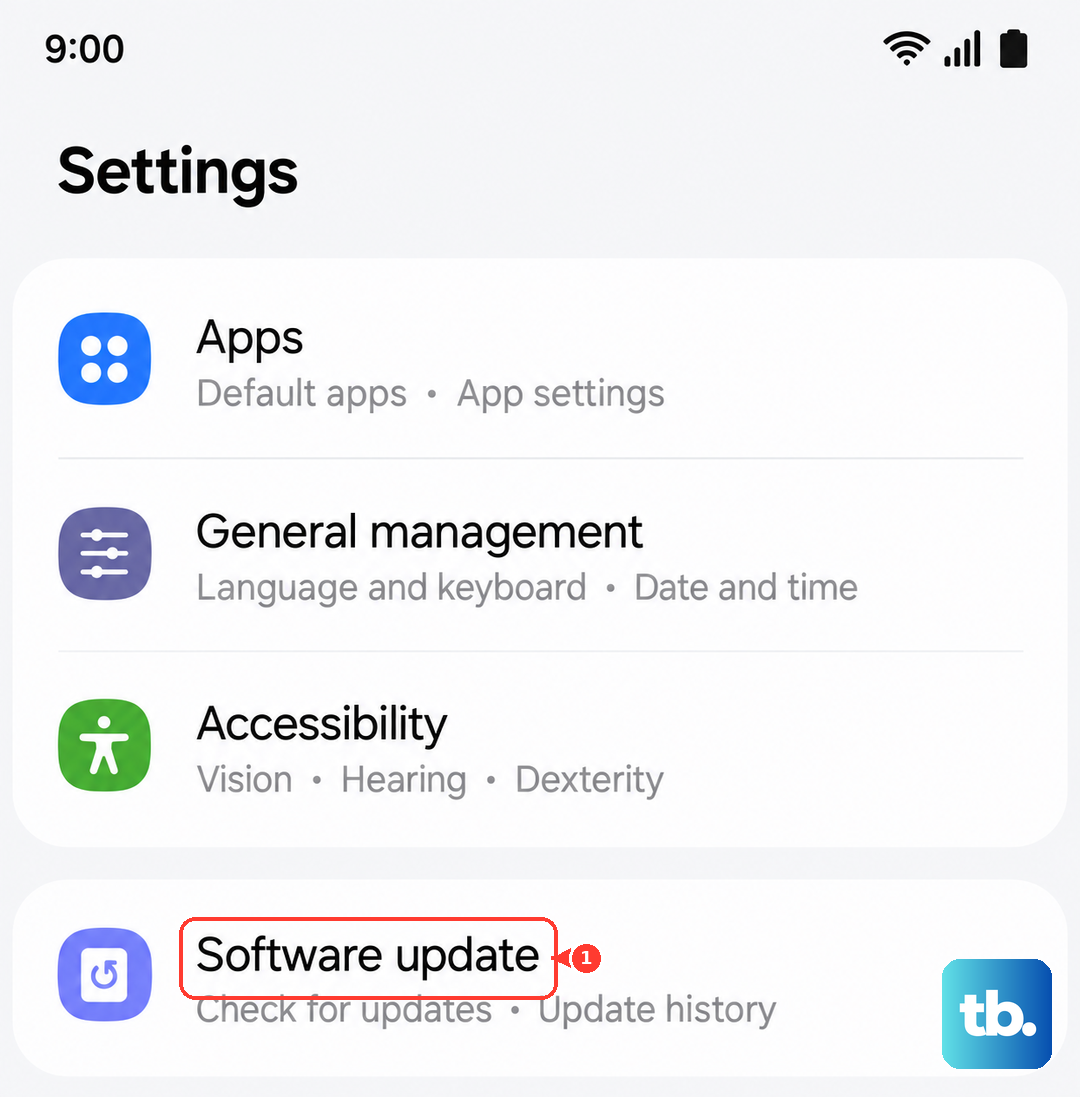
Keeping your Galaxy A36 on the latest Android 15 and One UI 7 patches is crucial. Early software versions often have bugs that get smoothed out in later updates.
Free Up Storage Space
Your apps need breathing room. If your phone's storage is nearly full, they can't create the temporary files they need to run properly, which leads to crashes. Go to Settings > Device care > Storage to see what's taking up space.
Focus on clearing out old downloads, cached data from streaming apps, and photos you've already backed up. Uninstalling just one or two large games you don't play anymore can make a significant difference.
This is also a good chance to enable a helpful A36 feature. In your battery settings, you can turn on "Battery protection" to limit charging to 85%. This helps your battery last longer, which indirectly keeps your phone running smoothly for years.
Clear an App's Cache and Data
If it's just one specific app that's crashing, its stored data might be corrupted. Don't worry, clearing this won't delete your login or account, but it will reset the app's preferences.
Go to Settings > Apps, find the troublesome app, and tap on it. Select Storage, then tap "Clear cache." If the app still misbehaves, go back and tap "Clear data." This is a stronger reset and will log you out, so you'll need to sign in again.
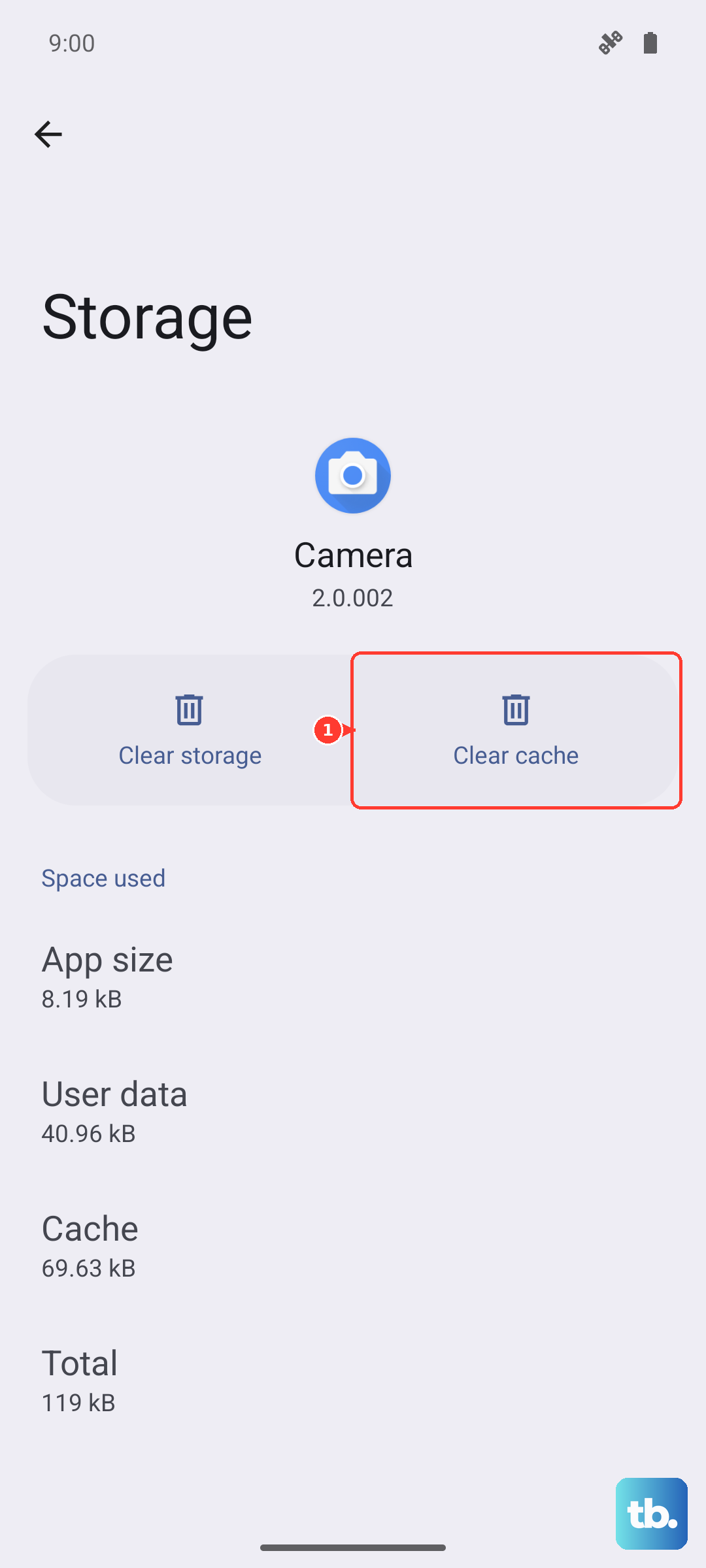
This is a very common fix for social media apps, banking apps, or games that start acting up after months of use.
Check for a Weak Internet Connection
Apps that rely on a constant data stream, like social media or navigation, can freeze or crash if your connection is spotty. Try toggling Airplane mode on and off from your quick settings panel to reset your cellular and Wi-Fi radios.
If you're on mobile data, try switching to Wi-Fi, or vice versa. For the A36, you can also try disabling unused 5G bands to improve connection stability and even save a bit of battery life. Look for network mode settings within your connection settings.
Uninstall and Reinstall the Problem App
When clearing data doesn't work, a clean reinstall is the next step. This gives you a completely fresh copy of the app, free of any corrupted files that might have snuck in during an update.
Just press and hold the app's icon on your home screen and tap "Uninstall." Then, head straight to the Google Play Store to download it again. This often resolves persistent crashes that other fixes can't touch.
Review Recently Installed Apps
Think about what changed right before the crashes started. Did you install a new launcher, a custom keyboard, or a battery-saving app? Sometimes, a newly installed app can conflict with others or with the system itself.
Try uninstalling any apps you added around the time the problems began. You can always reinstall them one by one later to see which one was the culprit.
Boot Into Safe Mode
Safe mode temporarily disables all third-party apps you've downloaded. This helps you figure out if a downloaded app is causing the problem or if it's something with the phone's own software.
To start Safe Mode, press and hold the power button until the power menu appears. Then, press and hold the "Power off" option on your screen. You'll see a prompt to reboot into Safe Mode. Tap it.
If your apps run fine in Safe Mode, you know one of your installed apps is to blame. You'll need to restart normally to exit Safe Mode.
Reset All App Preferences
This is a less nuclear option than a factory reset. It resets all your app-related settings, like permissions, default apps, and background data restrictions, back to their original state without deleting any of your personal data or the apps themselves.
Go to Settings > Apps > Menu (three dots) > Reset app preferences. After doing this, you'll need to re-grant permissions (like for camera or location) the next time you use each app.