
If your Samsung Galaxy A16 is completely black and won't respond, the first thing to try is a force restart. This is different from just holding the Side button. Press and hold the Volume down button and the Side button at the same time for 20 seconds.
Keep holding them until you feel a vibration or see the Samsung logo appear on the screen. This can clear a temporary software hang that's preventing the phone from booting up normally.
It's the equivalent of pulling the plug and plugging it back in, and it works for a surprising number of issues. I'd start with this one every time.
Check Your Charger and Cable
Your phone might simply have a dead battery, and the charger you're using isn't working. The Galaxy A16 supports up to 25W wired charging; the US Galaxy A16 5G doesn't come with a power adapter in the box. If you're using an incompatible or damaged charger, it might prevent the phone from charging normally.
Try a different USB-C cable and a different wall adapter, preferably a Samsung 25W charger if you have one. Plug it directly into a wall outlet and let it charge undisturbed for at least 1 hour. Then disconnect it and try turning it on by holding the Side button for 15 to 20 seconds.
Look for a charging icon, which may take up to 10 minutes to appear. If the screen stays black, turn the phone off if you can and inspect the USB-C port with a flashlight. Carefully remove visible debris with a soft, dry brush, without metal objects or liquids.
Inspect for Physical Damage
Think about what happened before the phone died. Did you drop it recently, or did it get exposed to water or moisture? Even a small amount of liquid can cause a short circuit that stops the phone from powering on.
Check the phone's body for any obvious cracks, especially on the screen or around the edges. A hard impact can damage internal components like the battery connector or the motherboard itself.
If you suspect water damage, don't try to charge it. Instead, power it off if you can, wipe it with a soft, clean cloth, and let it dry in a well-ventilated area using cool air. The charging port must be completely dry before charging; suspected liquid damage needs service.
Boot Into Recovery Mode
If the force restart didn't work but you get a faint vibration or a flash of the logo, the phone might be stuck in a boot loop. You can try to access the recovery menu to clear system cache. First, make sure the phone has been charged, switch it off, and connect it to a computer with a USB cable.
Then, press and hold the Volume Up button and the Side button together. Release both buttons when you see the Samsung logo, and you should enter the Android Recovery screen. Use the Volume Down button to navigate to the "Wipe cache partition" option.
Select it with the Side button, then confirm "Yes." Once it's done, select "Reboot system now." This clears the system cache without erasing your personal data.
Try Starting in Safe Mode
A recently installed app could be causing a conflict so severe that the phone crashes during startup. Booting into Safe Mode temporarily disables all third-party apps. To do this on the Galaxy A16, first ensure the phone is off.
Press and hold the Side button to turn on the phone, then press and hold the Volume down button when the Samsung logo appears. Keep holding it until you see "Safe mode" in the bottom-left corner of the screen.
If the phone starts successfully and the problem disappears in Safe mode, a downloaded app is likely the cause. You can then go to Settings > Apps and uninstall apps installed or updated when the problem started, one by one. After each removal, restart normally to check whether the problem is gone.
Consider a Factory Reset
This is your last resort before seeking repair, as it will erase everything on your phone. If the phone starts and you can open Settings, go to Settings > General management > Reset > Factory data reset and follow the prompts. If you can only access the recovery menu as described earlier, navigate to "Wipe data/factory reset" using the volume buttons.
Select it with the Side button. You'll then need to navigate to and confirm "Factory data reset." This process can take several minutes. After it completes, select "Reboot system now."
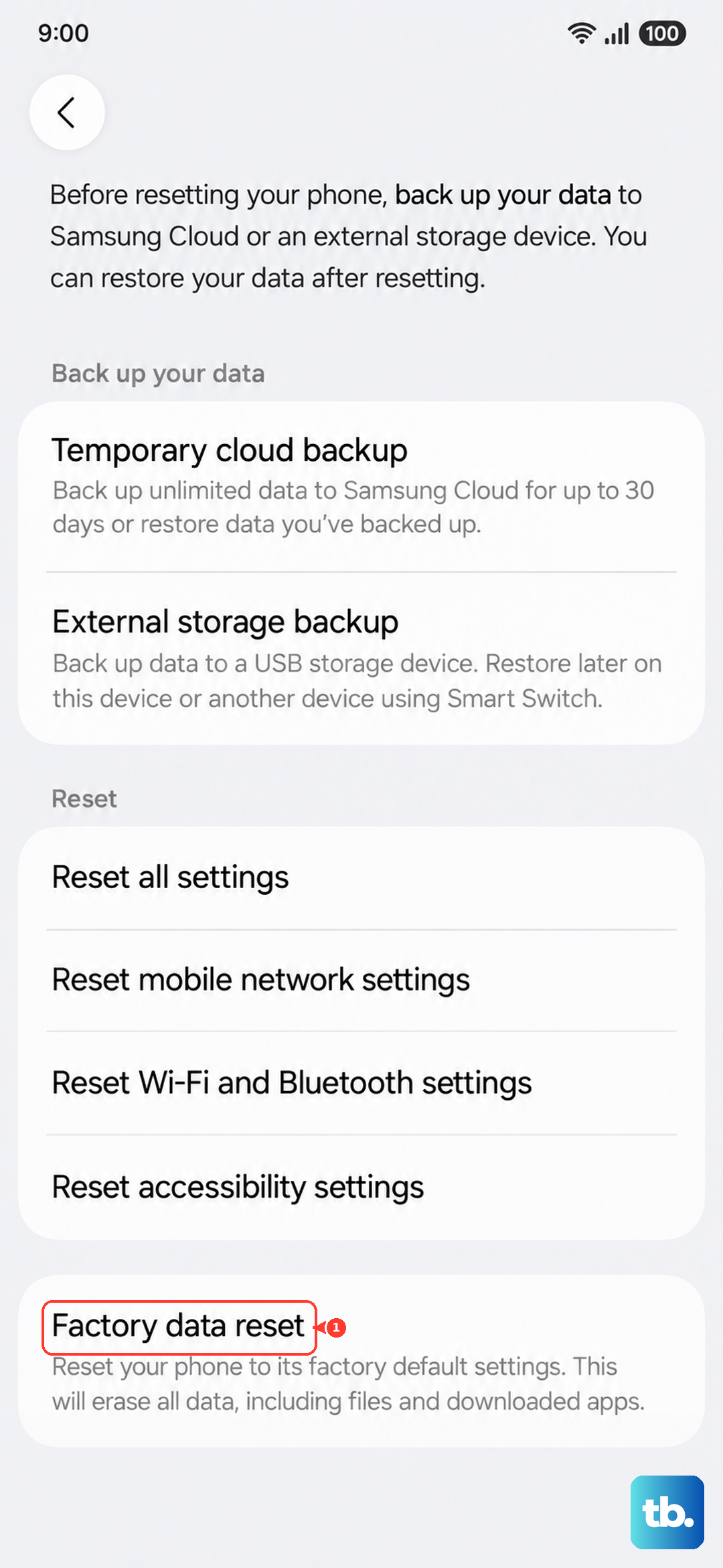
Your phone should start up as if it were new. This can help with software problems. After a recovery-menu reset, you'll need the last Google account used on the phone, and you can restore from a backup if you have one.
Look for Signs of a Failing Battery
The Galaxy A16 has a large 5000mAh battery, but batteries degrade over time. If your phone has been feeling warm during normal use, or if the battery percentage has been dropping erratically, the battery itself might be the culprit.
A completely failed battery won't hold a charge at all, leaving the phone unresponsive. While the battery isn't designed to be user-replaceable, this is a common hardware fix at a repair shop.
If the phone is relatively new and under warranty, contact Samsung about inspection and possible coverage. If charging still fails with another compatible charger and cable, or battery usage time has dropped significantly, take the phone to a Samsung service center for a hardware inspection.
When the Screen is the Problem
In some cases, the phone might actually be on, but the screen is dead. After trying a force restart, press the Side button and listen very carefully for sounds like notification chimes, vibration for haptic feedback, or even the sound of the camera if you double-press the Side button (if that shortcut is enabled).
You can also try connecting the phone to a computer with a USB-C cable. If the computer makes a connection sound or you can see the phone's storage, the phone may be responding even though the screen remains black. If the screen stays black after charging and restarting, contact Samsung for service.