
When your Samsung Galaxy A16's voice assistant suddenly stops responding, it can feel like you've lost a helpful companion. Whether it's Bixby or Google Assistant that's gone quiet, the fix is usually straightforward. Let's get it working again.
Start by checking the most basic setting. Open your phone's Settings app and scroll down to "Apps." Tap on "Bixby" or "Google" depending on which assistant you use. Make sure the app isn't disabled and that all its permissions, especially the microphone, are enabled.
Retrain the Voice Model
If the assistant can't recognize your "Hey Google" or "Hi Bixby" command, it might need a refresher on your voice. For Google Assistant, open the Google app, tap your profile picture, go to Settings, then "Voice Match." Turn "Hey Google" off and back on to retrain it.
For Bixby, you'll find the voice wake-up settings within the Bixby app itself. I've found that repeating the setup in a quiet room makes a big difference. Just follow the prompts to say the wake words a few times clearly.
Check for Software Conflicts
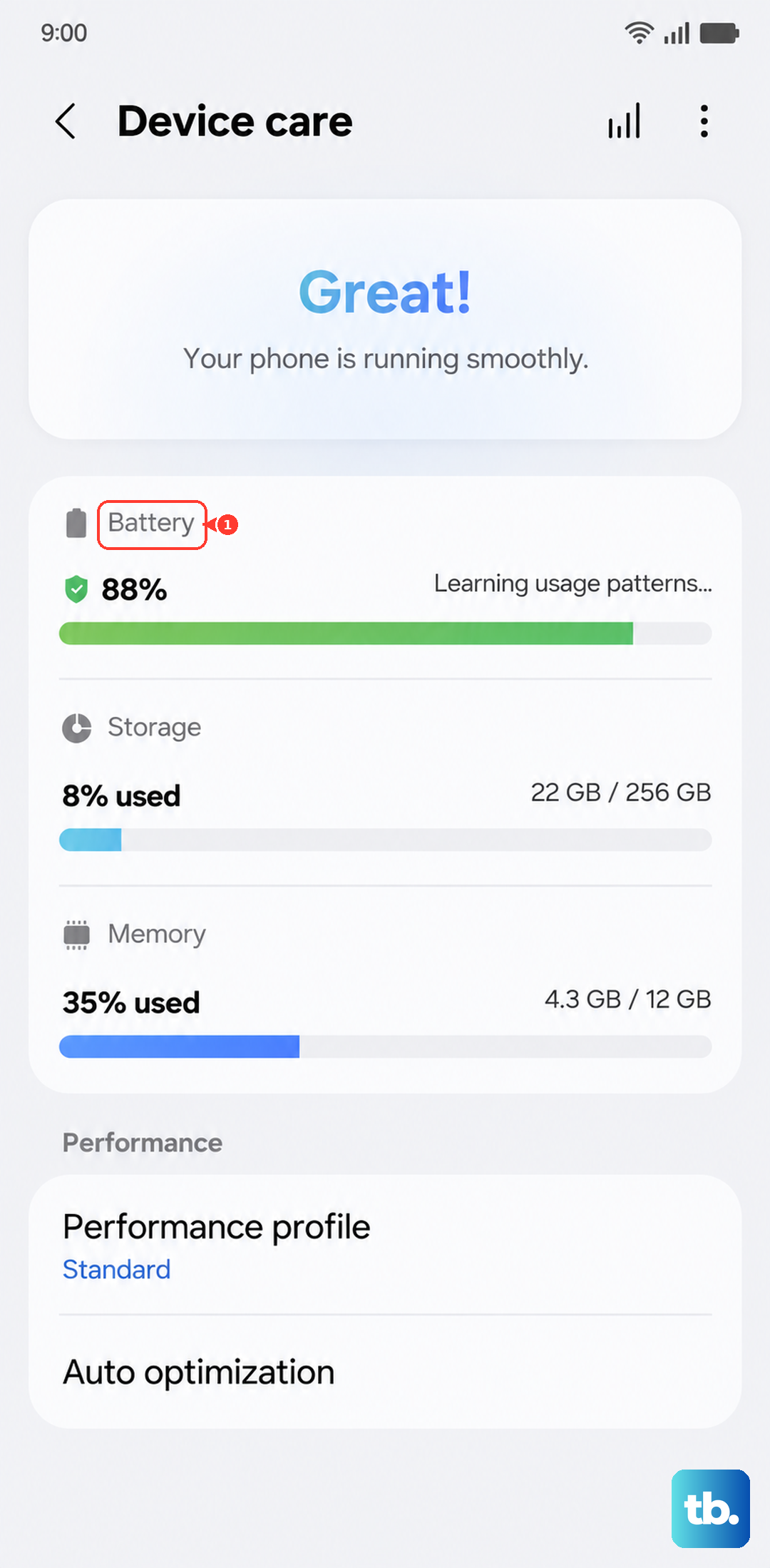
Certain modes and settings on your A16 can intentionally block voice wake-up to save battery. The most common culprit is Power Saving Mode. Go to Settings > Battery and device care > Battery and make sure Power Saving is turned off to test.
Do Not Disturb mode can also interfere. Swipe down from the top of your screen twice to open the full Quick Settings panel and tap the Do Not Disturb icon to disable it temporarily. Also, if you have any battery optimization settings aggressively applied to the Google or Bixby app, try removing them.
Update Your Apps and System
An outdated voice assistant app or system software can lead to glitches. Head to the Google Play Store, tap your profile icon, and go to "Manage apps & device" to check for updates. Make sure the Google app and Google Assistant are up to date.
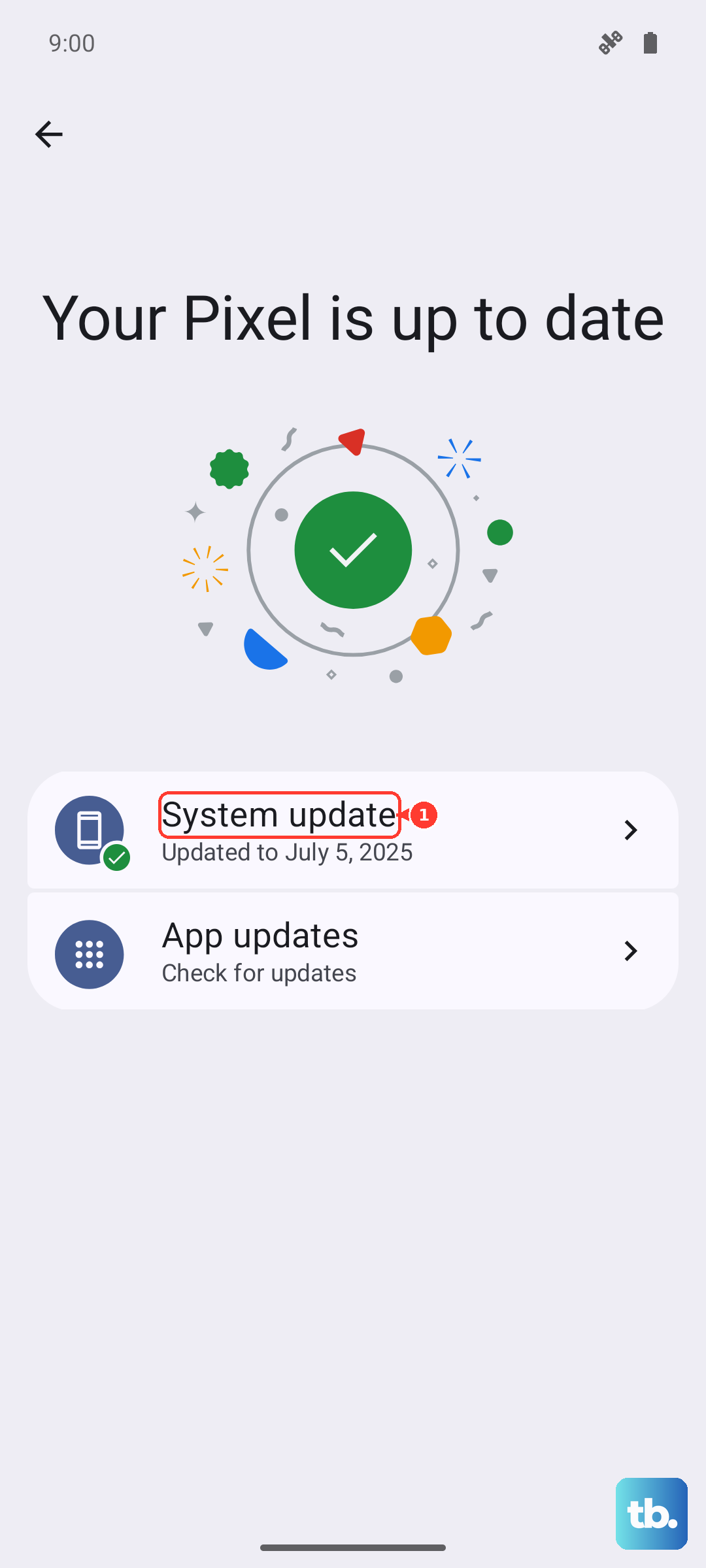
For system updates, which are crucial on Android 14 with One UI 6.1, go to Settings > Software update and tap "Download and install." Installing updates can resolve known bugs that affect microphone access or voice processing.
Inspect Microphone Access and Audio
Your A16 has multiple microphones. If they're blocked, nothing will work. Check the small pinhole at the bottom of the phone and near the top of the display for any lint or debris. A gentle brush with a soft, dry toothbrush can clear it out.
Also, ensure your volume is up. Press a volume button and make sure the media volume slider isn't all the way down. While you're there, check that your phone isn't in silent or vibrate mode by looking at the status bar.
Clear the App Cache and Data
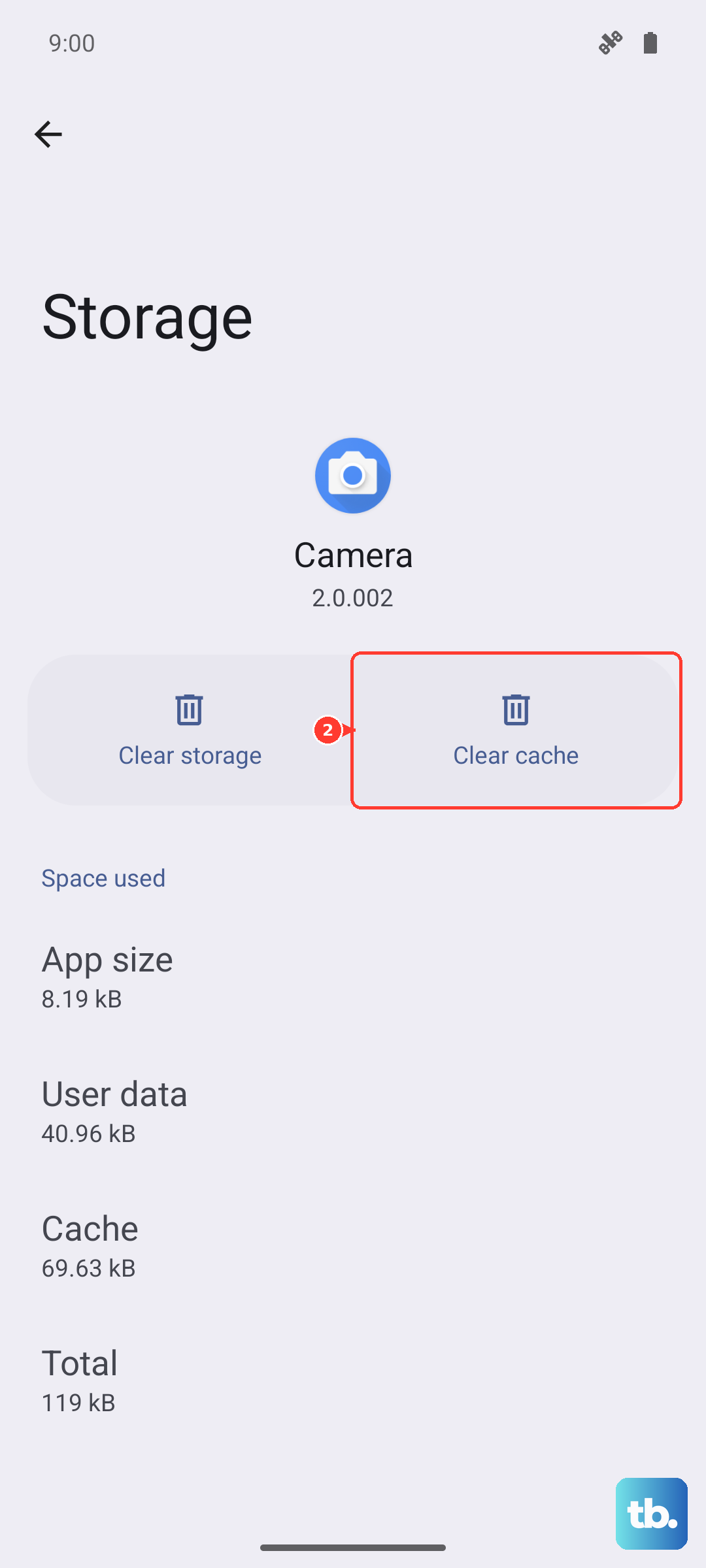
Corrupted temporary files can cause the assistant to freeze. This is a good general maintenance step for the A16 to help with occasional lag, too. Go to Settings > Apps, select your assistant app (Bixby or Google), and tap "Storage."
Tap "Clear cache" first. This is safe and won't delete your settings. If the problem persists, you can try "Clear data." Just be aware this will reset the app to its default state, so you'll need to set up your voice match again.
Perform a Force Restart
A simple reboot can clear out a temporary software hiccup. Press and hold the Volume Down button and the Power button simultaneously for about 10 seconds. Keep holding until you see the Samsung logo appear, then release. Your phone will restart.
This is different from a normal restart and often fixes unresponsive features. After the phone boots back up, give your voice command another try in a quiet environment.
Review Digital Wellbeing and Focus Modes
Android's Digital Wellbeing tools and Samsung's own Focus Modes are designed to minimize distractions, which can include voice assistants. Open Settings > Digital Wellbeing and parental controls and check your Dashboard and Focus Modes.
If you have a Focus Mode active that includes silencing notifications, it might also be blocking the voice wake-up. Pause any active modes to see if that's the cause.
Reset App Preferences or All Settings
If a specific app permission was accidentally denied, you can reset all app preferences at once. Go to Settings > Apps > Menu (three dots) > Reset app preferences. This resets permissions, notifications, and background data restrictions for all apps but won't delete any personal data.
For a more thorough reset that tackles deeper system settings, go to Settings > General management > Reset > Reset all settings. This will revert your Wi-Fi, Bluetooth, and display settings to default but, again, your photos and apps will remain.