
If your Samsung Galaxy A16 is making videos look choppy or causing them to buffer endlessly, it can really ruin the experience. The good news is that this is usually a temporary software hiccup or a setting that needs adjusting, not a sign of a broken phone.
Free Up Storage Space on Your Galaxy A16
This is often the first place to look. When your phone's storage is nearly full, the system struggles to cache video data properly, which leads to dropped frames and stuttering. The Galaxy A16 doesn't have the fastest storage to begin with, so keeping it clear helps a lot.
Head to Settings > Battery and device care > Storage to see how much space you have left. I'd recommend keeping at least 5-10GB free for smooth operation. You can use the built-in "Clean now" feature or manually delete old downloads, unused apps, and cached data from apps like YouTube or Netflix.
Check Your Network Connection for Streaming
If you're watching videos online, a weak Wi-Fi or mobile data signal is the most common culprit for buffering and lag. The Galaxy A16 supports modern Wi-Fi standards, but a poor connection will still cause issues.
Try switching between Wi-Fi and your mobile data to see if the problem is network-specific. For Wi-Fi, you can try restarting your router. If you're on mobile data, check that you have a strong signal and haven't hit any data speed limits from your carrier.
Update Your Phone's Software
Outdated software can cause all sorts of performance bugs, including video playback problems. Samsung regularly releases updates through One UI that fix these kinds of glitches.
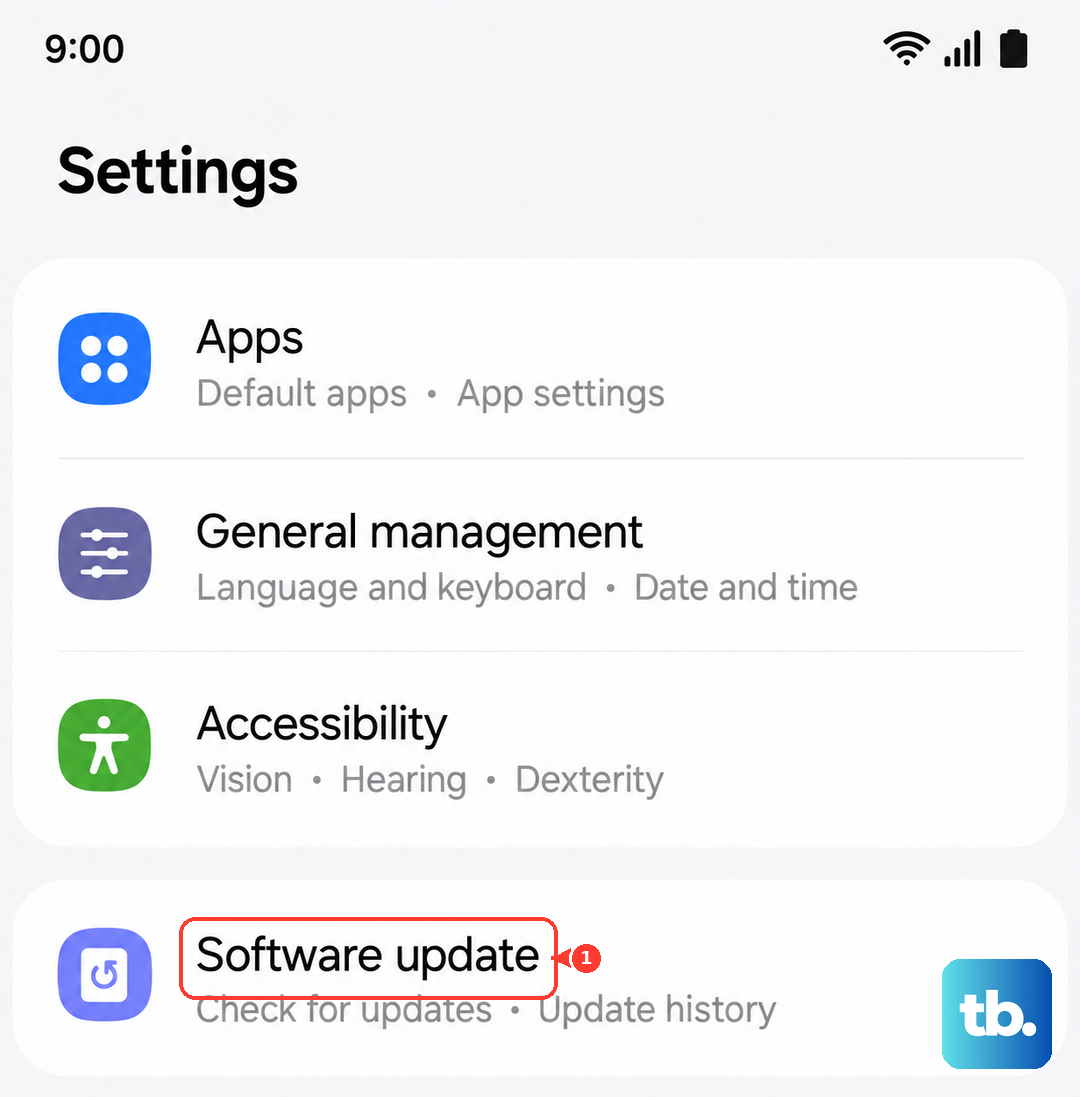
Go to Settings > Software update > Download and install. Make sure your phone is connected to Wi-Fi and has enough battery before you start. Installing the latest update can resolve conflicts that cause videos to lag.
Close Background Apps and Restart
Too many apps running in the background can eat up the RAM and processing power your video player needs. The Galaxy A16 can sometimes lag with heavy multitasking, which directly impacts video performance.
Swipe up from the bottom of the screen and hold to see your recent apps, then swipe each one away to close them. After that, give your phone a fresh start. Press and hold the Volume Down and Power buttons together for about 10 seconds until the Samsung logo appears.
Clear the App Cache for Your Video Player
Over time, the video app you use (like YouTube, Netflix, or Samsung Gallery) stores temporary data that can become corrupted. Clearing this cache is a safe fix that won't delete your login info or saved videos.
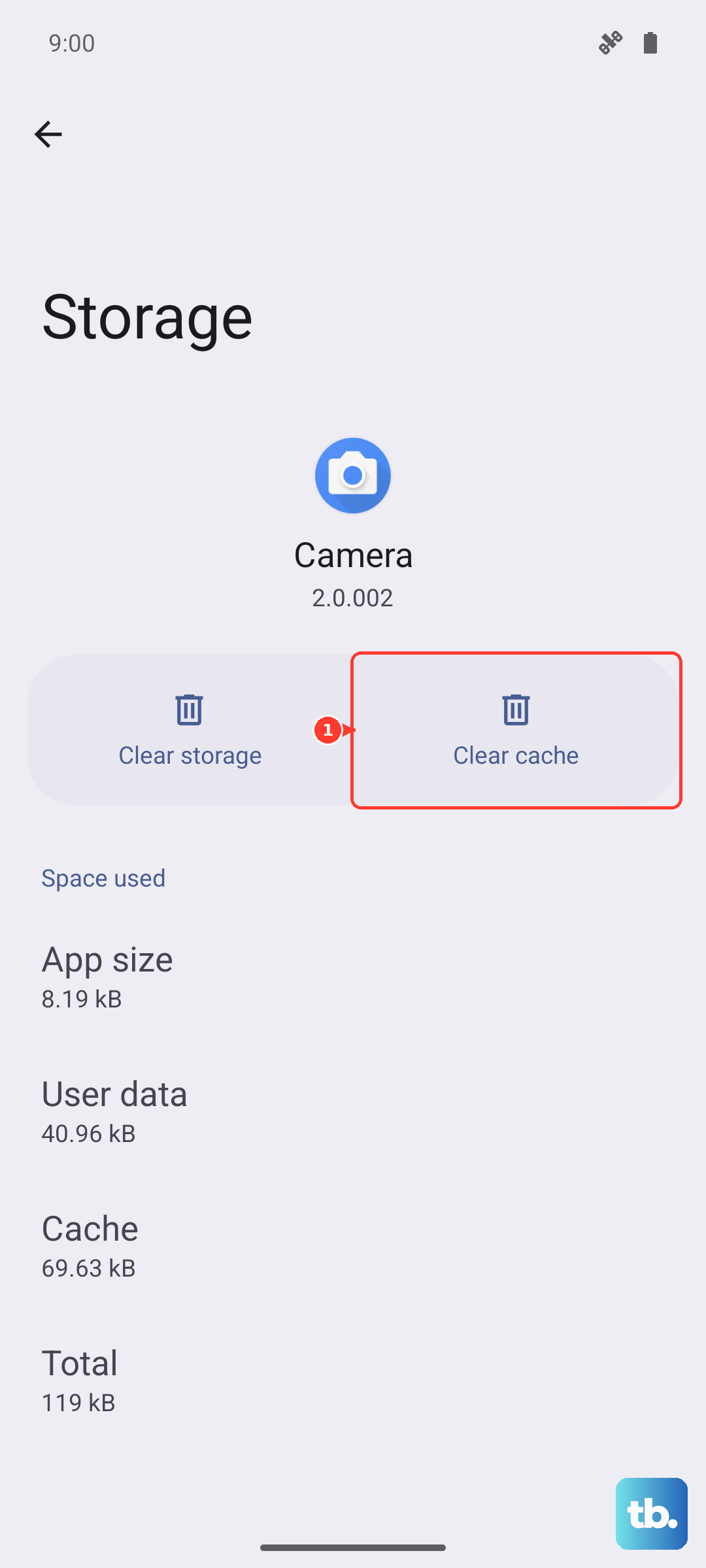
Go to Settings > Apps, find your video app in the list, and tap on it. Select Storage, then tap Clear cache. Do this for any app where you're experiencing lag. It's a good habit to do this every few weeks to maintain performance.
Adjust Video Streaming Quality
If you're streaming, your phone or the app might be trying to play a video in a resolution that's too high for your current internet speed. Manually lowering the quality can stop the buffering.
In apps like YouTube, tap your profile picture, go to Settings > Video quality preferences. You can choose a lower resolution like 480p or 720p instead of Auto. On Netflix, tap the screen while a video plays and select the dialogue bubble icon to change the playback quality.
Check for Power Saving Modes
Samsung's power saving features are great for battery life, but they can limit CPU performance and background data, which can throttle video playback. If you have any battery saver turned on, try disabling it.
Open Settings > Battery and device care > Battery. Make sure Power saving is turned off. Also, go to Settings > Apps > [Your Video App] > Battery and set it to Unrestricted so it isn't put to sleep.
Try a Different Video Player App
Sometimes the issue is with the app itself, not your phone. If videos are lagging in the Samsung Gallery app, try playing the same file in a different player like VLC from the Play Store, which handles various file formats very efficiently.
If the video plays smoothly in another app, you know the problem is app-specific. You can try updating the problematic app from the Galaxy Store or Google Play Store, or simply use the alternative player going forward.
Reset App Preferences or All Settings
If the lag is system-wide, a misconfigured setting might be the cause. You can reset all your app preferences, which will revert app permissions and default apps without deleting any personal data.
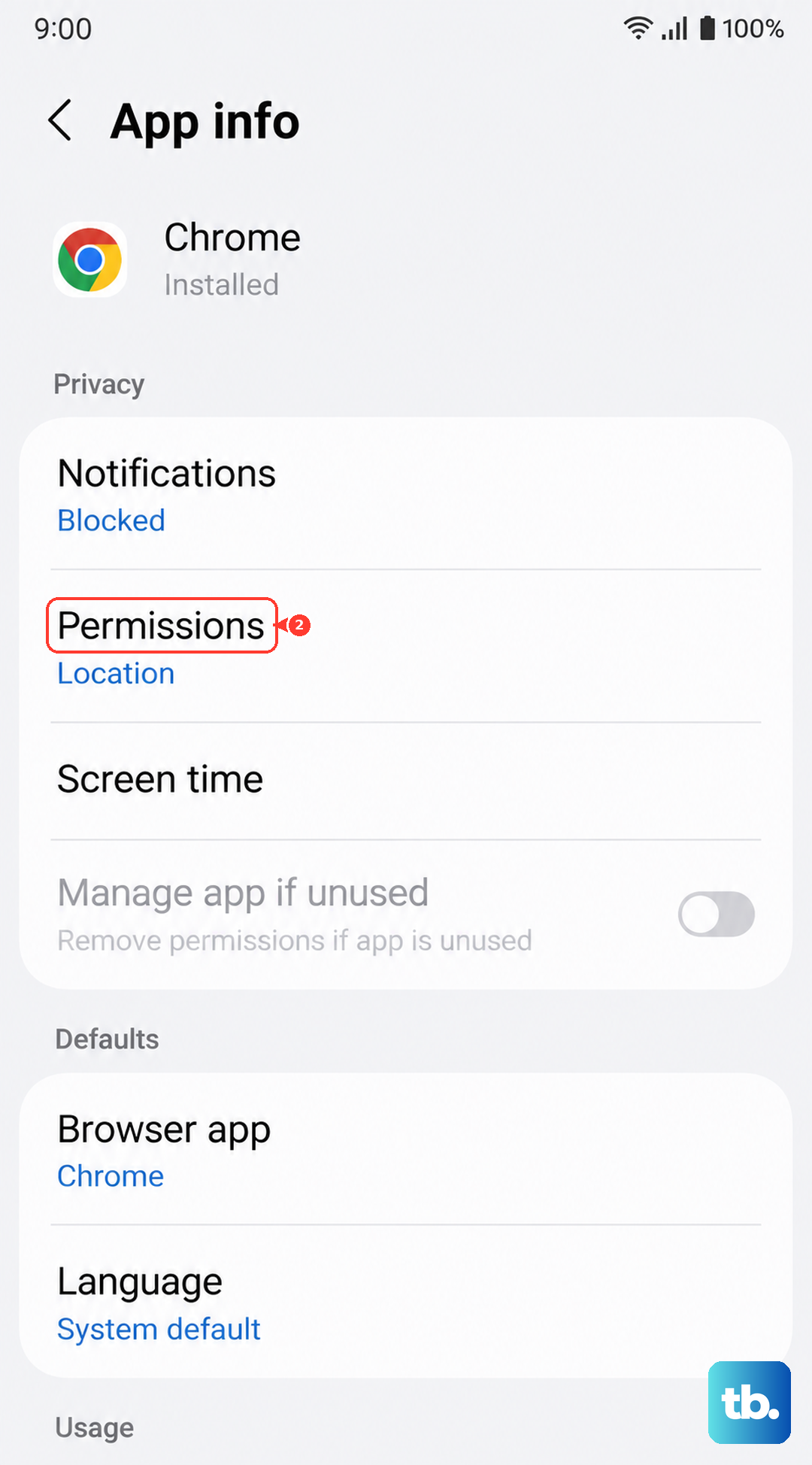
Go to Settings > General management > Reset > Reset app preferences. If the problem is still happening, a more thorough step is to go to Settings > General management > Reset > Reset all settings. This will reset network, display, and sound settings back to default, which often clears up persistent software bugs.