When your Samsung Galaxy A16 microphone stops picking up your voice, it can turn simple phone calls, video chats, or voice notes into a frustrating experience. The first thing I'd do is figure out exactly which microphone is affected, as the A16 has more than one.
A fast way to narrow this down is a browser based mic test. If the meter responds when you talk, the mic itself is fine and the problem sits in software or settings.
Test Your Galaxy A16 Microphone
Open your Voice Recorder app, which comes pre-installed on the phone. Tap the red record button and speak for a few seconds. Play it back to see if your voice is clear and loud.
You can also make a quick test call to your voicemail. Leave a short message and then call back to listen. If the recording sounds muffled or silent, you've confirmed the issue.
For video calls, the camera app is a good test. Open the Camera, switch to video mode, and record a clip while talking. Check the audio on playback to see if it's working there.
Check for Physical Blockages
Your Galaxy A16 has microphone holes at the bottom next to the USB-C port and another small pinhole at the top of the frame. These can easily get clogged with pocket lint or dust.
Take a close look at these openings. If the phone has been wet, dry the earpiece, primary microphone, and speaker with a clean, soft cloth and let the phone air-dry before making a call. Do not use compressed air; if debris appears stuck in a microphone opening, stop and have Samsung Support or a repair center inspect it instead of poking inside.
Also, remove your phone case. Some cases, especially rugged ones, can partially cover the microphone grilles and muffle sound. Test the microphone without the case to see if that's the culprit.
Disconnect Bluetooth and Accessories
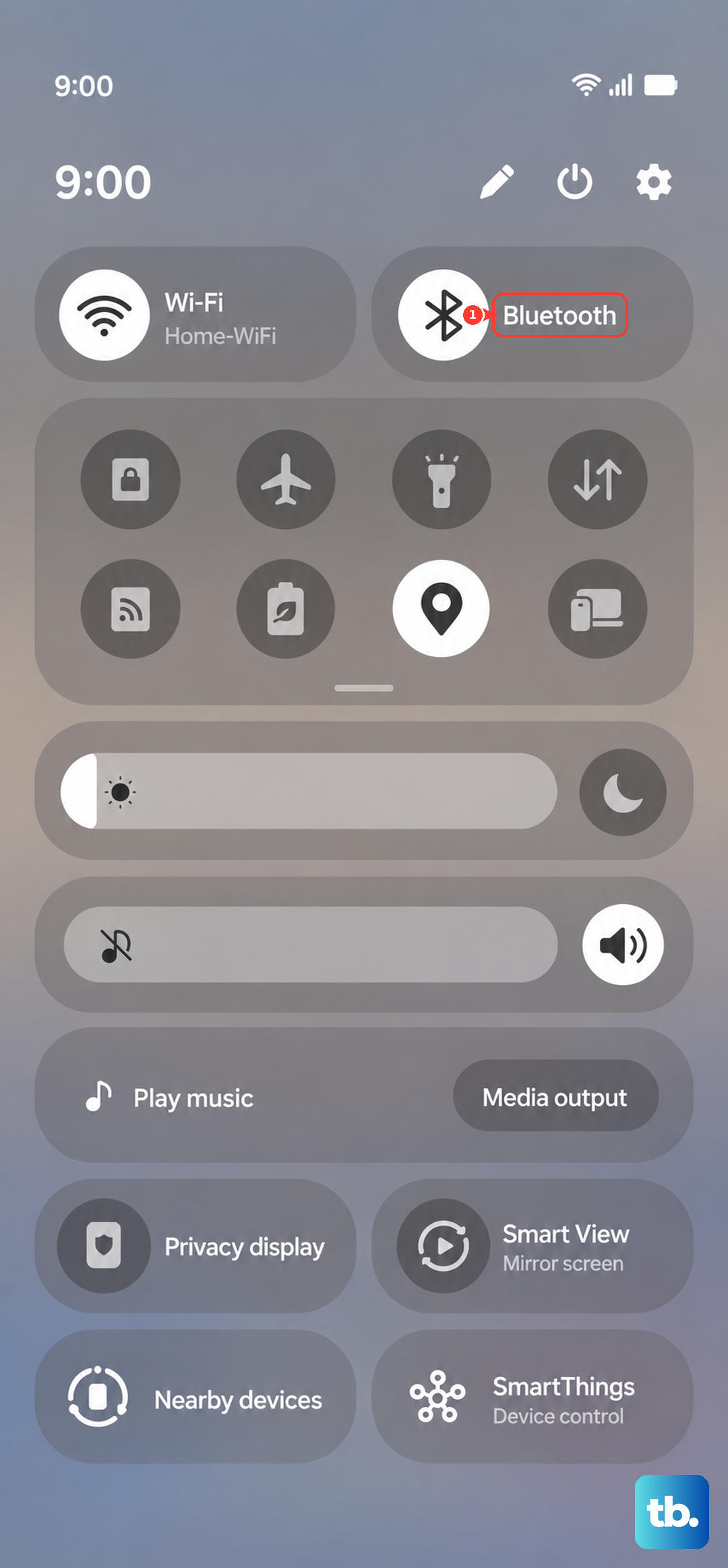
If you have any Bluetooth headphones or speakers paired, your phone might be routing all audio through them. Swipe down from the top of your screen to open the Quick Settings panel and tap the Bluetooth icon to turn it off.
Also check wired accessories. Samsung's microphone troubleshooting says to remove anything plugged into the headphone jack or USB-C port, including adapters, selfie sticks, charms, and other accessories, before testing the microphone again.
Restart Your Phone
A simple restart clears out temporary software glitches that can affect hardware like the microphone. Press and hold the Volume Down button and the Power button together for about 10 seconds.
Keep holding until you see the Samsung logo appear, then let go. Your phone will boot up fresh. This takes less than a minute and often resolves odd bugs.
Check App Permissions
In Android 14 with One UI 6.1, apps need explicit permission to use your microphone. If an app like WhatsApp, Google Meet, or Instagram can't hear you, its permission might be off.
Go to Settings > Apps, select the app having trouble, and tap Permissions. Tap Microphone, then choose an allowed option such as Allow only while using the app instead of Don't allow.
Close and Reopen Problem Apps
If the microphone works in some apps but not others, the app itself might have crashed. Swipe up from the bottom of your screen and hold to enter the recent apps view.
Swipe the problematic app all the way off the screen to close it completely. Then, tap its icon again to launch it fresh. This clears its temporary memory and can restore microphone access.
Update Your Software
Samsung regularly releases updates that fix bugs, including audio issues. Keeping your A16 updated is one of the best ways to prevent problems.
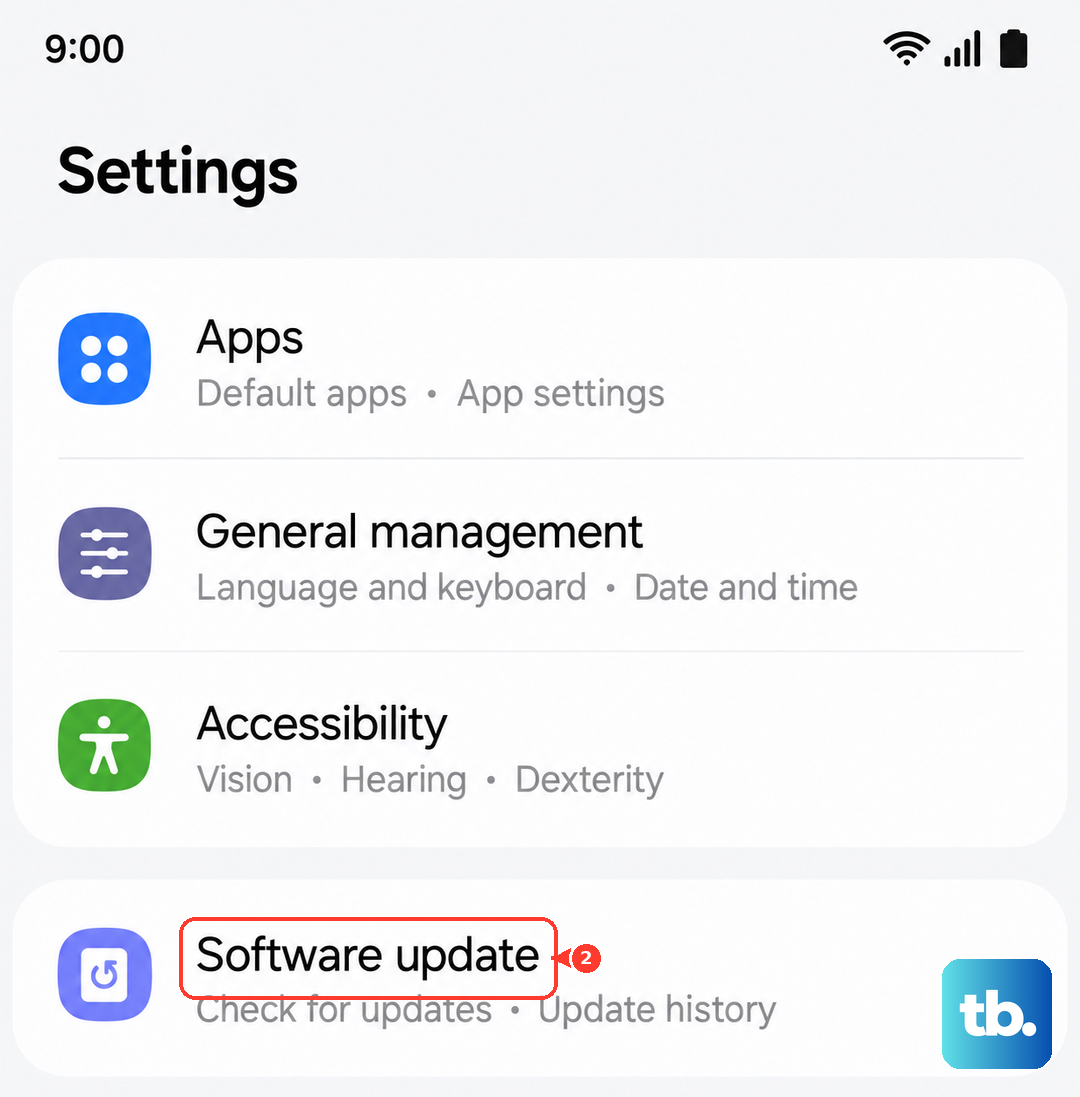
Go to Settings > Software update and tap Download and install. If an update is available, connect to Wi-Fi and let it install. Your phone will restart as part of this process.
Clear the App Cache (For Specific Apps)
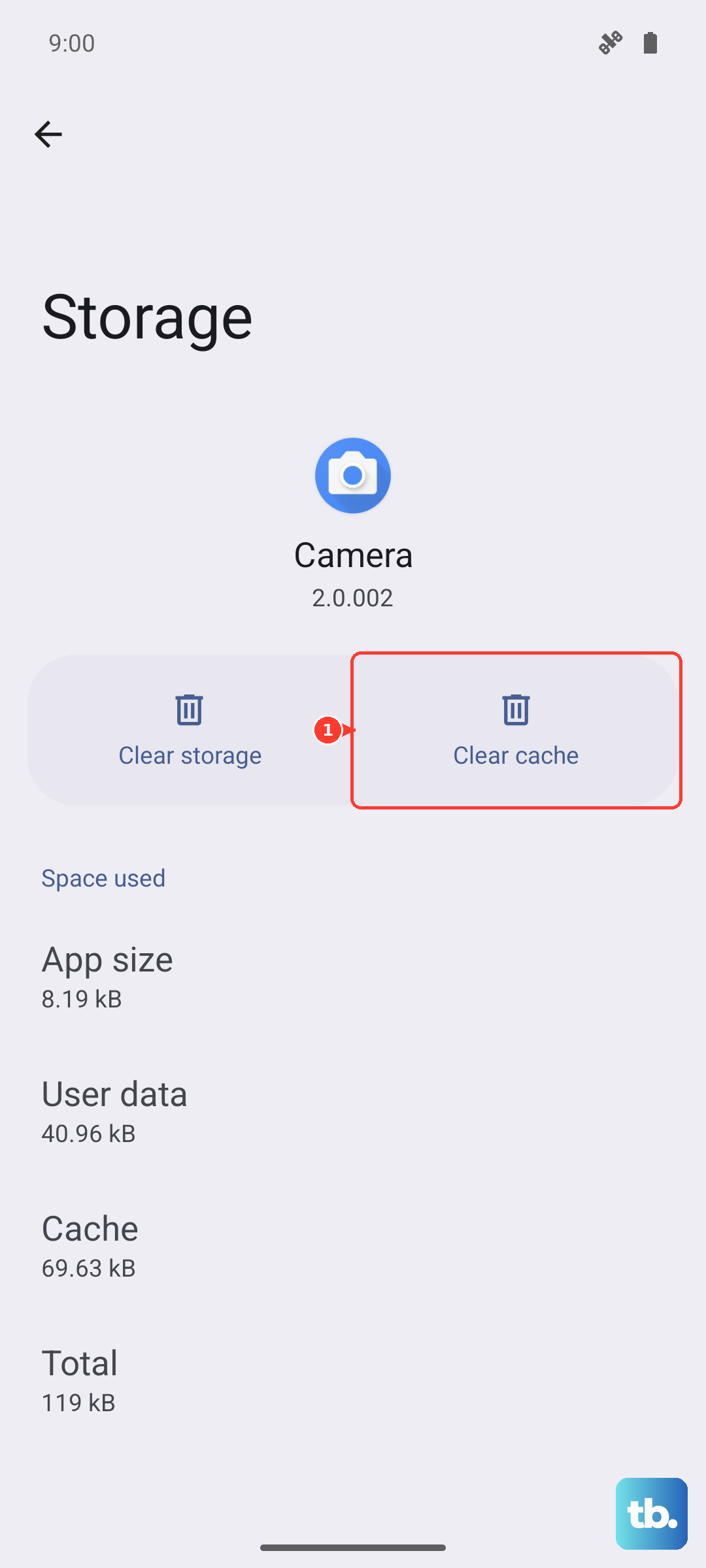
If a single app is the problem, clearing its cached data can help. This doesn't delete your login or personal data within the app. Go to Settings > Apps, select the app, and then tap Storage.
Tap Clear cache. This is a good general maintenance tip for the A16, as it can help with occasional lag and performance hiccups too. After clearing the cache, reopen the app and test the microphone.
Boot into Safe Mode
Safe Mode temporarily disables all third-party apps you've downloaded. If the microphone works perfectly in Safe Mode, then a recently installed app is likely causing the conflict.
To enter Safe Mode, press and hold the Power button until the power menu appears. Then, tap and hold the "Power off" option on your screen. A "Safe Mode" prompt will pop up, tap it to restart. Test your microphone with the basic Voice Recorder app here.
To exit Safe Mode, just restart your phone normally. If the problem is gone, you'll need to uninstall apps one by one, starting with the most recent, to find the culprit.
Reset All Settings
This will revert all your system settings (like Wi-Fi passwords, ringtones, and display preferences) back to default but won't touch your photos, messages, or apps. It can fix misconfigured settings affecting the microphone.
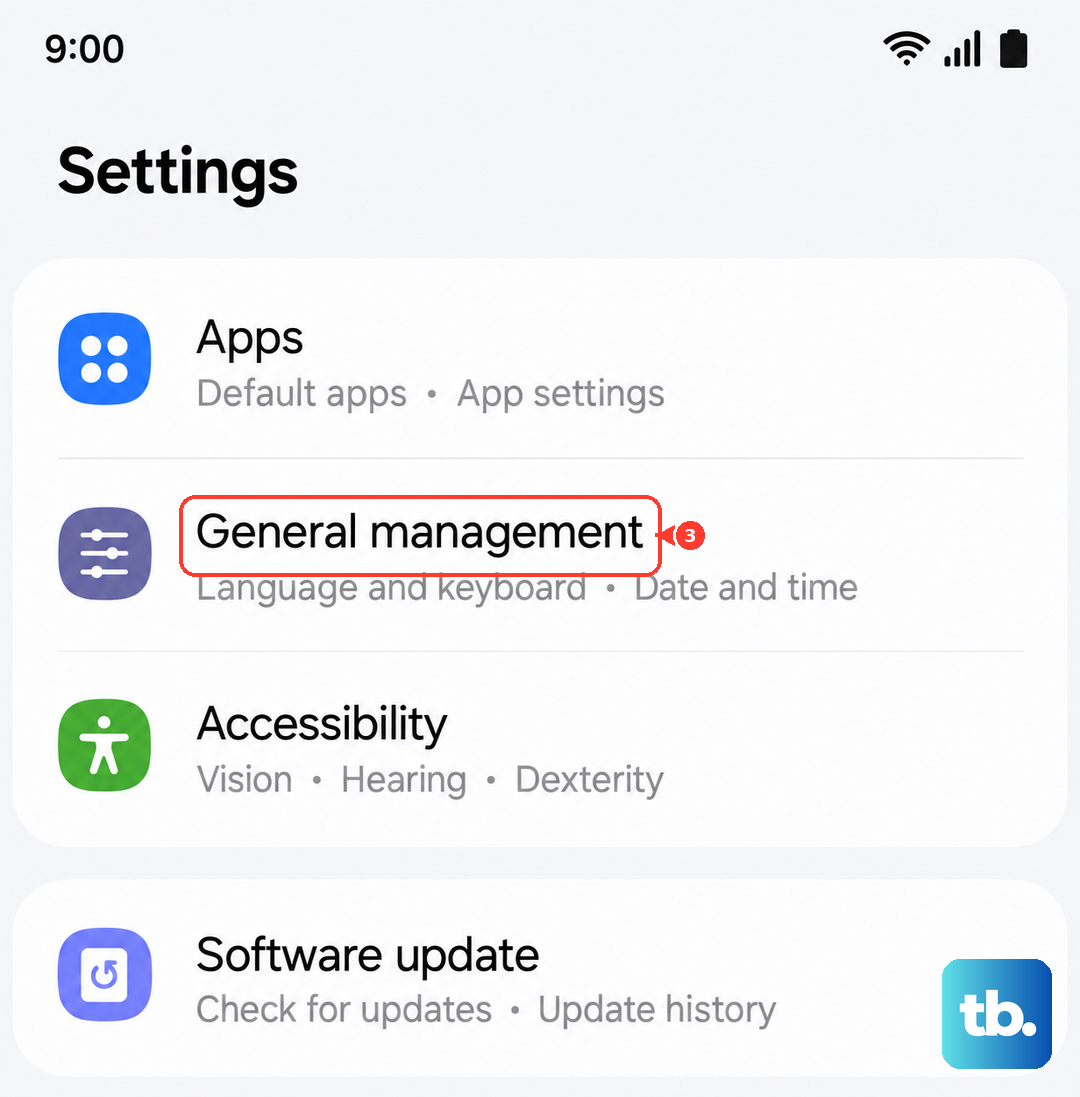
Go to Settings > General management > Reset > Reset all settings. You'll need to enter your PIN or password. After the reset, you'll have to reconfigure things like your connections and preferences, but it often solves stubborn software issues.