
If your Samsung Galaxy A16 won't connect to your wireless earbuds, car, or speaker, it can be incredibly frustrating. Bluetooth issues are common on Android phones, but the good news is they're often resolved with a few specific steps. I'd start with the quick fixes, as they solve the majority of problems people run into.
Toggle Bluetooth and Restart Your Phone
First, pull down the notification shade from the top of your screen and tap the Bluetooth icon to turn it off. Wait about ten seconds, then tap it again to turn it back on. This simple refresh can clear up a temporary glitch.
If that doesn't work, give your Galaxy A16 a full restart. Press and hold the Volume Down and Power buttons together for about ten seconds until you see the Samsung logo. This force restart is more thorough than a normal reboot and can clear out deeper software hiccups that might be blocking the Bluetooth radio.
Check the Basics and Forget Problem Devices
Before going further, run through a quick checklist. Make sure the device you're trying to connect to is in pairing mode and has enough battery. Keep the devices within a few feet of each other without obstructions.
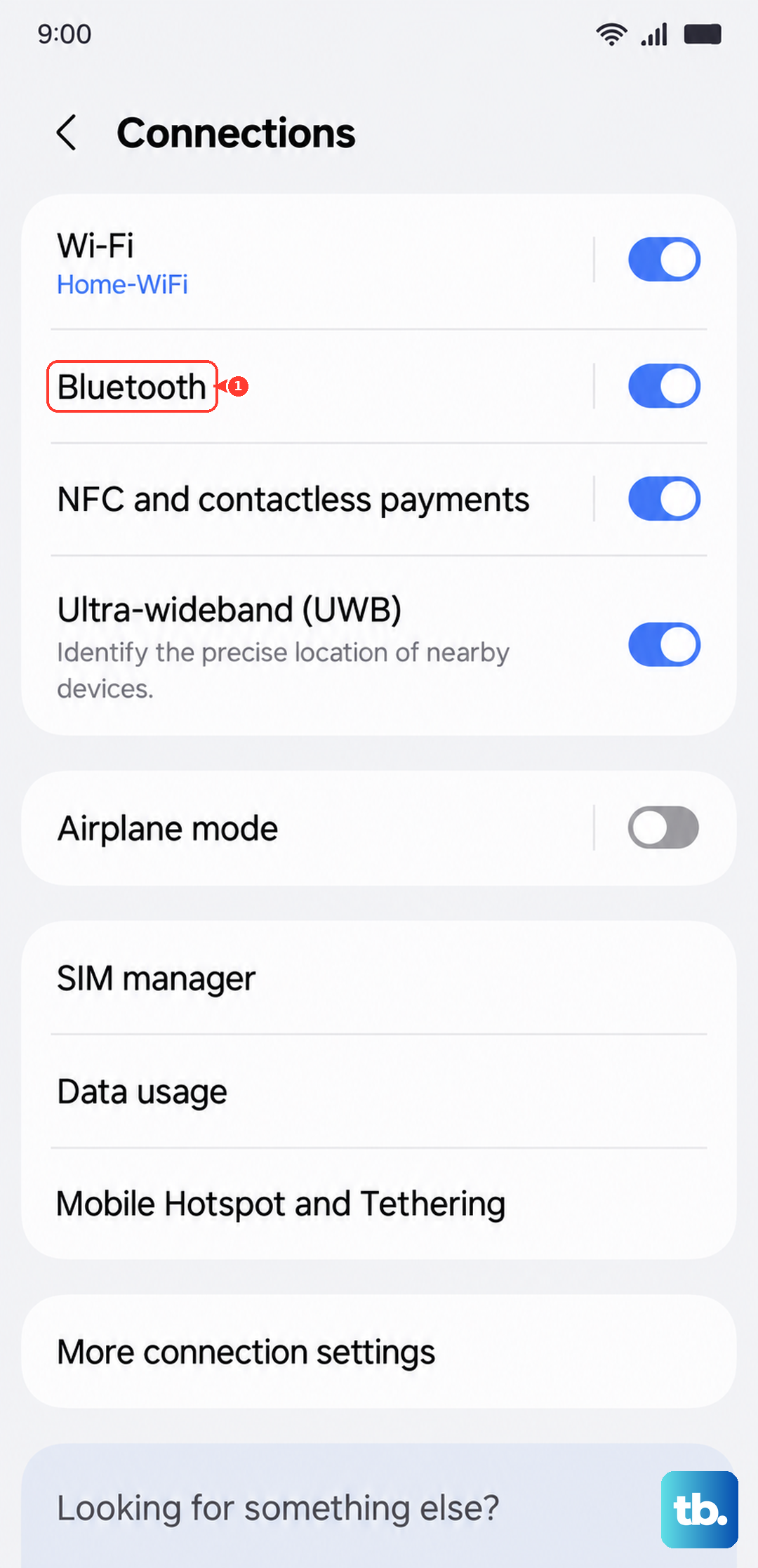
If a specific device won't connect, it's time to remove it from your phone's memory. Go to Settings > Connections > Bluetooth. Tap the gear icon next to the troublesome device and select Unpair or Forget. Then, put the accessory back into pairing mode and try to connect fresh, as if it were a brand new device.
Clear the Bluetooth System Cache
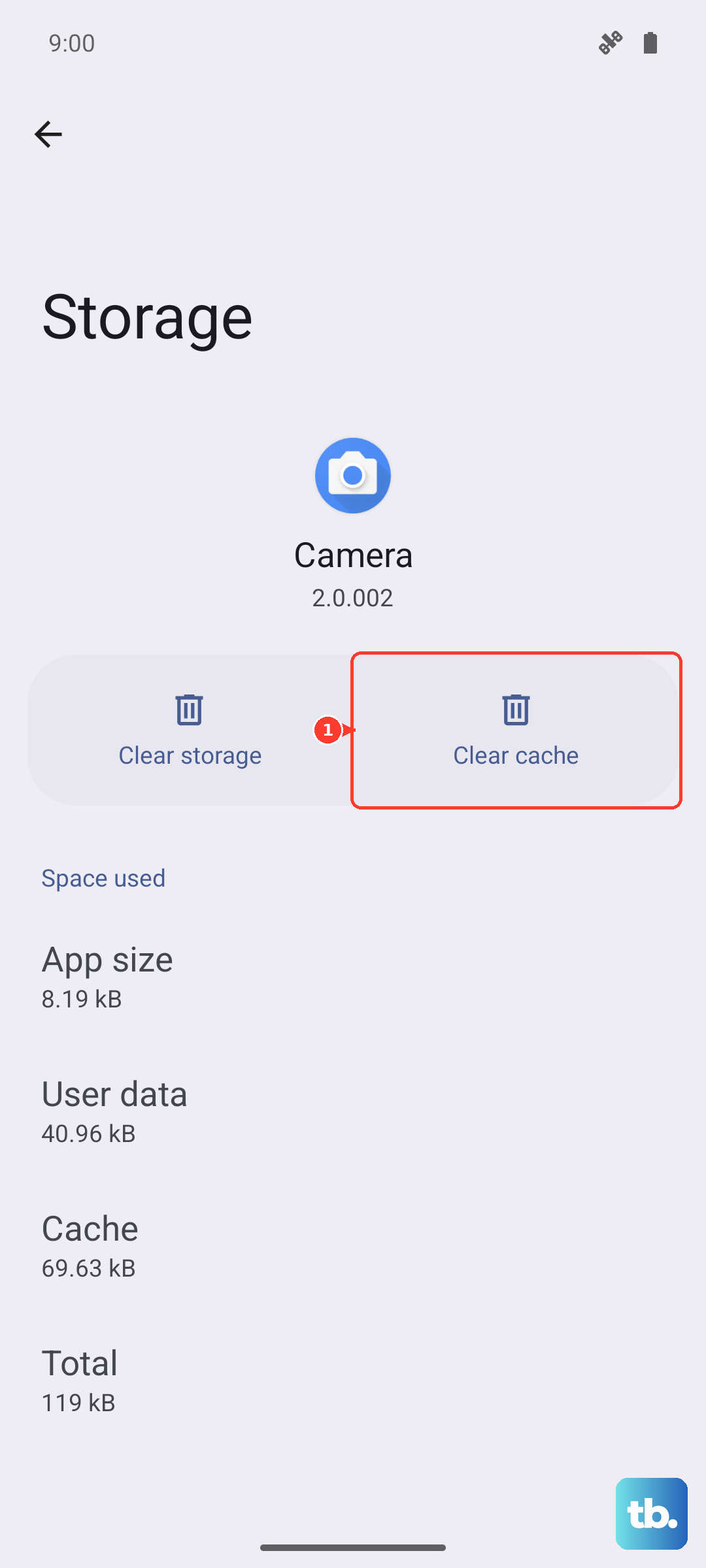
Corrupted temporary files can cause all sorts of connection problems. Clearing the Bluetooth cache is a safe, effective step that doesn't delete your paired devices. Go to Settings > Apps.
Tap the three-dot menu in the top right and select Show system apps. Scroll down and find Bluetooth in the list, then tap on it. Select Storage and tap Clear Cache. After doing this, restart your phone and test your Bluetooth connection again.
Reset Your Network Settings
This is a more comprehensive step that resets all wireless communications back to their default state, including Wi-Fi, mobile data, and Bluetooth. You'll need to re-enter Wi-Fi passwords afterward, but it often resolves persistent connection issues.
On your Galaxy A16, navigate to Settings > General management > Reset. Tap on Reset network settings. Confirm the action, and your phone will restart. This clears out any incorrect network configurations that could be interfering.
Update Your Phone's Software
Running an outdated version of Android or Samsung's One UI can lead to Bluetooth bugs that have already been patched. Samsung frequently releases updates that improve device compatibility and stability.
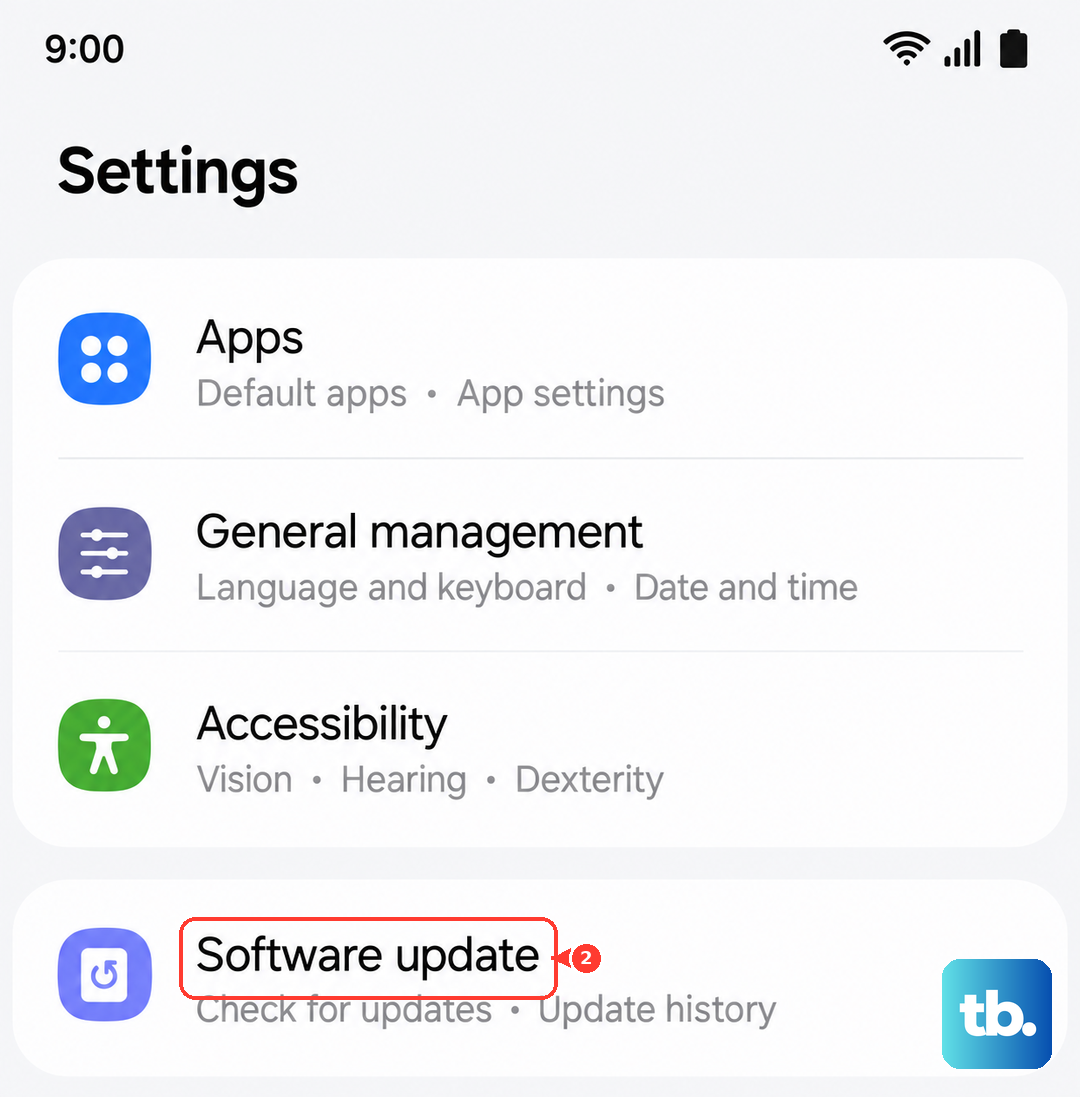
Check for an update by going to Settings > Software update > Download and install. If an update is available, make sure your phone is plugged into its 25W charger and connected to Wi-Fi before proceeding. Keeping your software current is one of the best ways to prevent issues.
Boot Into Safe Mode
If Bluetooth suddenly stopped working after you installed a new app, that app could be the culprit. Booting into Safe Mode temporarily disables all third-party apps, letting you test the core system.
To enter Safe Mode, press and hold the Power button until the power menu appears. Then, tap and hold the Power off option on your screen. You'll see a prompt to reboot into Safe Mode. Tap OK. If Bluetooth works perfectly in Safe Mode, you know a downloaded app is causing the conflict. Restart normally and try uninstalling recent apps one by one.
Clear Bluetooth App Data
If you're still having trouble, the next step is to clear the Bluetooth app's data. This is more drastic than clearing the cache, as it will erase all your paired devices from the phone. You'll have to set everything up again from scratch.
Go back to Settings > Apps > Bluetooth (remember to show system apps). Tap Storage and then select Clear Data. Confirm, then force restart your phone using the Volume Down and Power button method. This gives the Bluetooth system a completely clean slate.
Consider a Factory Reset
This is your last resort before considering a hardware problem. A factory reset will erase everything on your Galaxy A16, so it's absolutely critical to back up your photos, messages, and important files to Samsung Cloud or a computer first.
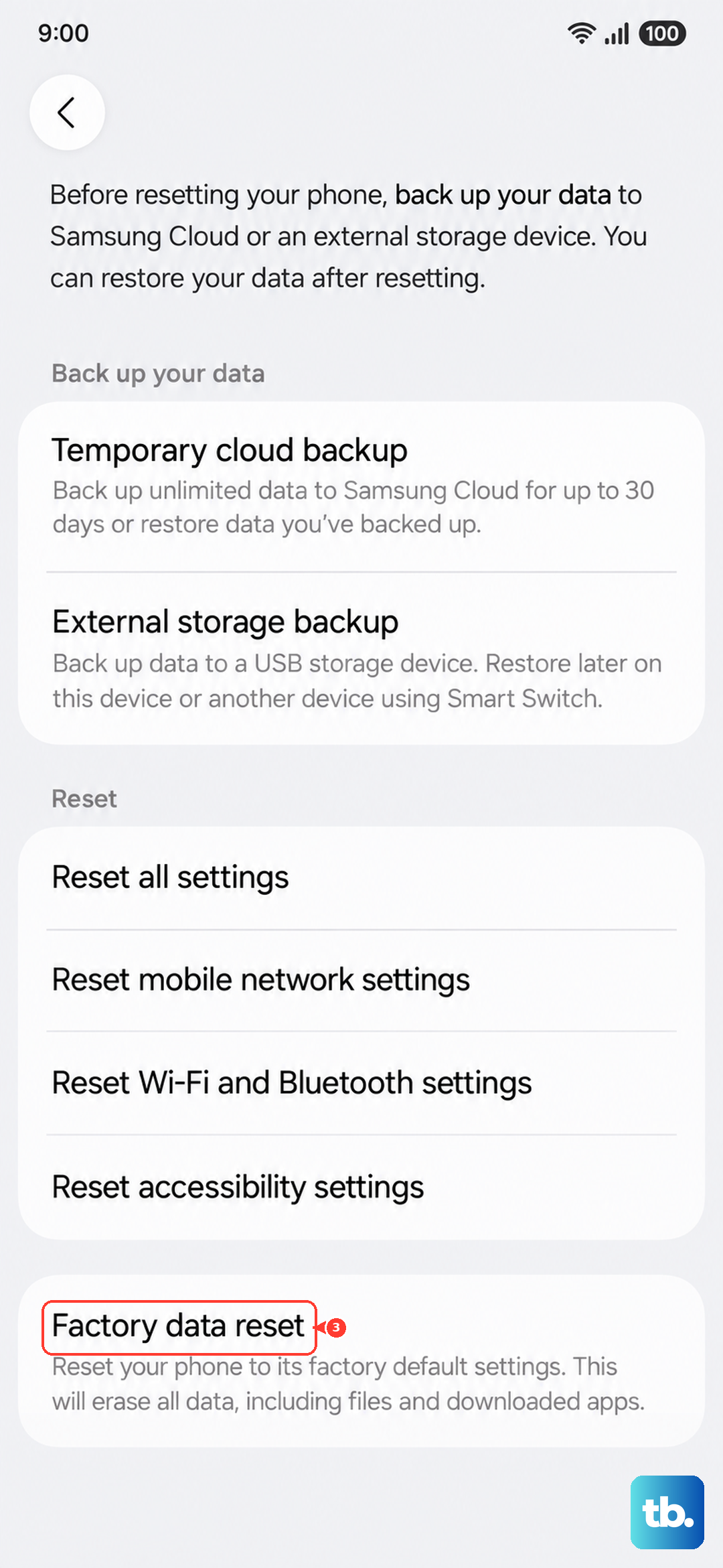
Once backed up, go to Settings > General management > Reset > Factory data reset. Follow the prompts to complete the process. If Bluetooth still doesn't function correctly after a full factory reset, the issue is likely with the phone's physical Bluetooth hardware.
Device-Specific Tips for the Galaxy A16
The Galaxy A16 doesn't have a headphone jack, so a reliable Bluetooth connection is essential for audio. If you experience occasional lag, which this model can be prone to during heavy use, try clearing the app cache regularly from the device care settings to keep performance smooth.
Also, ensure you're using a quality USB-C cable and charger, as power issues can sometimes affect the stability of wireless components. While the A16 doesn't support wireless charging, using Samsung's official 25W adapter ensures it gets stable, clean power.