
Missing notifications on your Redmi Note 14 Pro can mean you're missing important messages, emails, or alerts without even knowing it. It's a common headache with Android and HyperOS, but there are quite a few things you can check to get them flowing again. I'd start with the quick fixes at the top of this list, as they solve the problem most of the time.
Check the App's Notification Settings
This is the first place to look. Each app on your Redmi Note 14 Pro has its own notification controls, and sometimes they get turned off. Open Settings and go to Notifications & Status bar > App notifications. Find the app that's not alerting you and tap on it.
Make sure "Allow notifications" is switched on. Also, check the categories below, like "Messages" for WhatsApp or "Primary" for Gmail, and ensure those are enabled too. Some apps let you silence specific types of alerts, so you might have accidentally turned off the one you need.
Disable Battery Saver and Data Saver Modes
HyperOS is aggressive about saving battery, which can sometimes mean it restricts background activity for apps. Go to Settings > Battery and make sure any power-saving mode is turned off. For a more targeted fix, go to Settings > Apps > [Your App] > Battery saver.
Set it to "No restrictions" to ensure it can run in the background. Also, check Settings > SIM cards & mobile networks > Data saver to make sure that isn't limiting background data for your apps.
Lock the App in Recent Apps
This is a useful Xiaomi and Redmi-specific trick. Open your recent apps view by swiping up from the bottom and holding. Find the app that's not notifying you and tap the three-dot menu icon on its preview card. Select "Lock" from the menu.
This tells the system to never automatically close or restrict that app, which is a common reason notifications stop arriving after a while. I've found this especially helpful for messaging apps like WhatsApp or Telegram.
Allow Autostart for the App
Similar to locking the app, you need to grant it permission to start automatically after your phone boots. Head to Settings > Apps > Autostart. You'll see a list of apps that have requested this permission.
Find the problematic app and toggle it on. If you don't allow this, the app might not start its notification services until you manually open it, causing you to miss alerts.
Check Do Not Disturb and Focus Modes
It's easy to overlook, but a scheduled or manually enabled Do Not Disturb mode will silence everything. Swipe down from the top of your screen twice to open the full Quick Settings panel and look for the "Do Not Disturb" icon. If it's highlighted, tap it to turn it off.
Also, go to Settings > Sounds & Vibration > Do Not Disturb to check if any schedules are active. While you're there, look at "Focus Modes" in the same menu, as they can also block notifications from specific apps.
Clear the App's Cache and Data
Corrupted temporary files can break an app's notification function. Go to Settings > Apps > [Your App] > Storage usage. Tap "Clear cache" first. This is safe and won't delete your login info or personal data within the app.
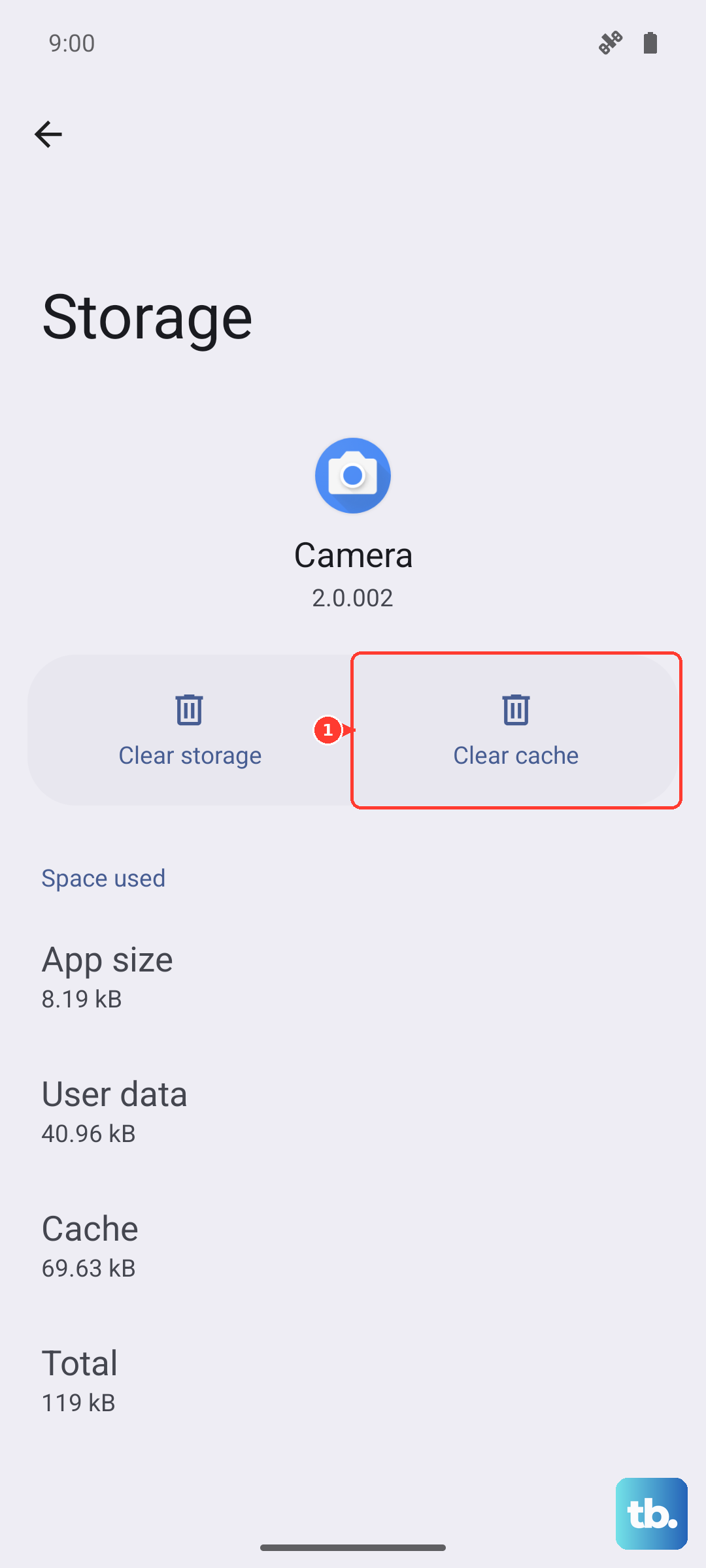
If that doesn't work, you can try "Clear data." Be warned, this will reset the app as if you just installed it, so you'll need to log back in and reconfigure any settings. It often resolves deeper glitches, though.
Update the App and Your Phone's Software
An outdated app might have a bug that breaks notifications. Open the Google Play Store, tap your profile icon, and go to "Manage apps & device" to see available updates. Make sure your specific app is updated.
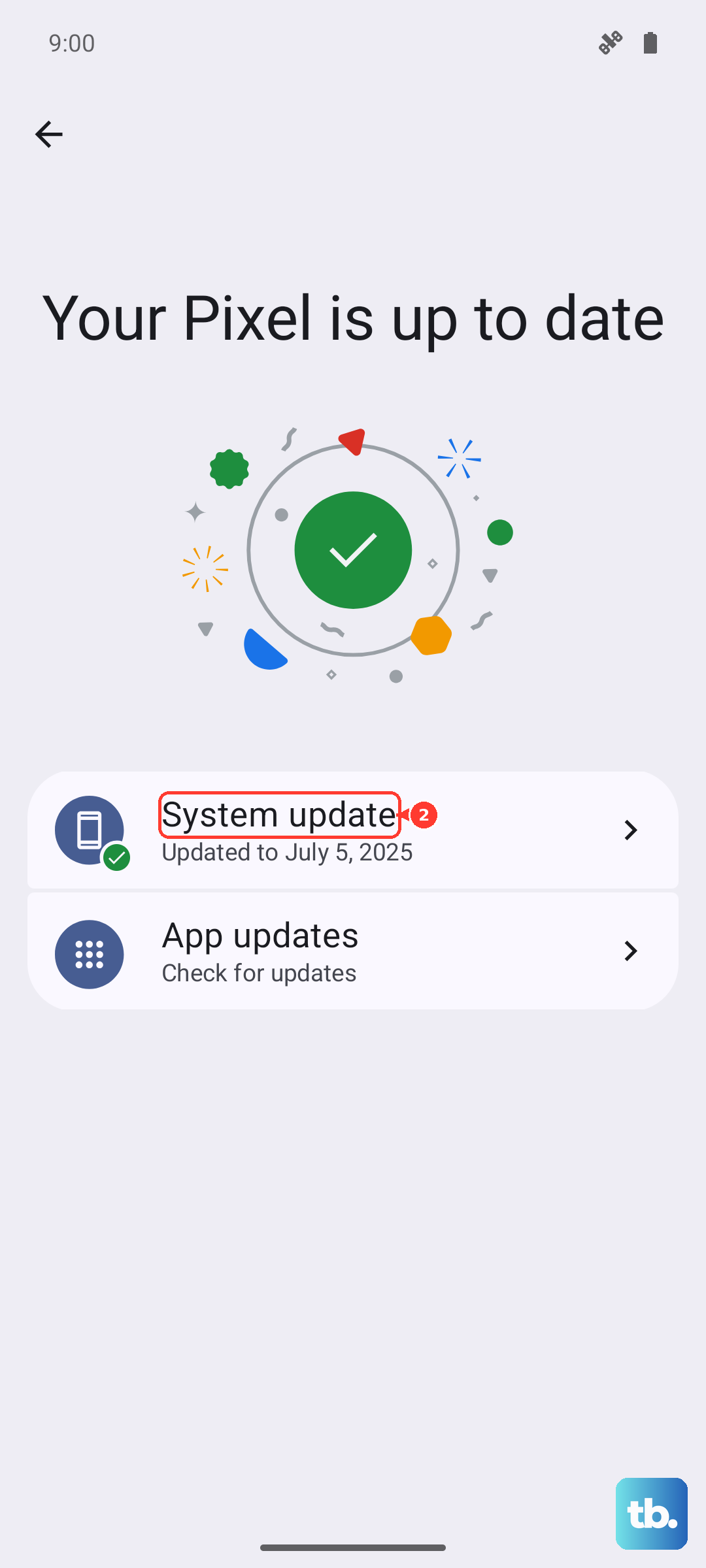
Then, check for a system update. Go to Settings > About phone > HyperOS version and tap "Check for updates." Xiaomi frequently releases updates that fix system-level notification issues.
Review Notification Categories and Channels
Android and HyperOS break down app notifications into specific channels. Sometimes, one channel gets muted. Go to Settings > Notifications & Status bar > App notifications and select your app.
Tap on "Notification categories" or similar. You'll see a list like "Chat messages," "Group messages," or "Calls." Tap into each relevant category and ensure "Allow notifications" is on, and that the sound, vibration, and pop-up settings are how you want them.
Disable MIUI Optimizations (Temporarily)
MIUI/HyperOS optimizations can sometimes interfere too aggressively. To check, you'll need to enable Developer Options first. Go to Settings > About phone and tap "HyperOS version" seven times until you see a message saying you're now a developer.
Go back to the main Settings menu, find "Developer options," and scroll down. Look for "Turn on MIUI optimization" or "HyperOS optimization." Try turning it off, restart your phone, and see if notifications return. Remember to turn it back on later for optimal system performance.
Reset App Preferences
This is a broader fix that won't delete your app data. It resets all your permissions, notification settings, and background restrictions back to default. Go to Settings > Apps (on Xiaomi, POCO, and Redmi phones, tap Manage apps first), then tap the three-dot menu in the top corner and select Reset app preferences.
Tap "Reset" on the prompt. Afterward, you'll need to re-allow notifications for your apps when they first ask. This can clear up any incorrect system-level settings that are causing the block.
Perform a Force Restart
If your phone's software is temporarily frozen, a normal restart might not clear it fully. A force restart does. Simply press and hold the Power button on the side of your Redmi Note 14 Pro for about 15 seconds, or until you see the Xiaomi logo appear and the phone reboots.
This is different from a standard power off and on. It can clear temporary system glitches that might be affecting the entire notification service.