
Screen glitching on your Razer Blade 16 is incredibly distracting, whether you're gaming or working. You might see flickering, horizontal lines, or random artifacts. It's a common issue with a few straightforward fixes you can try yourself.
Update Your GPU Drivers
Outdated or corrupted graphics drivers are the most frequent cause of screen glitches. For your Razer Blade 16, I'd go straight to the source. Head to NVIDIA's website and use their driver download tool to get the latest Game Ready Driver for your specific GPU model.
This is almost always more reliable than using Windows Update or the NVIDIA app for a critical fix. After installing, make sure to restart your laptop to let the new drivers take full effect.
Check Razer Synapse
Razer's own Synapse software can sometimes be a resource hog and cause conflicts. Open Synapse and check your performance profiles. Try switching to a balanced profile instead of a high-performance one to see if the glitching stops.
You can also try a clean boot to test if Synapse is the culprit. Press Windows key + R, type msconfig, and go to the Services tab. Check Hide all Microsoft services, then click Disable all. This stops all third-party software, including Synapse, from starting with Windows.
Adjust Your Display Refresh Rate
Your Blade 16 likely has a high-refresh-rate display. Right-click your desktop and select Display settings. Scroll down and click Advanced display.
Look at the refresh rate setting. If you're set to the maximum (like 240Hz), try lowering it one step. Sometimes, a slight incompatibility between the panel and the driver can cause flickering that's fixed by using a different refresh rate.
Disable Hardware Acceleration in Apps
Apps like Chrome, Discord, and Slack use your GPU to render content. If their hardware acceleration feature conflicts with your drivers, it can cause screen tearing or glitches only within that app.
In Chrome, go to Settings > System and turn off Use hardware acceleration when available. Restart the browser. Check other apps for similar settings in their preferences menus.
Roll Back a Recent Driver Update
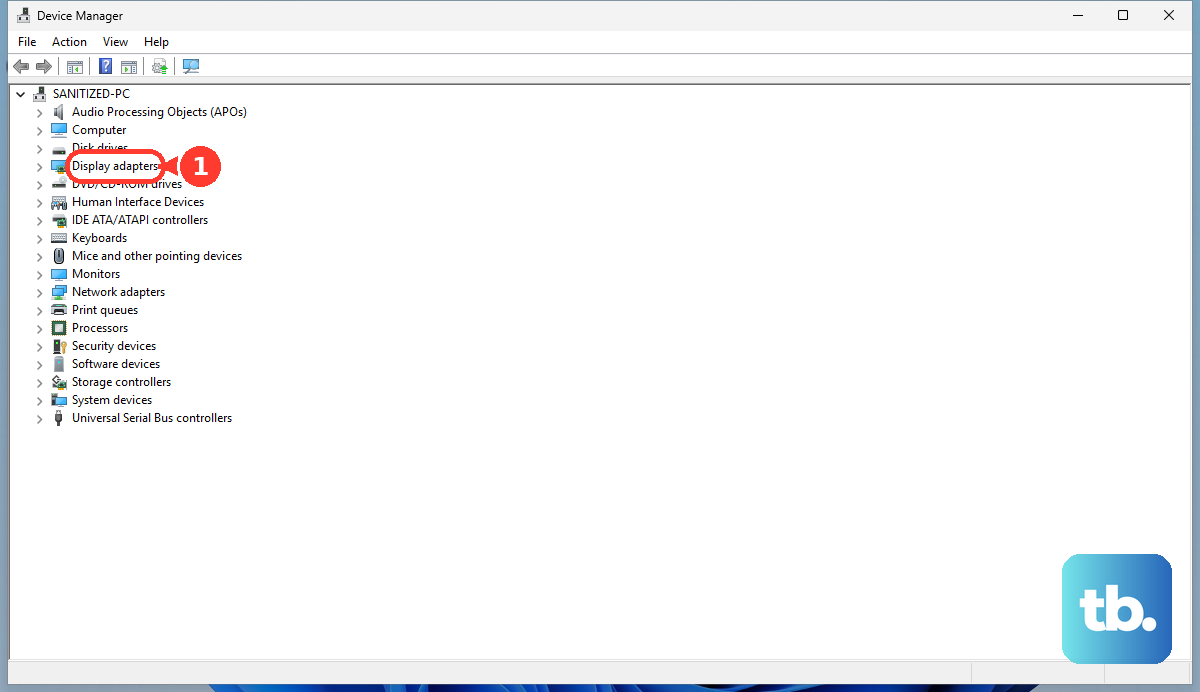
If the glitching started right after you updated your graphics driver, rolling back can be a quick fix. Press the Windows key, type Device Manager, and open it. Expand Display adapters, right-click your NVIDIA GPU, and select Properties.
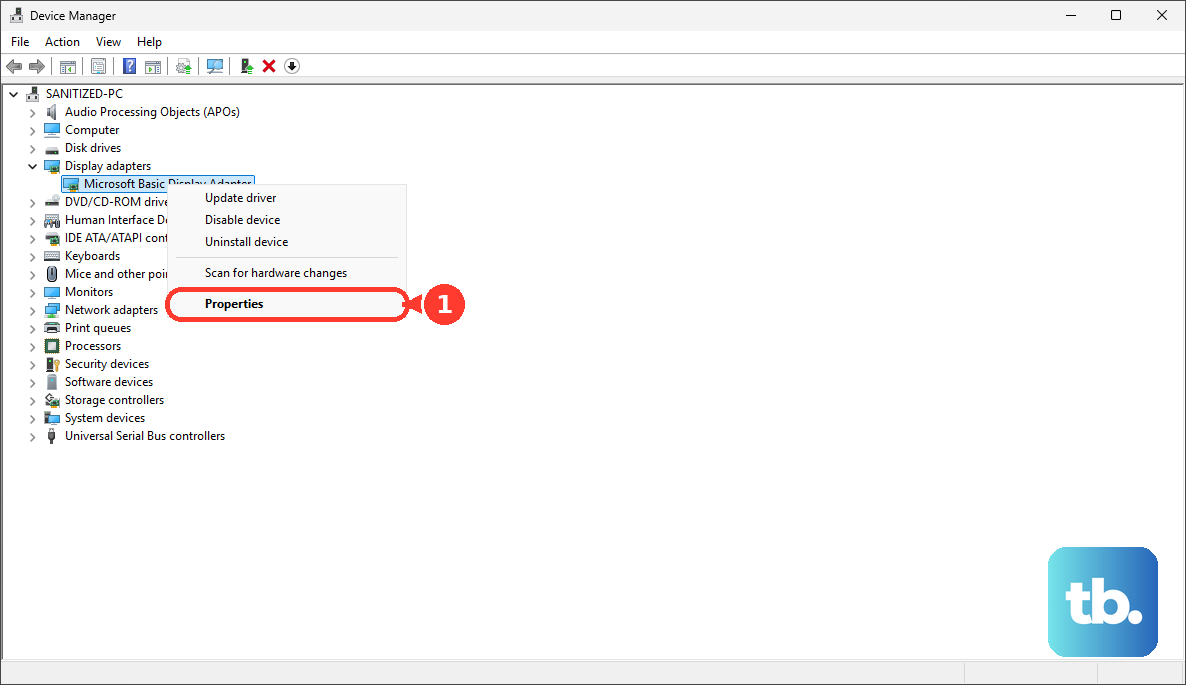
Go to the Driver tab and click Roll Back Driver. Follow the prompts and restart your laptop. This reverts you to the previous driver version that was working correctly.
Manage Your Laptop's Temperature
The Razer Blade 16 can run hot under heavy load, and excessive heat can lead to graphical instability. Make sure the laptop is on a hard, flat surface so the vents aren't blocked. Consider using a cooling pad for extended gaming sessions.
You can also check your fan curves in Razer Synapse. Ensuring the fans are ramping up appropriately can help keep temperatures in check and prevent heat-related glitches.
Run Windows Update
Microsoft often includes important display and system stability fixes in cumulative updates. Go to Settings > Windows Update and click Check for updates. Install any available updates, especially those labeled as optional or preview if you're feeling adventurous.
After updating, it's a good idea to check for driver updates again, as Windows Update might deliver a newer Intel chipset driver that improves overall system communication.
Test for a Loose Internal Connection
If the glitching happens or changes when you gently flex the laptop chassis or open and close the lid, it could point to a hardware issue. The internal display cable can become slightly loose over time.
This is more common on well-used laptops. Unfortunately, this isn't a simple fix. The Razer Blade 16 has a complex internal layout, and resolving a loose cable typically requires professional disassembly.
Perform a Clean Windows Reinstall
If you've tried everything and the glitching persists across different apps and even on the login screen, a deeper software issue might be at play. Back up all your important data first.
You can use Windows' built-in reset feature by going to Settings > System > Recovery and choosing Reset this PC. Select Remove everything for the cleanest result. This will wipe all your apps and settings, giving you a fresh start with stock drivers.