
Running out of space on your OnePlus 13 Pro can really slow you down, stopping you from taking new photos or installing app updates. The good news is that OxygenOS 15 gives you plenty of tools to dig into what's taking up room. You can often reclaim several gigabytes without much hassle.
Check Your Storage Breakdown
Head to Settings > Storage. This screen shows you a detailed breakdown of what's using space on your phone, from apps to photos and system files. Let it load for a moment to get an accurate picture. You'll usually find the biggest space hogs at the top of the list, which is a great place to start your cleanup.
Clear App Caches and Data
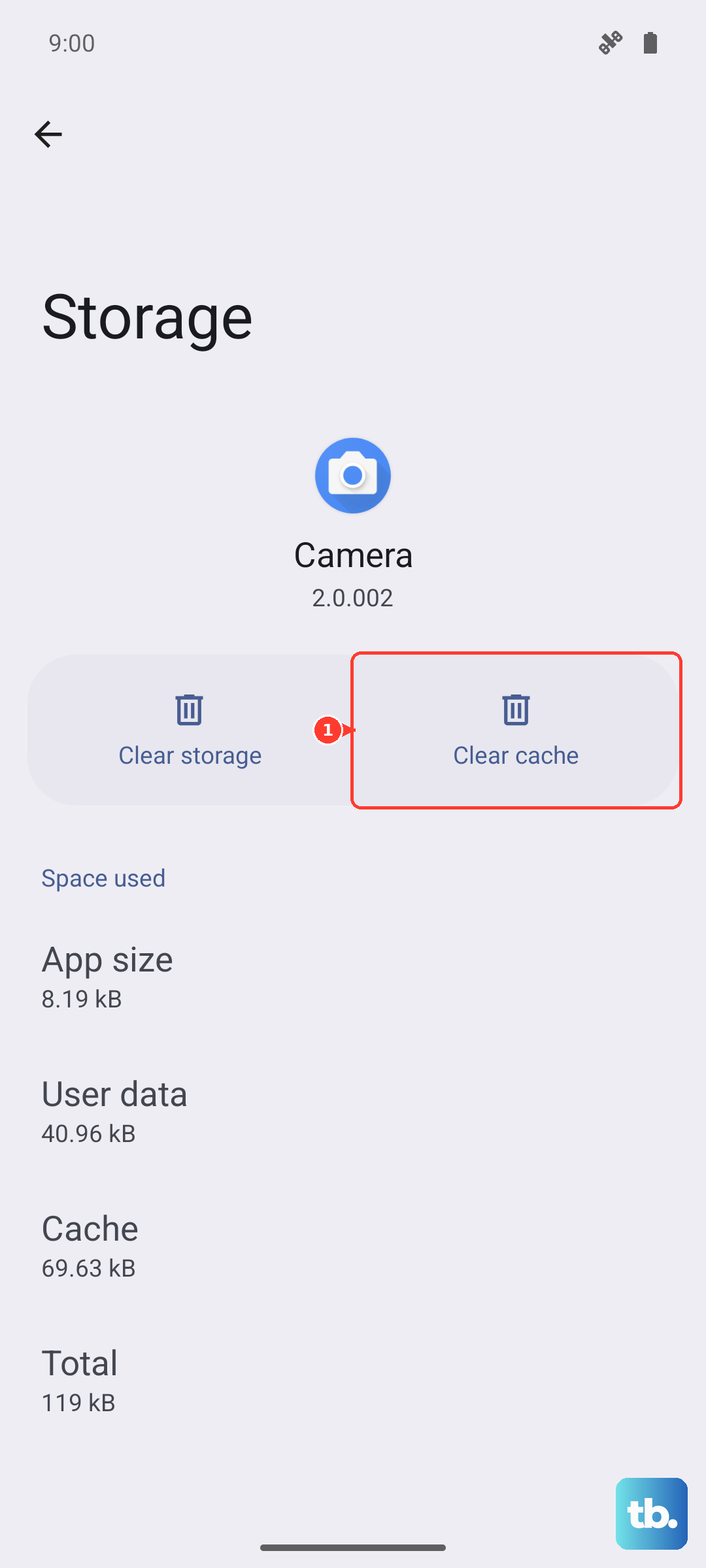
In that same Storage menu, tap on Apps to see a list sorted by size. Tap on any large app, like Instagram, TikTok, or Facebook. Here, you'll see two buttons: Clear cache and Clear data. Clearing the cache is safe and removes temporary files. Clearing data will log you out and reset the app, so only use that for apps you don't mind setting up again.
Offload Unused Apps
OxygenOS has a handy feature to automatically remove apps you haven't used in a while. Go to Settings > Apps > Special app access > Unused apps. You can enable the auto-remove feature here. When an app is offloaded, its icon remains on your home screen with a small download arrow. Tapping it reinstalls the app, usually with your data intact if it was backed up.
Manage Your Photos and Videos
Your camera is likely one of the biggest contributors. Open the Google Photos app (or your gallery app of choice) and use the Free up space tool. This will remove photos and videos from your device that are already safely backed up to the cloud. Also, take a few minutes to delete old screenshots, blurry shots, and duplicate photos. Remember to empty the Trash or Recently Deleted folder afterward.
Review Downloaded Media Files
Streaming apps love to stash files on your phone. Open apps like Spotify, Netflix, YouTube Music, or your podcast app. Look for sections named Downloads, Offline, or Library. Go through and delete episodes, albums, or shows you've already finished listening to or watching. This can easily free up multiple gigabytes.
Clean Up Messaging Apps
Apps like WhatsApp, Telegram, and even standard SMS can store years of photos, videos, and documents. Within each app, go to its storage management settings. For example, in WhatsApp, go to Settings > Storage and data > Manage storage. You can review and delete large files, old media, and forwarded content you no longer need.
Delete Old Files and Downloads
Open the Files by Google app or your device's file manager. Navigate to the Downloads folder. This folder often becomes a graveyard for PDFs, installation files, and images you saved once and forgot about. Sort files by size and delete the largest ones you don't need anymore.
Check for System Updates
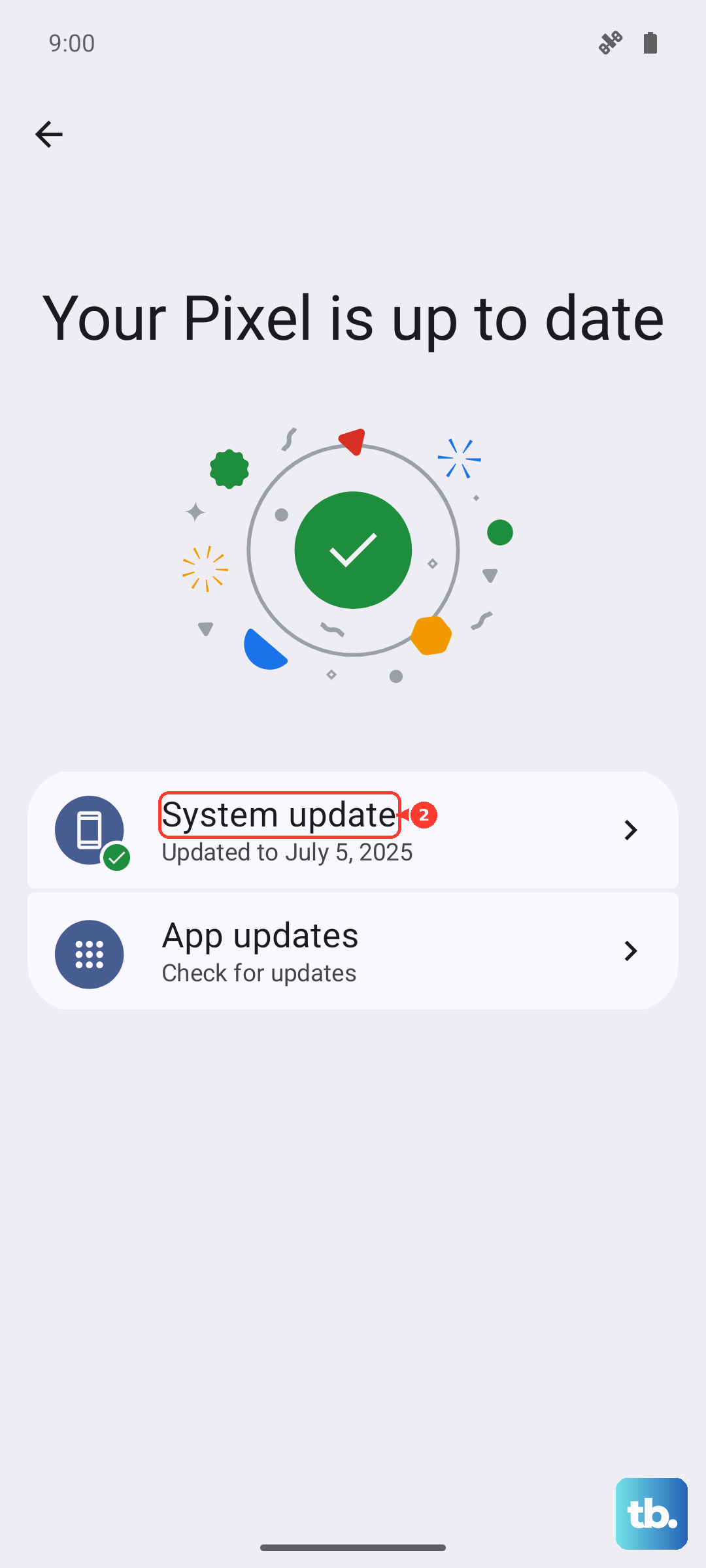
Sometimes, a pending system update can temporarily use extra storage space. Go to Settings > System > System updates to check for and install any available updates. I've seen updates resolve odd storage reporting issues and can sometimes include optimizations that clean up residual update files from previous installations.
Use Cloud Storage Effectively
If you're constantly hitting the limit, consider using cloud services more aggressively. Services like Google One, which integrates with your Photos and Drive, can automatically back up your media. You can then use the "Free up space" feature mentioned earlier. Managing your storage this way keeps your local phone storage clear for the apps and files you use every day.