
When the predictive text on your OnePlus 13 Pro stops working, it can really slow you down. You might notice word suggestions have vanished, autocorrect is making bizarre changes, or the keyboard just feels less intelligent than it should. The good news is this is almost always a software hiccup you can fix yourself.
Restart Your OnePlus 13 Pro
This is the quickest thing to try and often the most effective. A simple restart clears out temporary glitches in the system memory that can affect the keyboard. Just press and hold the power button, then tap 'Restart' on the screen.
If the phone is completely unresponsive, you can perform a force restart. Press and hold the Volume Down button and the Power button together for about 10 seconds until you feel the device vibrate and the OnePlus logo appears.
Check Your Keyboard Settings
Sometimes a setting gets accidentally changed. Open any app that uses the keyboard, like Messages or Notes, and tap to bring it up. Look for a gear icon on the keyboard toolbar, or press and hold the comma key to access settings.
Navigate to the text correction or prediction section. Make sure the toggle for 'Predictive text' or 'Next-word suggestions' is switched on. I'd also verify that the correct language is selected here, as predictive models are language-specific.
Clear the Gboard App Cache and Data
OnePlus devices typically use Gboard as the default keyboard. Corrupted temporary files can cause prediction issues. Go to Settings > Apps > See all apps and find 'Gboard' in the list.
Tap on it, then go to Storage & cache. Tap 'Clear cache' first. This is safe and won't delete your personal dictionary or settings. If the problem persists, you can go back and tap 'Clear storage' or 'Clear data'.
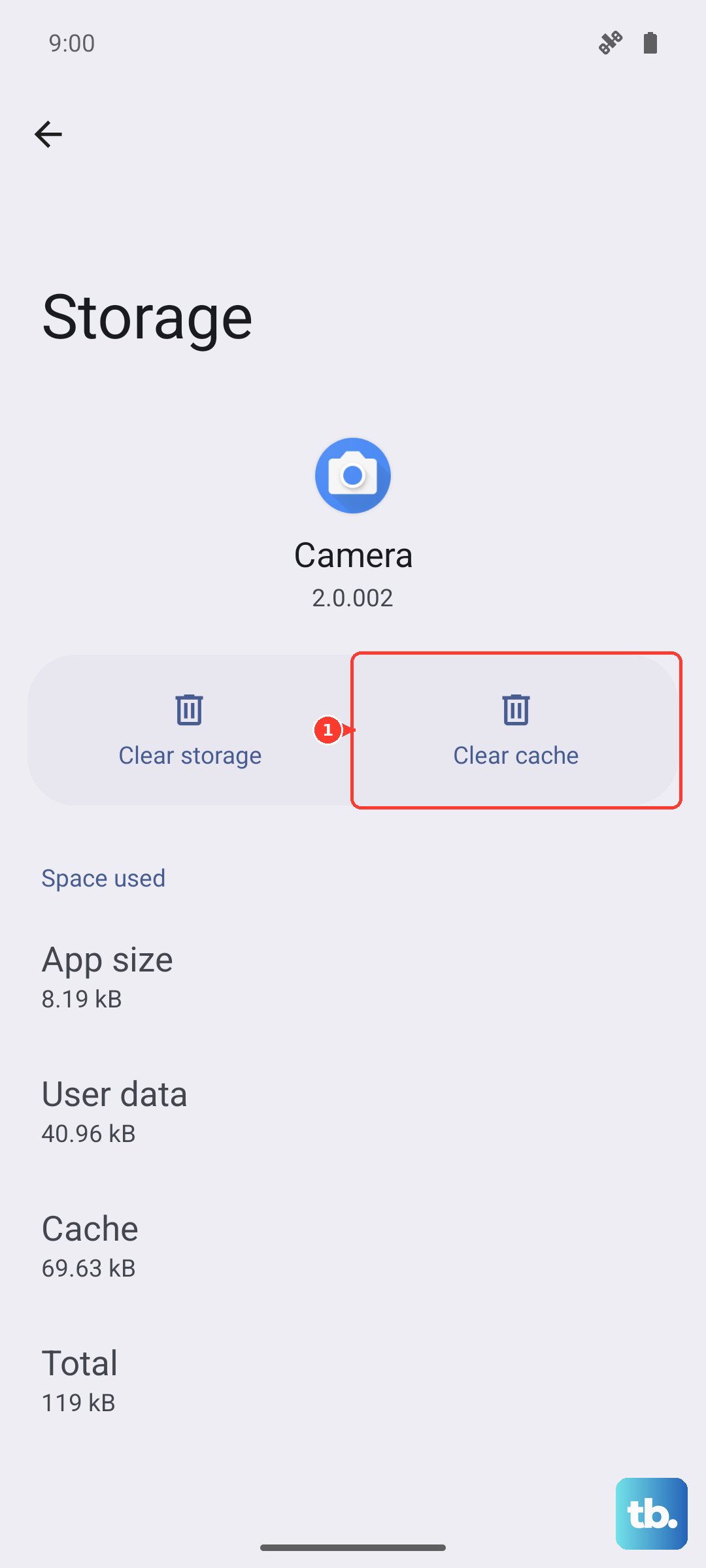
Be aware that clearing data will reset Gboard to its default state. You'll lose any custom dictionaries, saved shortcuts, and theme preferences, so you'll need to set those up again.
Update Gboard and OxygenOS
An outdated keyboard app can have bugs that break predictions. Open the Google Play Store, search for 'Gboard', and see if an update is available. Tap 'Update' if it is.
It's also wise to check for a full system update. Go to Settings > System > System updates. OxygenOS updates often include fixes for core components like the keyboard and system intelligence services that drive predictions.
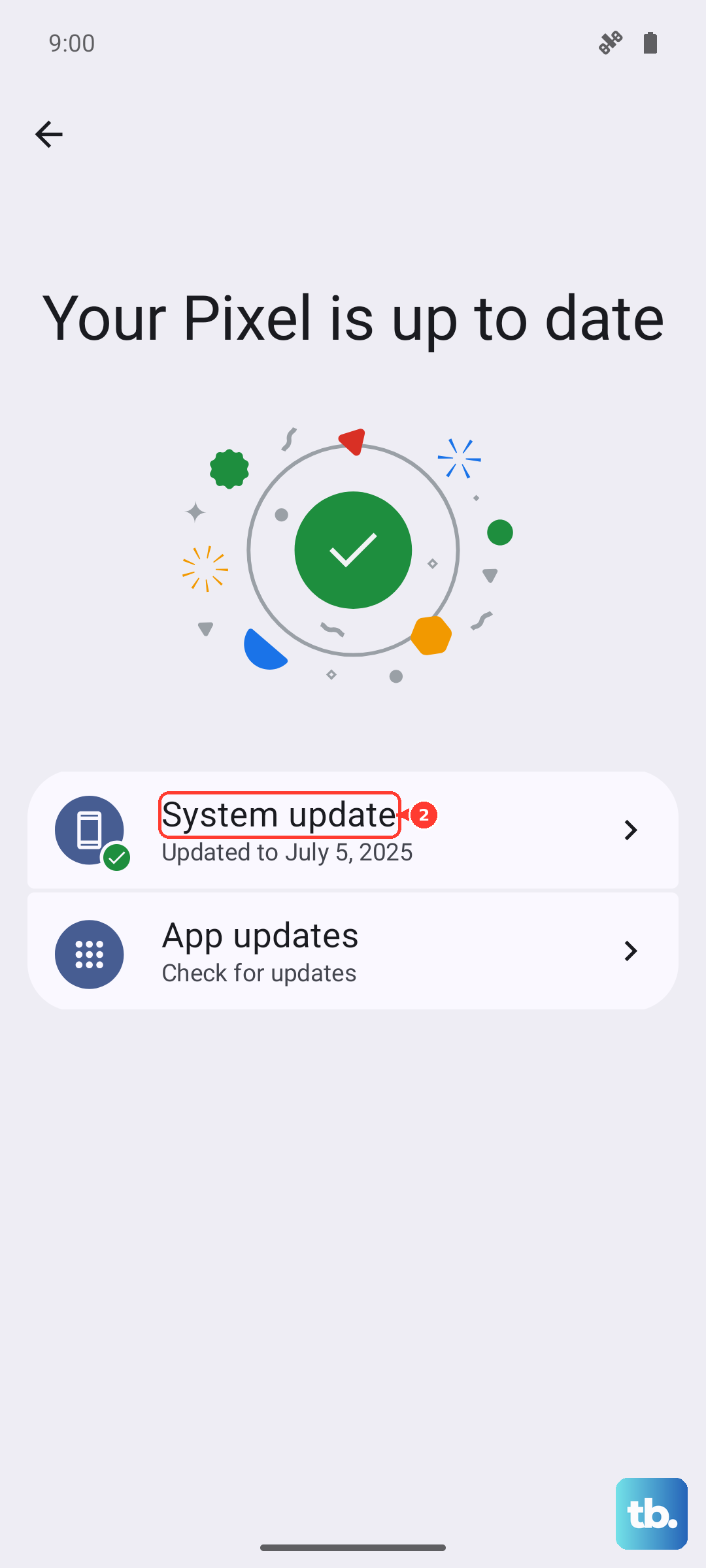
Keeping your OnePlus 13 Pro updated is one of the best ways to ensure all features, including predictive text, work smoothly and securely.
Retrain Your Language Model
Predictive text learns from how you type. If it's acting strange, you can give it a fresh start. In Gboard settings, look for an option like 'Advanced' or 'Dictionary'.
Find 'Delete learned words' or 'Clear personal dictionary'. This wipes the AI's memory of your typing habits. It will start learning again from scratch as you use the phone, which can resolve issues where it suggests completely wrong words.
Try a Different Keyboard Temporarily
To rule out a deeper system issue, you can install an alternative keyboard from the Play Store, like SwiftKey or Grammarly, and set it as default. If predictive text works perfectly on the new keyboard, the problem is isolated to Gboard.
You can then uninstall and reinstall Gboard, or stick with the new one if you prefer it. To change keyboards, go to Settings > System > Languages & input > On-screen keyboard and manage your keyboards there.