
When your OnePlus Nord 4 won't send pictures, it's usually a quick network or app setting that needs adjusting. The most common fix is to simply check your mobile data or WiFi connection, as a weak signal can cause photos to get stuck.
Check Your Mobile Data and MMS Settings
Open the Messages app and try sending a picture. If it fails, pull down the notification shade and make sure mobile data is turned on. You can also go to Settings > Mobile network to verify it's enabled.
For sending pictures via standard text (MMS), you need the correct APN settings from your carrier. Go to Settings > Mobile network > Access Point Names. If the list is empty or incorrect, you'll need to contact your carrier for the right settings to enter here.
Verify Your Internet Connection
A stable connection is key. If you're on WiFi, check that you're actually connected by looking for the WiFi icon in the status bar. Try opening a webpage to test it.
For mobile data, ensure you have adequate signal strength. The metal unibody on the Nord 4 is great for build quality, but in areas with very weak signal, it's worth moving to a different spot to see if that helps the picture go through.
Force Close and Reopen Your Messaging App
Sometimes the app just needs a fresh start. Swipe up from the bottom of the screen and hold to enter the recent apps view. Find your messaging app (like Google Messages or the stock OnePlus app) and swipe it up to close it completely. Then, reopen it and try sending the picture again.
Clear the Messaging App's Cache
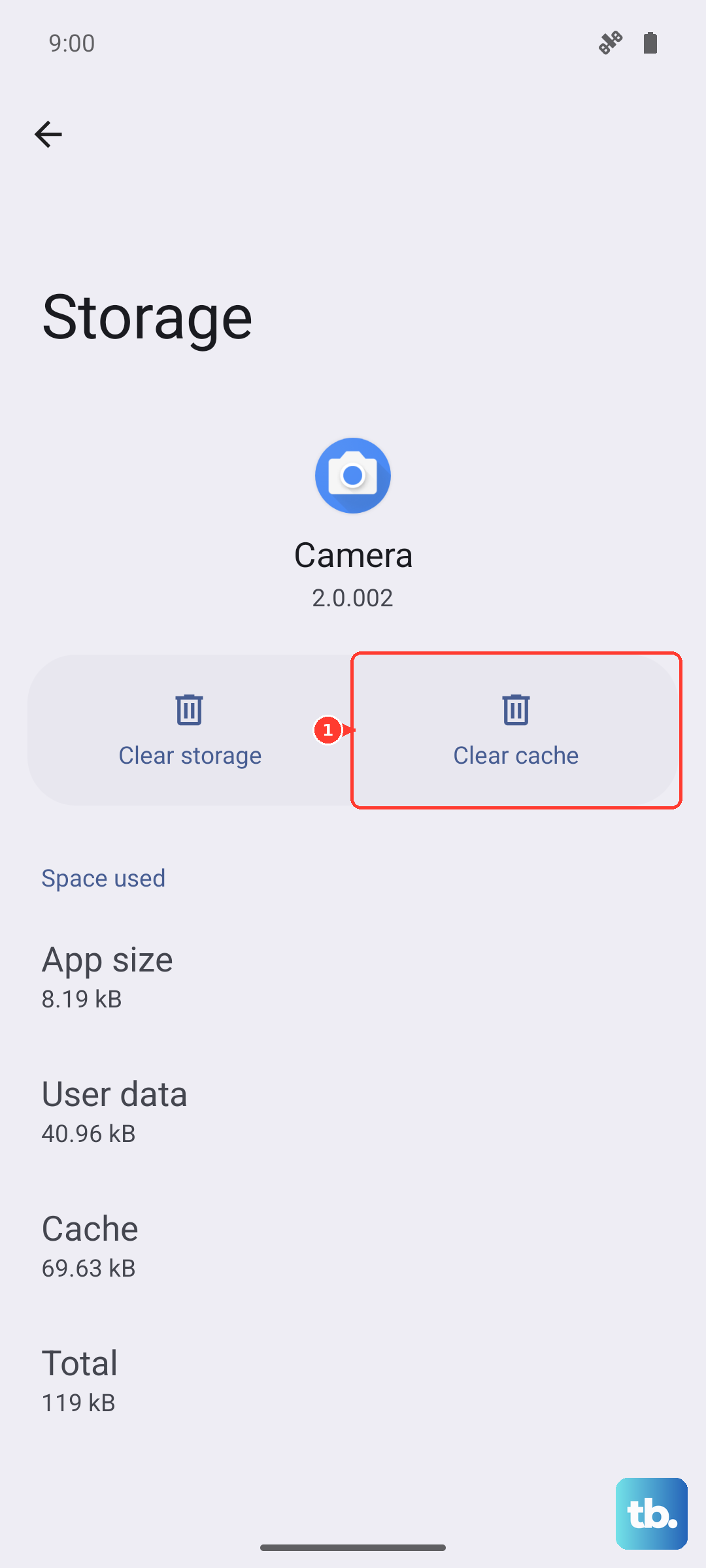
Corrupted temporary data can cause sending failures. Go to Settings > Apps > Manage apps. Find your messaging app in the list and tap on it.
Tap Storage usage and then select Clear cache. This won't delete your messages, just the temporary files. I've seen this resolve weird sending glitches on plenty of Android phones.
Check for App and System Updates
An outdated messaging app or system software might have a bug that's blocking photo sends. First, open the Play Store, tap your profile icon, and go to Manage apps & device to see if there's an update for your messaging app.
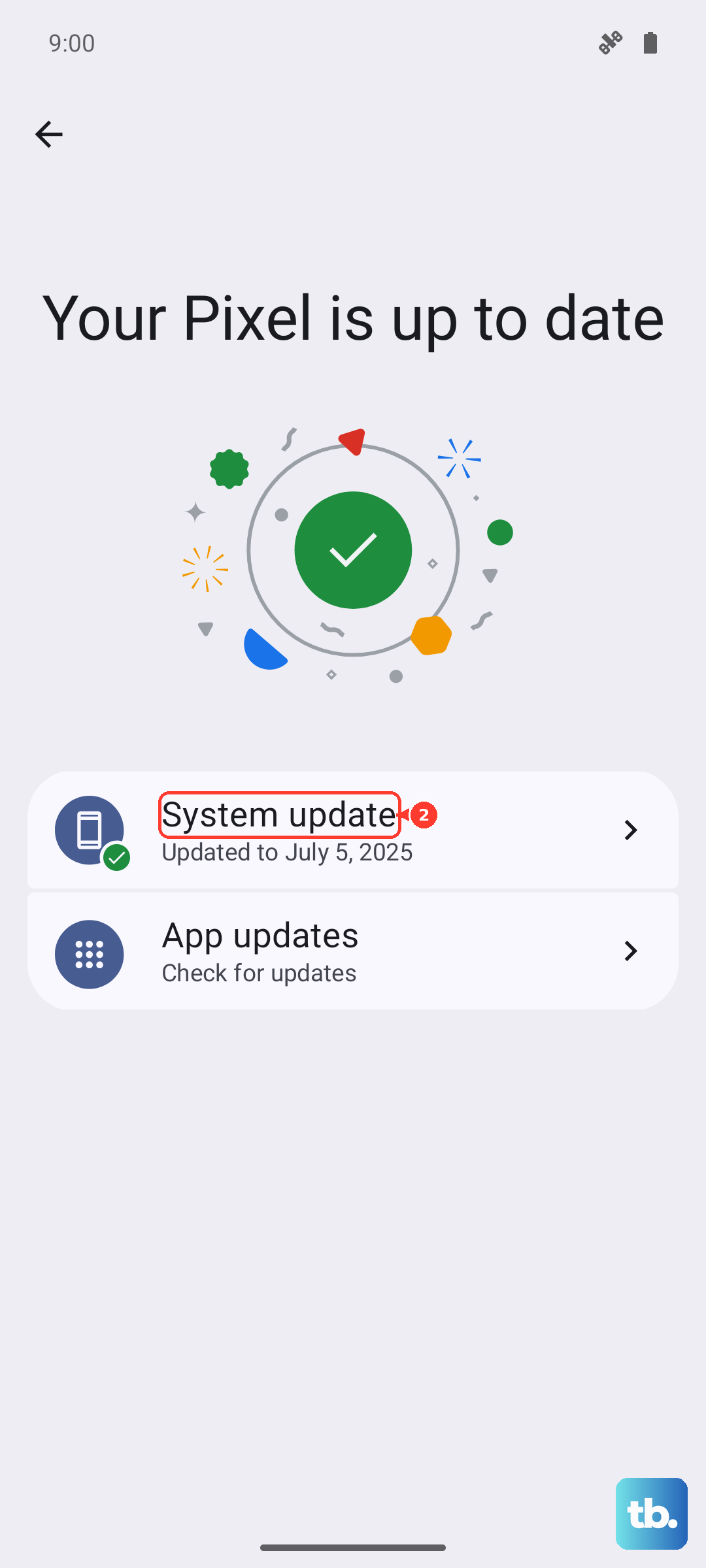
Next, check for a system update. Go to Settings > About device > OxygenOS version. If an update is available, it's a good idea to install it, as it often includes connectivity fixes.
Disable Data Saver or Battery Optimization
Power-saving features can restrict background data. Pull down the notification shade twice and look for a "Data Saver" icon. If it's on, tap it to turn it off.
You should also check battery optimization for your messaging app. Go to Settings > Battery > More battery settings > App battery management. Find your app and set it to "Don't optimize" to ensure it can always use data in the background.
Try a Different Messaging App
This can tell you if the problem is with the app itself or a deeper system issue. Download a popular alternative like Google Messages or Signal from the Play Store. Set it as your default app temporarily and see if you can send a picture through it.
If the new app works, the issue is likely with your original messaging app. You can stick with the new one or try clearing the data for the old app (just know that clearing data will delete your message history within that app).
Switch Between WiFi and Mobile Data
Sometimes one network type has an issue the other doesn't. If you're trying to send on WiFi and it's failing, turn WiFi off in the quick settings and try sending using your mobile data plan instead.
Conversely, if mobile data isn't working, connect to a reliable WiFi network and try sending the picture that way. This helps narrow down where the blockage is.
Perform a Network Settings Reset
This will refresh all your network connections back to their default state. Go to Settings > Additional settings > Back up and reset > Reset phone.
Tap on Reset Wi-Fi, mobile & Bluetooth. Confirm the action. Your phone will restart, and you'll need to re-enter any saved WiFi passwords and re-pair Bluetooth devices, but it often clears up persistent sending issues.
Force Restart Your OnePlus Nord 4
A full reboot can clear out temporary software glitches. Press and hold the power button for about 10 seconds, or until you feel the phone vibrate and see the OnePlus logo appear on the screen. This is different from a normal restart and can resolve deeper system hiccups.