
When the predictive text on your OnePlus Nord 4 stops working or starts suggesting nonsense, it can really slow you down. The suggestions might disappear, autocorrect could become overly aggressive, or the keyboard might seem to forget your habits entirely. On OxygenOS 14, there are a few specific things you can check to get it back on track.
I'd start with a quick toggle of the feature itself. Open any app that uses the keyboard, like Messages or Notes. Tap to bring up the keyboard, then look for the settings gear icon on the top row. Tap it, then find and toggle "Predictive text" off and back on. This simple refresh fixes the issue more often than you'd think.
Clear the Gboard App Cache and Data
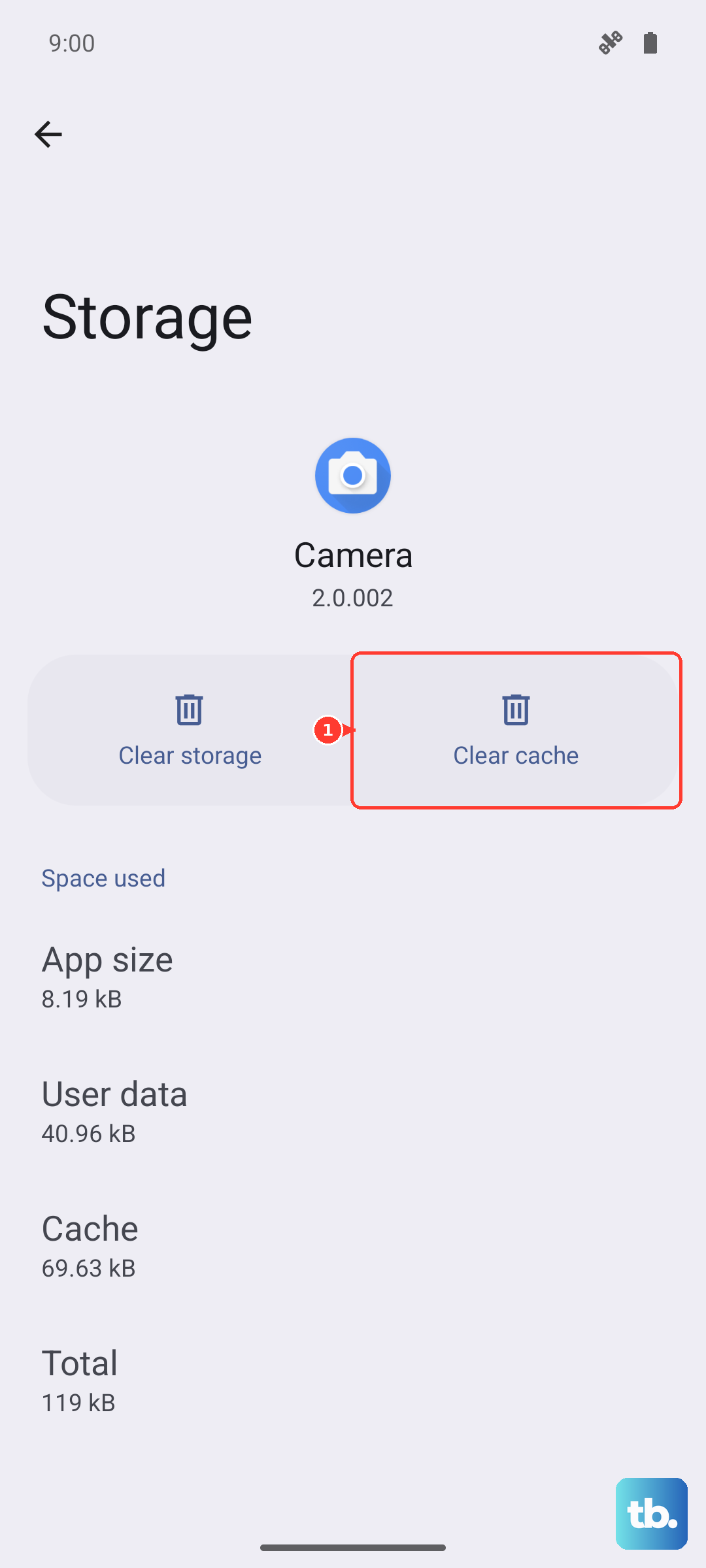
Since the Nord 4 uses Google's Gboard as its default keyboard, the fix involves that app. Corrupted temporary files in its cache can cause predictive text to fail. Go to Settings > Apps > See all apps. Find and tap on "Gboard" in your app list.
Tap on Storage & cache. First, tap "Clear cache." This removes temporary junk without affecting your personal dictionary or settings. If that doesn't work, you can go a step further and tap "Clear storage" or "Clear data." Just be aware this will reset Gboard to its factory defaults, wiping your saved words and any custom settings.
Check Your Gboard Language and Settings
Sometimes the issue is just a misconfigured setting. Open Gboard's settings directly by long-pressing the comma or globe key on the keyboard and tapping the gear icon. Alternatively, go through Settings > Additional settings > Keyboard & input method > Gboard.
Tap on "Languages" and make sure your primary language (like English US) is added and selected. Then, go back and tap "Text correction." Here, ensure "Show suggestion strip" and "Next-word suggestions" are turned on. You can also try toggling "Personalized suggestions" off and on to reset its learning.
Update Gboard and System Software
An outdated app can have bugs that break features like prediction. Open the Google Play Store, tap your profile picture, and go to "Manage apps & device." Look under "Updates available" for Gboard and install any pending update.
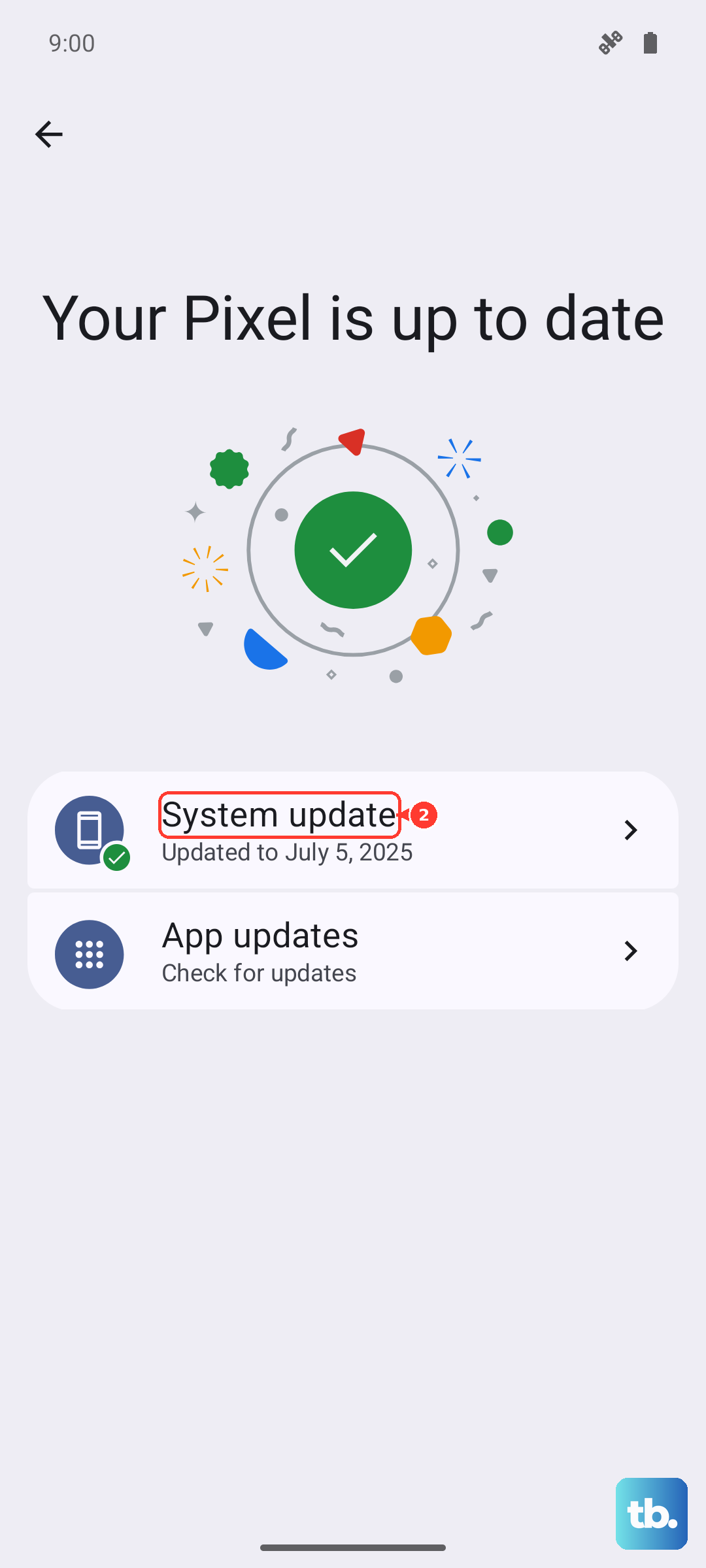
It's also worth checking for a full system update, as OxygenOS updates can include fixes for the keyboard framework. Go to Settings > About device > OxygenOS version and tap "Check for update." If your Nord 4 is still on 100% from its 100W SuperVOOC charger, this is a good time to run the update.
Perform a Force Restart
A simple software glitch in the background can affect the keyboard. Press and hold the power button on the right side of your Nord 4 for about 10 seconds, until you feel it vibrate and the OnePlus logo appears on screen. This force restart clears the phone's temporary memory and can resolve a lot of minor hiccups without deleting any of your data.
Try a Different Keyboard Temporarily
To rule out a deeper system issue, you can test if the problem is specific to Gboard. Install another keyboard like Microsoft SwiftKey from the Play Store. After installing, go to Settings > Additional settings > Keyboard & input method > Current keyboard and tap "Choose keyboards" to enable it.
Switch to the new keyboard and see if predictive text works there. If it does, the problem is isolated to Gboard, and a full reinstall might be needed. You can uninstall Gboard updates via its app info page in Settings, then update it again fresh from the Play Store.