If your OnePlus 13 Pro's battery is draining faster than it should, the first thing I'd do is check the battery usage stats. This gives you a clear picture of what's actually using power, which is way more helpful than guessing. You can find this by going to Settings > Battery > Battery usage.
Look for any apps showing unusually high background activity. Sometimes, a single misbehaving app is the entire problem. If you spot one, try force stopping it or checking for an update in the Google Play Store.
Check for Software Updates
OnePlus frequently releases updates for OxygenOS that include performance optimizations and battery life improvements. It's a simple fix that often gets overlooked. Go to Settings > System > System updates to see if anything is pending.
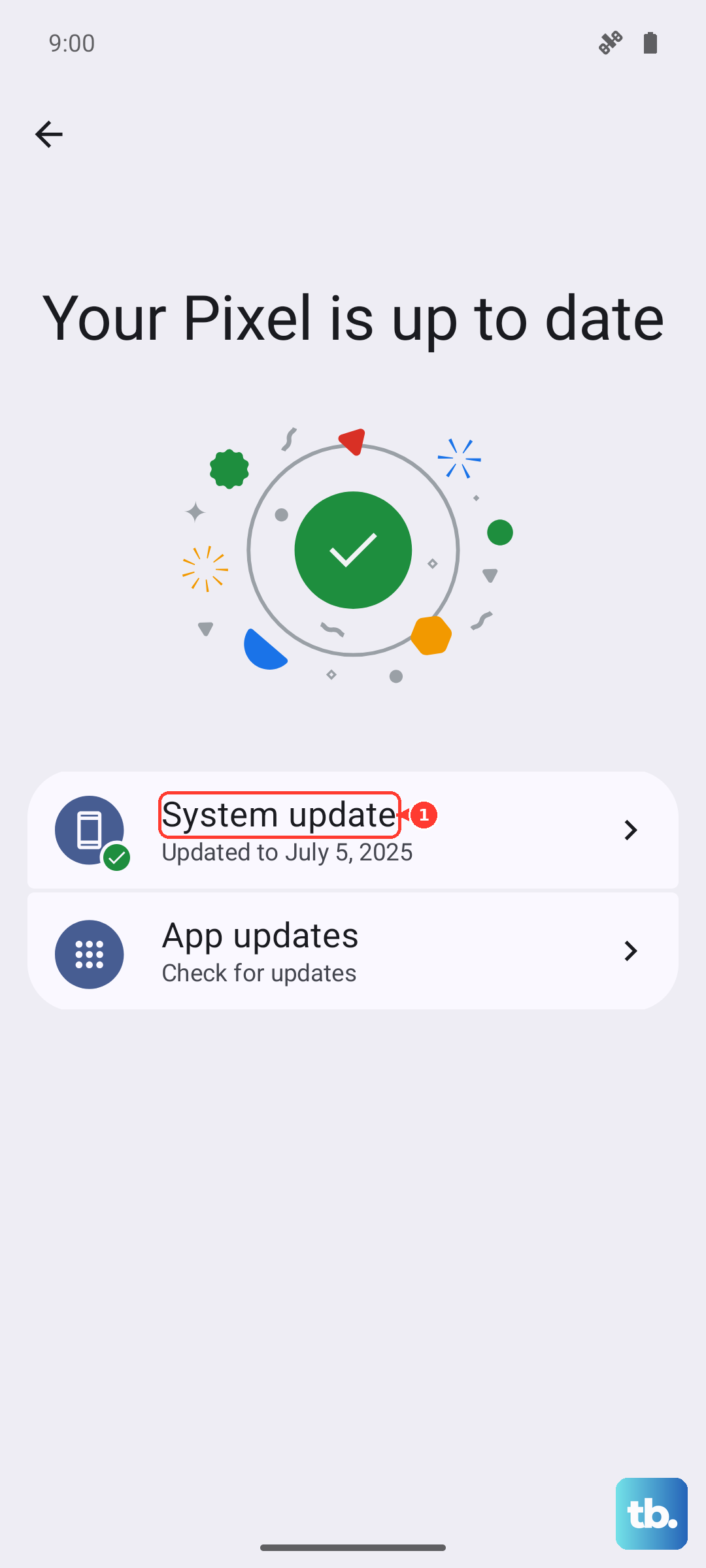
Installing the latest update can resolve bugs that cause background processes to run wild. I've seen this clear up battery drain issues on many phones, especially after a major OS upgrade like the move to Android 15.
Manage Your Display Settings
The screen is almost always the biggest battery user on any smartphone. On the OnePlus 13 Pro, you have a few powerful levers to pull. First, consider lowering the refresh rate from 120Hz to 60Hz. You can do this in Settings > Display & brightness > Screen refresh rate.
Also, take a look at the screen brightness. Auto-brightness is smart, but if you're often in very bright environments, it might be pushing the panel harder than necessary. Manually adjusting it down a bit can make a noticeable difference. Don't forget to set a shorter screen timeout, like 30 seconds, in the same settings menu.
Review App Permissions and Background Activity
Apps constantly running in the background are a major culprit. OxygenOS gives you good control over this. Head to Settings > Apps > App management and look at the apps using the most battery. Tap on any suspicious ones and select Battery usage.
Here, you can restrict background activity. For apps that don't need to be constantly updated, like some games or utilities, setting this to "Restrict" can save a lot of power. Pay special attention to location permissions. Change apps that don't need your precise location constantly to "Allow only while using the app."
Turn Off Connectivity Features You Aren't Using
Features like Bluetooth, Wi-Fi, and mobile data constantly search for signals. If you're not using them, turn them off via the quick settings panel. This is especially true for 5G, which can use more power than 4G LTE in areas with spotty coverage.
You can switch your preferred network type to 4G if you don't need the maximum 5G speed all the time. Go to Settings > Mobile network > Preferred network type to make this change. Also, consider disabling "Scanning always available" under your Wi-Fi advanced settings.
Use Optimized Charging Habits
While this won't fix drain today, it preserves your battery's long-term health. The OnePlus 13 Pro supports incredibly fast charging, up to an estimated 100W wired and 50W wireless. However, for overnight charging, using a slower charger or enabling Optimized Night Charging in the battery settings can be gentler on the battery.
If you're using wireless charging, make sure you're using a compatible Qi2 or MagSafe charger. A case with proper MagSafe compatibility ensures good alignment, which leads to more efficient charging and less wasted energy as heat.
Enable OnePlus' Battery Optimization Features
Your phone has built-in tools designed to help. Go to Settings > Battery > More battery settings. Here, you can toggle on features like "Sleep standby optimization," which reduces power consumption when the phone is idle overnight.
Also, make sure "Auto-optimize daily" is enabled. This lets the system clean up background processes automatically. The "App battery management" section is also useful for applying smart background restrictions across all your apps at once.
Limit Notifications and Haptics
Every time your screen lights up for a notification, it uses power. Review your notification settings for social media and news apps, disabling them for apps that aren't critical. You can manage this per app in the notification settings.
Additionally, haptic feedback for typing and touches, while nice, uses the vibration motor. Turning this off in your sound and vibration settings can contribute to small, cumulative battery savings throughout the day.
Try a Force Restart
If the drain started suddenly and seems system-wide, a minor software glitch might be the cause. A force restart can clear this up without deleting any of your data. Press and hold the Volume Down button and the Power button together for about 10 seconds until the phone vibrates and reboots.
This is different from a normal restart and can resolve temporary background processes that are stuck. It's a quick step that's always worth trying when things feel off.
Check for Battery-Intensive Widgets and Live Wallpapers
Widgets that update frequently, like a detailed weather widget or a social media feed, can pull data constantly. Consider removing ones you don't actively use or replacing them with simpler, static widgets.
The same goes for live wallpapers or highly detailed, bright static wallpapers. They keep the GPU working a little harder. Switching to a darker, static wallpaper can help, especially if you're using the phone's dark mode.
As a Last Resort, Reset All Settings
If you've tried everything and the drain persists, a settings reset can help. This will revert all your system settings (like Wi-Fi passwords, Bluetooth connections, and display preferences) back to default, but it won't touch your personal photos, messages, or apps.
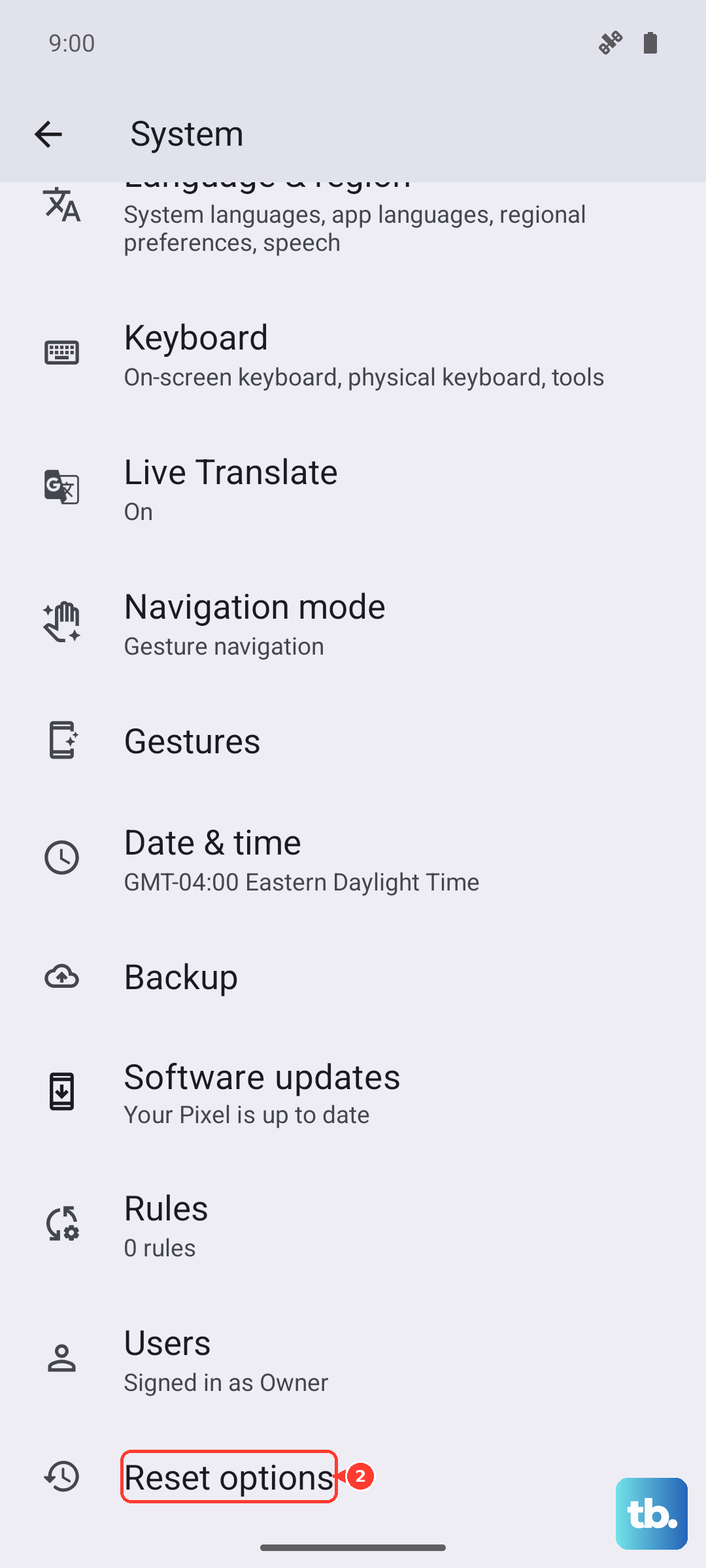
You can find this option under Settings > System > Reset options > Reset all settings. It's a hassle to set things up again, but it can eliminate any weird configuration that might be causing a background drain. After the reset, monitor your battery for a day before fully customizing everything again.