
When your MSI Stealth 16's keyboard stops responding, it can feel like you've hit a brick wall. Whether it's a few keys acting up or the entire board going dark, the solutions are usually software-related and you can often get it working again yourself.
A browser based key test shows every keypress in real time, which makes it easy to tell a failed switch from a settings problem before you start troubleshooting.
I'd start with a full restart. This reloads all the system drivers, including the one for your keyboard. If the laptop is frozen and you can't use the keyboard to navigate the shutdown menu, hold down the power button for about 10 seconds until it powers off completely.
Wait a few seconds, then press the power button again to turn it back on. This simple step resolves a surprising number of temporary glitches.
Inspect for Physical Issues
Take a close look at the keyboard. Check for any keys that are physically stuck down or for any obvious debris lodged around them. The Stealth 16 has a fairly low-profile keyboard, so even a small crumb can prevent a key from registering.
You can gently turn the laptop on its side and use a can of compressed air to blow out any particles from between the keys. Avoid using anything sharp or wet to clean around the keycaps.
Update Everything in MSI Center
This is a critical step for MSI laptops. Open the MSI Center application. Go to the Support or Live Update section and run a scan for all available updates.
You're looking for firmware updates, EC firmware (Embedded Controller), and chipset drivers. The EC firmware in particular controls a lot of the low-level hardware communication, including with the keyboard. Install any pending updates and restart your laptop.
Reinstall the Keyboard Driver in Windows
Press the Windows key + X and select Device Manager from the menu. Expand the Keyboards section. Right-click on Standard PS/2 Keyboard or any HID Keyboard Device listed and choose Uninstall device.
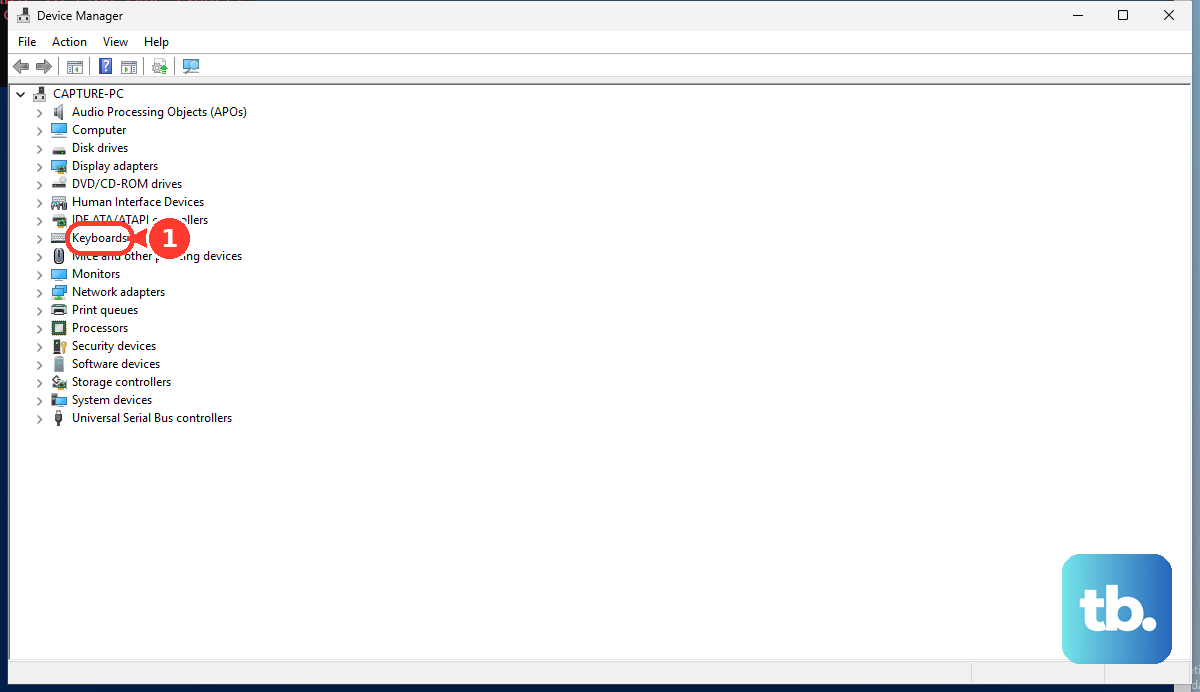
Confirm any prompts and then restart your computer. Windows will automatically detect the keyboard on the next boot and reinstall a fresh, default driver. This clears out any corrupted driver files.
Check Your Keyboard and Language Settings
If your keys are typing the wrong characters, your keyboard layout might have been switched accidentally. Go to Settings > Time & Language > Language & Region.
Make sure your correct language is at the top of the list. Click on it and select Options to verify the keyboard layout is set to your region's standard, like US QWERTY. Remove any extra keyboard layouts you don't use to prevent accidental switching with Windows key + Space.
Disable Windows Filter Keys
This is an accessibility feature that can sometimes get turned on by holding the right Shift key for too long. When active, it ignores brief or repeated keystrokes, making the keyboard seem broken.
Go to Settings > Accessibility > Keyboard. Look for the setting called Filter Keys and make sure it is turned off. While you're there, also ensure Sticky Keys and Toggle Keys are disabled for general troubleshooting.
Test in a Clean Boot State
If the keyboard works sometimes but not in your normal apps, a background program could be interfering. Performing a "clean boot" starts Windows with only essential services.
Type msconfig into the Windows search bar and run System Configuration. Go to the Services tab, check Hide all Microsoft services, then click Disable all. Go to the Startup tab and click Open Task Manager, then disable all startup items. Restart and see if the keyboard works normally. If it does, you can re-enable services and startups in groups to find the culprit.
Use an External Keyboard to Diagnose
Plug in any standard USB keyboard. If the external keyboard works perfectly, it strongly suggests an issue with the Stealth 16's internal keyboard hardware or its connection to the motherboard.
This could be a loose ribbon cable, which might require opening the chassis to reseat, or it could indicate physical damage from a spill. The internal keyboard on these models is not user-serviceable without some technical disassembly.
Reset the EC (Embedded Controller)
This is a useful hardware reset specific to laptops that can clear low-level glitches affecting input devices. First, shut down your Stealth 16 completely and unplug the AC adapter.
Locate the small pinhole on the bottom of the laptop, usually near the edge. This is the EC reset hole. Straighten a paperclip and gently insert it to press the internal button for about 5 seconds. Wait a full minute, then plug the AC adapter back in and power on the laptop normally. This process can resolve keyboard and touchpad issues that survive a normal reboot.