
Press and hold the Power button on the right side of your Razr Plus for 10 to 15 seconds. Keep holding it until you see the screen go black and feel the phone vibrate as it restarts. This force restart is the quickest way to clear out any temporary software glitch that's freezing the touchscreen.
I'd start with this one, as it's the most common fix for an unresponsive screen after an app crash or a minor system hiccup. It doesn't delete any of your data, so it's a safe first step to try.
Clean the Screen Thoroughly
Turn the phone off and give the main screen a good wipe with a soft, lint-free cloth. Pay special attention to the edges and the crease area. Dirt, oil, or even a small amount of moisture can interfere with the touch sensors.
If you use a screen protector, check for any bubbles, peeling at the edges, or damage. A poorly applied or low-quality protector is a frequent culprit for touch issues on foldables. Try removing it temporarily to see if the touch response improves.
Check for Software Updates
Unfold your Razr Plus and swipe down from the top of the screen twice to open the Quick Settings panel. Tap the gear icon to open Settings, then scroll down and tap System > System updates.
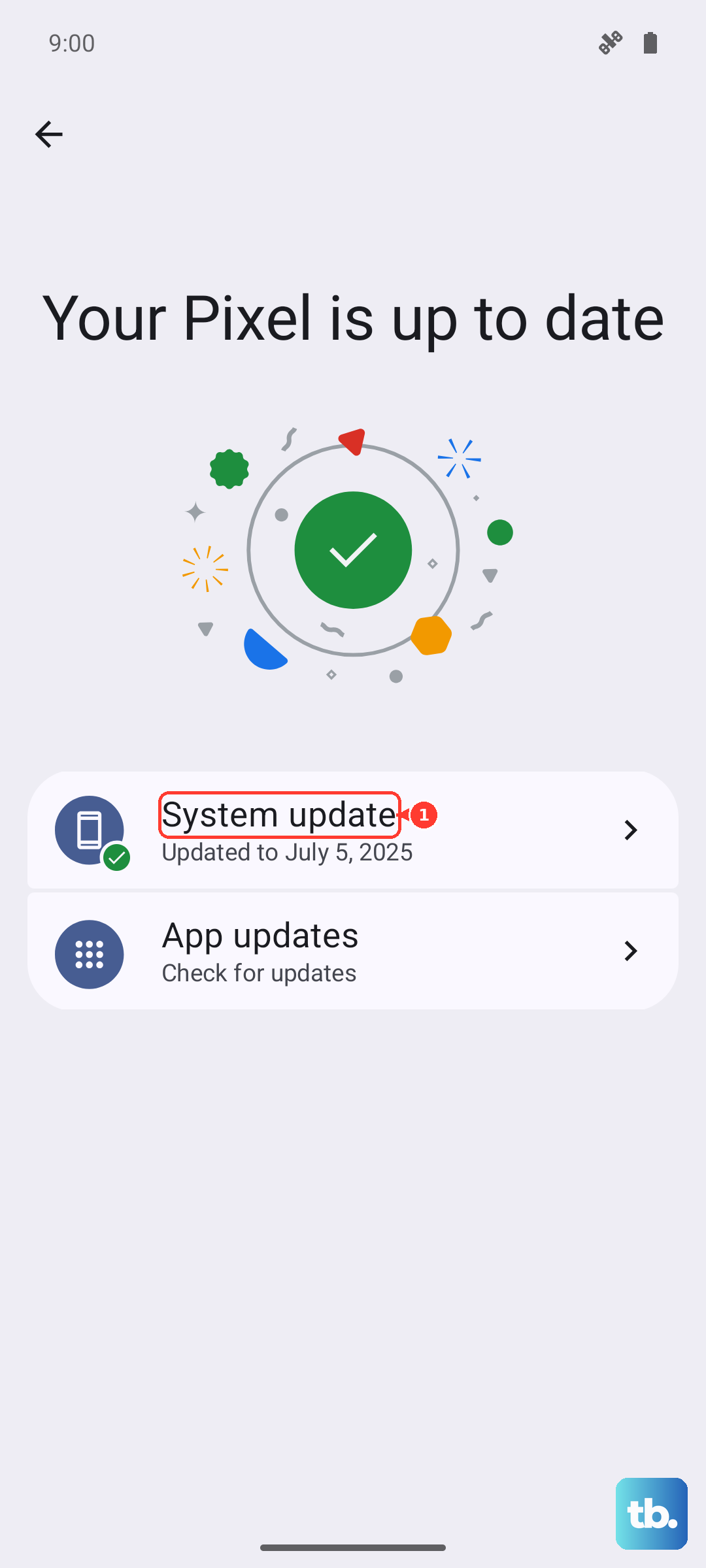
Tap Check for update and install any available updates. Motorola often releases patches that fix bugs, including touchscreen performance. Make sure your phone is connected to Wi-Fi and has at least a 50% charge before updating.
Boot Into Safe Mode
This will tell you if a recently downloaded app is causing the problem. Press and hold the Power and Volume Up buttons together until the power off menu appears. Then, press and hold the Power off option on your screen.
You'll see a prompt to reboot to Safe Mode. Tap OK. If the touchscreen works perfectly in Safe Mode, you've got a problematic app. Restart normally to exit Safe Mode, then uninstall apps you downloaded just before the issue started.
Close Apps on the Cover Screen
If the main screen is unresponsive but the cover screen works, use the cover screen to close any apps running on the main display. Swipe up on the cover screen to see your recent apps and swipe them all away to close them.
In my experience, an app that's frozen or malfunctioning on the main screen can lock up the touch input. Closing it from the cover screen can sometimes force it to reset and free up the main display.
Calibrate the Touchscreen
Motorola includes a hidden diagnostics menu you can use to test and calibrate the screen. Open the Phone app and dial *#*#2486#*#*. This should open the CQA menu.
Tap Touchscreen Test and follow the on-screen instructions. The test will have you touch various points to check for dead zones. Completing the test can sometimes recalibrate the touch sensors.
Perform a Factory Reset
This erases all your data, so it's a last resort. First, try to back up your phone using the cover screen if the main screen is dead. You can initiate a backup from Settings > System > Backup.
To reset, power off the phone. Then, press and hold the Power and Volume Down buttons together until you see the Fastboot/Bootloader screen. Use the volume buttons to navigate to Recovery Mode and select it with the power button.
When you see the Android robot with "No command," press and hold the Power button, then tap the Volume Up button once. Use the volume buttons to select Wipe data/factory reset and confirm. This will clear any deep-seated software corruption.
Consider a Hardware Inspection
If none of the software fixes work, the issue could be physical. The folding mechanism on the Razr Plus is complex, and a loose or damaged flex cable connecting the two halves can cause touch failure.
Check for any recent drops or impacts, even minor ones. Also, look closely at the hinge and the crease of the screen for any new or unusual bumps, bubbles, or lines. These can indicate internal damage affecting the display assembly.
Since this is a 2024 model, it's likely still under warranty. Contact Motorola support for diagnosis; they have the tools and parts specifically for the foldable's internal components.