
That "No SIM card detected" message on your Motorola Razr Plus can stop you in your tracks. It's a common hiccup, but on a foldable phone, there are a few extra things to consider. The good news is you can almost always fix it yourself with a few simple steps.
Start With a Force Restart
Before you do anything else, give your Razr Plus a fresh start. This clears out temporary software glitches that can confuse the SIM reader. Just press and hold the Power button for about 10 to 15 seconds until you see the Motorola logo appear and the phone restarts.
It's a quick step that I'd try first, as it solves a surprising number of issues without touching your data.
Check the Physical SIM Card and Tray
Since the Razr Plus folds, it's worth checking that the SIM tray and card are seated perfectly. First, power the phone off completely. Use the SIM ejector tool that came in the box to pop out the tray.
Take a close look at the gold contacts on the SIM card. Look for any scratches, dirt, or corrosion. Gently wipe them with a clean, dry microfiber cloth. Also, inspect the SIM tray itself inside the phone for any debris. When you reinsert it, make sure the card is aligned correctly and the tray clicks firmly into place.
If you have another phone handy, test your SIM card in it. If it also fails to be recognized, the SIM itself is likely the problem and you'll need to contact your carrier for a replacement.
Toggle Airplane Mode and Verify SIM Status
Sometimes the phone's radio just needs a quick reset. Swipe down from the top of your screen to open the Quick Settings panel and tap the Airplane Mode icon. Wait about 10 seconds, then tap it again to turn it off.
Next, double-check that the SIM is actually enabled in your settings. Go to Settings > Network & internet > SIMs. Make sure your SIM card is toggled on here. You can also tap on it to see more details about its status.
Update Your Software
Software bugs in Android 14 can sometimes interfere with network functions. Motorola regularly releases updates that fix these kinds of issues. To check, go to Settings > System > System updates.
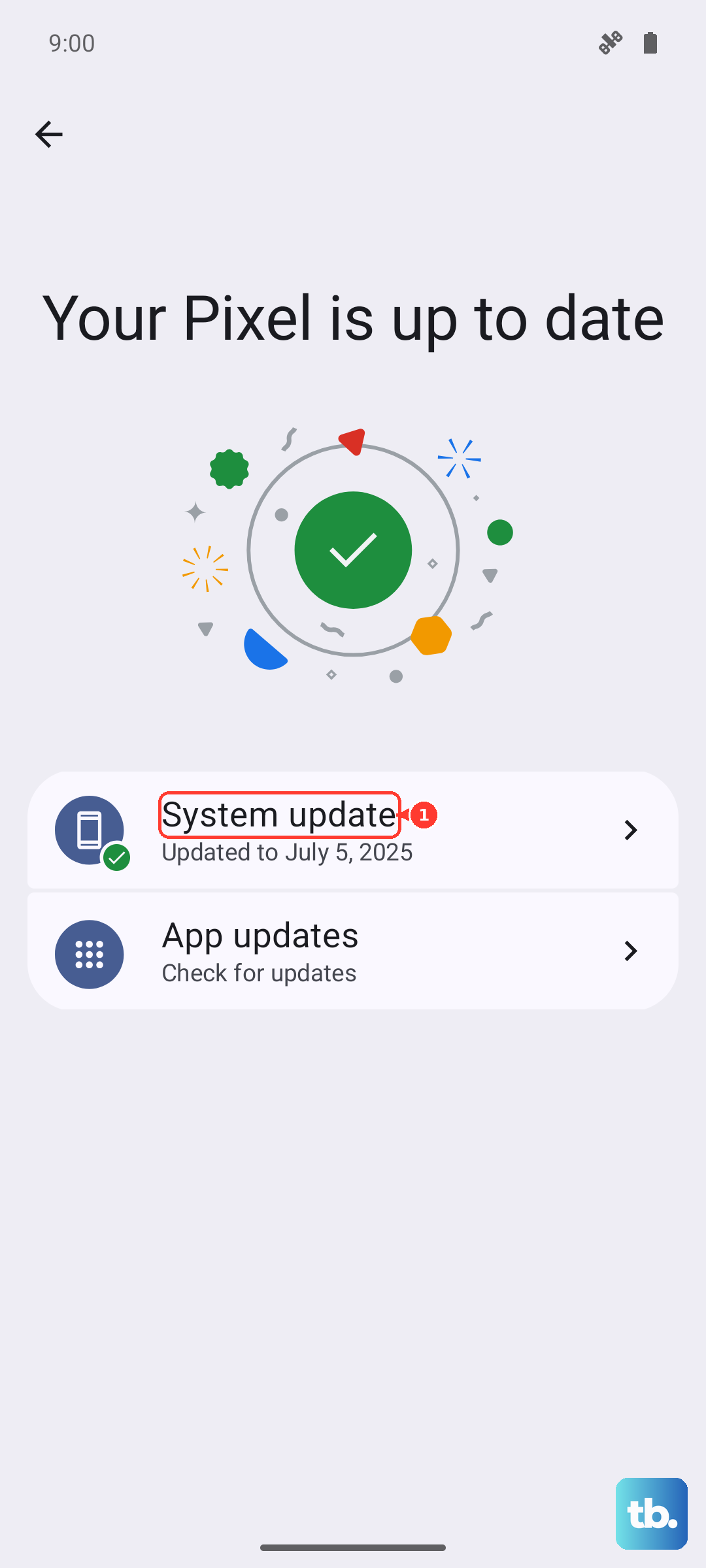
Tap "Check for update" and install anything that's available. It's a good idea to restart your phone after the update completes to make sure all the new software loads correctly.
Reset Your Network Settings
This is a more thorough step that clears out all your saved network configurations, like Wi-Fi passwords and Bluetooth pairings, but it won't touch your personal files. It often resolves persistent SIM and signal issues.
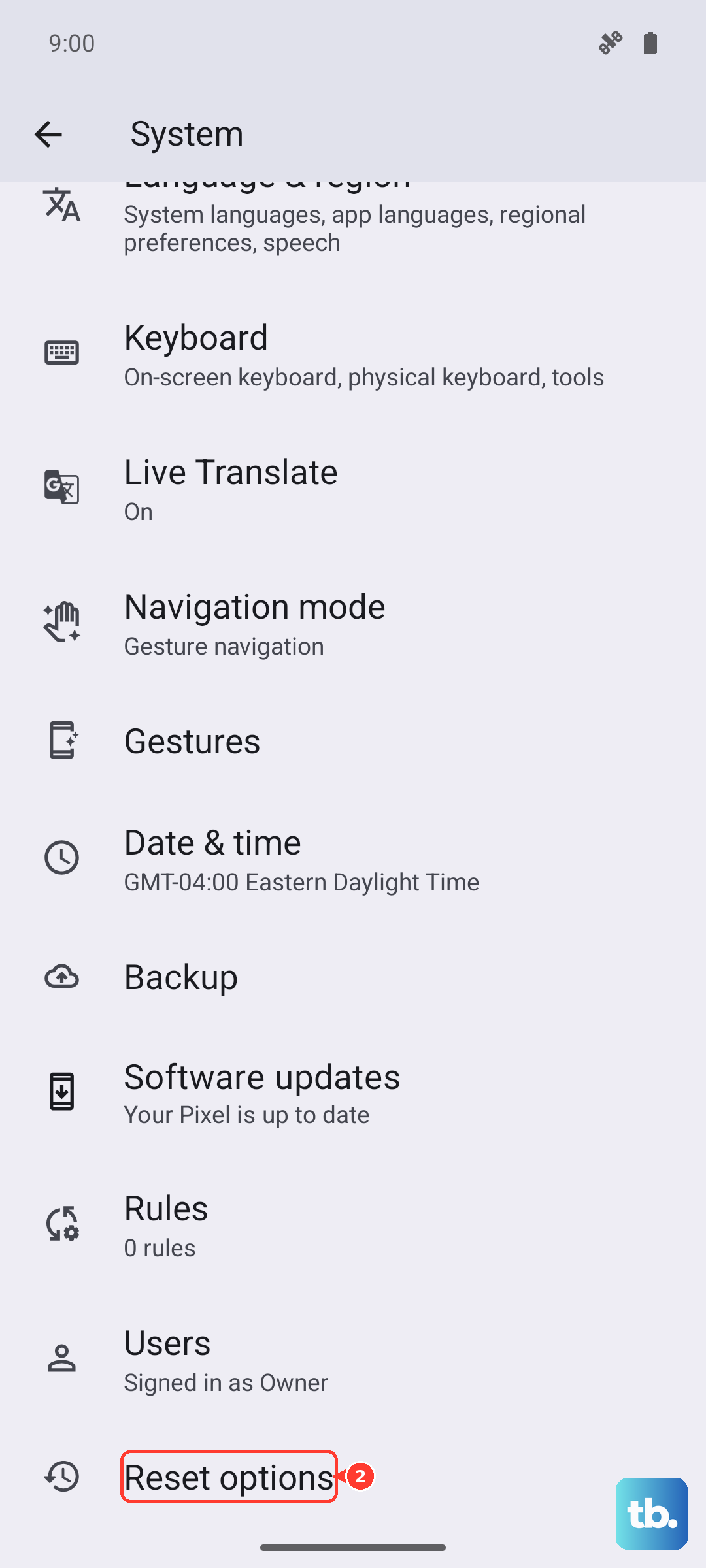
To do this, navigate to Settings > System > Reset options. Tap on "Reset Wi-Fi, mobile & Bluetooth" and confirm. Your phone will reboot, and you'll need to reconnect to Wi-Fi networks and re-pair Bluetooth devices afterward.
Clear the SIM Toolkit Cache
Background system apps that manage the SIM can accumulate corrupted data. You can clear their cache to give them a clean slate. Go to Settings > Apps > See all apps.
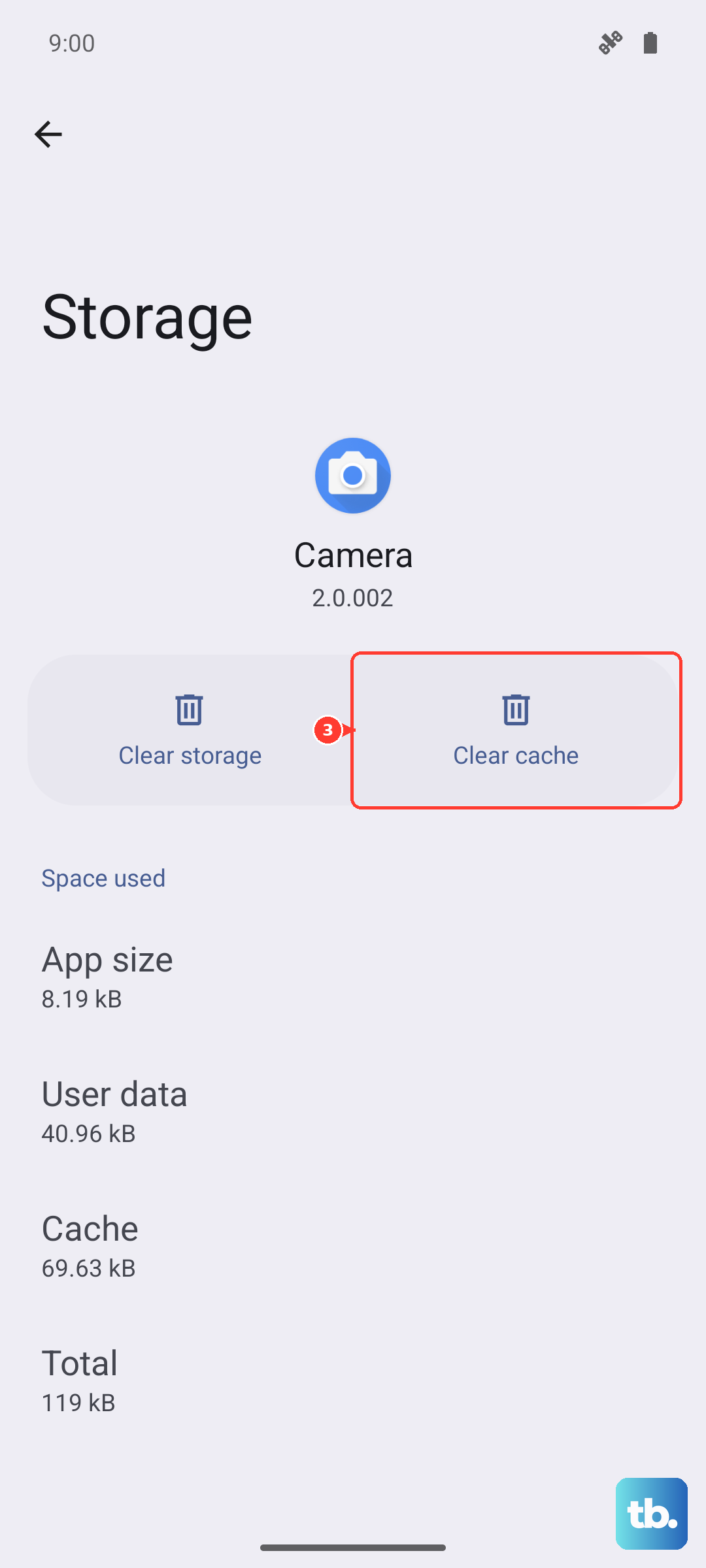
Tap the three-dot menu in the top right and select "Show system." Now, find and tap on "SIM Toolkit." Go into Storage & cache and tap "Clear cache." Do the same for any app with "SIM" or "Carrier" in the name.
Manually Select Your Network
If automatic network selection is failing, you can try choosing your carrier yourself. Go to Settings > Network & internet > SIMs and tap on your active SIM.
Look for an option like "Network operators" or "Carrier." Tap "Choose automatically" to turn it off, then tap "Search networks." Select your carrier's name from the list that appears.
Reset Your APN Settings
Incorrect Access Point Name (APN) settings will prevent your phone from connecting to your carrier's data network, which can sometimes be mistaken for a SIM error. To reset them, go to Settings > Network & internet > SIMs and tap your SIM.
Tap "Access Point Names." In the top right menu, select "Reset to default." If your carrier requires specific APN details, you may need to re-enter them manually or they might download automatically.
Consider Switching to eSIM
The Motorola Razr Plus (2024) supports eSIM. If your physical SIM card or tray seems to be the recurring problem, switching to a digital eSIM can be a permanent solution. Contact your carrier to see if they support eSIM activation and ask them to help you transfer your number.
This removes the physical component from the equation entirely.
Check for Hardware Issues Specific to the Foldable
On a folding phone, it's worth considering the unique form factor. Ensure the SIM tray on the side of the device is not loose or damaged from opening and closing. While rare, a connection for the internal antenna could be affected if the phone has been subjected to a hard impact.
If you've tried every software fix here and the SIM works in other phones, the issue might be with the phone's internal SIM reader or related circuitry. In that case, reaching out to Motorola support would be the next logical step.