
If your Motorola Razr Plus (2024) is getting uncomfortably warm, it's a common issue with a few straightforward fixes. The compact, folding design can trap heat, especially during charging or heavy use. I'd start by checking your charging setup, as that's often the quickest solution.
First, make sure you're using the phone unfolded while it's plugged in. The hinge area can crimp the USB-C cable if the phone is closed, which not only damages the cable but also restricts power flow and causes extra heat. It's a simple habit that makes a big difference.
Also, take a second to close any apps running on the cover screen before you start charging. Those external display apps continue to run and can drain the battery slightly even while plugged in, which generates unnecessary heat. Just swipe them closed like you normally would.
Check Your Charger and Cable
Not all chargers are created equal, especially for a phone that supports 45W TurboPower. If you're using a low-wattage charger from an older device, the Razr Plus will charge much slower and can get warmer in the process as it struggles to pull enough power.
For the fastest, coolest charge, use an official Motorola TurboPower 45W charger or a high-quality third-party USB-C PD charger that supports the 45W profile. The same goes for the cable, use the one that came with the phone or a certified high-wattage cable. A frayed or damaged cable can cause resistance and heat buildup right at the port.
If you're using wireless charging, remember it's less efficient and generates more heat by nature. The Razr Plus supports 15W Qi wireless charging. Make sure you're using a compatible 15W charger and that the phone is centered correctly on the pad. Remove any thick cases, as they can insulate heat and interfere with the charging coils.
Close Background Apps and Processes
Sometimes the heat is coming from the processor working overtime. Swipe up from the bottom of the main screen and hold to enter the recent apps view. Swipe away any apps you aren't actively using. Pay special attention to camera apps, navigation apps like Google Maps, or graphics-intensive games, as these are common culprits.
You can also check for misbehaving apps in the settings. Go to Settings > Apps > See all apps. Look for any app using a surprisingly high percentage of battery, as battery drain and heat generation go hand in hand. If you find one, you can force stop it or check for an update.
Adjust Your Display and Performance Settings
The beautiful 165Hz main display is fantastic but can be a source of heat and battery drain. If your phone is warm during general use, try lowering the refresh rate. Go to Settings > Display > Refresh rate and select "Standard" (60Hz) instead of "High" (165Hz). You can always switch it back for gaming or scrolling.
Similarly, reduce the screen brightness manually or ensure adaptive brightness is on. A super-bright screen, especially with the cover display also active, generates significant heat. It's also worth enabling the phone's built-in optimization. Go to Settings > Battery and turn on features like "Adaptive charging" and "Battery saver" when you don't need full performance.
Update Your Software
Motorola frequently releases software updates that include optimizations for thermal management and battery usage. An outdated OS can have bugs that cause the CPU to work harder than it needs to. Go to Settings > System > System updates and tap "Check for update."
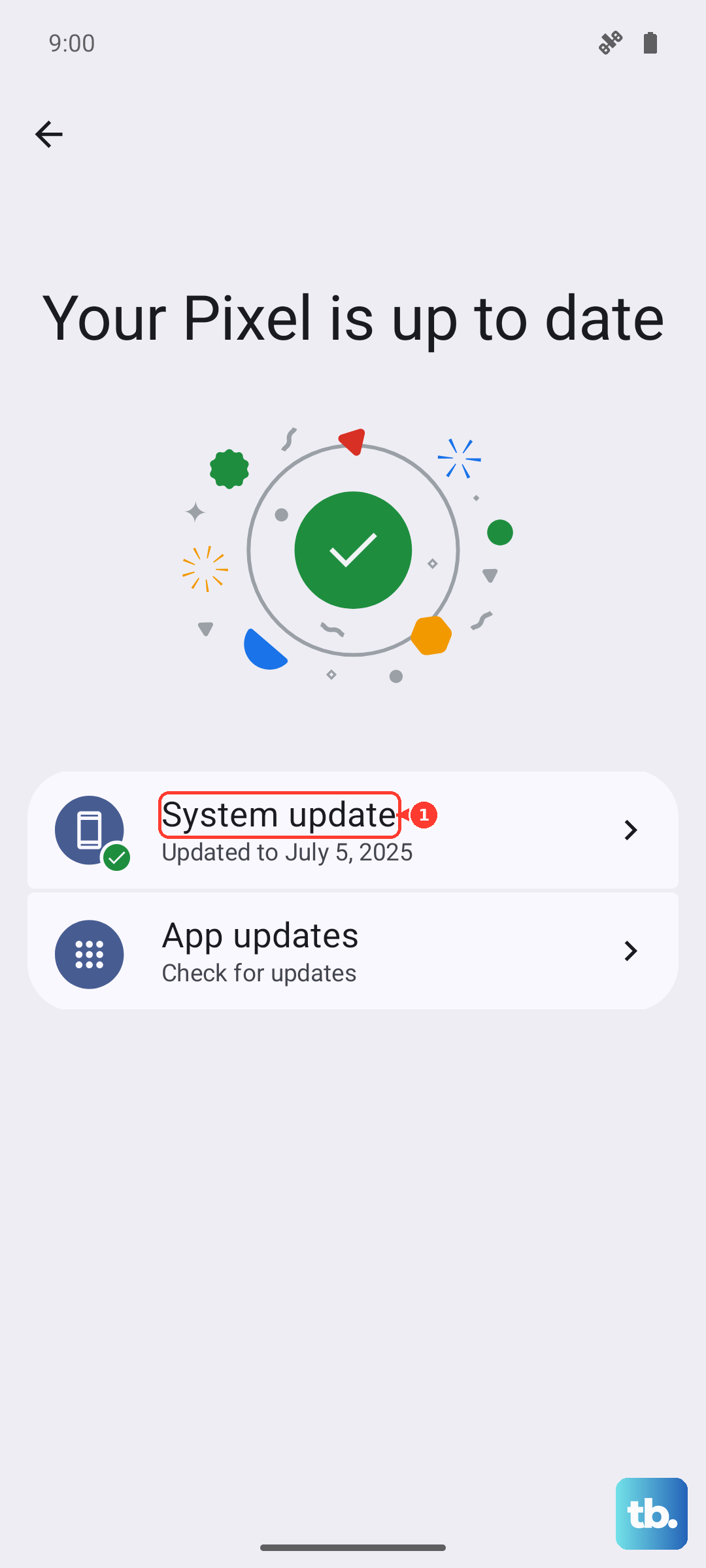
Install any available updates and restart your phone. The same goes for your apps. Open the Google Play Store, tap your profile icon, and go to Manage apps & device > Updates available to install all pending app updates. Developers often patch performance issues that can cause overheating.
Give It a Break and Cool Down
If you've been using the phone for an extended gaming session, recording 4K video, or using GPS navigation, it's normal for it to get warm. These are processor-intensive tasks. When you notice it getting hot, just set it down for a few minutes on a cool, hard surface. Avoid leaving it on a sofa, bed, or in direct sunlight.
Never put an overheating phone in the refrigerator or freezer. The rapid, extreme temperature change can cause condensation inside the device, leading to water damage. A cool, shaded room-temperature surface is the safest place for it to dissipate heat naturally.
Perform a Force Restart
If the phone is hot and becoming unresponsive or sluggish, a soft reset can clear out any temporary software glitches causing the issue. Simply press and hold the Power button for about 10 to 15 seconds until you feel a vibration and see the Motorola logo appear. This forces the phone to reboot without deleting any of your data.
This is different from a factory reset. It's just a quick refresh of the system software, and it's a good first step if the overheating seems sudden and unexplained. After it reboots, let it sit for a minute before you start using it again.
Check for Physical Damage or Blockages
Take a close look at the USB-C charging port on the bottom of the phone. Use a bright light and check for any packed-in lint, dust, or debris. If you see any, you can very carefully remove it with a dry, soft-bristled brush or a plastic toothpick. Be extremely gentle to avoid damaging the delicate pins inside the port.
Also, inspect the phone's body, especially around the hinge and the seams of the display. While the Razr Plus is durable, significant physical damage could affect its ability to manage heat properly. If you notice any new cracks, gaps, or the phone doesn't open and close smoothly, that could be a contributing factor.
Monitor Temperature with Safe Mode
If the overheating persists and you can't pinpoint an app, booting into Safe Mode can help diagnose the problem. Safe Mode temporarily disables all third-party apps. To enter Safe Mode, press and hold the Power button until the power menu appears.
Then, tap and hold the "Power off" option on your screen. A prompt will appear asking if you want to reboot to Safe Mode. Tap "OK." If the phone runs significantly cooler in Safe Mode, you know a downloaded app is causing the issue. You'll then need to restart normally and uninstall recent apps one by one to find the culprit.