
Missing calls on your Motorola Razr Plus (2024) can be a real headache, especially when you're expecting something important. The phone is sleek and powerful, but sometimes the simplest settings can get in the way of a basic function like ringing. Let's walk through the most effective ways to get your flip phone sounding off again.
Check Your Sound Profile and Volume
First, let's tackle the obvious. Your Razr Plus has different sound profiles you can cycle through by pressing the volume buttons. Make sure you're not in Silent or Vibrate Only mode. When you press a volume key, look at the cover screen or the main display. You should see a bell icon, not a vibration symbol or a crossed-out bell.
If the icon looks right but the volume bar is low, press the volume up button to crank it. You can also dig into the settings for more control. Open the Settings app, go to Sound & vibration, and then tap Volume. Here, you can independently adjust the ringtone and notification volume sliders. Make sure the ringtone slider isn't all the way down.
Disable Do Not Disturb and Moto's Flip-to-DND
Do Not Disturb is a common culprit. When it's on, your phone stays silent for calls and alerts unless you've configured exceptions. Swipe down from the top of your screen to open the Quick Settings panel and look for the Do Not Disturb tile. If it's highlighted, tap it to turn it off.
The Razr Plus also has a handy feature called "Flip-to-DND" that automatically enables Do Not Disturb when you close the phone. This is great for meetings, but easy to forget about. To check it, go to Settings > Moto > Flip-to-DND. You can toggle it off here if you want your phone to ring even when closed.
Review Your App Notifications and Ringtone
Sometimes the issue is specific to your Phone app's notifications. Go to Settings > Apps > See all apps and find the "Phone" app in the list. Tap on it, then select Notifications. Ensure that "Incoming calls" notifications are turned on and set to "Make sound and pop on screen."
It's also worth testing a different ringtone. A corrupted audio file for your custom ringtone could be the problem. Head to Settings > Sound & vibration > Phone ringtone and pick one of Motorola's default tones. Have a friend call you right after to test it.
Disconnect Bluetooth Accessories
If your Razr Plus is connected to a Bluetooth headset, speaker, or your car, incoming call audio is often routed there by default. This means your phone itself won't ring. The quickest fix is to turn Bluetooth off temporarily to test. Swipe down for Quick Settings and tap the Bluetooth icon to disable it.
You can also check connected devices. Go to Settings > Connected devices. If you see active devices like headphones, tap on them and select "Disconnect." This ensures the next call will definitely try to use your phone's speaker.
Check for Blocked Numbers and Call Forwarding
It's worth verifying you haven't accidentally blocked the person trying to reach you. Open your Phone app, tap the three-dot menu in the top right, and go to Settings > Blocked numbers. Review the list to make sure no wanted contacts are there.
Call forwarding is another setting that can redirect calls before your phone ever gets a chance to ring. In the Phone app, tap the menu again and go to Settings > Calling accounts > [Your Carrier] > Call forwarding. Make sure all forwarding options, like "Always forward," are turned off.
Perform a Software Update and Restart
Software glitches can occasionally mute system sounds. A simple restart can clear this up. Just press and hold the power button for a few seconds until the power menu appears, then tap "Restart." For a more forceful reset if the phone is unresponsive, press and hold the power button for 10-15 seconds until you feel it vibrate and the Motorola logo appears.
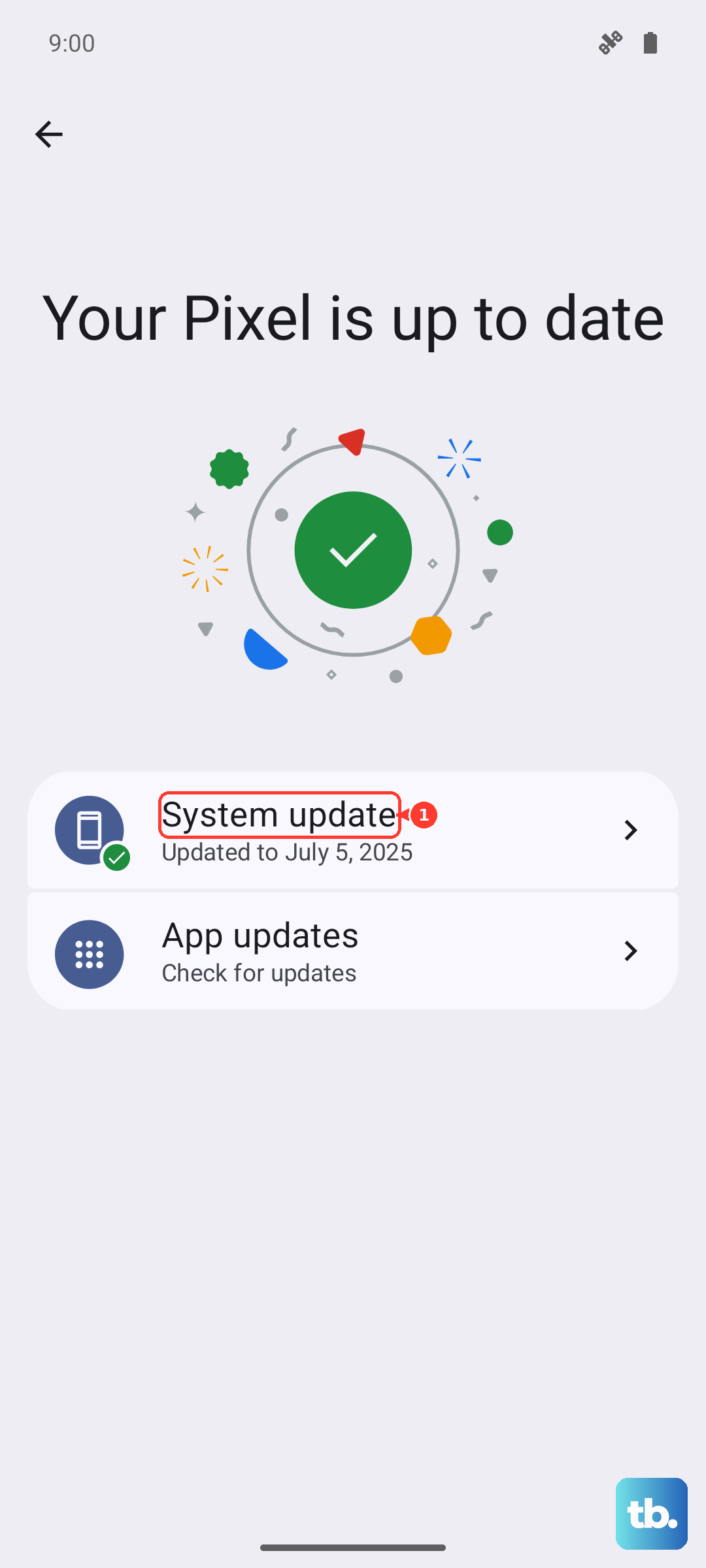
If a restart doesn't help, check for a system update. Motorola frequently releases updates that fix bugs. Connect to Wi-Fi, then go to Settings > System > System updates. Download and install any available updates. I've seen minor audio issues resolved by a simple patch more than once.
Reset App Preferences or Network Settings
If the problem seems linked to your phone app or connectivity, you can try resetting app preferences. This won't delete any app data, but it will reset all your notification settings and default apps. Go to Settings > System > Reset options > Reset app preferences and tap "Reset." You'll then need to re-allow notifications for your apps.
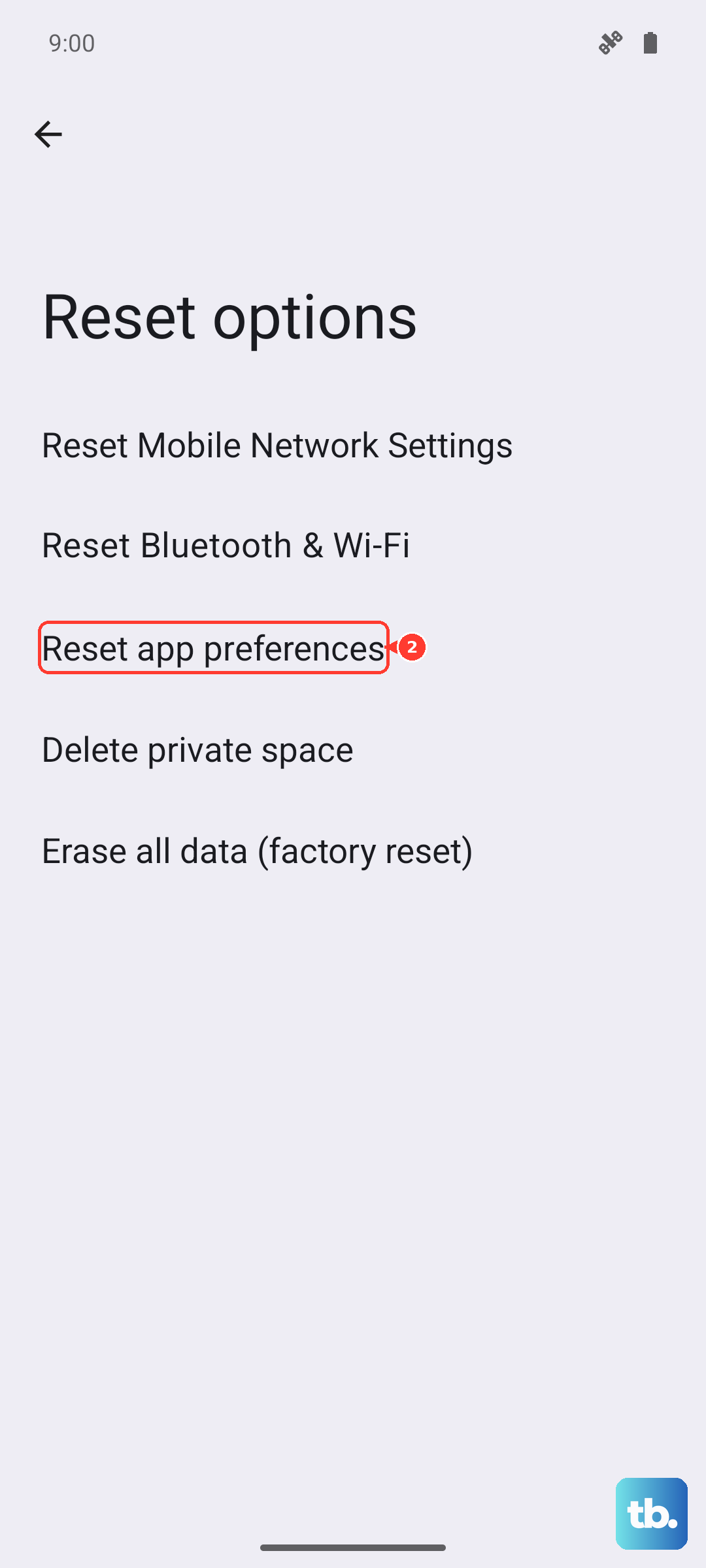
For issues that might be network-related, like calls going straight to voicemail, resetting network settings can help. This will erase all Wi-Fi passwords and Bluetooth pairings. Navigate to Settings > System > Reset options > Reset Wi-Fi, mobile & Bluetooth and confirm. After your phone reboots, you'll need to reconnect to your networks.
Verify SIM Card and Carrier Services
A faulty or poorly seated SIM card can cause call reception issues. Power off your Razr Plus completely. Use the SIM ejector tool that came in the box to open the tray on the bottom edge, remove the SIM card, and gently re-seat it. Power the phone back on.
Also, ensure your carrier services are up to date. Open the Google Play Store, tap your profile icon, and go to Manage apps & device > Manage > Installed. Search for "Carrier Services" and update it if available. This app helps manage calling features between your phone and your mobile network.