
If your Moto G Stylus 5G is locked to a single carrier, you can unlock it to use with any network. Here’s how.
What to Know
- Contact your carrier first. If your phone is paid off, they are legally required to provide the unlock code for free.
- You need your IMEI. Dial *#06# on your phone's keypad to get this unique 15-digit number.
- Be careful with attempts. Entering the wrong Network Unlock Code (NUC) too many times can permanently lock the device.
- Third-party services are a backup. Use them only if your carrier refuses and you understand the risks.
The process for unlocking a Motorola phone is generally straightforward. Since your Moto G Stylus 5G runs Android 15, the unlock menu will look a bit different from older models, but the core steps are the same. I’d start by checking your account status with your current provider.
Request the Unlock Code from Your Carrier
This is the official, free, and safest method. Under the wireless industry’s voluntary unlocking commitments to the FCC, carriers will unlock devices upon request if you meet their criteria. For your 2025 model, the phone must be fully paid off and not reported lost or stolen.
You’ll need to contact your carrier’s customer support, either by phone or through their website portal. Have your account information and the device IMEI ready. They will verify your eligibility and, if approved, send you an 8 to 16-digit Network Unlock Code via email or text, usually within 1-2 business days.
Enter the Unlock Code on Your Moto G Stylus
Once you have the code, the actual unlock takes about a minute. First, power your phone down completely. Remove the current SIM card from the tray (you might need the stylus tip or a paperclip to eject it, as the silo mechanism can be finicky).
Now, insert a SIM card from a different carrier. This is crucial, the phone won’t prompt for the code with its original carrier’s SIM. Power the device back on. As it boots, you should see a screen asking for the “Network Unlock Code” or “SIM network unlock PIN.”
Enter the code you received very carefully. If it’s correct, you’ll see a “Network unlock successful” message. Your Moto G Stylus 5G is now unlocked and will work with the new SIM card. If you don’t get the prompt, try the process again or check if the new SIM is active.
Use a Reputable Third-Party Unlocking Service
If your carrier won’t provide the code, perhaps the phone is still under contract or you bought it second-hand, a third-party service is your next option. These services use databases and connections to generate codes for a fee, typically between $10 and $40.
Choose a service with strong, verifiable reviews. You’ll provide them with your Moto G Stylus 5G’s IMEI number and the original carrier it’s locked to. After payment, they email you the code, often within a few hours. You then enter this code using the same SIM-swap method described above.
Check for a Built-In Unlock Option in Settings
Some carriers, especially prepaid ones like Metro by T-Mobile, build the unlock process directly into the phone’s software. It’s worth a quick look. Open your Settings app and search for “unlock” or “SIM.”
You might find an option like “Network unlock” or “Device unlock.” Tapping it will check your eligibility with the carrier’s servers. If you qualify, it may unlock the phone automatically without needing a code. This is the easiest path if it’s available for your specific device and carrier combination.
What to Do If You Get a “SIM Network PIN Blocked” Error
This scary message appears after you’ve entered the wrong unlock code too many times, usually around 10 attempts. It’s a security lockout. Don’t panic, but stop entering codes immediately.
You now need a PUK (Pin Unlock Key) or “master code” to reset the attempt counter. Contact the service that gave you the original unlock code, your carrier or the third-party provider. Explain the situation and request the network PUK code. Entering this will unfreeze the phone, allowing you to try the correct Network Unlock Code again.
Confirm the Unlock Worked
After a successful unlock, you should verify it. The easiest way is to insert a SIM card from a different carrier and make a test call or use mobile data. You can also check in your settings.
Go to Settings > About phone > SIM status. Look for “Network” or “Service state.” It should show “In service” for the new carrier. Another method is to dial *#*#4636#*#* to access the testing menu, but this isn’t necessary for most people.
Factory Reset as a Last Resort (Backup First)
In rare cases, an unlock might not “stick” due to a software glitch. Before trying this, you must back up all your data. Your notes and drawings in the Moto Note app are tied to the stylus, so use Google Drive or Motorola’s backup tool to save them.
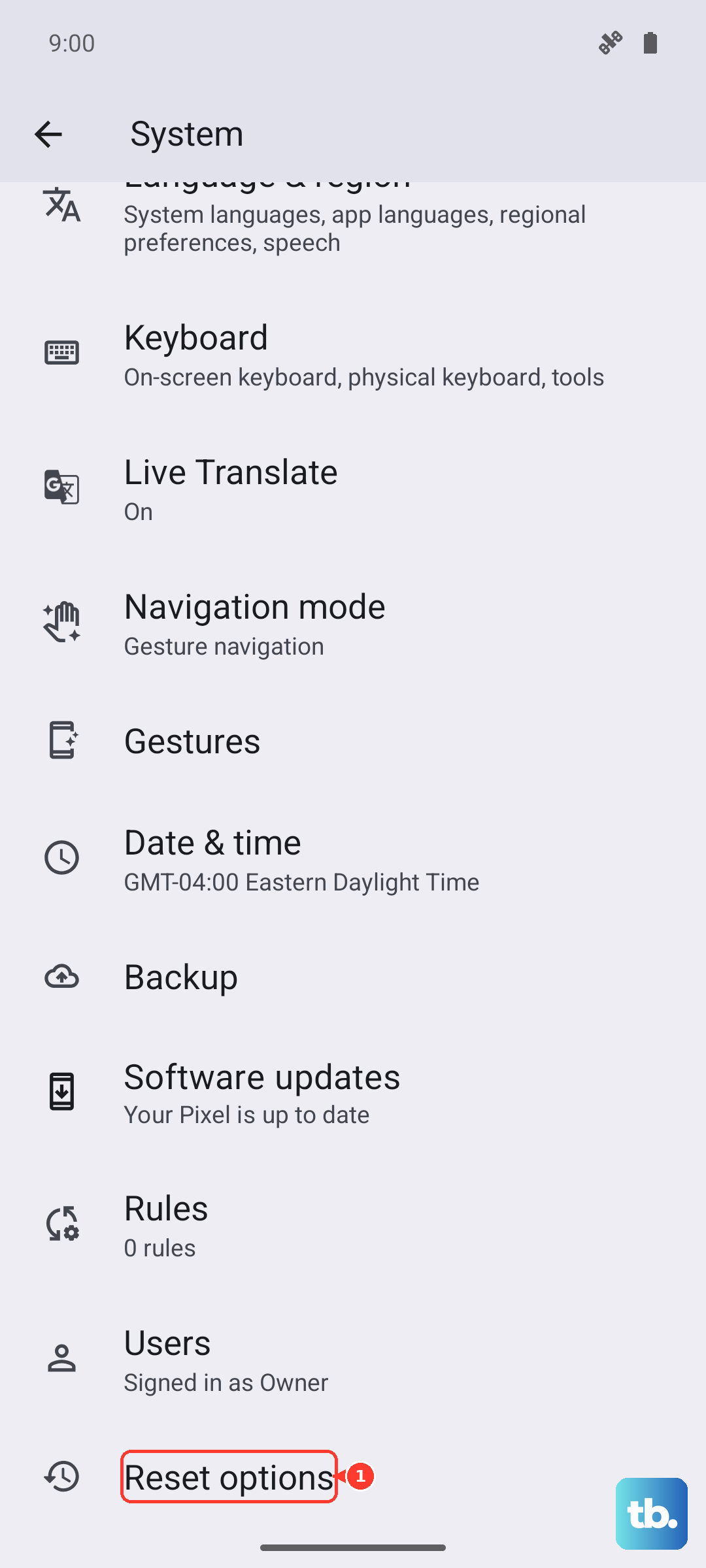
Go to Settings > System > Reset options > Erase all data (factory reset). After the reset is complete, go through the setup and insert the new carrier’s SIM card. The phone should recognize it as the primary SIM without any lock restrictions.
Understand the Risks of Unauthorized Methods
You might see websites or videos promoting free software or “calculator” apps to generate unlock codes. These are almost always scams or malware, especially for a relatively new phone like the 2025 Moto G Stylus 5G. They can steal your IMEI number or infect your device.
Similarly, be wary of services offering “remote unlocks” or asking for remote access to your computer. The safest path is always through the official carrier channel first, then a vetted third-party code service as a backup. Never share your IMEI on public forums.