
It's incredibly annoying when your Moto G Stylus 5G goes silent. You miss a text, an important email, or a calendar reminder because your phone just didn't tell you it was there. This usually happens because of a software hiccup or a setting that got changed without you realizing it.
I'd start with the simplest fix first, which often does the trick. Give your phone a quick restart by pressing and holding the power button for about 10 seconds until you see the Motorola logo appear. This clears out any temporary glitches in the system that might be blocking notifications.
Check Your Focus and Battery Settings
Android 15 has some aggressive battery and focus features that can silence apps. First, pull down the notification shade twice and look for any icons like a crescent moon or a battery saver symbol. Tap them to make sure Do Not Disturb and any power saving modes are turned off.
You should also check the battery optimization settings for the specific apps that aren't notifying you. Go to Settings > Apps, select the problematic app, then tap Battery. If it's set to "Optimized," change it to "Unrestricted." This tells Android to let that app run more freely in the background.
Verify App Notifications Are Enabled
Sometimes, notifications get turned off for an app by accident. The quickest way to check is to press and hold on the app's icon on your home screen, then tap App info. From there, tap Notifications.
Make sure the main "Allow notifications" toggle at the top is switched on. Scroll down and check that each individual type of notification (like "Messages" or "Alerts") is also enabled. If you see anything turned off, flip it back on.
Clear the App's Cache and Data
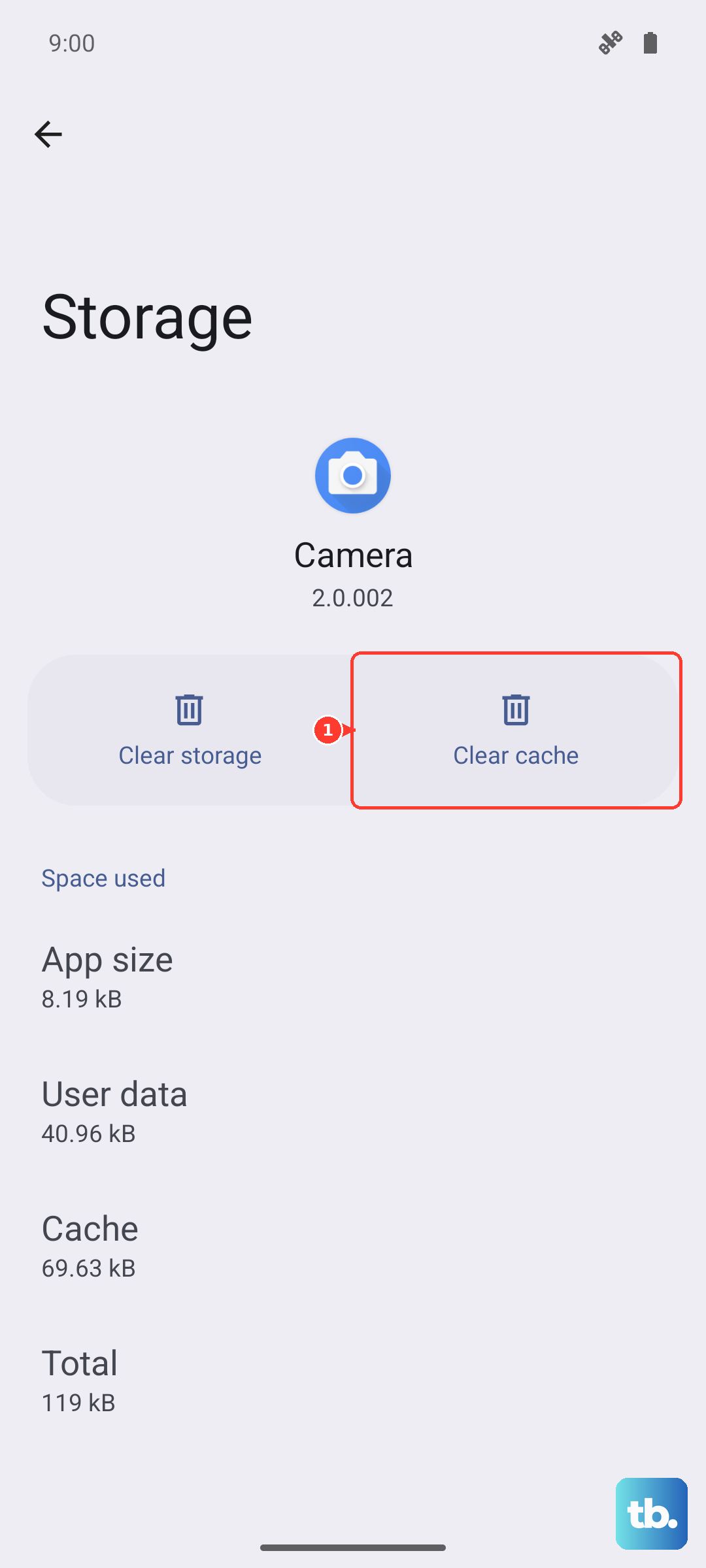
If a specific app like Gmail or Messages is the problem, its stored data might be corrupted. Clearing this can reset it without losing your account info. Go back to Settings > Apps, find the app, and tap Storage & cache.
Tap "Clear cache" first. If that doesn't work, you can try "Clear storage" or "Clear data." Just be aware that clearing data will log you out and reset the app's settings, so you'll have to sign back in.
Review Your Notification Categories and Channels
Android lets you fine-tune notifications to an extreme degree. For each app, there are different "channels" for different types of alerts. To see them, go to the app's notification settings as described earlier.
Tap on a category like "Chat messages" or "Email." Here, you can ensure alerts are set to "Show silently" or aren't minimized. Make sure the importance is set to "High" or "Urgent" so they make a sound and appear on your lock screen.
Disable Adaptive Notifications
Motorola's software sometimes includes features that try to smartly prioritize or hide notifications. This can backfire. Go to Settings > Notifications > Advanced settings.
Look for any options labeled "Adaptive notifications," "Notification prioritization," or "Suggest actions and replies." Try turning these features off temporarily to see if your regular notifications start coming through again.
Check for Software Updates
A bug in your current version of Android 15 or the Motorola software could be the culprit. Manufacturers regularly push out updates to fix these kinds of issues. Connect to Wi-Fi and go to Settings > System > System updates.
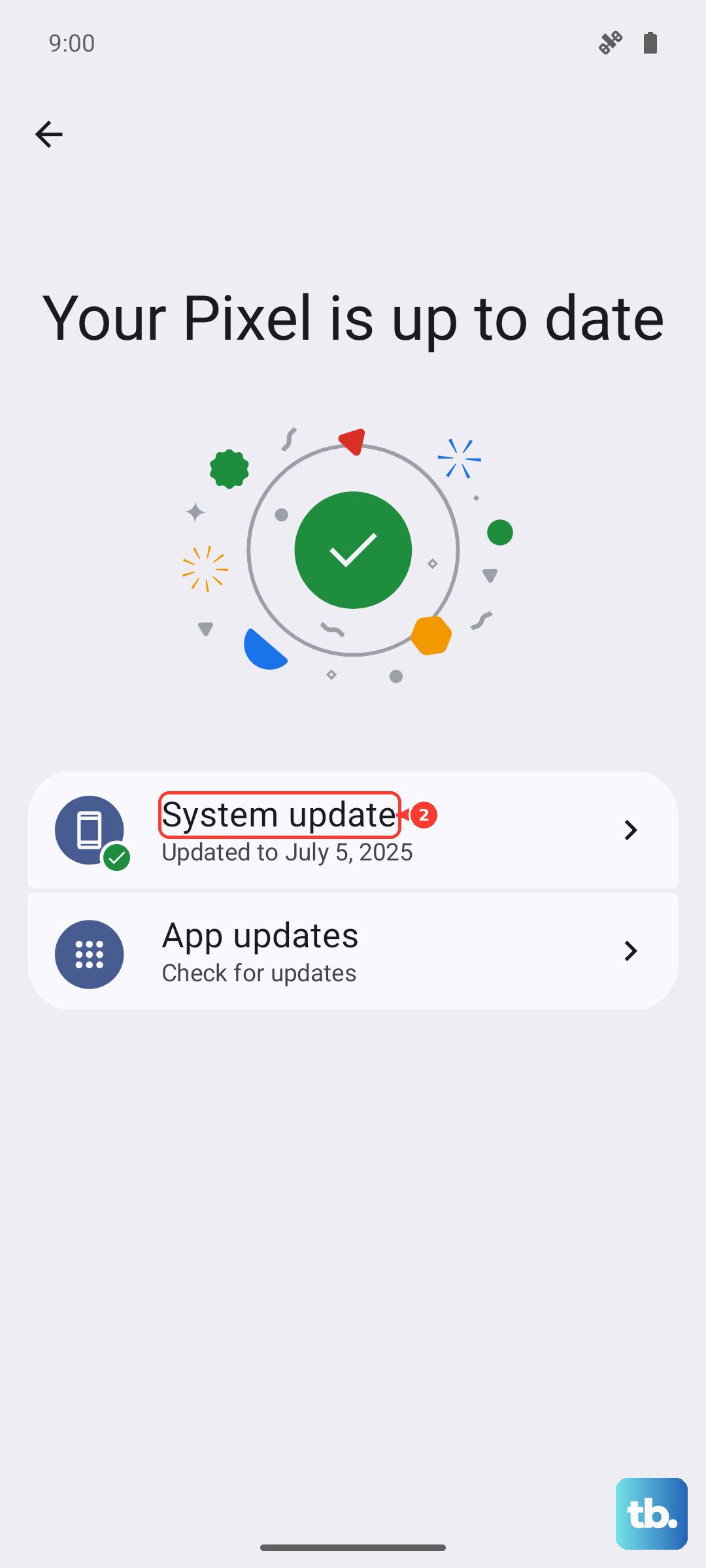
Tap "Check for update." If one is available, install it. It's a good idea to plug in your 68W TurboPower charger during the update process so it doesn't get interrupted.
Reset App Preferences
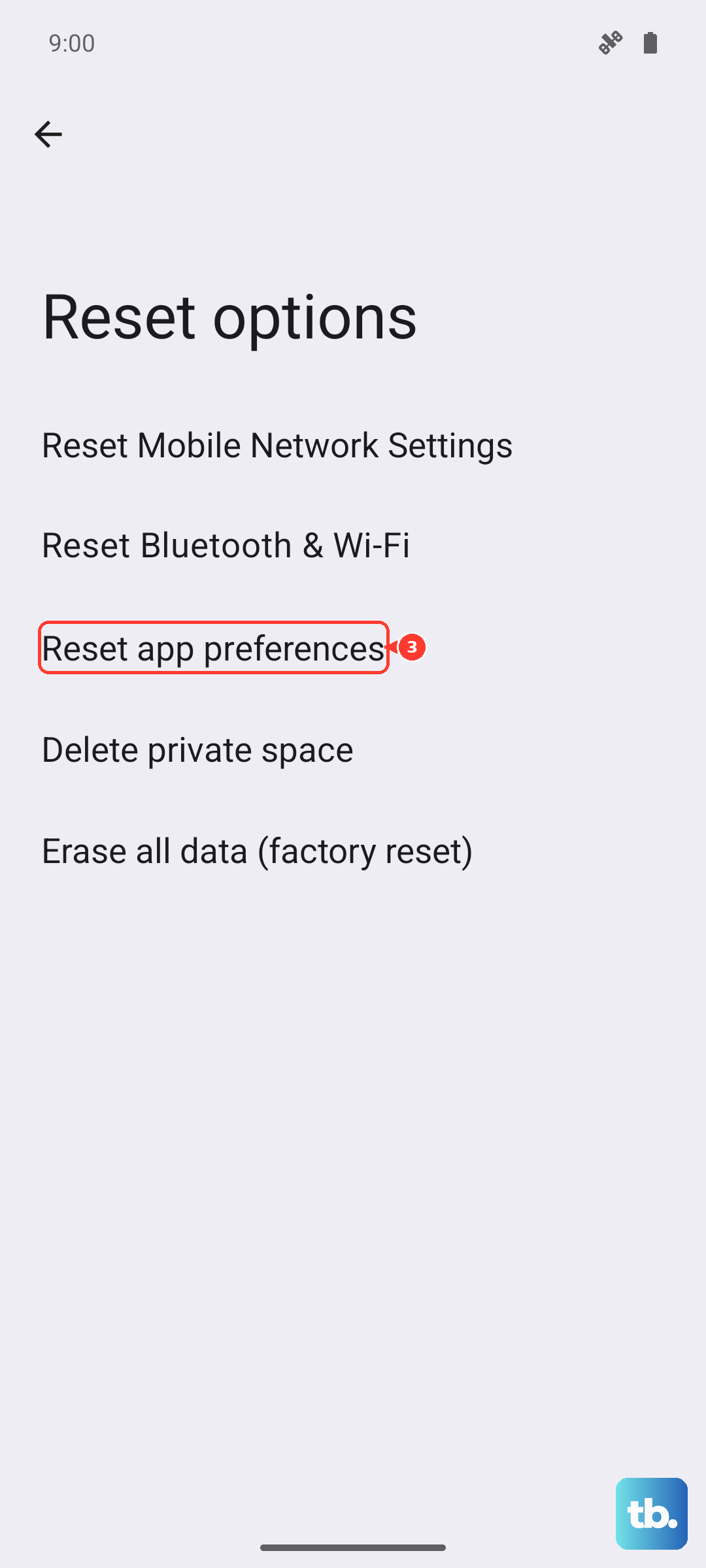
This is a broader fix that won't delete your personal data. It resets all your app permissions, notification settings, and default apps back to their factory state. You'll have to re-grant permissions when you use apps again, but it can clear up persistent notification problems.
To do this, navigate to Settings > System > Reset options. Tap "Reset app preferences" and confirm. After your phone reboots, test to see if notifications are working, and then grant permissions back to your essential apps as you use them.
Look for Stylus-Related Interference
Since this is the Stylus model, it's worth checking one unique thing. Ensure the stylus is fully seated in its silo. A slightly ejected stylus might, in rare cases, trigger a sensor that the system misinterprets. Remove it and click it back in firmly.
Also, open the Moto Note app that comes with the phone and check its settings. Make sure its own notification settings aren't overriding or interfering with your other core apps like your SMS messenger.