
When the fingerprint sensor on your Moto G Stylus 5G stops responding, it locks you out of your phone and secure apps fast. The good news is this is usually a software hiccup or a simple fix you can handle yourself. Let's get it working again.
Clean the Sensor and Your Finger
This is the most common fix. The optical sensor under your screen needs a clean surface and a clean finger to work. Gently wipe the lower part of your display with a soft, dry microfiber cloth.
Make sure your finger isn't wet, greasy, or dirty. Dry your hands thoroughly if you've just washed them. I've seen this simple step solve the issue more often than not.
Restart Your Phone
A quick restart clears out temporary glitches that can confuse the sensor. Just press and hold the power button for about 10 seconds until you feel a vibration and see the Motorola logo.
Wait for the phone to boot up completely, then try unlocking with your fingerprint again. This takes less than a minute and is always worth doing first.
Re-register Your Fingerprint
If the sensor is clean but still failing, the stored print data might have gotten corrupted. You'll need to delete the old one and add it again. Go to Settings > Security & privacy > Device unlock > Fingerprint.
Enter your PIN, pattern, or password. Tap the fingerprint you're having trouble with and select Delete. Now, tap Add fingerprint and follow the prompts, making sure to roll your finger to capture the edges as instructed.
Check for a Software Update
Motorola regularly releases updates that fix bugs, including ones related to biometric sensors. Open Settings and tap System > System updates.
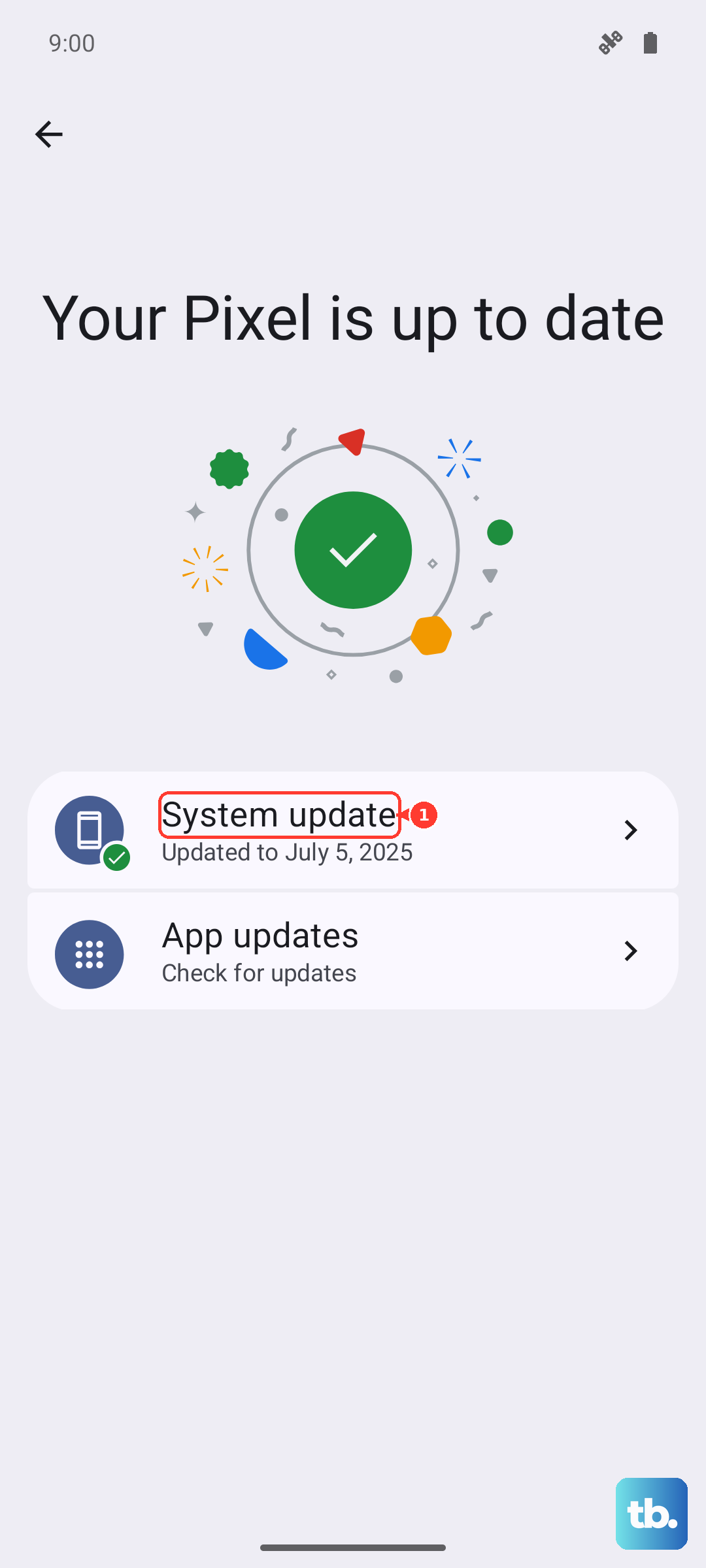
Tap Check for update and install anything available. After the update finishes, restart your phone and test the sensor. Keeping Android 15 up to date is crucial for these kinds of fixes.
Inspect Your Screen Protector
A poorly fitted or thick screen protector can block the optical sensor's light. If you recently applied a new protector, that's likely the culprit.
Try removing the protector temporarily to see if the fingerprint reader starts working. If it does, you'll need a protector marketed as "fingerprint compatible" or one specifically designed for the Moto G Stylus 5G.
Clear the System Cache Partition
This clears temporary system files without touching your personal data. It's a deeper reset for software issues. First, power off your phone completely.
Press and hold the Volume Down button and the Power button at the same time. When the Fastboot screen appears, release both buttons. Use the volume keys to scroll to Recovery Mode and press the power button to select it.
You'll see an Android robot with "No command." Press and hold the power button, then tap the volume up button once and release. Use the volume keys to highlight Wipe cache partition and select it with the power button. Confirm, then select Reboot system now.
Review Your Fingerprint Settings
Sometimes a setting gets changed accidentally. Head back to Settings > Security & privacy > Device unlock > Fingerprint.
Make sure Unlock phone is toggled on. Also, check if you have any "Pocket mode" or similar display settings enabled that might be preventing the sensor from activating.
Add Multiple Fingerprints
For better reliability, register the same finger twice. Go through the fingerprint enrollment process and add your primary thumb or index finger as a second, separate entry.
You can also register a different finger from your other hand as a backup. This gives the sensor more data to work with and gives you an alternative if one finger is ever injured or dirty.
Consider Environmental Factors
Extreme cold or dry weather can temporarily change your fingerprint. If your hands are very dry, try moisturizing them. The sensor also needs a consistent connection with your skin.
Press your finger down firmly and hold it in place for a full second instead of tapping. Make sure you're covering the entire sensor area highlighted on the screen.
If you've tried all these steps and the sensor is completely dead, the hardware itself may be faulty. Since the sensor is built into the display, this would require a repair. Before that, a final factory reset (making sure to back up your data first) can rule out any deep-seated software corruption, but that's a last resort.