
Seeing a "SIM Card Not Provisioned" message on your Motorola Moto G Power (2025) is a real roadblock. You can't make calls, send texts, or use mobile data. This error means your phone can't connect your SIM to your carrier's service, but it's usually something you can fix yourself.
I'd start with the simplest fix first. Grab your phone and perform a force restart by pressing and holding the Power button for about 10 seconds until you see the Motorola logo appear. This clears out any temporary software glitches that might be blocking the network connection and is often all it takes.
Check Your SIM Card Activation and Account
If you just got a new SIM card or switched to a new plan, it might not be active yet. The most common reason for this error is a SIM that hasn't been fully provisioned on your carrier's network. You'll need to contact your mobile provider's customer service to check the activation status.
For prepaid users, double-check your account balance. Service can be suspended if your payment didn't go through or your plan credits have run out. You can usually check this through your carrier's official app or website before making a call.
Reinsert and Inspect the SIM Card
Turn off your Moto G Power completely. Use the SIM eject tool that came in the box (a small paperclip works too) to pop open the SIM tray on the side of the phone. Carefully remove the SIM card and take a good look at it.
Check the gold contacts for any scratches, dirt, or corrosion. Give them a gentle wipe with a soft, dry cloth. While the tray is out, blow into the slot lightly to dislodge any dust. Reinsert the SIM card, making sure it's seated firmly and oriented correctly, then power your phone back on.
Refresh Your Network Connection
A quick network refresh can solve a lot of problems. Swipe down from the top of your screen twice to open the full Quick Settings panel. Tap the Airplane Mode icon to turn it on, wait for about 30 seconds, and then tap it again to turn it off.
You can also try manually selecting your network. Go to Settings > Network & internet > Mobile network. Tap on Advanced and then Choose network. Let it search and then manually select your carrier from the list instead of leaving it on automatic.
Update Your Phone's Software
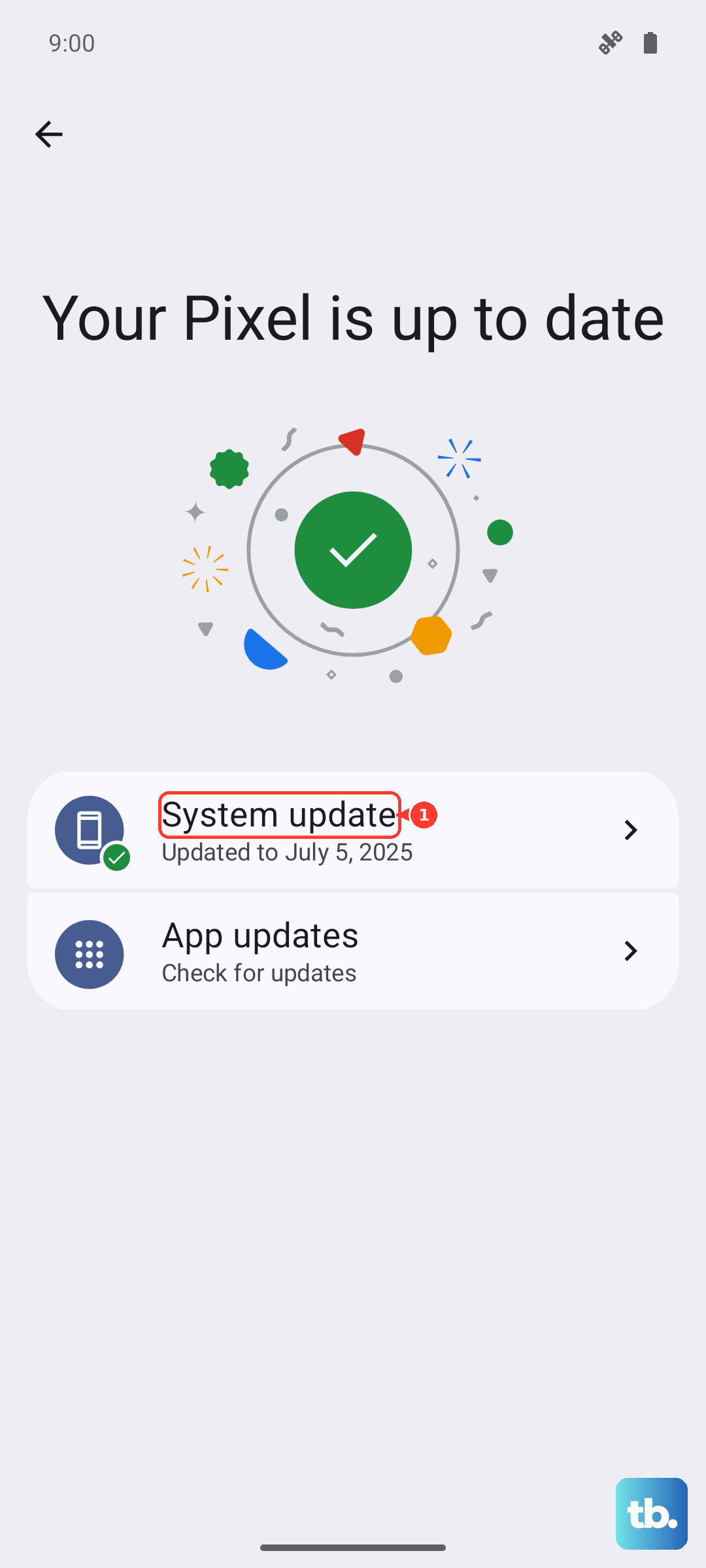
Since your Moto G Power (2025) runs Android 15, it's important to have the latest system update. Sometimes updates include crucial fixes for network connectivity. Go to Settings > System > System updates and tap "Check for update."
While you're there, check for updates to the Carrier Services app, which helps manage your connection. Open the Google Play Store, tap your profile icon, go to Manage apps & device, and see if Carrier Services is listed under updates available.
Reset Your Network Settings
If you're still stuck, resetting your network settings is a strong next step. This will erase all saved Wi-Fi passwords, Bluetooth pairings, and mobile network configurations, returning them to factory defaults.
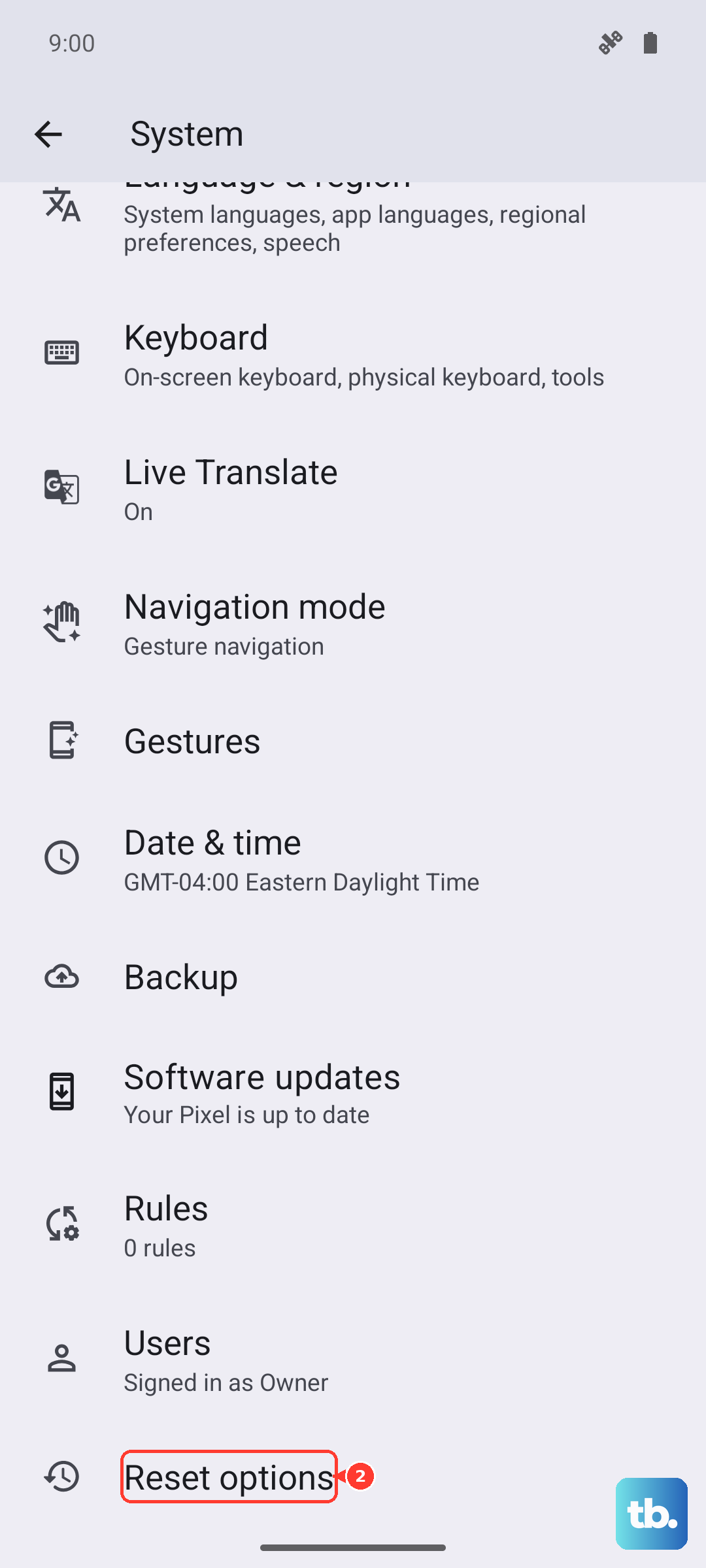
To do this, navigate to Settings > System > Reset options. Tap on Reset Wi-Fi, mobile & Bluetooth and confirm. Your phone will reboot. Afterward, you'll need to reconnect to Wi-Fi and your mobile network should re-register from scratch.
Contact Your Mobile Carrier
If you've tried everything here, the issue is likely on your carrier's end. Give their technical support a call. They can check for outages in your area, verify that your SIM hasn't been flagged or deactivated, and reprovision your line on their network.
They might also determine that your SIM card is physically damaged or too old. In that case, they can mail you a replacement or you can visit a store to get a new one activated, which usually solves the problem immediately.
Test the SIM in Another Device
This is a great way to figure out where the problem actually lies. If you have access to another unlocked phone, power it off and insert your Moto G Power's SIM card. Turn that phone on and see if it gets service.
If the SIM works perfectly in the other phone, then the issue is likely with your Moto G Power's hardware or software. If the SIM also shows as "not provisioned" in the other device, then you've confirmed the problem is with the SIM card or your carrier account.