
You pick up your Moto G Power (2025) and realize you've missed a bunch of texts or emails. The screen was dark, there was no sound, and now you're playing catch-up. Missing notifications on a new phone is incredibly annoying, but it's usually a software setting that got flipped or an app that needs a nudge.
Let's start with the quickest fix, which often solves the problem in about thirty seconds.
Check Do Not Disturb and Focus Modes
Open your quick settings panel by swiping down from the top of the screen twice. Look for icons like a circle with a line through it or a crescent moon. If any of these are highlighted, tap them to turn them off.
Also, pull down the shade fully and tap the settings gear. Go to Sound & vibration > Do Not Disturb. Make sure it's scheduled off and check if any apps or contacts are allowed to bypass it when it's on.
Restart Your Moto G Power
A simple restart clears out temporary glitches in the system that can stall notification delivery. Just press and hold the power button until the power menu appears, then tap "Restart."
If the phone is completely unresponsive, you can force a restart by holding the power button down for about 10 seconds until you feel it vibrate and the Motorola logo appears.
Review App-Specific Notification Settings
Android 15 and Motorola's software give you very granular control. The issue is often that notifications are disabled for one specific app you care about.
Go to Settings > Apps > See all apps. Find the app that's not alerting you (like Gmail, Messages, or WhatsApp) and tap it. Select Notifications. Here, make sure the toggle at the top is on.
Scroll down and check each notification category. For something like Gmail, ensure "New mail" is enabled and set to make a sound or pop on screen. Some apps bury their critical alerts under sub-menus.
Disable Adaptive Notifications or Battery Optimization
Motorola's software includes features to "learn" your habits and potentially suppress notifications it thinks aren't important. This can sometimes be too aggressive.
Head to Settings > Apps > Special app access > Adaptive notifications. You can turn this off entirely, or for the problematic app, set it to "No restriction."
Next, check battery optimization. Go to Settings > Apps > Special app access > Battery optimization. Tap the dropdown and select "All apps." Find your app and set it to "Don't optimize." This tells the system to never restrict its background activity, which is crucial for timely alerts.
Ensure Background Data is Unrestricted
If an app can't use data in the background, it can't fetch new messages to notify you about. This is separate from battery optimization.
Go back to the app's info page in Settings (Settings > Apps > [Your App]). Tap Mobile data & Wi-Fi. Make sure "Background data" is enabled. Also, check that "Unrestricted data usage" is turned on, especially if you have a limited data plan where it might be off by default.
Clear the App's Cache and Data
Corrupted temporary files within the app itself can break its notification engine. Clearing the cache is safe and doesn't delete your account or messages.
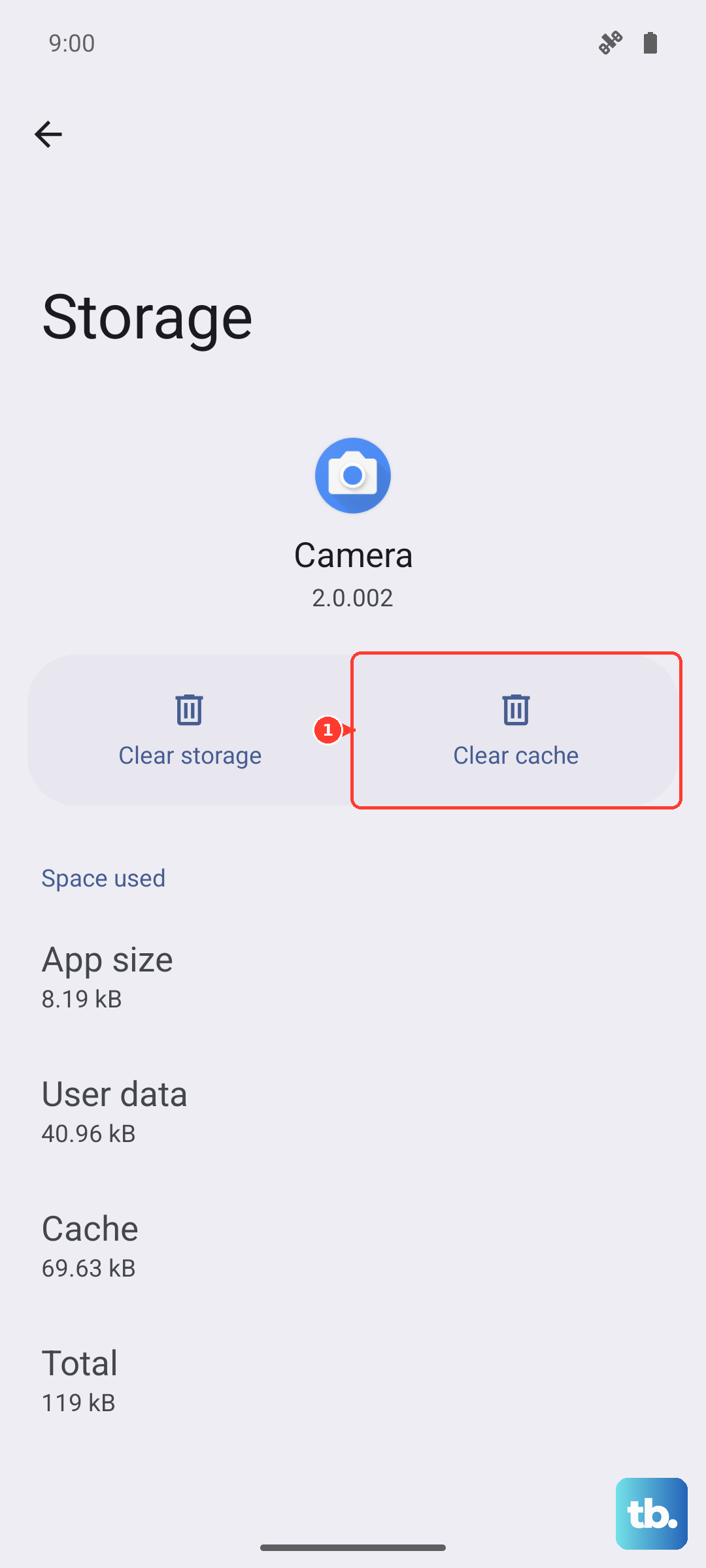
On the app's info page, tap Storage & cache. Hit "Clear cache." If that doesn't work, you can try "Clear storage" or "Clear data," but be warned: this will reset the app to its freshly installed state. You'll likely need to log back in.
Check Notification Channels and Sounds
Sometimes the notification is coming through, but silently. When you're in the app's Notification settings, tap on a specific category like "New mail."
Ensure "Sound" is set to something other than "Silent." Also, verify that "Pop on screen" or "Make sound and pop on screen" is selected for the behavior. I've seen phones where updates accidentally set everything to "Minimize."
Update the App and Your Phone's Software
An outdated app might have a known bug that breaks notifications. Open the Google Play Store, tap your profile icon, and go to "Manage apps & device." Apply any available updates.
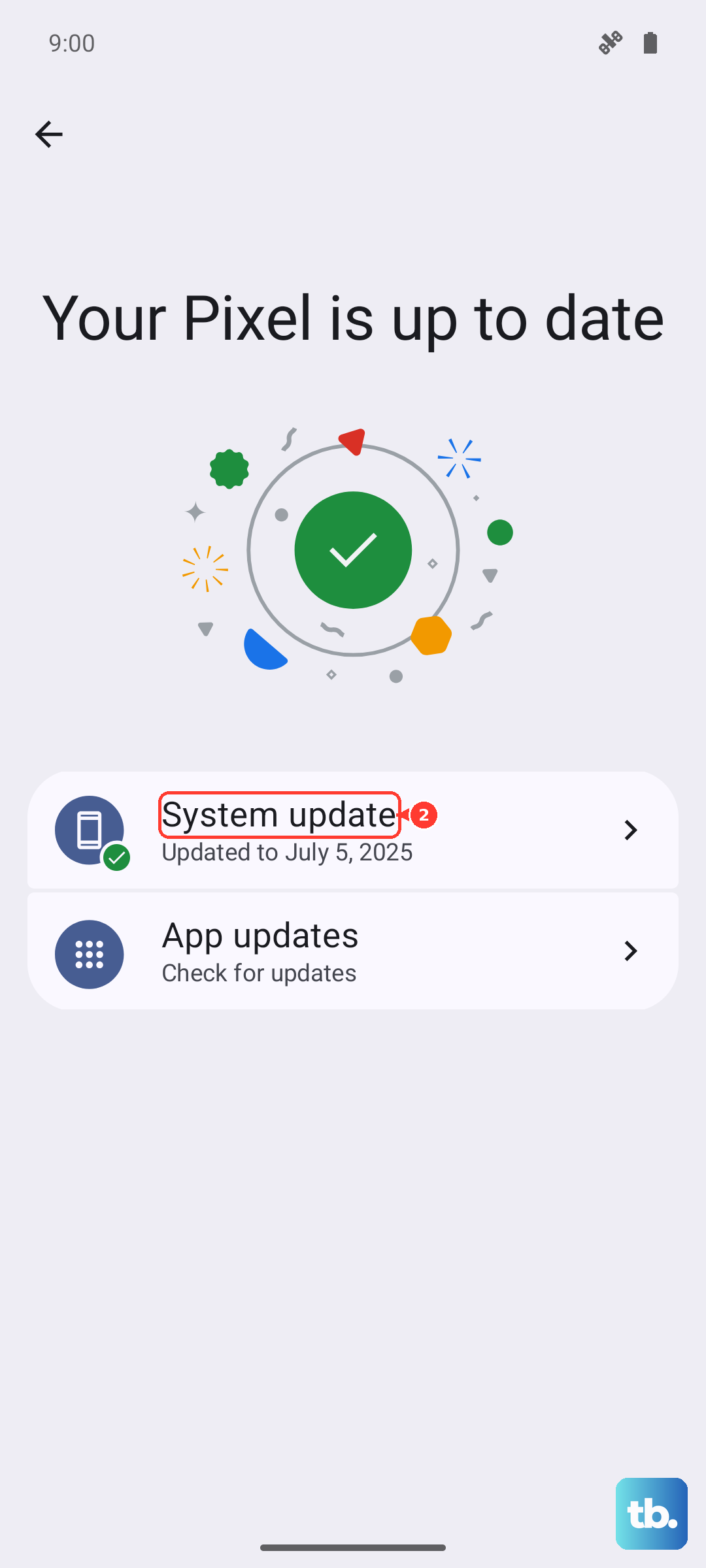
More importantly, check for a system update. Motorola rolls out fixes for issues like this. Go to Settings > System > System updates to check.
Reset App Preferences
This is a broader fix that won't delete your personal data. It resets all your permissions, notification settings, and background restrictions back to default for every app. It's useful if you've changed a lot of settings and lost track.
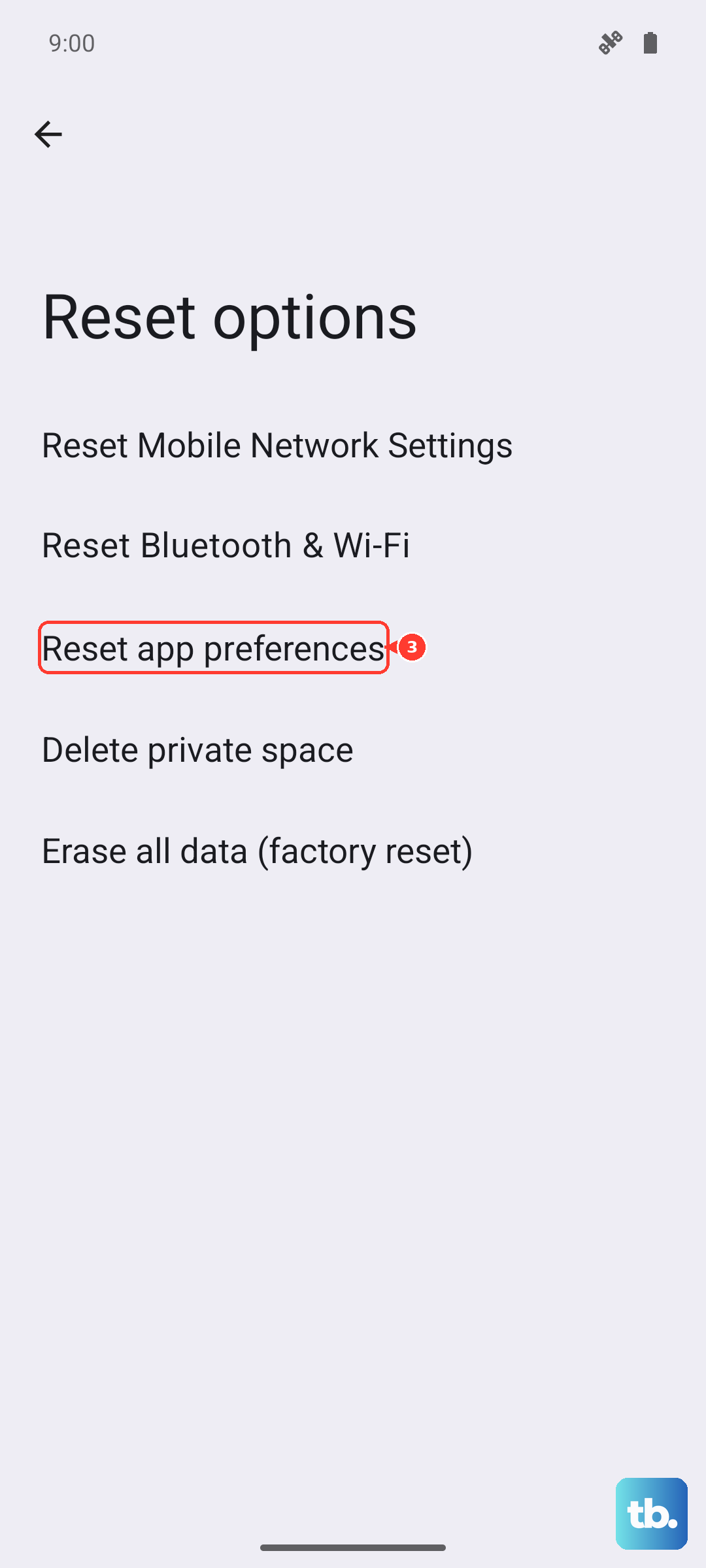
Navigate to Settings > System > Reset options. Tap "Reset app preferences." You'll need to re-allow notifications for your apps afterward, but it often clears up weird conflicts.
Examine Any Third-Party Launchers or Cleaner Apps
If you're using a different launcher like Nova or a "memory booster" or "cleaner" app from the Play Store, these can interfere with Android's normal notification system. Try switching back to the default Motorola launcher temporarily to see if notifications return.
Similarly, disable or uninstall any aggressive battery saver apps that aren't part of the built-in system. They can be overzealous in stopping background processes.
Verify Network Connections and Sync
For email and messaging apps, they need a steady connection to a sync service. Go to Settings > Accounts. Select your account (like Google).
Make sure sync is enabled for the services you need, such as Gmail or Contacts. You can also tap "Account sync" to manually sync now. A poor mobile data or Wi-Fi signal can also delay notifications until you have a stronger connection.