
Missing notifications on your Vivo X200 Pro can mean you're late to messages, miss important calls, or don't see calendar reminders. It's a common hiccup with Android 15 and Funtouch OS 15, but it's usually something you can fix yourself without losing any data. I'd start with the quick checks below, as they solve the problem more often than not.
Check Do Not Disturb and Silent Mode
First, pull down the notification shade twice to see the full quick settings panel. Look for icons like a crescent moon or a bell with a line through it. If you see them, tap to turn Do Not Disturb or Silent mode off. Also, press the volume up button on the side of your phone to make sure your media volume isn't set to zero, as this can sometimes affect notification sounds.
Restart Your Vivo X200 Pro
A simple restart clears out temporary glitches in the system that might be blocking notifications. Just press and hold the power button, then tap "Restart" on the screen. If your phone is completely unresponsive, you can force a restart by holding the power button down for about 12 seconds until you feel it vibrate and see the Vivo logo.
Review App-Specific Notification Settings
Funtouch OS gives you granular control over notifications. Open Settings > Notifications & Quick Settings (on vivo phones, go to Settings > Notifications > App settings) and select the app to manage its notifications. Find the app that's not alerting you (like Messages, Gmail, or WhatsApp) and tap on it. Make sure "Allow Notifications" is toggled on. Also, check that the channels below (like "Messages" or "Inbox") are enabled and set to make a sound or vibrate.
Disable Battery Optimization for Key Apps
To save battery life, Android can restrict what apps do in the background. This can sometimes stop them from showing notifications. Go to Settings > Battery > Background Power Management. Look for "High Background Power Consumption" and tap it. Find your problematic app and set it to "Allow background activity." For a more direct route, go to Settings > Apps, select the app, tap Battery, and choose "Allow background activity."
Clear the Cache for the Problem App
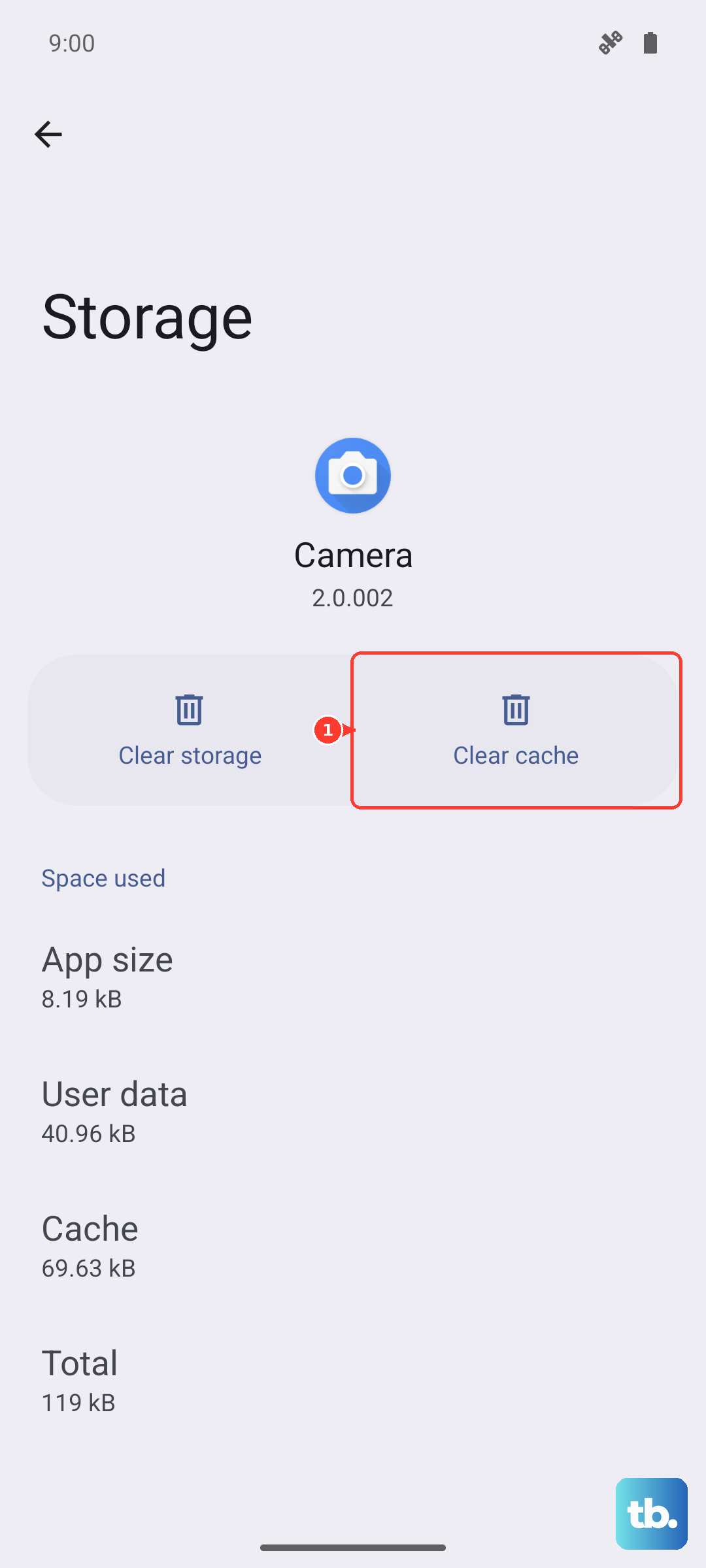
Corrupted temporary files can break an app's notification function. Head to Settings > Apps, find the app that's misbehaving, and tap on it. Select Storage > Clear Cache. This doesn't delete your login info or personal data within the app, it just cleans out the junk files. After doing this, restart the app to see if notifications come back.
Check Notification Access and Special Permissions
Some apps, like fitness trackers or messaging apps, need special permission to pop notifications over other apps. Go to Settings > Special Permissions > Notification Access. See if the app in question is listed and toggle its permission on. Also, in the app's main permission screen (Settings > Apps > [App Name] > Permissions), ensure it has permission to display pop-up windows.
Update the App and Your System Software
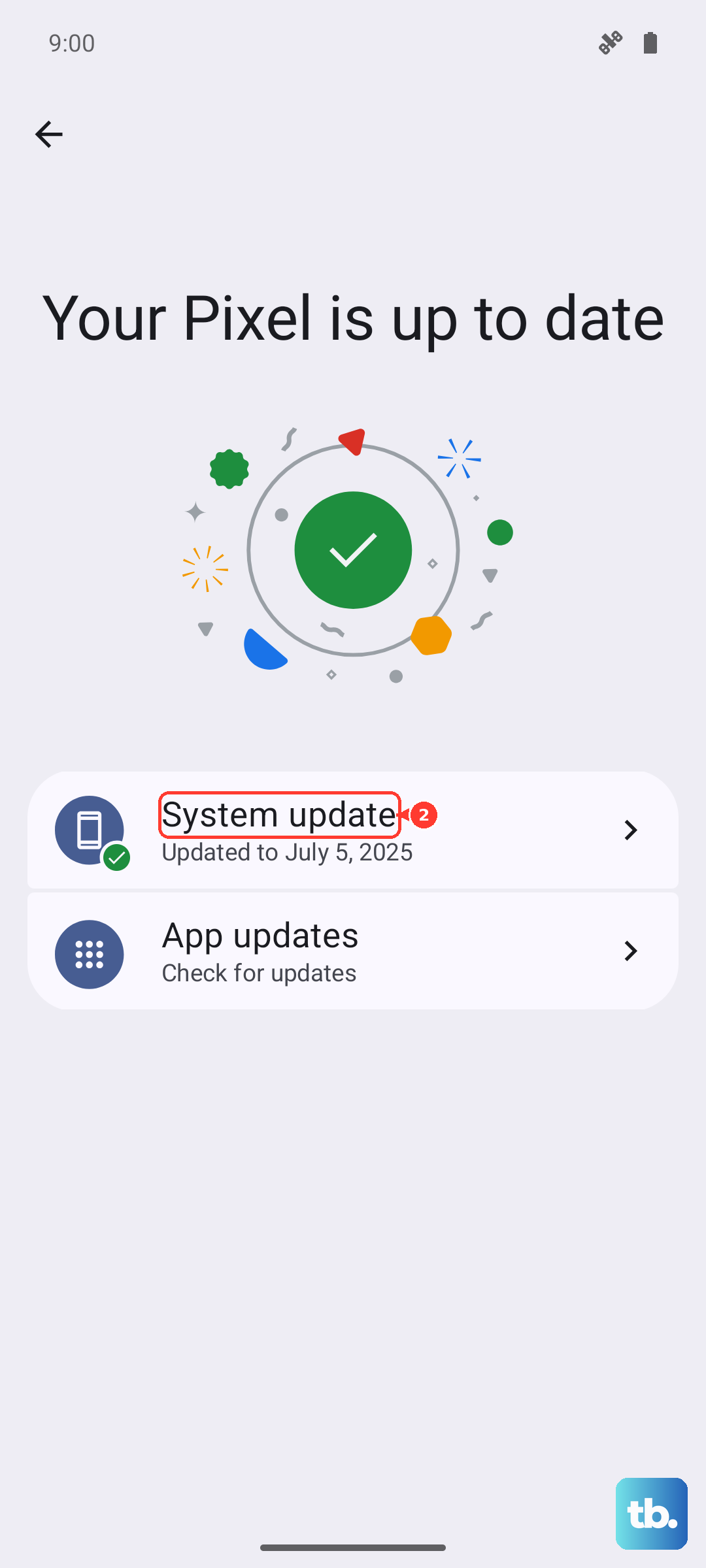
An outdated app might have a bug that breaks notifications. Open the Google Play Store, tap your profile icon, and go to "Manage apps & device" to check for updates. More importantly, check for a system update. Vivo releases patches for Funtouch OS that fix these kinds of issues. Go to Settings > System Update to see if anything is pending.
Reset App Preferences
This is a useful reset that doesn't erase your data. It will revert all your app permissions, notification settings, and default app assignments back to their factory state. You'll have to re-allow permissions for things like camera and microphone, but it can untangle complex notification problems. Navigate to Settings > System Management > Reset > Reset App Preferences and confirm.
Examine Floating Window and Lock Screen Settings
Vivo has features for how notifications appear. If floating notifications are off, you might only see icons in the status bar. Check Settings > Notifications & Status Bar > Floating Notifications and enable them. Also, go to Settings > Notifications & Status Bar > Lock Screen Notifications to ensure you've chosen to show content or icons while the phone is locked.
Boot into Safe Mode
This starts your phone with all third-party apps disabled. If notifications work perfectly in Safe Mode, then a recently installed app is likely the culprit. To enter Safe Mode, open the power menu by pressing the Power and Volume up buttons together (on Samsung phones, the Side and Volume down buttons) or by tapping the power icon in the quick settings panel, then touch and hold Power off and tap Safe Mode or OK. Then, long-press the "Power Off" option on your screen until you see a prompt to reboot to Safe Mode. Tap "OK."
Reset All Network Settings
This can help if your notifications are specifically failing for online apps like email or social media, especially after a software update. It will wipe your Wi-Fi passwords, Bluetooth pairings, and mobile data settings, so be prepared to re-enter those. Go to Settings > System Management > Reset > Reset Network Settings and follow the prompts.