
If your Motorola Moto G Power (2025) won't connect to your headphones, car, or speaker, it's a frustrating roadblock. Bluetooth issues can pop up on any phone, but the good news is they're usually fixable with a few specific steps. Let's get your wireless connections working again.
Check the Simple Stuff First
Before we dive into menus and settings, run through this quick checklist. I've seen many connection problems solved right here. Make sure both your Moto G Power and the device you're pairing have enough battery, ideally above 20%.
Pull down the notification shade twice and verify the Bluetooth tile is lit up blue. Keep the devices within a few feet of each other during pairing, and double-check that the accessory itself is in pairing mode. Its LED should usually be blinking.
Toggle Bluetooth and Restart
The digital equivalent of "turn it off and on again" works surprisingly often. Swipe down from the top of your screen to open Quick Settings and tap the Bluetooth icon to turn it off. Wait about ten seconds, then tap it again to turn it back on.
If that doesn't do it, a full restart can clear out temporary glitches. Press and hold the power button on the side of your Moto G Power, then tap 'Restart' on the screen. Also, power cycle the Bluetooth device you're trying to connect to. Once both are back on, try pairing again.
Forget and Re-Pair the Device
Sometimes a pairing gets corrupted. The fix is to remove that device from your phone's memory and start fresh. Go to Settings > Connected devices > Previously connected devices.
Tap the settings gear icon next to the problematic device, then select Forget. Confirm your choice. Now, put your accessory back into pairing mode and search for it on your phone to create a new, clean connection.
Clear the Bluetooth System Cache
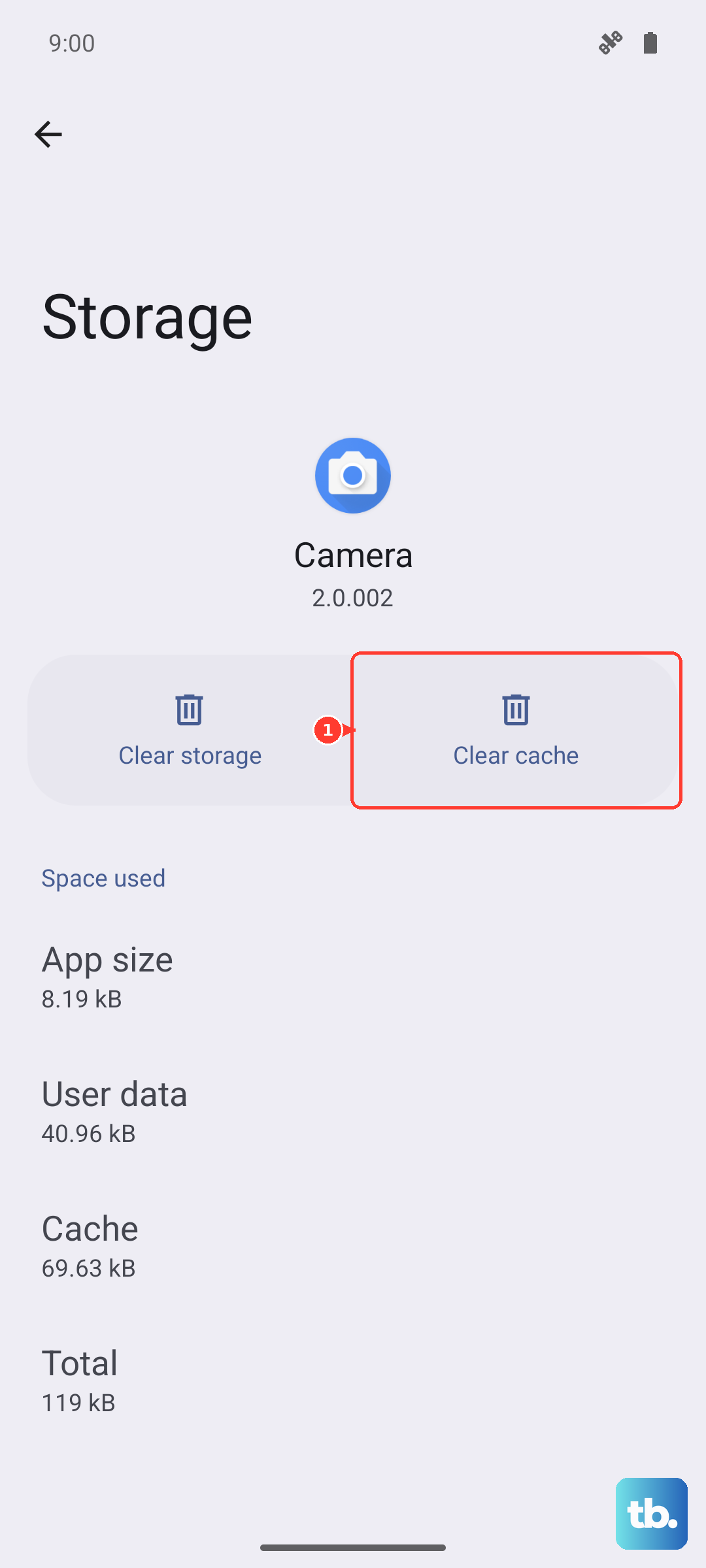
Android stores temporary data for Bluetooth in a cache, and it can become corrupted. Clearing it is safe and won't delete your paired devices. Open Settings > Apps > See all apps.
Tap the three-dot menu in the top right and select Show system. Scroll down and find 'Bluetooth', then tap it. Select Storage & cache and tap Clear cache. This can resolve random connection drops and pairing failures.
Reset Your Network Settings
This is a more thorough step that resets all wireless radios, including Wi-Fi and mobile networks, back to their default states. It will forget all your saved Wi-Fi networks and Bluetooth pairings, so be ready to re-enter those passwords.
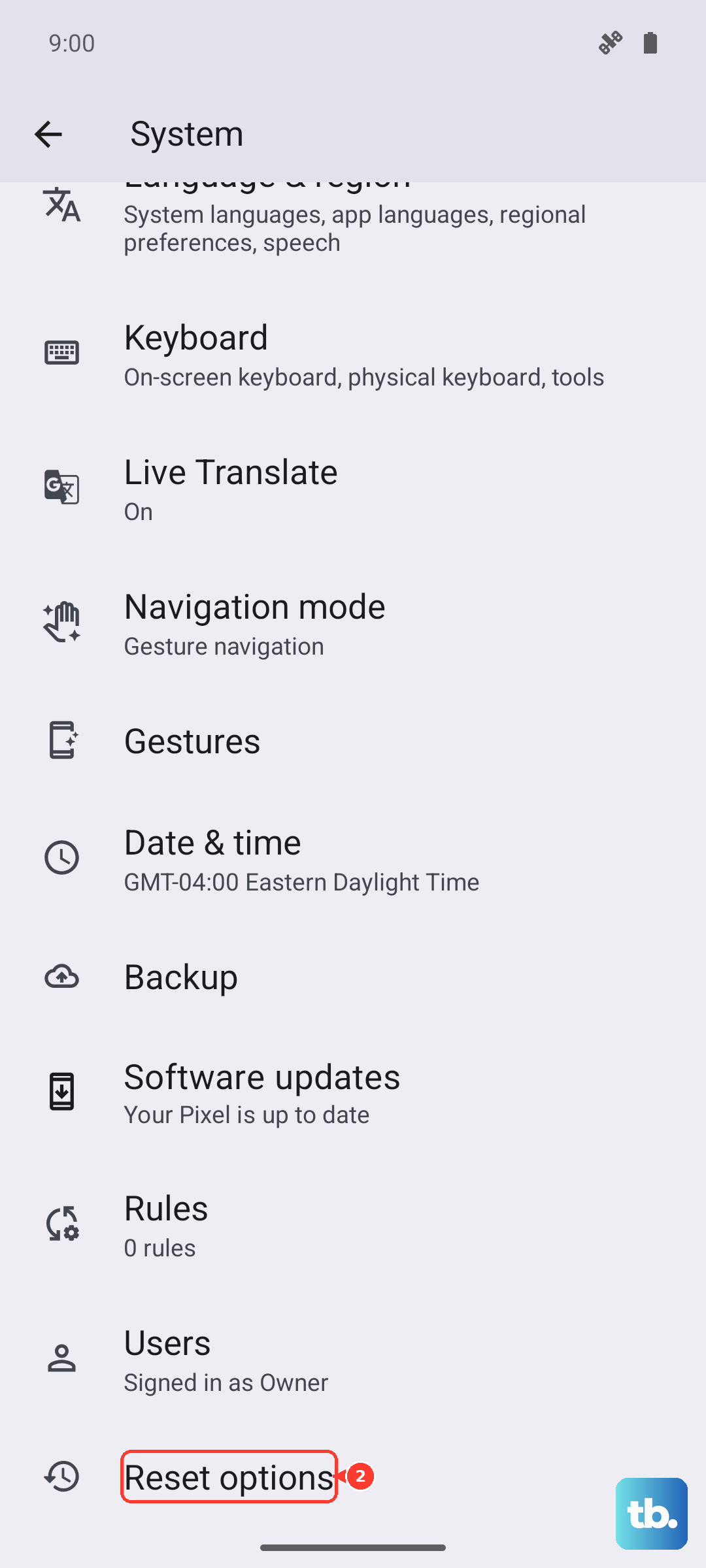
On your Moto G Power, go to Settings > System > Reset options. Tap Reset Wi-Fi, mobile & Bluetooth and confirm. After your phone restarts, you'll have a clean slate for all wireless connections.
Check for a Software Update
Motorola frequently releases updates that fix bugs and improve device compatibility. An outdated version of Android 15 could be the source of your Bluetooth headaches. Go to Settings > System > System updates.
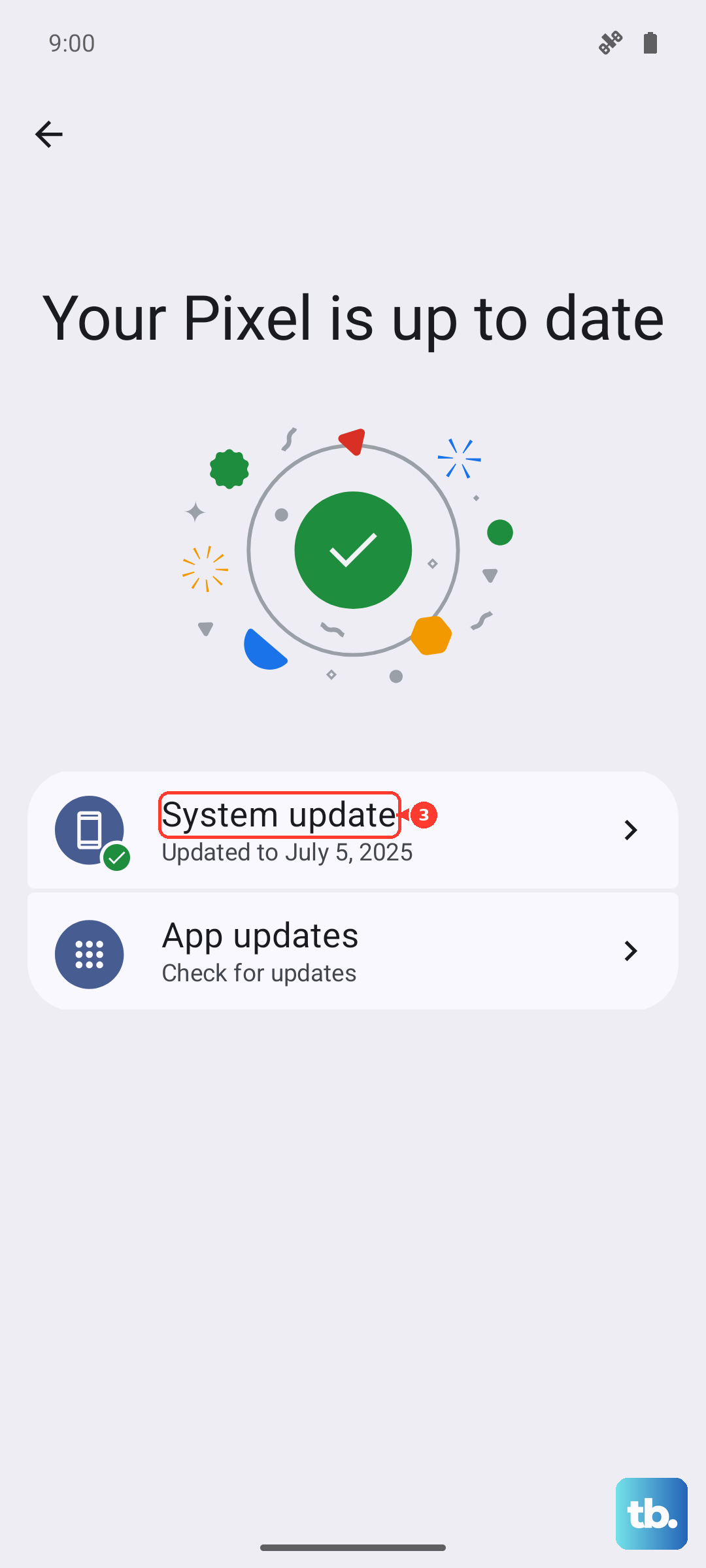
Tap 'Check for update'. If one is available, download and install it. It's also worth checking if your Bluetooth accessory has a firmware update available through its own companion app on the Play Store.
Boot Into Safe Mode
If a recently downloaded app is causing a conflict, Safe Mode will tell you. It temporarily disables all third-party apps. Press and hold the power button until the power menu appears.
Then, tap and hold the 'Power off' option on your screen. You'll get a prompt to reboot to Safe Mode. Tap 'OK'. If Bluetooth works perfectly in Safe Mode, you know a downloaded app is the culprit. Restart normally and try uninstalling recent apps one by one.
Address Specific Connection Scenarios
Car systems can be particularly finicky. If your Moto G Power won't connect to your car, you often need to delete the phone from your car's stereo system memory and delete the car from your phone's Bluetooth list. Then, initiate the pairing process from your car's interface first.
For wireless earbuds or speakers that connect but have awful audio, try going to Settings > Connected devices, tapping the gear icon next to the device, and toggling the 'Media audio' or 'Phone audio' options off and on. The Dimensity 6300 processor handles basic tasks well, but heavy app load can sometimes interfere, so try closing background apps before pairing.
If you've worked through all these steps and Bluetooth is completely dead, even after a network reset, it's worth considering a factory reset as a last resort. Remember to back up your photos and files first, especially since the 128GB base storage can fill up quickly. You can always use the SD card slot for extra space later.