
If your Moto G Power (2025) is dying way faster than it should, you're not imagining things. That Dimensity 6300 processor is great for the price, but it can struggle with heavy multitasking, which sometimes leads to battery drain. The good news is, a few simple tweaks can usually get you back to the multi-day battery life this phone is known for.
Let's start with the quickest diagnostic step. Swipe down from the top of your screen twice to open the full Quick Settings panel and look for the battery icon. If it's colored yellow, that means the built-in Battery Saver mode is already on. If it's not on, tap it to enable it right away. This instantly throttles background activity and can stop a sudden drain in its tracks.
Check What's Actually Using Your Battery
Before you start turning things off, it's smart to see where the power is really going. Head into Settings > Battery > Battery Usage. This screen shows you exactly which apps and services have been consuming battery over the last 24 hours.
Pay close attention to any app showing a high percentage despite limited screen-on time. This often points to a misbehaving app running wild in the background. Social media apps, games, and weather widgets are common culprits here. I've seen cases where a single buggy app was responsible for most of the drain.
Also, glance at the system usage listed at the top. If "Mobile network" or "Phone idle" is unusually high, it could point to a weak cellular signal forcing your radio to work harder, which is a major battery killer.
Manage Apps and Background Activity
Once you've identified a power-hungry app from the Battery Usage screen, you can restrict it. Go to Settings > Apps, select the problematic app, and tap Battery. Here, you can set its background restriction to "Restricted."
This prevents the app from doing anything when you're not actively using it. For most apps, this is perfectly fine and can save a significant amount of power. Do this for any non-essential apps that show high background usage.
Another big one is location access. Go to Settings > Location. Review the list of apps that have permission and change any from "Allow all the time" to "Allow only while in use" or deny permission entirely for apps that don't truly need to know where you are.
Optimize Your Display Settings
The screen is always the biggest battery user. On your Moto G Power, open Settings > Display. First, turn on "Dark theme." Since your phone has an LCD screen, the battery savings aren't as dramatic as on an OLED, but it still reduces power at higher brightness levels.
Next, tap "Advanced" and then "Sleep." Set this to 30 seconds or 1 minute. The shorter the screen timeout, the less power you waste. Also, consider reducing the screen brightness manually a notch or two from the slider in your Quick Settings panel.
You can also look for "Peek display" under Moto Actions in your settings. This is the feature that shows notifications when you pick up the phone or wave your hand over it. It's handy, but disabling it can save a little extra battery.
Control Connectivity and Updates
Turn off Wi-Fi and Bluetooth when you're not using them. You can do this instantly from the Quick Settings panel. A constantly searching radio is a drain. Also, while in Settings > Network & internet, consider turning off "Adaptive connectivity" which tries to switch between Wi-Fi and mobile data seamlessly but can sometimes cause more radio use.
For email and messaging apps, check their sync settings. Instead of "Push" (which delivers instantly), set them to "Fetch" every 30 or 60 minutes. This prevents constant background checks for new data. You'll find these settings within the individual apps themselves, like Gmail or Outlook.
Free Up Storage Space
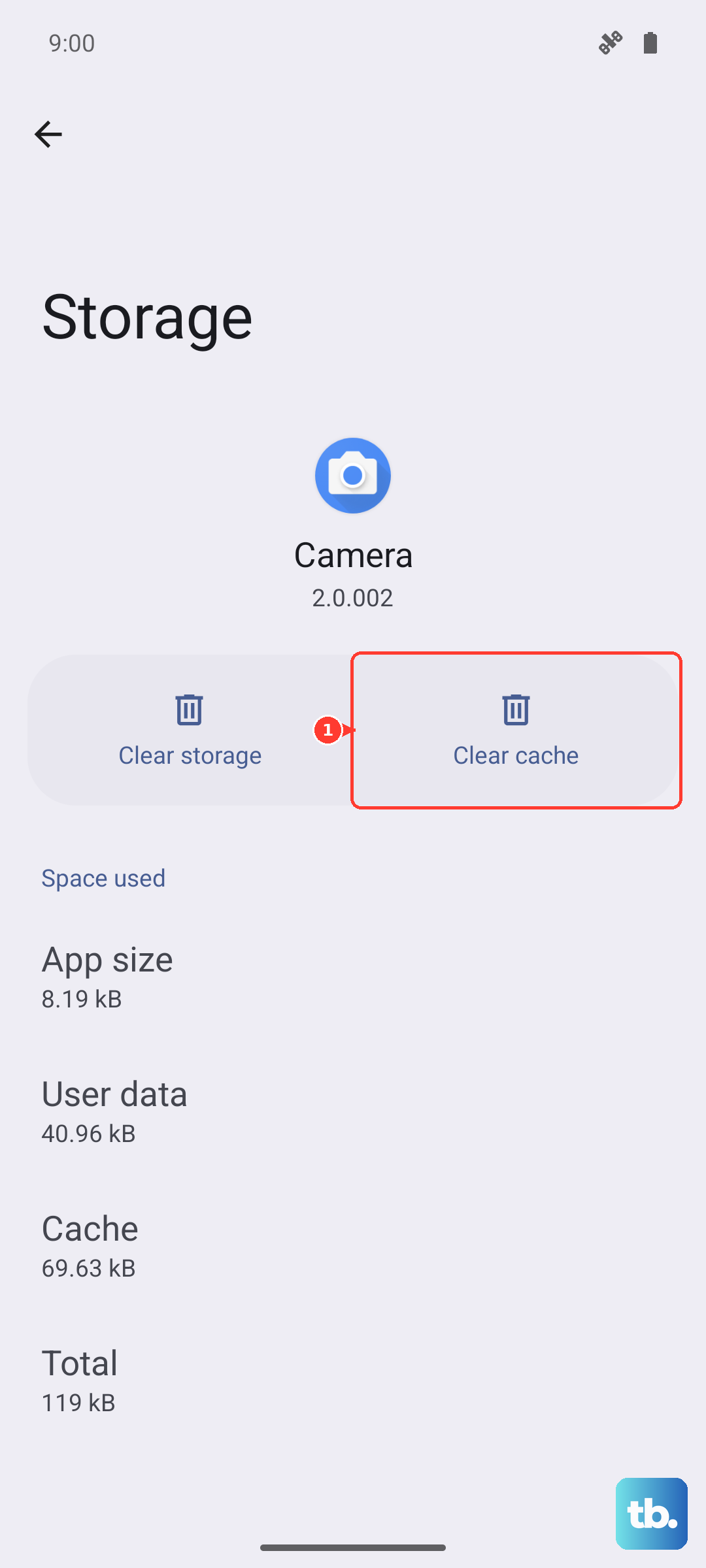
This is a specific tip for the 2025 Moto G Power. With only 128GB of base storage, a nearly full phone can slow down the system and make it work harder, impacting battery. Go to Settings > Storage and see what's taking up space.
Clear cached data for large apps and consider offloading photos and videos to Google Photos or moving files to a microSD card. Using that expandable storage slot is one of the best features of this phone for managing space long-term.
Update Your Software and Perform a Reset
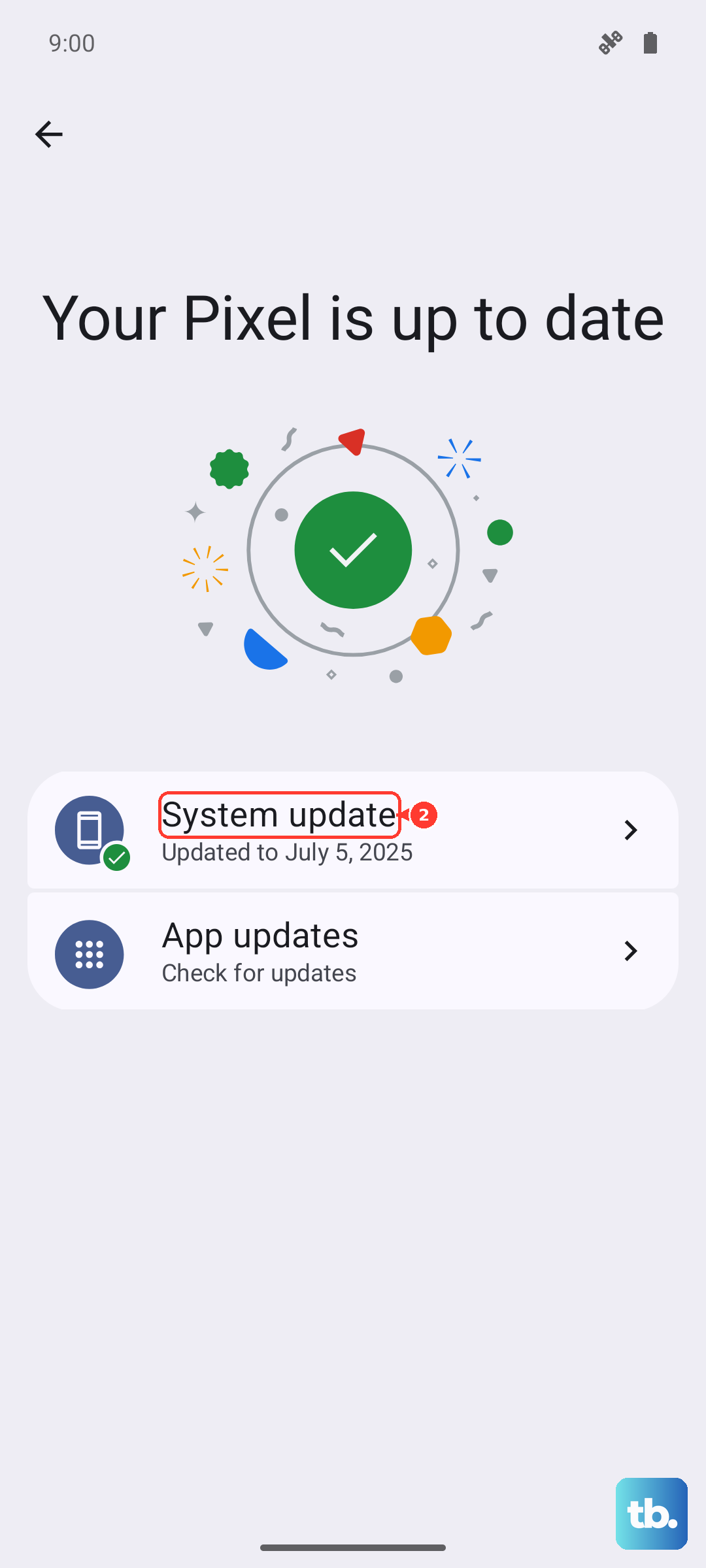
Always make sure your phone is running the latest software. Go to Settings > System > System updates to check for any available Android or security patches. Motorola often includes battery optimizations in these updates.
If you've tried everything and the drain persists, a soft reset can clear out temporary glitches. Press and hold the Power button for about 10 seconds until the phone restarts on its own. This doesn't erase any data.
As a last resort, you can reset all app preferences. Go to Settings > System > Reset options and tap "Reset app preferences." This resets permissions, background restrictions, and default apps without deleting your personal data, which can sometimes resolve conflicts causing drain.
Finally, think about your charger. Since the phone doesn't come with one in the box, ensure you're using a good quality USB-C charger that supports USB Power Delivery (PD). The Moto G Power (2025) can charge at up to 30W, and a capable charger will get you to 100% faster and more efficiently than a slow, old charger.