
Press and hold the Volume Down button and the Power button together for 10 to 15 seconds. Keep holding until you see the Motorola logo appear on the screen. This force restart is the single most effective step for an unresponsive touchscreen, as it clears temporary software glitches without erasing your data.
Before trying the fixes, map the problem with a online touch test in your browser. Dragging a finger across the grid reveals exactly which areas of the screen respond and which do not.
Key Points
- Clean the Screen Thoroughly : Dirt, grease, or moisture can completely block touch input.
- Remove Any Screen Protector or Case : A poorly fitted accessory is a common culprit.
- Boot into Safe Mode : This will tell you if a recently installed app is causing the problem.
- Check for Software Updates : Motorola often releases patches for touchscreen optimization.
- Calibrate the Touchscreen : Use a hidden diagnostic menu to retest the digitizer.
- Check for Physical or Water Damage : Inspect the screen for cracks or signs of moisture.
- Perform a Factory Reset : This erases all data, so back up first.
- Consider a Hardware Fault : The digitizer or display cable may need professional service.
I'd start with this one every time. It's quick, safe, and fixes a lot of transient software hiccups that can make the Edge 40's screen seem dead. If the logo appears and the phone boots normally, you've likely solved it.
Clean the Screen Thoroughly
Power the phone off completely first. Then, take a soft, lint-free microfiber cloth and wipe the entire screen down with some pressure. Pay special attention to the edges where oils from your hands tend to build up.
If the screen is particularly greasy, you can dampen a corner of the cloth with a little distilled water or a screen-safe cleaner. Avoid spraying liquid directly onto the phone. Make sure the screen is completely dry before turning the device back on.
Remove Any Screen Protector or Case
Take off your case and any tempered glass or plastic screen protector. Sometimes, a low-quality protector or one that isn't perfectly aligned can interfere with the touch sensors, especially near the curved edges of the Edge 40's display.
With everything removed, try using the phone again. If the touchscreen works perfectly, you've found the issue. I've seen this happen more often with thicker cases or protectors that don't have a precise cutout for the screen's curvature.
Boot into Safe Mode
Safe mode temporarily disables all third-party apps you've downloaded. To enter it, press and hold the power button until the power off menu appears. Then, tap and hold the "Power off" option on the screen.
A prompt will ask if you want to reboot to safe mode. Tap "OK." If your touchscreen works normally in safe mode, a recently installed app is likely causing the conflict. You'll need to uninstall apps one by one, starting with the most recent, to find the culprit.
Check for Software Updates
Go to Settings > System > System updates. Tap "Check for update." Motorola and Android frequently release updates that include bug fixes and performance improvements for the touchscreen and other hardware components.
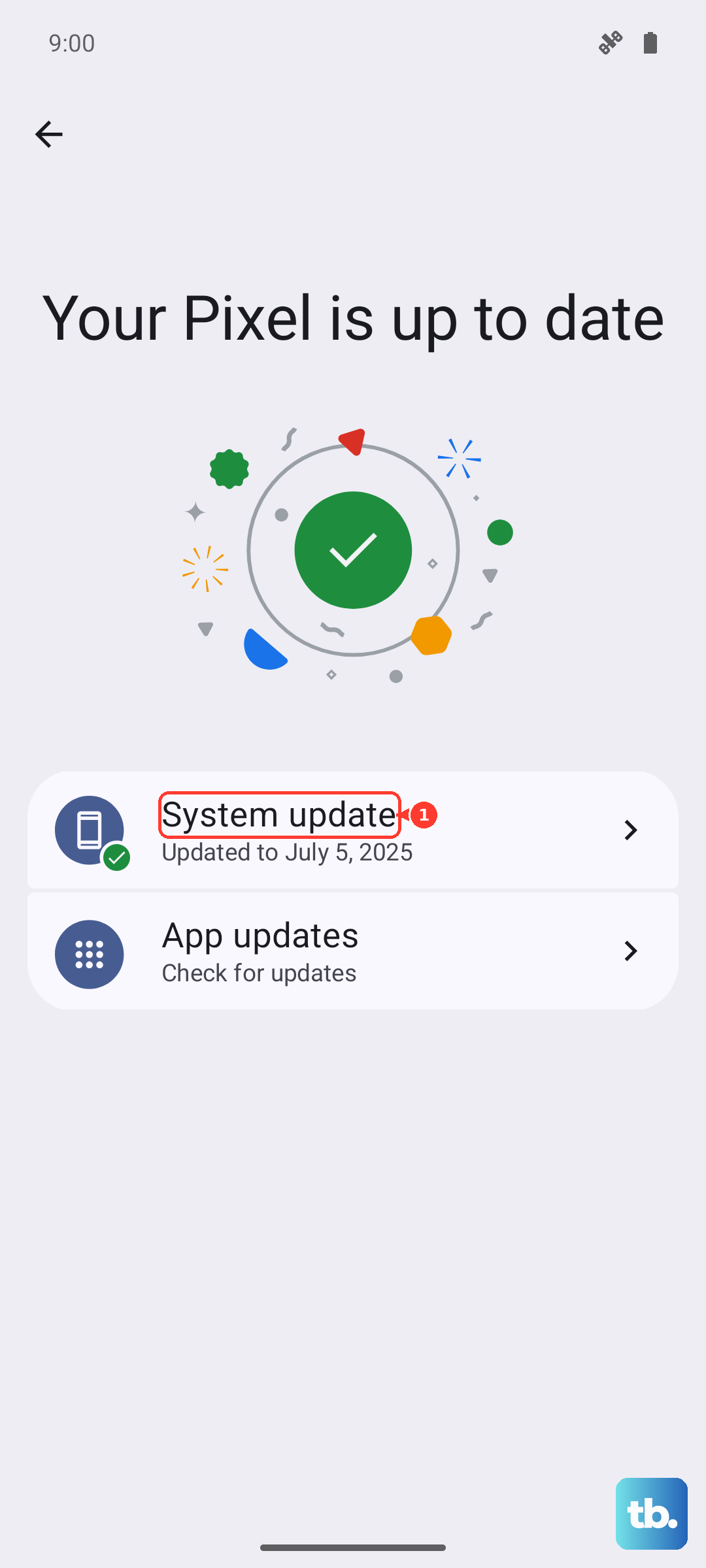
If an update is available, install it while your phone is plugged into its 68W charger and connected to Wi-Fi. Keeping your Edge 40 on the latest available version of Android is one of the best ways to prevent software-related touch issues.
Calibrate the Touchscreen
Motorola phones have a hidden diagnostic menu you can use. Open your phone app and dial *#*#2486#*#*. This should launch the "CQA" test menu. Look for an option related to "Touch" or "TP" (Touch Panel).
Follow the on-screen instructions, which usually involve tapping targets or drawing lines across the screen. This process can help recalibrate the digitizer. If the test fails or you can't complete it, it points toward a deeper hardware problem.
Check for Physical or Water Damage
Inspect the screen closely for any hairline cracks you might have missed, especially near the edges. Even a small crack can damage the underlying digitizer layer. Also, check the USB-C port and speaker grilles for signs of moisture or corrosion.
While the Edge 40 has some water resistance, liquid damage isn't always immediate. Corrosion can develop over time and affect internal connections, including the one for the touchscreen.
Perform a Factory Reset
This will erase everything on your phone, so ensure you have a recent backup. With the phone on, go to Settings > System > Reset options > Erase all data (factory reset).
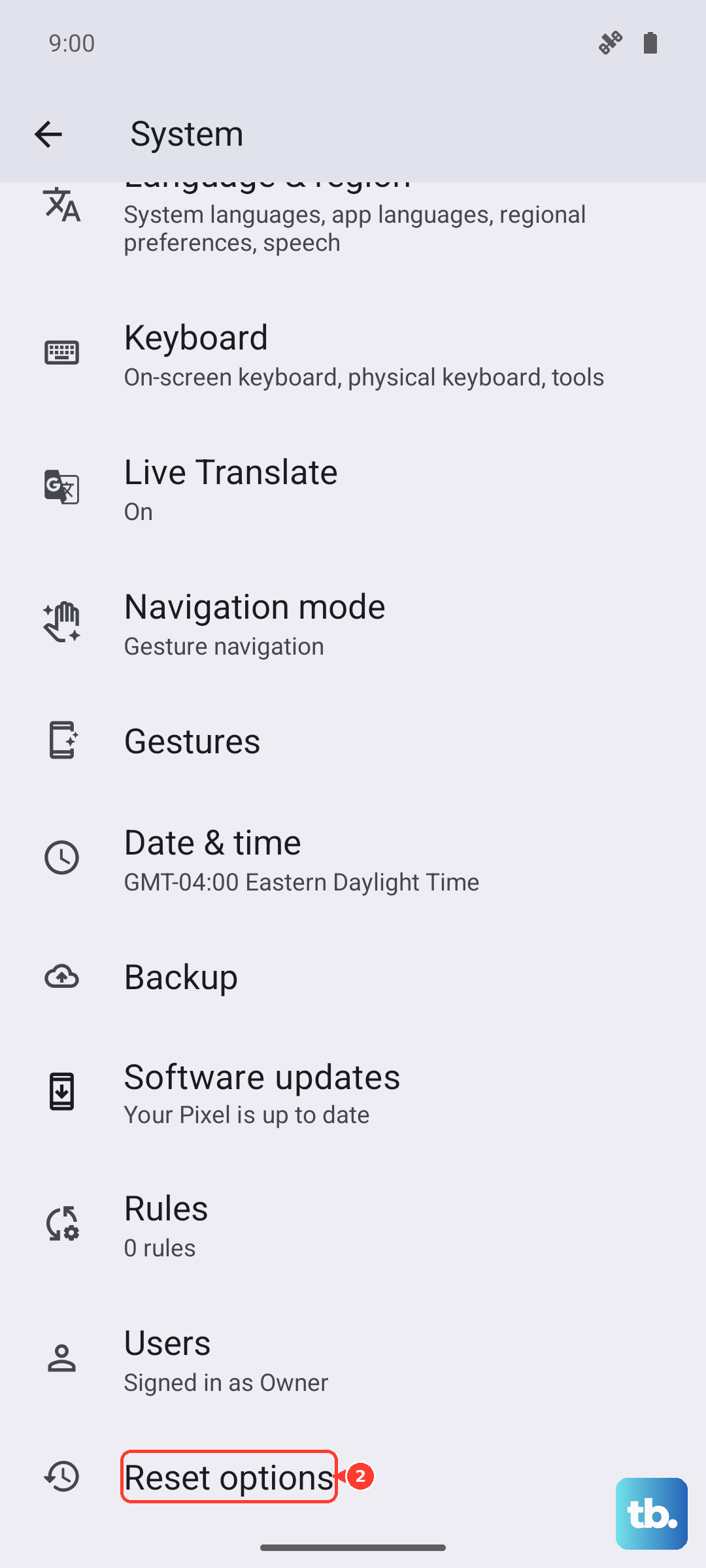
Follow the prompts to confirm. If you can't navigate the settings due to the touch issue, you can use the hardware buttons. Power off the phone, then press and hold the Volume Down button and Power button. When the logo appears, release the Power button only, then immediately press it again. Use the Volume buttons to navigate to "Recovery mode" and select it with the Power button. In recovery, use the volume keys to highlight "Wipe data/factory reset" and select it.
Consider a Hardware Fault
If none of the software fixes work and the screen is physically intact, the issue is likely hardware. The digitizer (the touch-sensitive layer) could be faulty, or the cable connecting the display to the motherboard might be loose or damaged.
This is particularly possible if the phone has been dropped, even without visible cracks. Since the Motorola Edge 40 has a curved pOLED display, repairs can be more complex. At this point, contacting Motorola support or a reputable repair shop for diagnosis is the next step.