You have lost access to your Microsoft account, and the normal password reset will not let you back in. Maybe the recovery email or phone number on file is one you no longer control, your authenticator is gone, or someone changed your security info after breaking in. The "Choose how you want to receive a verification code" screen shows nothing you can actually use.
When that happens, the Microsoft account recovery form becomes your only route back. There is no phone agent or chat advocate who can reset your password for you; Microsoft support staff are not allowed to send reset links or change account details. The form is the path, and how carefully you fill it out decides whether you regain access.
This guide walks you through what to prepare, the exact fields and how to answer each one, how to reach the form, and what to do if your first attempt is denied. Quickest options come first, so you do not waste an attempt.
Try the Sign-in Helper Before the Full Form
The full recovery form takes time, so Microsoft recommends starting with the Sign-in Helper tool. It can often guide you back in without the longer questionnaire, and if it cannot, it routes you into the recovery form anyway.
If your account was hacked, Microsoft points you to the Sign-in Helper through a button labeled "Start." If you simply cannot sign in, the helper still leads into the recovery form when it cannot verify you another way.
Check for a 25-Digit Recovery Code First
A recovery code is a 25-digit code used to regain access if you forget your password or your account is compromised. If you saved one while you still had access, it may let you skip the form entirely.
During sign-in recovery, the code is offered after you select "Use a different verification option" and then "I don't have any of these," at which point you are prompted "Do you have an account recovery code?" Codes are not case-sensitive and do not require spaces or dashes.
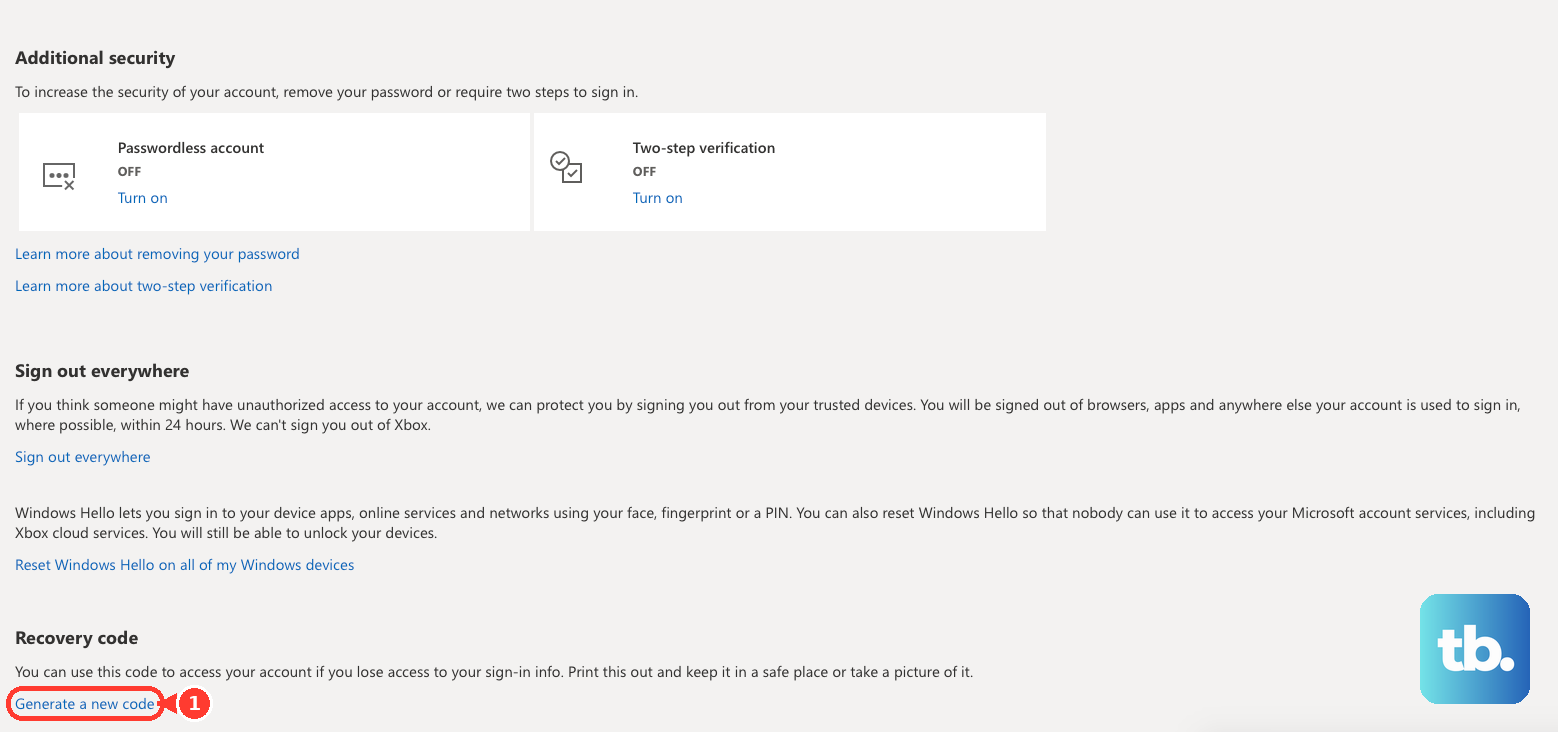
One caveat matters: as soon as you create a new recovery code, any previous codes stop working. If you generated a fresh code at some point, an older saved copy is dead. If you still have access on another device, you can create one from the "Manage how I sign in" page (account.live.com/proofs/manage/additional), scroll to the Recovery code section, and select "Generate a new code."
Gather Your Account Details Before You Start
The more accurate detail you bring, the better your odds. Before opening the form, collect as much as you can.
Use a working email account you can access for Microsoft's reply. It can be any active address, including a friend's or a fresh outlook.com account; it is used only to contact you about your recovery request.
Gather information about Microsoft services tied to the account, such as Outlook, Hotmail, Skype, Xbox, and any purchases.
Collect old passwords you may have used on this account or elsewhere.
Look for what you entered when you first signed up, which matters most for older accounts.
If possible, complete the form on a device you previously used to sign into the account, and at a location where you commonly use it (home or office). Microsoft recognizing the device and location materially affects whether you succeed.
Reach the Form Through Password Reset
If you have not been routed to the form yet, the standard reset flow leads there once no verification method works.
- 1.Go to the reset password page, or on the sign-in page select "Forgotten your password?" (shown once the password entry window is open).
- 2.Select the "Reset password" link to open the tool, then click "Next."
- 3.At "Choose how you want to receive a verification code," you can have a code sent to your email or phone, then select "Get code."
- 4.If you see no usable option, or you no longer have access to any option shown, Microsoft directs you to the Sign-in Helper tool, which leads to the account recovery form.
Fill In Each Form Field Correctly
Microsoft's own guidance notes spell out how to answer the core fields. Follow them exactly.
Microsoft account email: enter the address of the personal account you are recovering. Do not list emails you do not actually own.
First and last name: provide the names used with the account, in the same naming style you registered (for example, "Alex" or "Alexander"). A mismatched style can hurt verification.
Preferred contact email: provide an alternative address Microsoft can reply to. Do not use the email you are trying to recover. A work email or any other accessible address is fine.
Birthdate: enter it in the USA format MM/DD/YYYY, regardless of your region.
Country/region: say where you created the account. If you are not sure, give your current location.
Password change timing: tell Microsoft when you last changed the password. If unsure, search your email for "Microsoft account password." Approximations are accepted; leave it blank if you never changed it.
Gamertag: the Xbox profile name tied to the account. Leave blank if there is none.
Device ID: provide your Xbox Console ID or Windows PC Device ID from system settings, if applicable.
Alternate contact methods and aliases: list any account aliases, including any email or phone number you use to sign in.
Answer Every Question as Thoroughly as You Can
Beyond the basic fields, the form asks for proof only the real owner would know. Treat every prompt as a chance to add evidence.
Provide previous passwords you remember, subject lines of recent emails in your inbox, names of folders you created, and contacts from your address book.
List the Microsoft products you use, such as an Xbox Gamertag or Skype name, and billing information if you ever made purchases.
When a question lets you "add more," fill in as much as you can.
For email questions, ask family, friends, or business contacts to confirm their addresses and the subject lines of the last few emails they sent you, so your answers are accurate.
Guessing is explicitly fine. Wrong answers do not count against you, so answer every field even when unsure rather than leaving blanks.
If the Account Was Hacked, Secure Your Device Too
When an attacker changed the password or security info, the recovery form is still the way back, but protect the device first. Make sure your antivirus program is running and up to date, and run a full system scan before recovering.
Once you regain access and change the password, review your account settings carefully. Check connected accounts, mail forwarding, and automatic replies for changes an attacker may have made.
Watch for the Reply in the Right Inbox
After you submit, Microsoft reviews your answers and replies to the preferred contact email you entered, not to the account you are recovering. That address is used only to contact you about the request.
Response time is stated two different ways on Microsoft's own pages: one says "within 24 hours," another says it can take "up to 72 hours." Plan for the longer window. Also check the Junk and Spam folders of that contact email, since the response can be filtered there.
If Your Attempt Is Unsuccessful, Try Again Smarter
A denial is not the end. You can keep trying as many times as you want, up to two times per day. Do not resubmit identical answers; add more or better information each time.
Review Microsoft's guidance for the form, then submit again with stronger detail. If the form is asking about additional security information you do not recognize, use the Sign-in Helper tool instead. And keep expectations realistic: support agents and advocates are not allowed to send reset links or access and change account details, so no human can recover the account for you outside this process.
Frequently Asked Questions
Where does Microsoft send the result of my recovery request?
To the preferred contact email you entered at the start of the form, never to the account you are recovering. Check that inbox, including its Junk and Spam folders.
How long does the recovery form take to get a response?
Microsoft's pages give two figures: one says within 24 hours, another says up to 72 hours. Plan for up to 72 hours before resubmitting.
How many times can I submit the form?
As many times as you want, up to two times per day. Add new or better information on each attempt rather than repeating the same answers.
Will wrong answers hurt my chances?
No. Wrong answers do not count against you, and guessing is explicitly allowed. Answer every field, even when you are unsure, instead of leaving blanks.
Can a Microsoft agent or phone support just reset my password?
No. Support agents and advocates are not allowed to send password reset links or access and change account details. The recovery form (or the Sign-in Helper that leads to it) is the only path.
What if two-step verification is on and I cannot reach any verification method?
If you have no recovery code and cannot reach any verification method, Microsoft warns it cannot help you beyond the form and Sign-in Helper, so complete the form as thoroughly as possible from a recognized device and location.