
When your MacBook Pro 16-inch M5 Pro gets too hot, the fans can get loud, performance might slow down, and it can become uncomfortable to use on your lap. The good news is, there are several straightforward things you can do to cool it down.
Find What's Using Your CPU
Open Activity Monitor from your Utilities folder and click the CPU tab. Click the "% CPU" column header to sort from highest to lowest. You're looking for any process using a very high percentage for a long time, which is the main source of heat. If you spot a runaway app, you can select it and click the stop button (X) in the toolbar to force quit it.
Close Demanding Applications
Apps like Final Cut Pro, Blender, or modern games are designed to use every bit of the M5 Pro's power, which naturally creates heat. If you're not actively working in them, close them completely. Also, check your web browser. Having dozens of tabs open, especially ones playing video or heavy web apps, can silently keep the CPU busy.
I'd start by closing the most obvious resource-hogs first. Even having multiple Adobe apps open in the background can contribute to the thermal load.
Update macOS
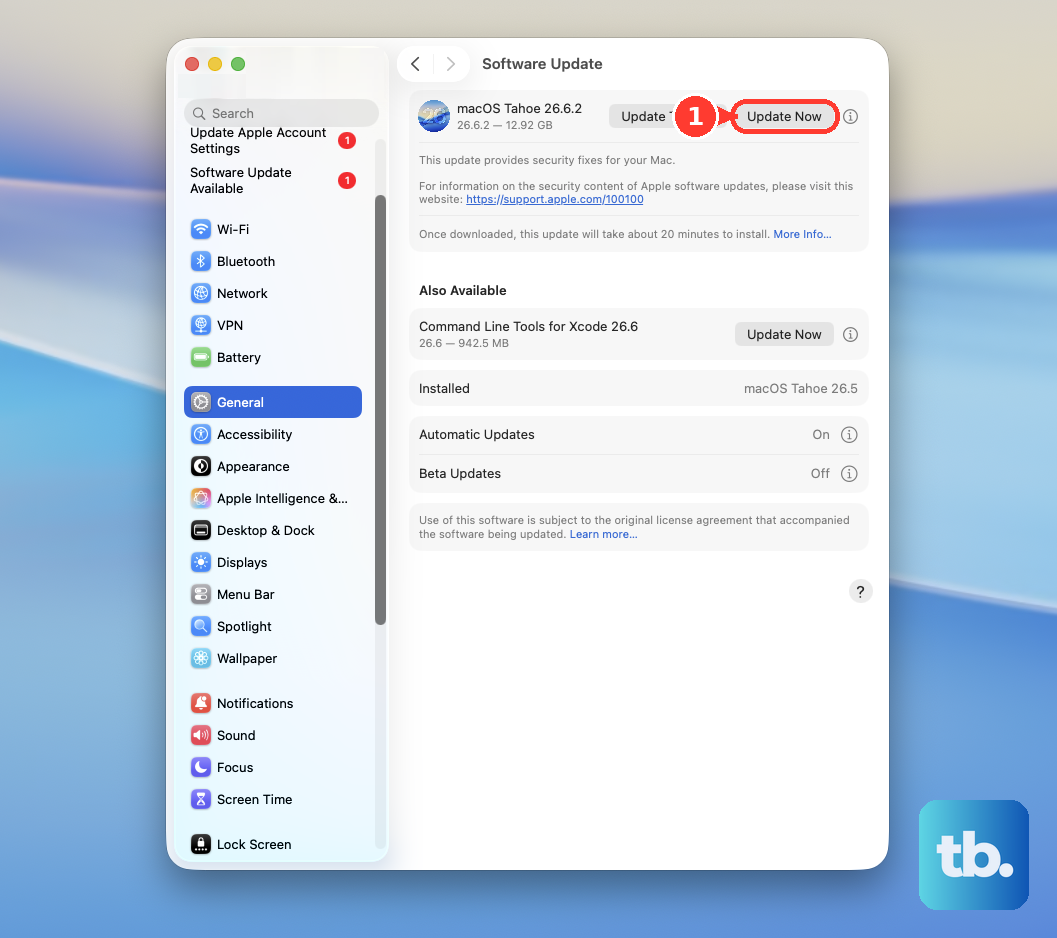
Head to System Settings > General > Software Update. Apple often releases updates that include improvements to power management and thermal algorithms for specific Mac models. Installing the latest version of macOS 26 Tahoe can sometimes resolve unusual heating behavior. After a major update, it's normal for the Mac to run warm as Spotlight reindexes files, but that should subside within a few hours.
Improve Airflow Around Your Mac
This is crucial for the 16-inch model. Never use it on a soft surface like a blanket, pillow, or your lap if it's covered by fabric, as this blocks the air intake vents along the sides and bottom. Always place it on a hard, flat desk. For even better cooling, use a laptop stand or just prop up the back edge with a book to give the fans more room to breathe.
Reset the Thermal Management System
Since you have an Apple Silicon Mac (M5 Pro), there's no separate SMC to reset. Instead, a full restart clears the thermal management state. Simply shut down your MacBook Pro, wait about 30 seconds, and then turn it back on. This can resolve temporary glitches where the fans aren't responding correctly to the temperature.
Clean Out the Vents
Over time, dust and lint can get sucked into the ventilation grills. This acts as insulation, trapping heat inside. You can use a can of compressed air to gently blow out the vents along the sides and the hinge area. Hold the can upright and use short bursts to avoid spraying moisture. Doing this every few months can make a real difference.
Lower Your Display Brightness
The mini-LED display on the 16-inch Pro is stunning but also a significant source of heat. Turning down the brightness from the maximum setting reduces power draw and heat output. You can also temporarily turn off features like True Tone or Auto-Brightness from System Settings > Displays while you're trying to cool things down.
Enable Low Power Mode
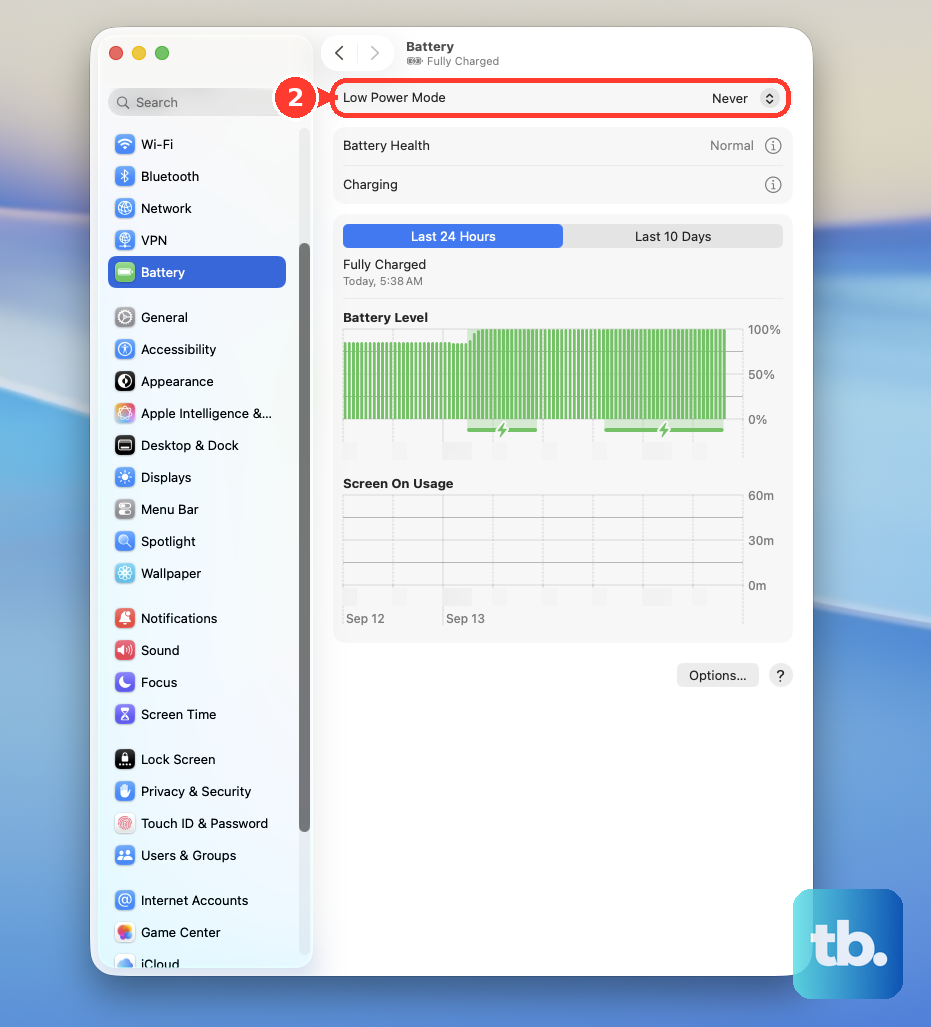
This is a great tip specific to Apple Silicon Macs. Go to System Settings > Battery and turn on Low Power Mode. When active, it slightly reduces CPU performance and limits background activity to save energy. The direct side effect is that it also generates less heat, which can be perfect for general tasks when you don't need the absolute maximum speed.
Check for Hardware Issues
If the heat seems excessive and none of the software fixes help, it's worth running Apple Diagnostics. Shut down your MacBook Pro, then turn it on while immediately pressing and holding the Power button. When you see the startup options window, press and hold Command (⌘) + D. This will test the hardware, including the fans and thermal sensors, and report any problems it finds.