
When Bluetooth stops working on your MacBook Pro 16-inch M5 Pro, it can leave your wireless mouse, keyboard, and headphones useless. The issue might be a device that won't pair, a connection that keeps dropping, or Bluetooth that won't turn on at all. Here are the most effective ways to get it working again.
Toggle Bluetooth Off and On
Start with the simplest step. Click the Bluetooth icon in your menu bar and choose "Turn Bluetooth Off." Wait about ten seconds, then click it again to turn it back on. If you don't see the menu bar icon, you can find the toggle in System Settings > Bluetooth.
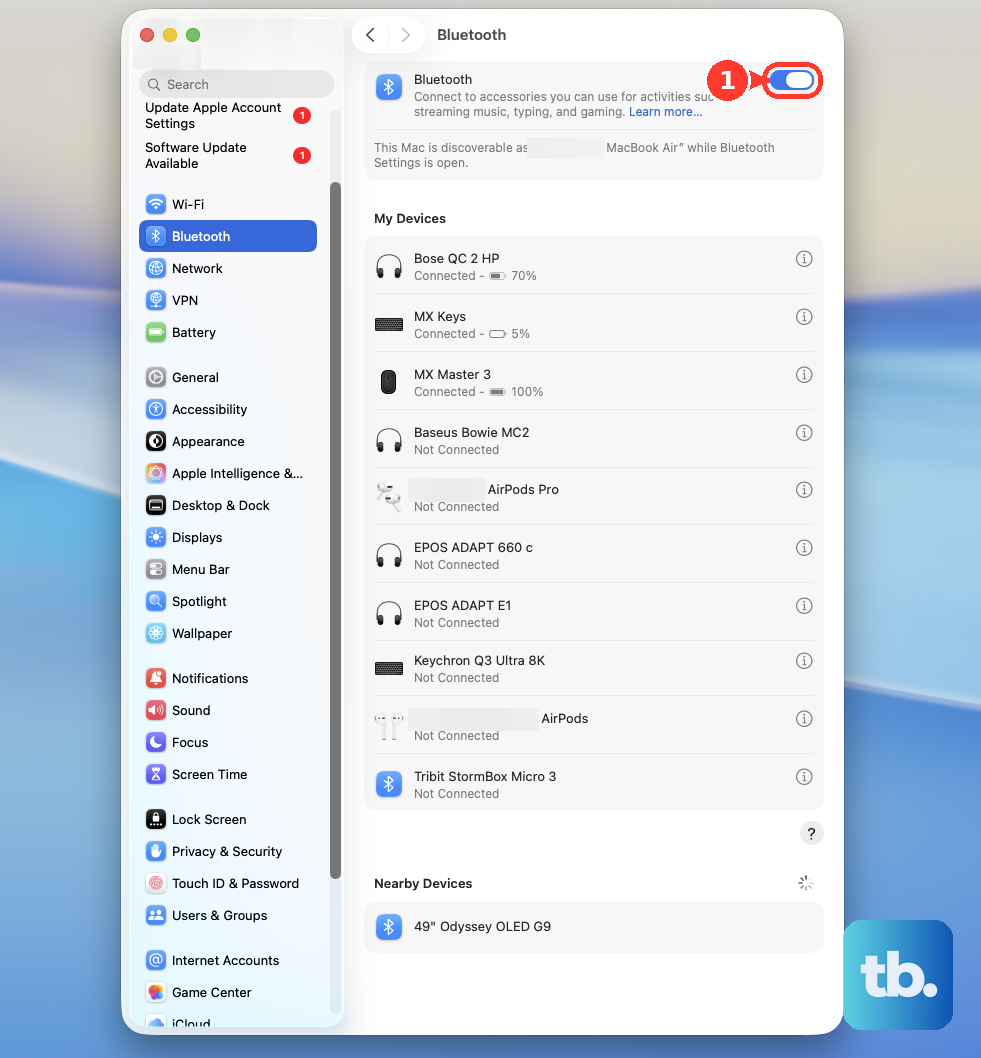
This quick refresh often clears up minor software glitches that prevent devices from being discovered. It's the equivalent of giving the system a quick nudge to restart the wireless service.
Restart Your MacBook Pro
If toggling didn't help, a full restart is your next best move. Click the Apple menu > Restart. This process reloads the entire Bluetooth stack and clears out any corrupted connection states that have built up.
For the M5 Pro model, a restart is particularly effective after waking from sleep with connected devices. I've found it resolves more stubborn pairing issues than a simple toggle alone.
Forget and Re-Pair the Problem Device
Open System Settings > Bluetooth and find the device that won't connect. Click the small i (info) button next to its name, then click Forget This Device and confirm.
Now, put your accessory, be it AirPods, a mouse, or a keyboard, into its pairing mode. You'll usually need to hold a button on it until a light flashes. Your MacBook should detect it as a new device, allowing you to pair from scratch and establish a fresh connection profile.
Reset the Bluetooth Module
Your Mac has a hidden debug menu for Bluetooth. Hold down the Shift and Option keys on your keyboard, then click the Bluetooth icon in the menu bar. In the menu that appears, select Reset the Bluetooth module.
This performs a deeper hardware-level reset than just toggling it off and on. Your Mac will restart immediately after this action, and you'll need to re-pair your devices, but it often fixes persistent discovery and dropout problems.
Check for macOS Updates
Apple frequently releases updates that include fixes for wireless connectivity. Go to System Settings > General > Software Update to check for any available updates for macOS 26 Tahoe.
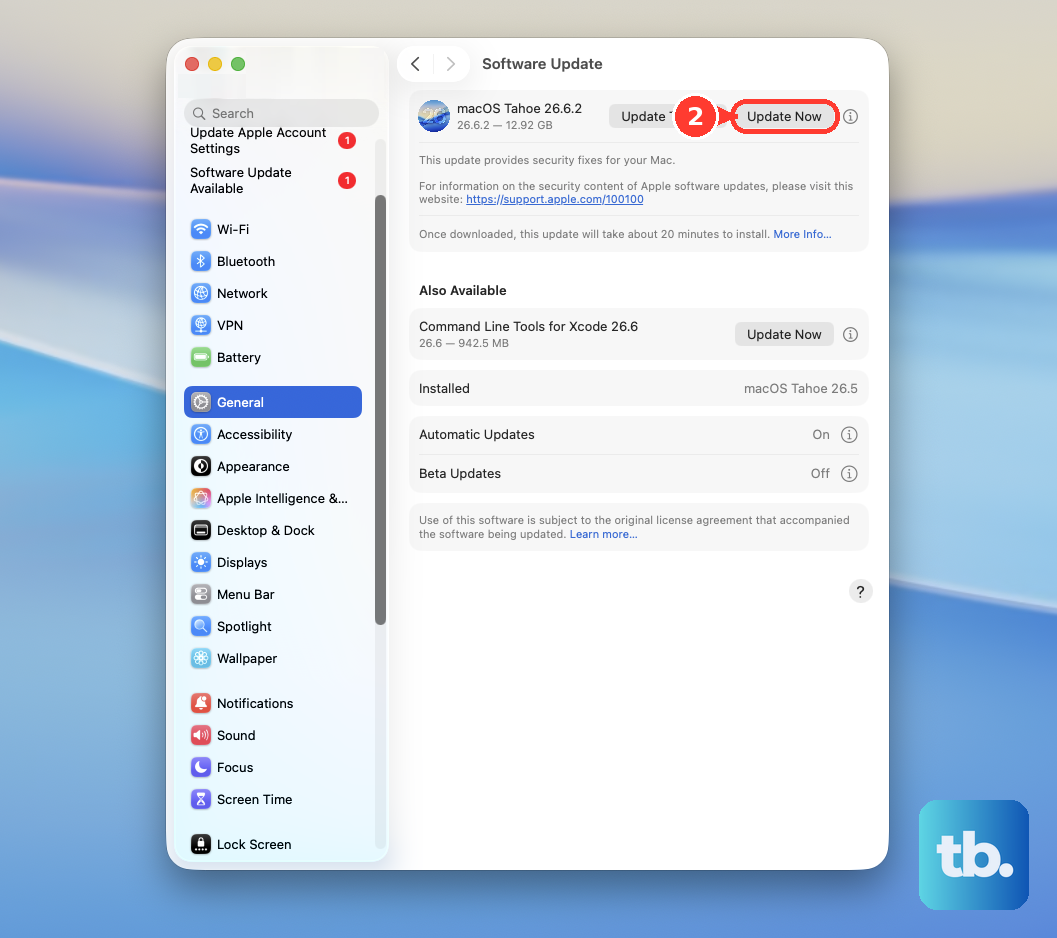
Installing the latest update ensures you have all the current Bluetooth drivers and patches for the M5 Pro chipset. It's a good habit to keep your system updated, not just for Bluetooth but for overall stability and security.
Delete Bluetooth Preference Files
Sometimes, the configuration files that store your Bluetooth settings become corrupted. You can delete them to force macOS to create new, clean ones. Open a Finder window, press Command + Shift + G, and type /Library/Preferences/ into the box that appears.
Look for a file named com.apple.Bluetooth.plist and move it to the Trash. You will need to enter your administrator password. Afterward, restart your MacBook Pro. Be aware that you will have to forget and re-pair all your Bluetooth devices after this step.
Check for Wireless Interference
The M5 Pro MacBook Pro's powerful internals can sometimes contribute to a noisy wireless environment. USB 3.0 devices and hubs are notorious for causing Bluetooth interference on the 2.4GHz band.
Try unplugging any non-essential USB devices, especially external drives or docks, to see if your connection improves. Also, try moving away from other strong wireless sources like routers, microwaves, or dense clusters of other computers.
Verify Your Accessory's Battery and Status
Before blaming your Mac, make sure the other device is the problem. A low battery in your mouse, keyboard, or headphones can cause failed pairing attempts and unstable connections.
Check the battery level indicator next to the device's name in System Settings > Bluetooth. If it's critically low, charge it or replace its batteries. Also, ensure the accessory itself isn't already connected to another device like an iPhone or iPad, which would block the Mac from pairing.
Boot in Safe Mode
Safe Mode starts your Mac with only the essential software, which helps determine if a third-party app is causing the conflict. Shut down your MacBook Pro completely. Press and hold the power button until you see "Loading startup options."
Select your main drive, then press and hold the Shift key and click "Continue in Safe Mode." If Bluetooth works perfectly in Safe Mode, you know the issue is caused by something you've installed. You can then restart normally and begin disabling login items or recently installed apps to find the culprit.