
When your MacBook Pro 14-inch M5 Pro won't connect to WiFi, drops the connection frequently, or shows "No Internet Connection" despite being connected, here's how to fix it.
Toggle WiFi Off and On
Click the WiFi icon in the menu bar and toggle it off. Wait about ten seconds, then turn it back on. This simple action refreshes the wireless adapter and clears temporary glitches that can happen, especially after waking from sleep.
Restart Your Mac
Click Apple menu > Restart. A full restart reloads the WiFi driver and clears cached network states. I'd start with this one if toggling WiFi doesn't work, as it resolves most intermittent connection drops.
Forget and Rejoin the Network
Go to System Settings > WiFi. Click the i next to your network and select Forget This Network. Confirm, then rejoin by selecting the network from the list and entering the password. This creates a fresh connection profile, which can fix authentication or configuration errors.
Renew DHCP Lease
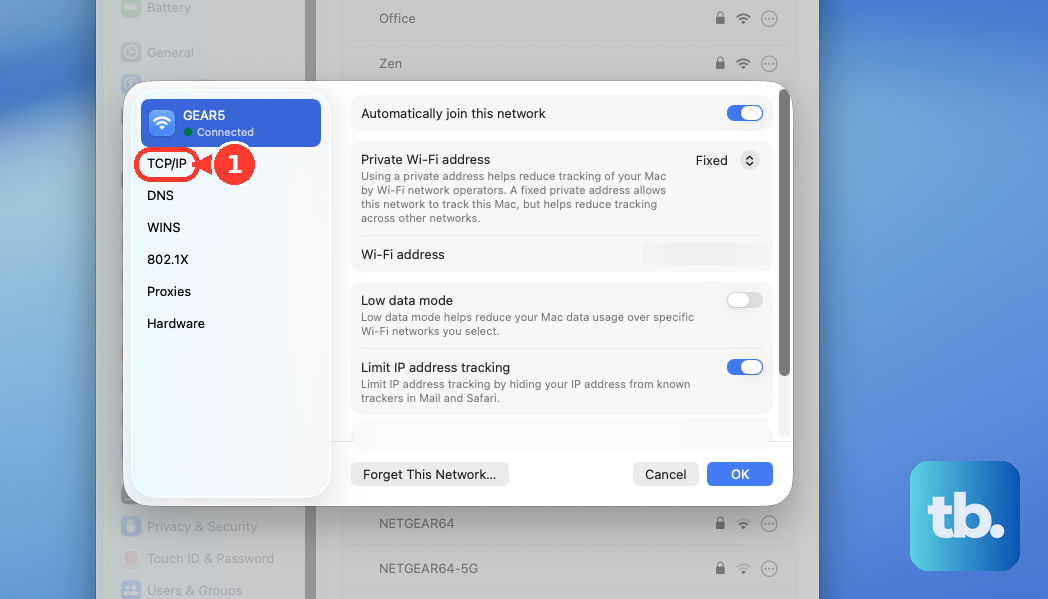
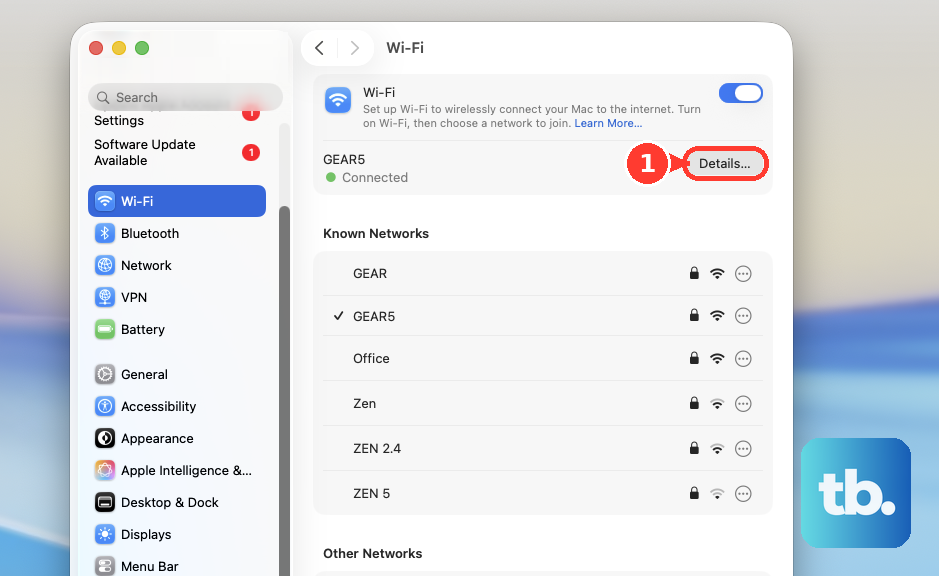
Go to System Settings > WiFi, click Details next to your connected network, then TCP/IP. Click Renew DHCP Lease. This requests a fresh IP address from your router and is a solid fix for that "connected but no internet" situation.
Change DNS Servers
In the same WiFi Details window, go to the DNS tab. Remove any existing DNS servers and add new ones like 8.8.8.8 and 8.8.4.4 (Google DNS) or 1.1.1.1 (Cloudflare). Slow or unresponsive DNS servers from your ISP can make it seem like WiFi is broken when the problem is actually name resolution.
Delete Network Preferences
Open Finder, press Command + Shift + G, and type /Library/Preferences/SystemConfiguration/. Move the files NetworkInterfaces.plist, com.apple.wifi.message-tracer.plist, and preferences.plist to your desktop (not Trash, as a safety backup). Restart your Mac. macOS will recreate these files with fresh defaults, which can clear deep-seated corruption.
Update macOS
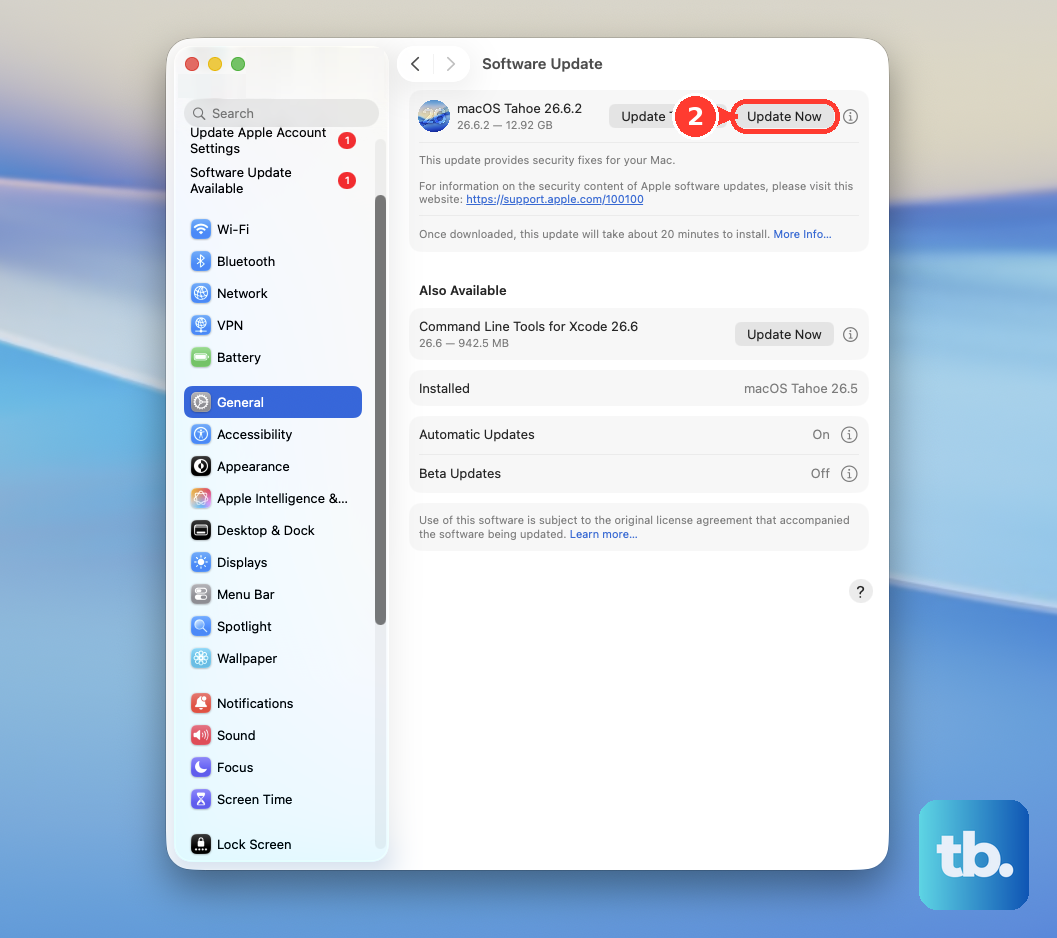
Go to System Settings > General > Software Update. WiFi bugs and driver issues are regularly addressed in macOS updates. Ensuring you're on the latest version of macOS Tahoe is a critical step, as it can include fixes specifically for the M5 Pro's hardware.
Check WiFi Signal and Environment
Hold the Option key and click the WiFi icon in the menu bar. Look at the RSSI value; anything below -70 dBm is a weak signal. Also, note the channel your router is using. If you're on a crowded channel, interference from other networks can cause drops. This is especially relevant if you're using the MacBook Pro with multiple external displays, as the setup can sometimes physically block the signal.
Create a New Network Location
Go to System Settings > Network. Click the three-dot menu next to your active service and select Locations > Edit Locations. Click the plus (+) icon to add a new location, name it something like "Fresh Start", and click Done. Switch to this new location. This creates a completely clean slate for all network interfaces, bypassing any location-specific configuration errors.
If you've tried all the software fixes and the problem persists, it's worth running Apple Diagnostics. Restart your Mac and immediately press and hold the Power button until you see the startup options window. Press Command + D to begin diagnostics, which can check for hardware issues with the WiFi module.
Also, consider your accessories. Some users have reported Thunderbolt 5 dock compatibility issues that can affect connectivity. Try disconnecting all peripherals, including any docks or external monitors connected via HDMI, to see if the WiFi connection stabilizes.