
When your MacBook Pro 14-inch M5 Pro won't charge, you might see the battery icon stuck or a "Not Charging" message even when it's plugged in. The fixes below are specific to your model.
Check Your Charger and Cable
Start by inspecting the USB-C cable and power adapter for any fraying or damage. I'd recommend trying a different cable and adapter if you have one handy. Your MacBook Pro 14-inch needs a high-wattage charger to charge properly, especially under load, so ensure you're not using a low-power adapter meant for a phone or tablet.
Using the 96W or 140W adapter that came with your model is the safest bet. If you're using a third-party charger, make sure it's rated for at least 96W to handle the M5 Pro chip's power demands.
Try a Different USB-C Port
Your MacBook Pro has multiple Thunderbolt 5 ports. Unplug the charger and plug it into a different port. One port might have accumulated lint or have a minor hardware issue, while the others work perfectly fine.
This is a quick test that can immediately rule out a port-specific problem. If charging starts on a different port, you've likely found the culprit.
Restart Your Mac
Sometimes, the power management system just needs a refresh. Click the Apple menu > Restart. This simple step can clear out a software glitch that's incorrectly reporting the charging status.
It's a common first step that resolves the "Not Charging" message for many users when the hardware is actually functioning.
Check Battery Health in macOS 26
Go to System Settings > Battery > Battery Health. Here, you can see the maximum capacity of your battery. If it says "Service Recommended," the battery may be too degraded to hold a charge effectively.
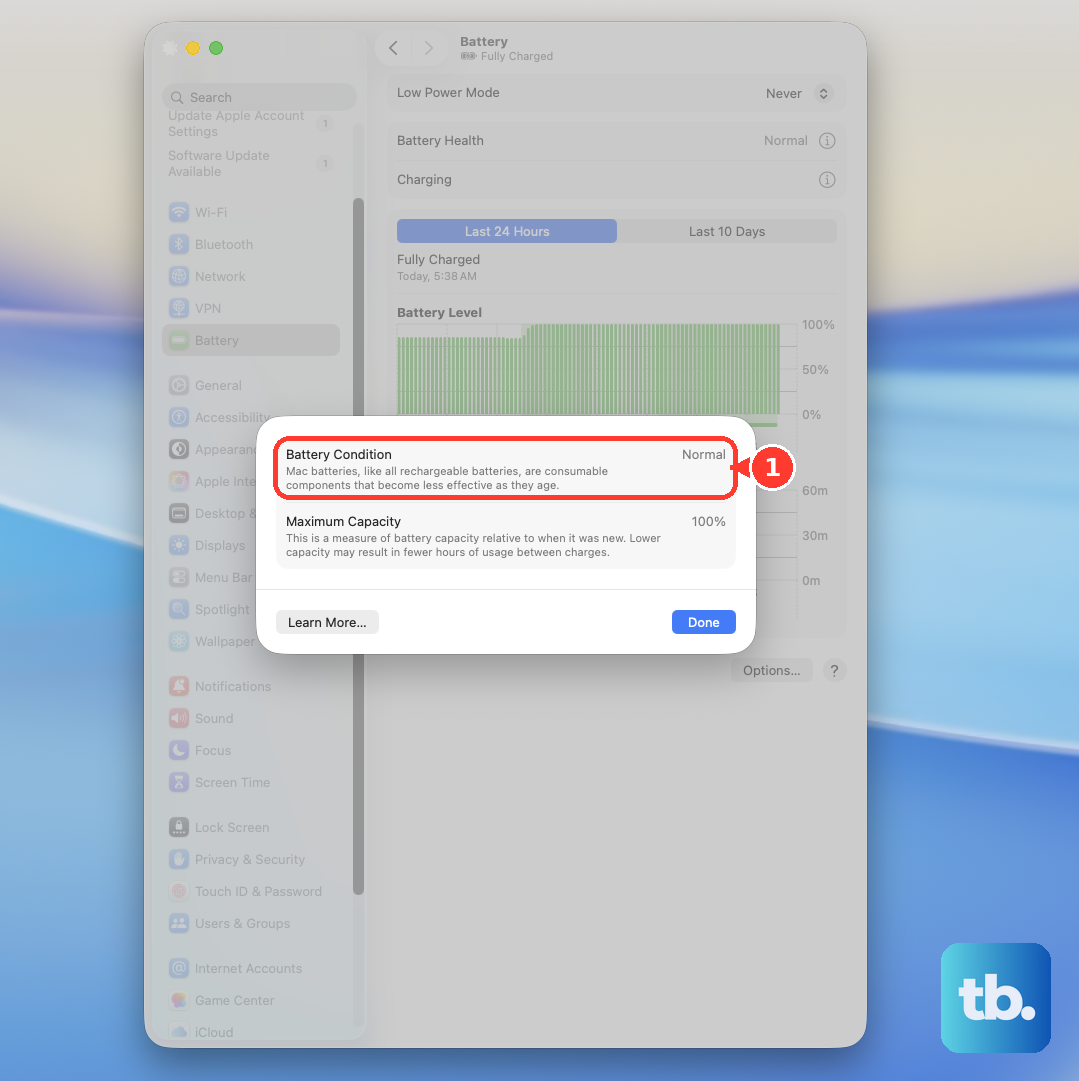
You can also check the cycle count by going to Apple menu > About This Mac > System Report > Hardware > Power. A very high cycle count can indicate it's time for a replacement.
Clean the USB-C Ports
Lint and pocket debris are common culprits. With the Mac shut down and unplugged, use a wooden toothpick or a soft, anti-static brush to gently clear out the USB-C ports.
Be very careful not to scrape or damage the delicate pins inside the port. A quick blast of compressed air can help dislodge loose particles first.
Reset the Power State on Apple Silicon
For your M5 Pro MacBook Pro, you don't have an SMC to reset. Instead, shut down the computer completely. Wait about 30 seconds, then press and hold the power button for a full 10 seconds to perform a force restart.
Release the button, then press it again normally to turn your Mac back on. This process resets several low-level controllers, including those related to power and charging.
Update macOS to the Latest Version
Go to System Settings > General > Software Update. Apple frequently releases updates that address power management and charging bugs. Since you're on macOS 26 Tahoe, ensure you have the very latest version installed.
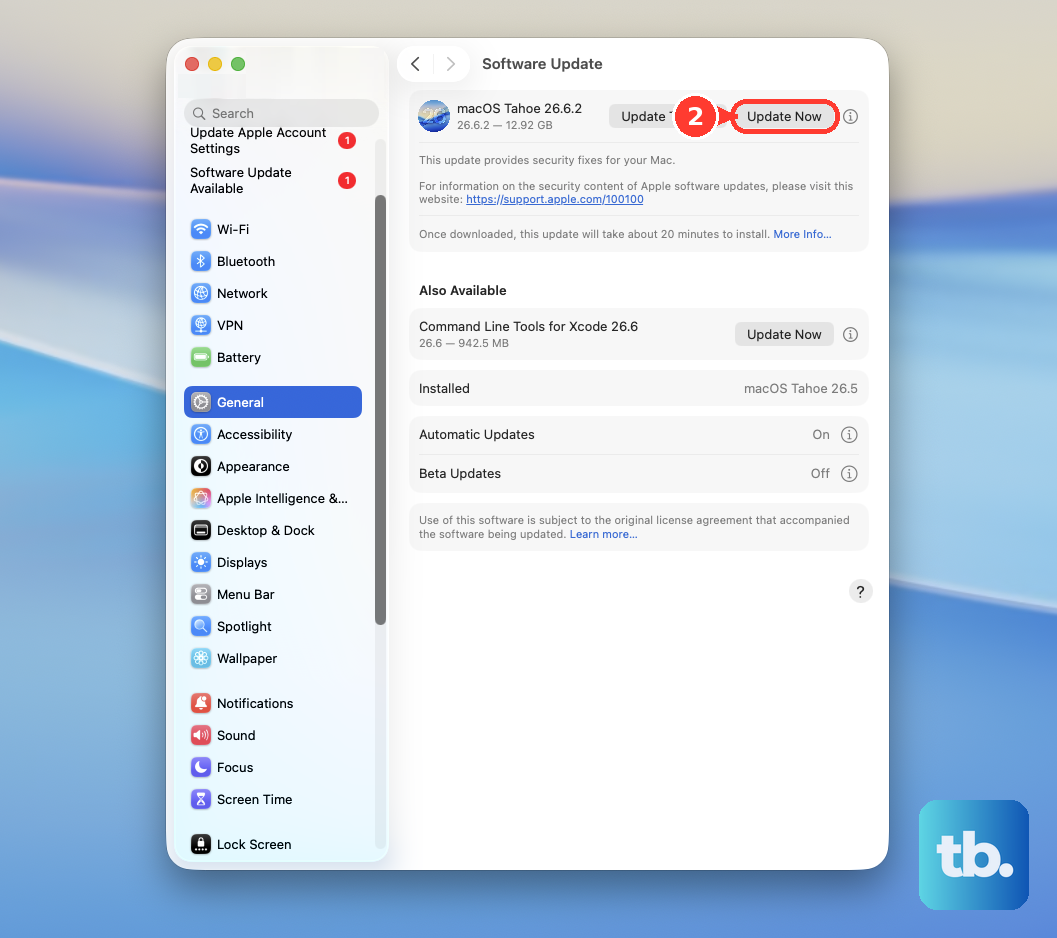
I've seen updates specifically fix issues where the MacBook Pro would stop charging when connected to certain high-resolution monitors or Thunderbolt docks.
Check for Optimized Battery Charging
Your Mac learns your charging habits to improve battery lifespan. Go to System Settings > Battery > Battery Health and look for "Optimized Battery Charging." If it's enabled, your Mac might intentionally hold the charge at 80%.
This is not a defect. If you need a full charge for travel, you can click "Charge to Full Now" in the battery menu bar icon, or temporarily turn the feature off in settings.
Run Apple Diagnostics
Shut down your MacBook Pro. Turn it on and immediately press and hold the power button until you see the startup options window. Press and hold Command (⌘) + D on your keyboard.
This boots into Apple Diagnostics, which will test your hardware, including the battery and power adapter. If it finds an issue, it will provide a reference code and steps to follow.