
When Bluetooth won't pair on your MacBook Neo, it cuts you off from your AirPods, Magic Mouse, and any other wireless accessory you rely on. The issue can pop up whether you're trying to connect a new device or an old one suddenly won't reconnect.
Toggle Bluetooth Off and On
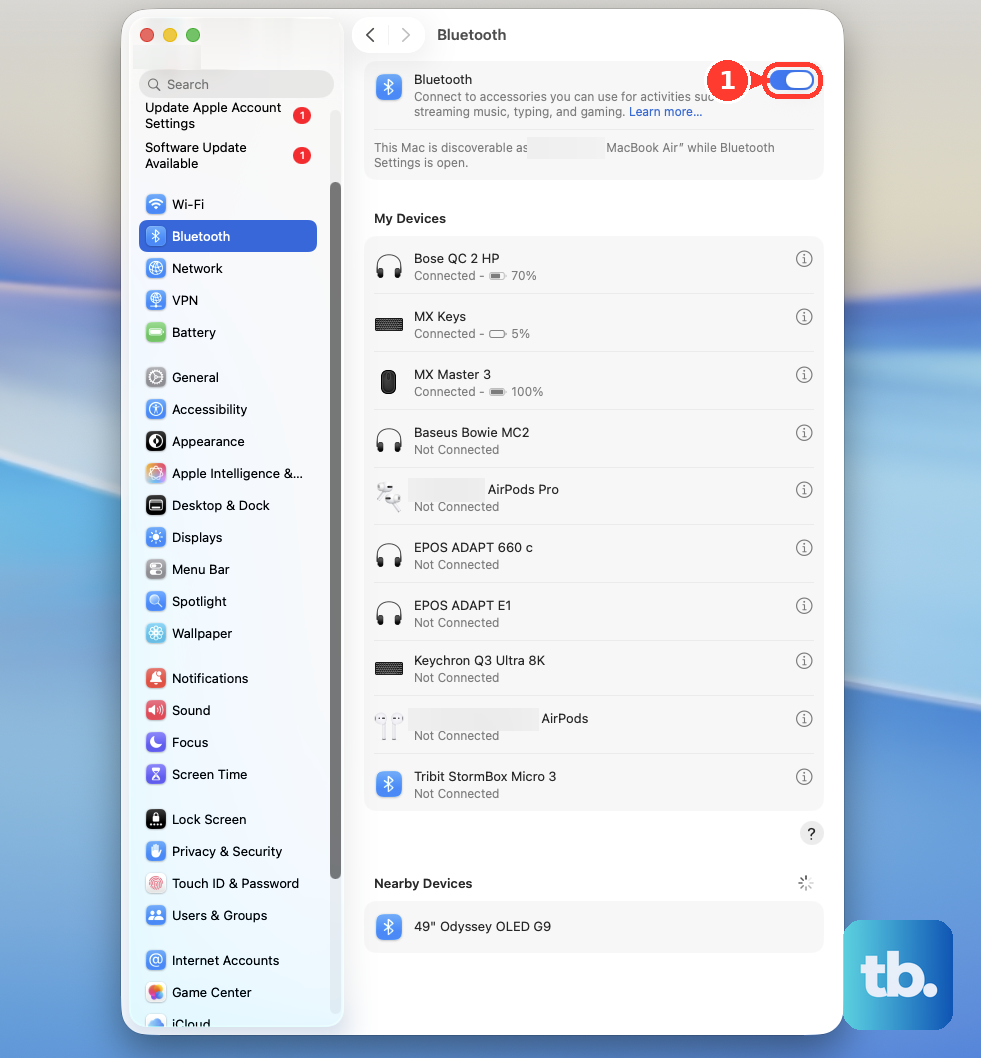
Start with the simplest step. Click the Bluetooth icon in your menu bar and turn it off. Wait about ten seconds, then click it again to turn Bluetooth back on.
If you don't see the icon, you can find the toggle in System Settings > Bluetooth. This quick refresh often clears up a temporary glitch in the connection.
Restart Your MacBook Neo
Click the Apple menu in the top-left corner and select Restart. A full reboot reloads the entire Bluetooth stack and can resolve pairing issues that a simple toggle won't fix.
Given the MacBook Neo runs on the new A18 Pro chip and a hybrid of iPad and Mac apps, a restart is a solid first troubleshooting step I'd recommend.
Remove and Re-Pair the Device
Head to System Settings > Bluetooth. Find the device that won't pair and click the info button (the small i) next to it. Click Forget This Device to remove it from your Mac completely.
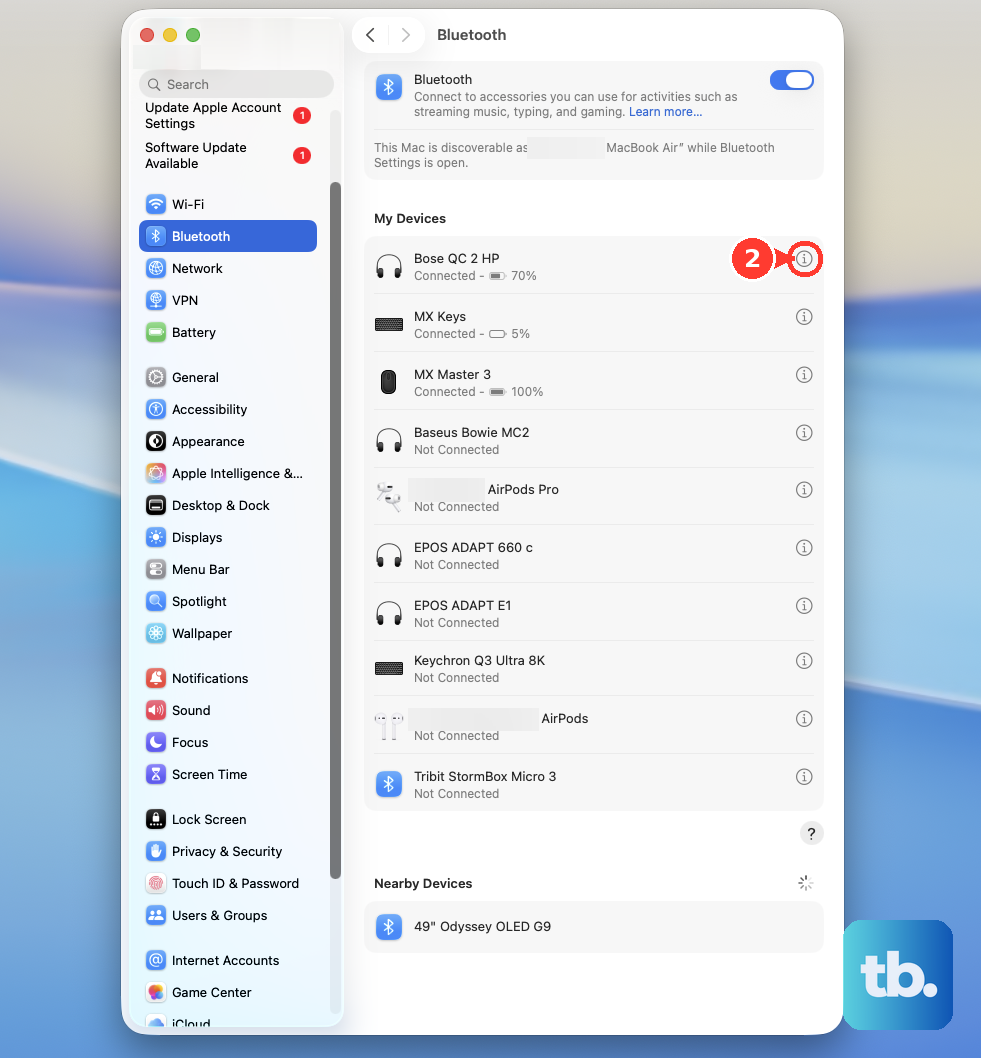
Now, put your Bluetooth device back into its discovery or pairing mode. You'll usually need to hold a button on it. Once it's discoverable, select it from the list on your MacBook Neo to pair it fresh. This replaces any corrupted pairing data.
Reset the Bluetooth Module
Hold down the Shift and Option keys on your keyboard, then click the Bluetooth icon in the menu bar. A new debug menu will appear.
From that menu, choose Reset the Bluetooth module. This performs a deeper hardware-level reset. Your Mac will restart automatically afterward, and you'll need to reconnect your devices.
Delete Bluetooth Preference Files
This step resets all Bluetooth settings to factory defaults. Open a Finder window, press Command + Shift + G, and type /Library/Preferences/ into the box that appears.
Look for a file named com.apple.Bluetooth.plist and move it to the Trash. You will need to re-pair every single Bluetooth device with your MacBook Neo after this. Restart your computer to complete the process.
Check for Wireless Interference
Bluetooth operates on the crowded 2.4GHz band. Other devices can cause interference and prevent pairing. Common culprits include USB 3.0 hubs, wireless routers, cordless phones, and even microwaves.
Try moving your MacBook Neo and the Bluetooth device you're trying to pair to a different location, away from other electronics. Temporarily unplug any USB 3.0 devices to see if that's the source of the problem.
Update macOS
It's critical to ensure your MacBook Neo is running the required version. Go to System Settings > General > Software Update.
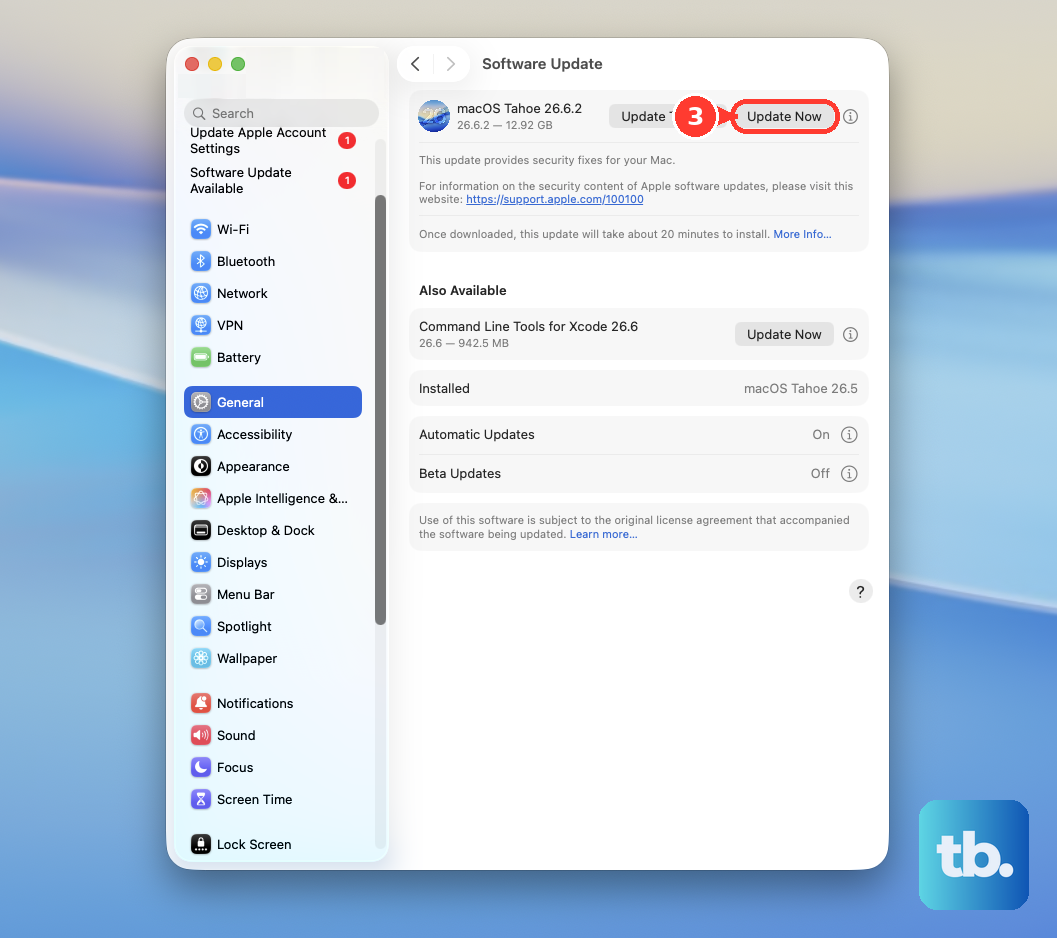
You need to be on macOS 26.3 or later. Apple frequently releases updates that include fixes for connectivity and compatibility, especially important for a new device category like the Neo.
Check the Device's Battery and Mode
For the device you're trying to pair, make sure it has sufficient charge. A low battery can prevent successful pairing. Also, double-check that it's in the correct mode.
Some devices, like headphones, have a dedicated "pairing" mode that's different from just being powered on. Consult the accessory's manual if you're unsure how to activate pairing.
Run Apple Diagnostics
The MacBook Neo includes built-in hardware diagnostics. Shut down your computer, then press and hold the power button to turn it on and immediately keep holding.
Continue holding until you see the startup options window, then release. From there, you can initiate Apple Diagnostics to check for any hardware issues with the Bluetooth component itself.