
When your MacBook Air M3's battery life seems to vanish in a few hours, it can feel like you're tethered to the charger. The good news is, a few specific settings and checks can usually get you back to the all-day battery life you expect.
Check Battery Health and Usage
Start by clicking the Apple menu > System Settings > Battery. Here, you'll see a breakdown of your battery usage over the last 24 hours or 10 days, which can point you to a specific app that's the culprit. Right below the graph, click on Battery Health.
If it says "Service Recommended," the physical battery has degraded and likely needs replacement. For a more detailed look, you can check the cycle count by going to Apple menu > About This Mac > More Info > System Report > Hardware > Power.
Use Activity Monitor to Find Energy Hogs
Open Activity Monitor from your Applications > Utilities folder and click the Energy tab. This is your real-time detective tool. Sort the list by "Energy Impact" to see which apps are currently draining the most power.
Pay special attention to the "Preventing Sleep" column. Any app marked "Yes" is actively keeping your MacBook Air awake, which is a major battery drain. I'd start by quitting any apps here that you don't immediately need.
Adjust Display and Keyboard Settings
The display is consistently the largest power draw on any laptop. Use the brightness keys on your keyboard to lower it to the minimum comfortable level. You can also enable System Settings > Displays > Automatically adjust brightness to let the ambient light sensor handle it.
Don't forget about the keyboard backlight. Turn it down or off using the keyboard brightness keys, especially in well-lit environments. Every little bit helps when you're trying to squeeze out more runtime.
Manage Wireless Connections and Location Services
If you're not using them, turn off Bluetooth and Wi-Fi. You can do this quickly from the Control Center in your menu bar. Background Wi-Fi scanning and Bluetooth polling, especially with the known codec switching delays with some audio devices, can use more power than you'd think.
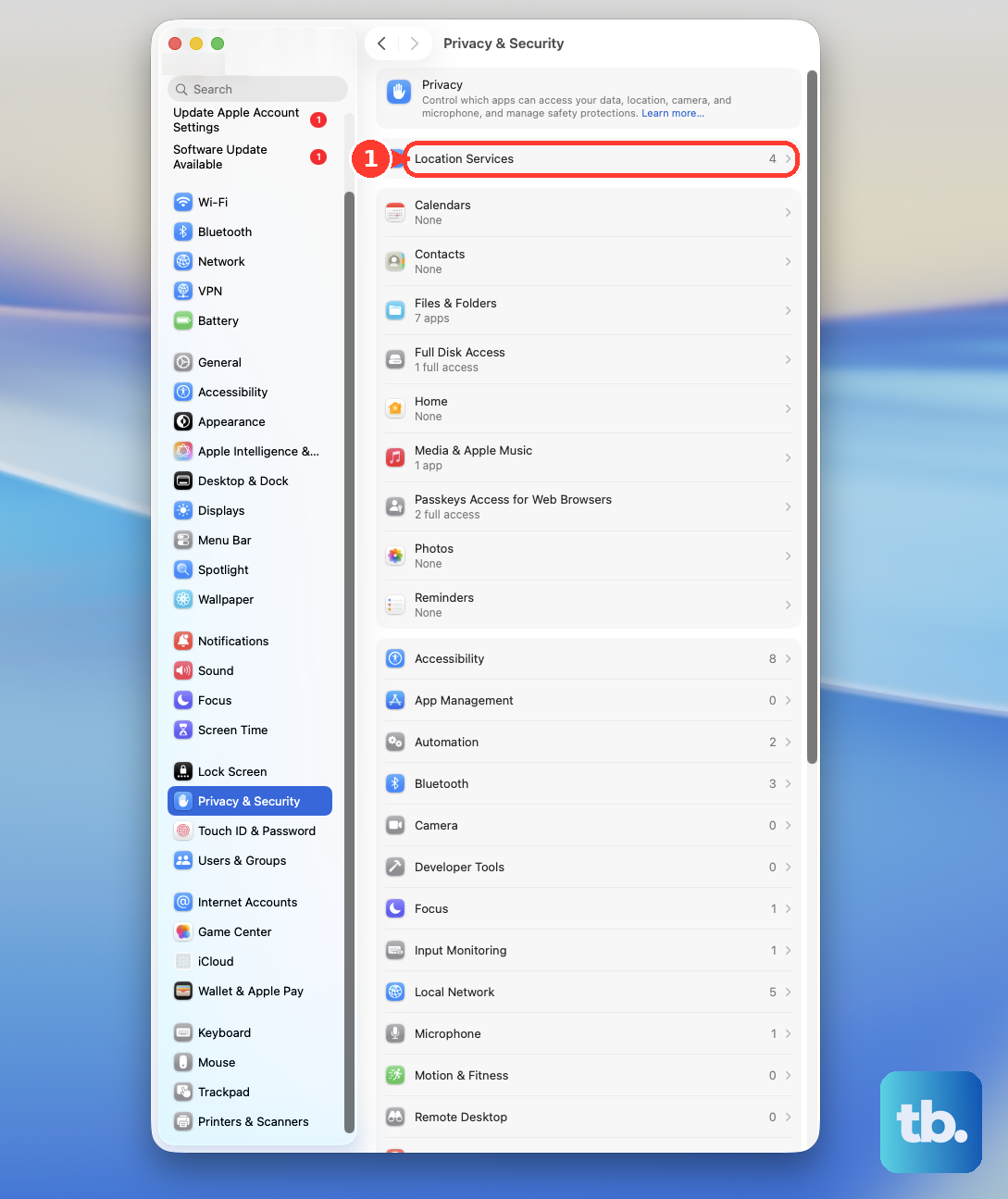
Also, review System Settings > Privacy & Security > Location Services. Many apps request location data in the background. Disable it for any app that doesn't absolutely need to know where you are to function.
Control What Runs at Login and in the Background
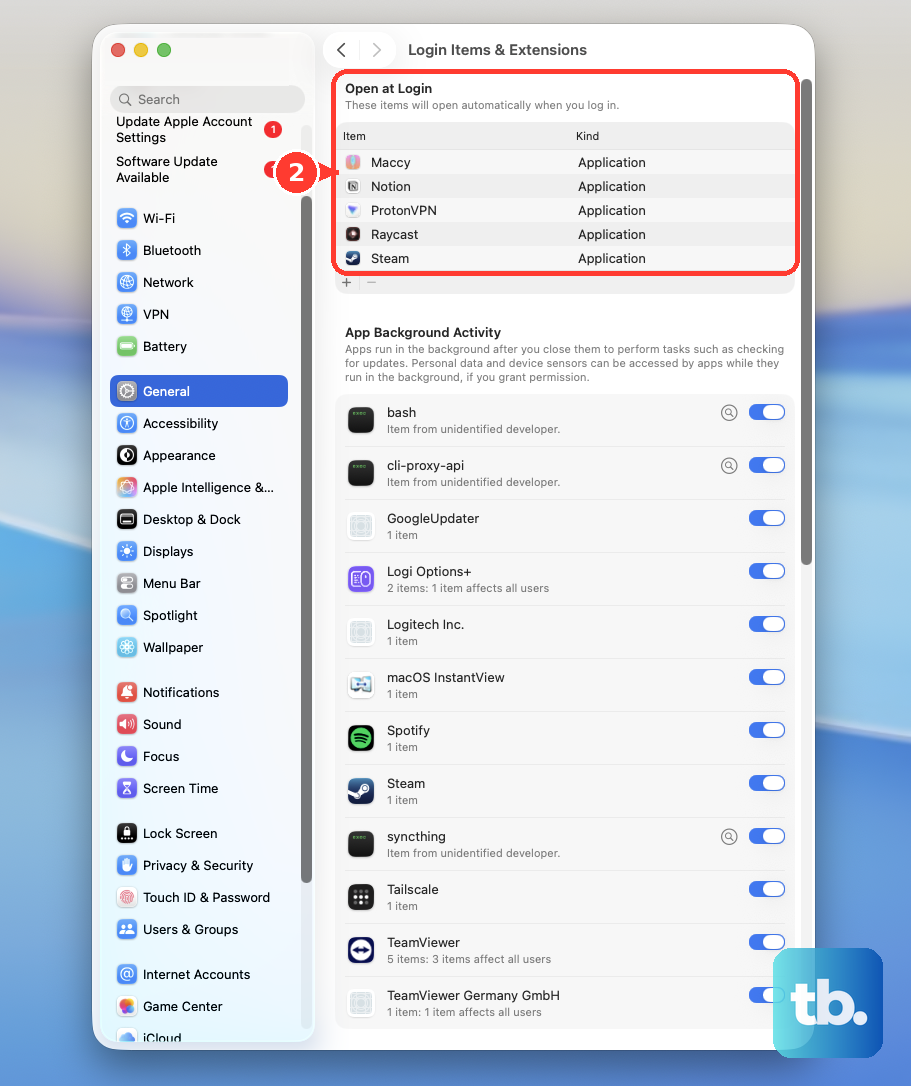
Head to System Settings > General > Login Items & Extensions. Every app in this list launches automatically when you start your Mac, running in the background from the moment you log in. Remove any that aren't essential for your daily workflow.
Also, check the menu bar at the top of your screen. Each little icon there represents a background process. Some are necessary, but others might be for apps you rarely use. You can often Option-click on them to reveal a quit option.
Enable Low Power Mode
Your MacBook Air M3 has a built-in Low Power Mode. Go to System Settings > Battery > Low Power Mode. You can turn it on now, or set it to activate automatically when on battery power.
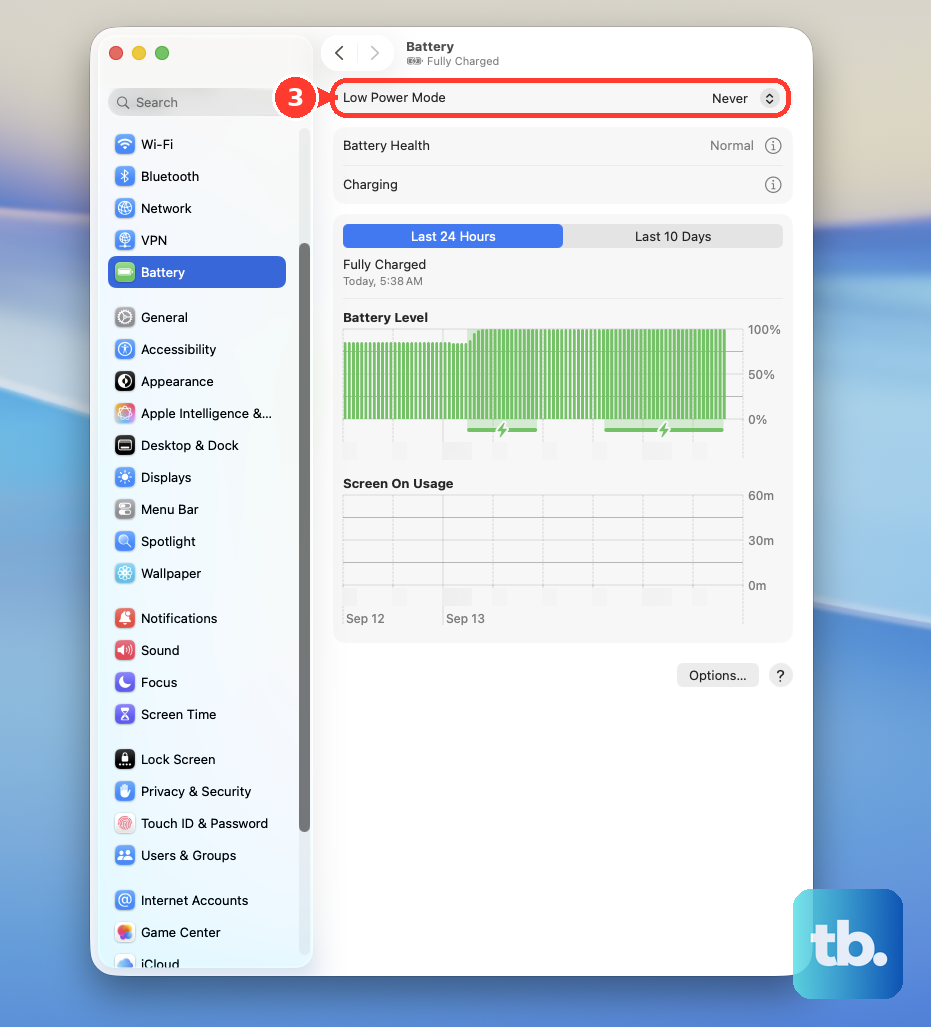
This mode subtly reduces system performance, lowers screen brightness a bit more, and minimizes background activity. It's a great setting for when you know you'll be away from an outlet for a long time and just need the laptop to last.
Update to the Latest macOS
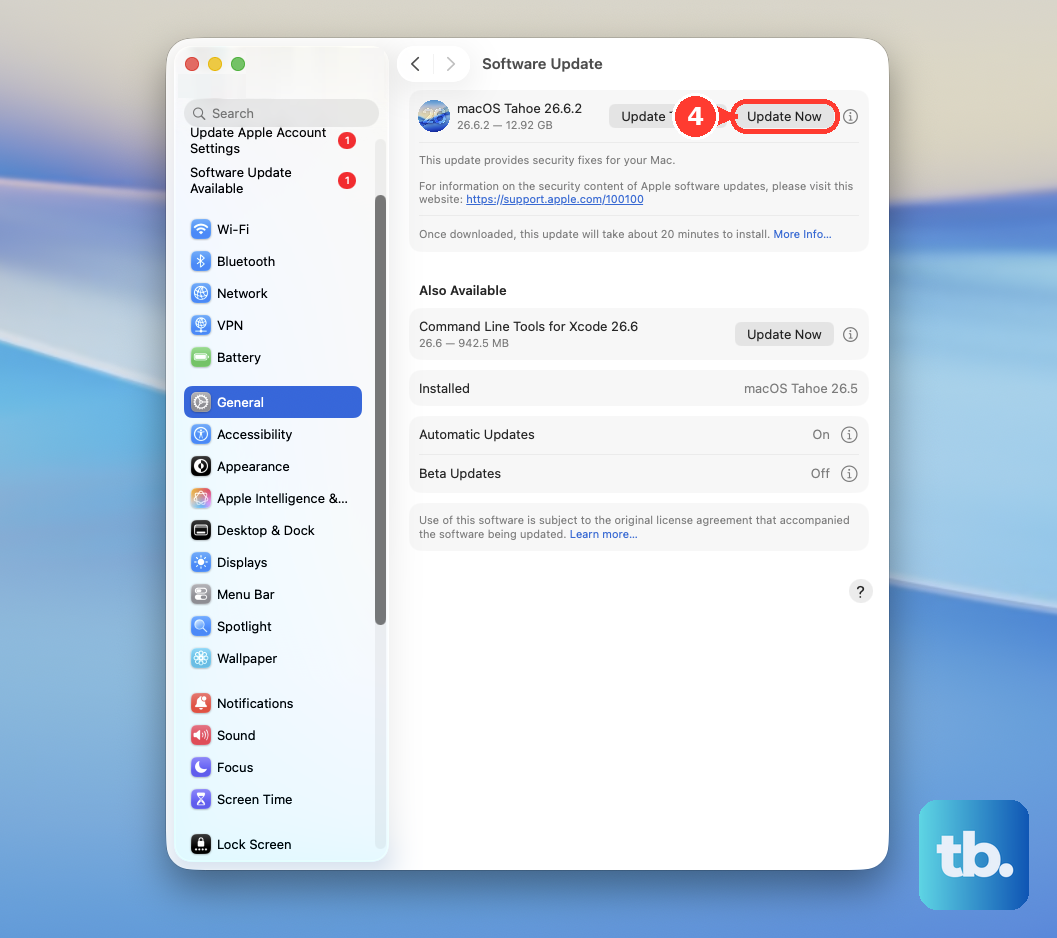
Apple is constantly refining power management through software updates. Go to System Settings > General > Software Update to make sure you're running the latest version of macOS.
It's common to see slightly higher battery drain for a day or two after a major update. This is often because Spotlight is re-indexing your files and photos are processing. Give it a little time to settle down.
Reset the SMC on Your MacBook Air M3
If you're experiencing erratic battery behavior, like the percentage jumping around or the Mac not recognizing the charger properly, a System Management Controller (SMC) reset can help. The process is simple on Apple Silicon Macs like the M3.
Just shut down your MacBook Air. Then, press and hold the power button for a full 10 seconds. Release the button, wait a few seconds, then press it again normally to turn your Mac back on. This clears the power management circuitry.
Run Apple Diagnostics
If you've tried the software fixes and the battery drain persists, it's worth running Apple Diagnostics to check for hardware issues. Shut down your MacBook Air, then press and hold the power button as you turn it on.
Keep holding until you see the startup options window. Press and hold Command (⌘) + D on your keyboard. This will boot into a diagnostic mode that tests your battery and other components for problems.