
If your iPhone SE 4 battery seems to be draining faster than it should, you're not imagining it. The compact design means a smaller battery compared to larger models, so every bit of optimization counts. I'd start by checking the battery health to rule out a hardware issue, then move through these settings adjustments.
Check Your Battery Health and Usage
Before changing any settings, it's smart to see what's actually using your power. Head to Settings > Battery. Here, you can view battery usage by app over the last 24 hours or 10 days.
Look for any apps using a surprisingly high percentage of your battery in the background. This is your best clue. Next, tap on Battery Health. Your iPhone SE 4 will show its maximum capacity as a percentage.
Apple suggests battery service when this falls below 80%, but you might notice faster draining once it dips under 85-90%. If you see a "Service" message here, the battery itself may be the core issue.
Update iOS and Your Apps
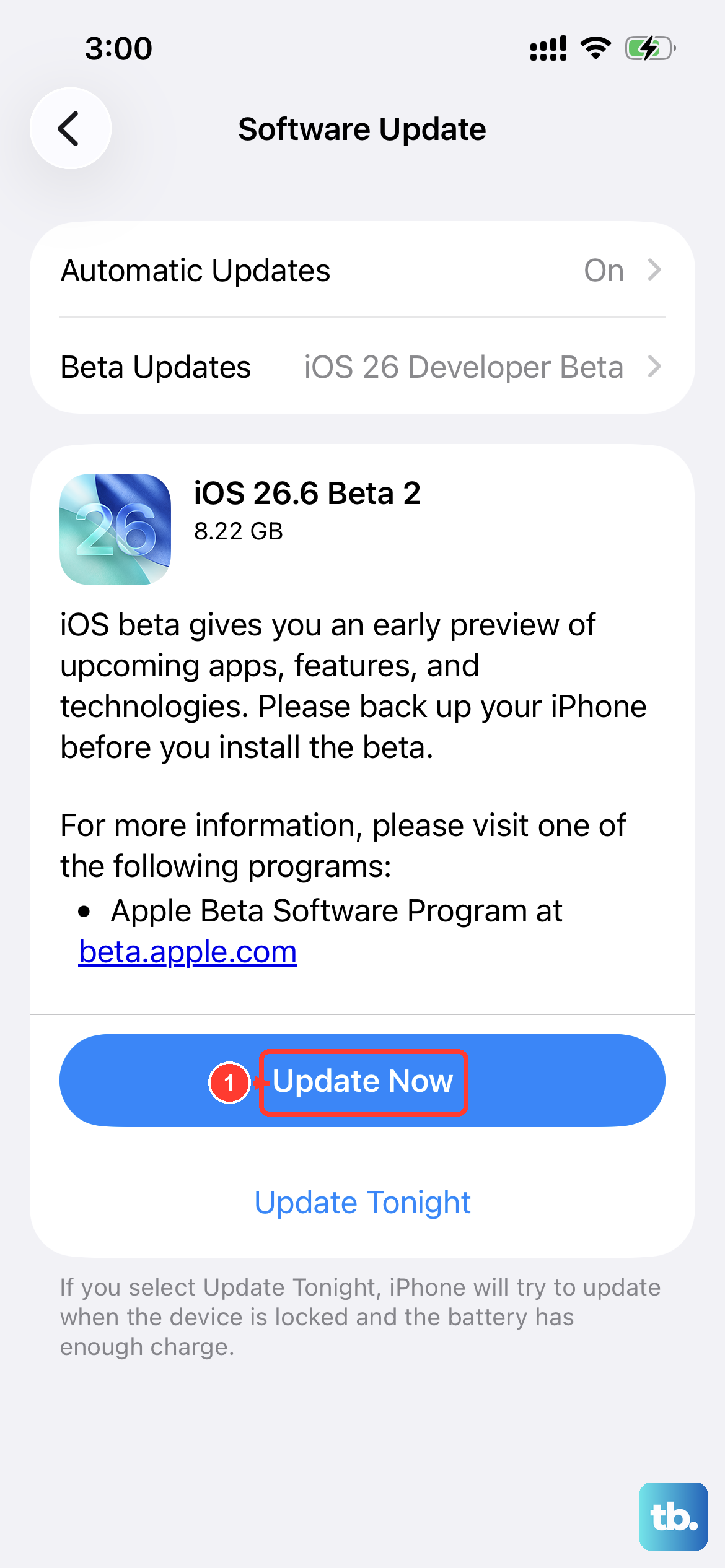
This is often the quickest fix. Software bugs in iOS 18 or in individual apps can cause runaway battery drain. Go to Settings > General > Software Update to install any available updates.
Next, open the App Store, tap your profile icon, and update all your apps. Developers frequently release patches that improve efficiency and squash battery-hogging bugs.
Manage Location Services
Constant GPS use is a major drain. You don't need to turn it off completely, but you should review which apps have access. Go to Settings > Privacy & Security > Location Services.
Go through the list and change apps from "Always" to "While Using" or "Never" where it makes sense. For instance, a weather app doesn't need your location constantly. Also, tap into System Services at the bottom and consider turning off options like "iPhone Analytics" and "Location-Based Apple Ads."
Control Background Activity
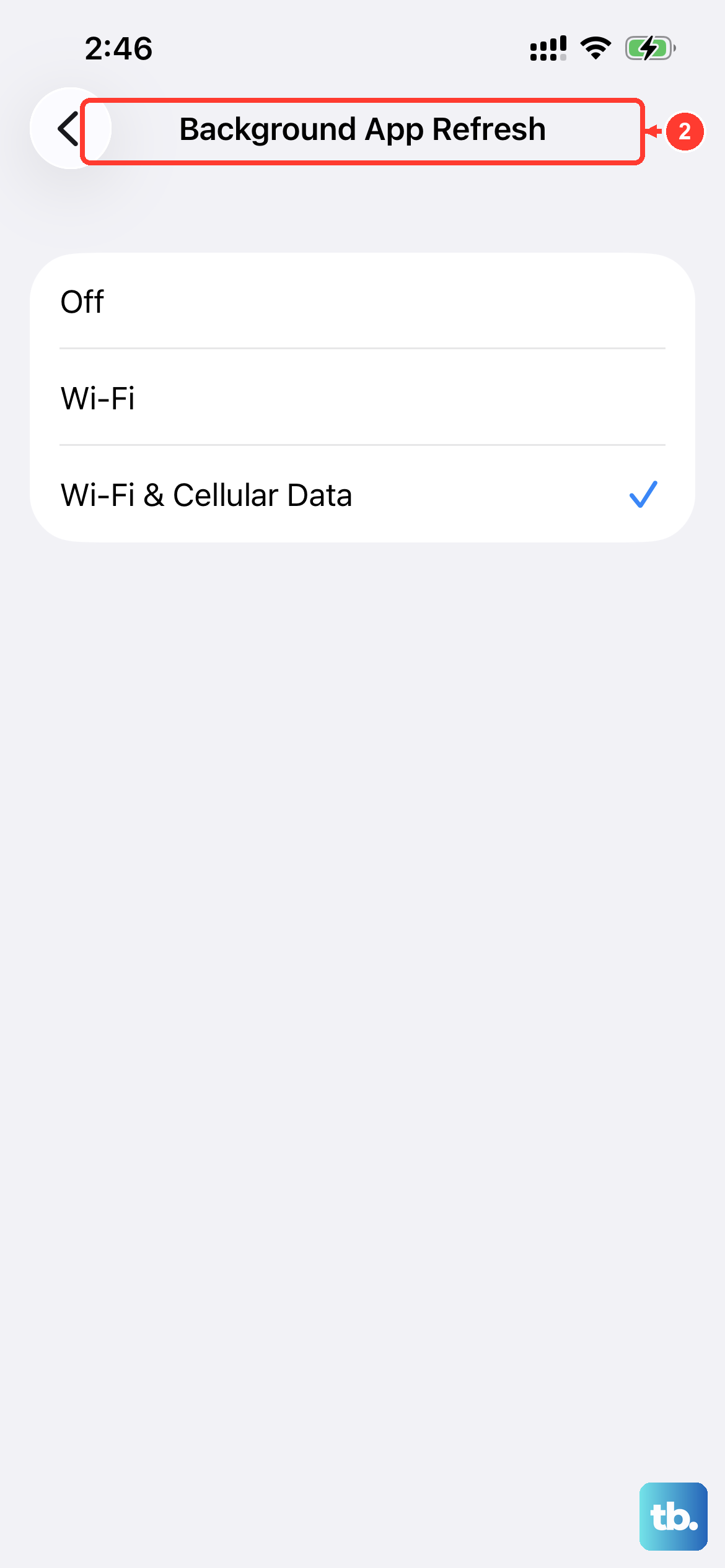
Apps refreshing in the background pull power even when you're not using them. To rein this in, go to Settings > General > Background App Refresh.
You can turn this off entirely, or select "Wi-Fi" only to prevent cellular data background refreshes. For even more control, you can disable it on an app-by-app basis, leaving it on only for essentials like your mail app.
Adjust Display and Motion Settings
The screen is your biggest power user. First, lower the brightness manually or ensure Auto-Brightness is on in Settings > Accessibility > Display & Text Size.
Since the iPhone SE 4 has a 60Hz display (no ProMotion), you won't get the same battery savings from reducing motion as on Pro models, but it still helps a little. Go to Settings > Accessibility > Motion and toggle on Reduce Motion. Also, set a shorter Auto-Lock time, like 30 seconds, in your Display & Brightness settings.
Review Connectivity Features
Turn off what you're not using. If you're not actively using Bluetooth for headphones or a MagSafe accessory, swipe into Control Center and tap the Bluetooth icon to disconnect. The same goes for Wi-Fi if you're out and about on cellular.
While MagSafe and Qi2 wireless charging are convenient, they generate more heat and are less efficient than wired charging. For the fastest, coolest charge on your SE 4, use a 20W (or higher) USB-C Power Delivery charger.
Enable Low Power Mode and Optimized Charging
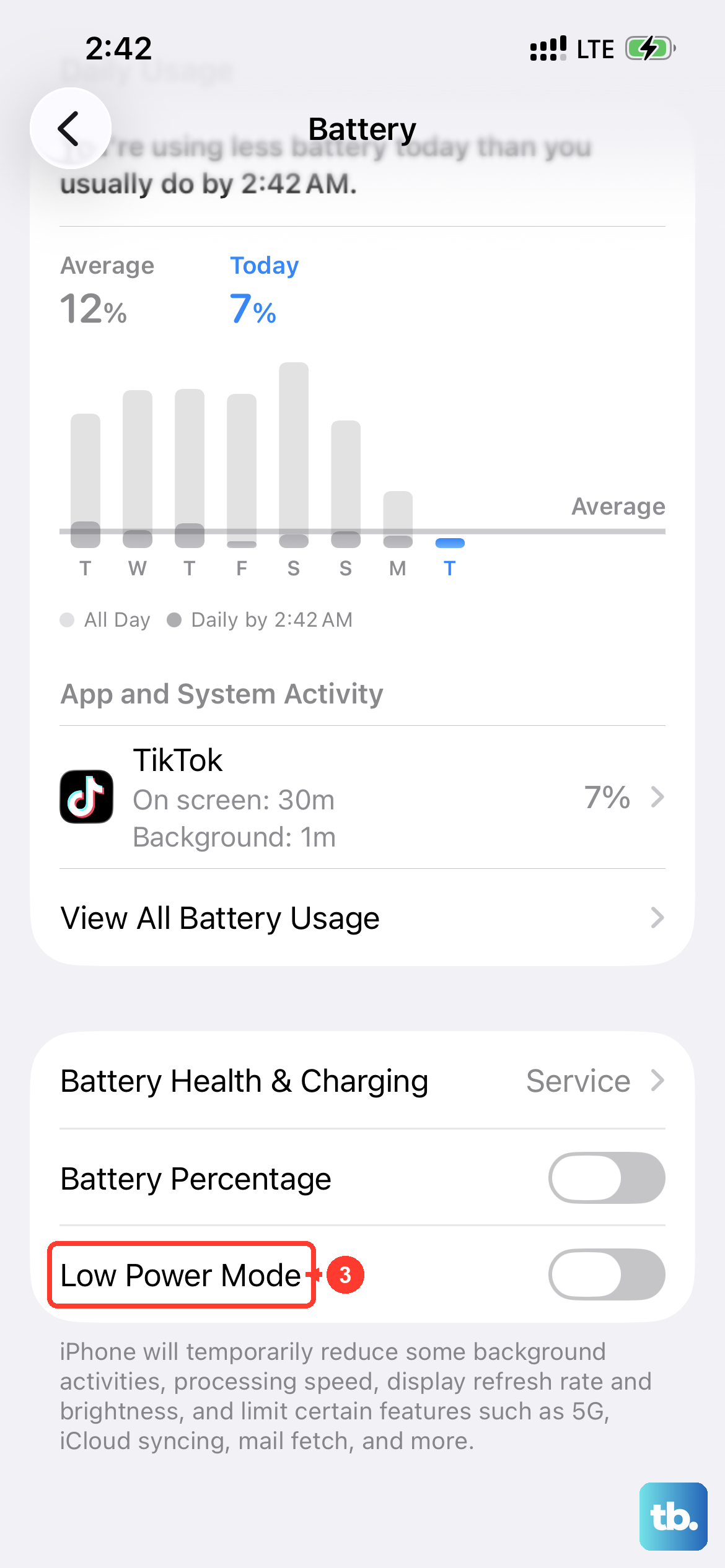
Low Power Mode is a great temporary fix when you need to stretch your battery. It reduces background activity and visual effects. You can turn it on manually in Settings > Battery, or let your phone suggest it at 20% charge.
For long-term battery health, make sure Optimized Battery Charging is enabled in the same Battery Health menu. This helps your SE 4 learn your charging routine to reduce wear by holding the charge above 80% until you need it.
Check for a Problematic App or Widget
If you see one app dominating your battery usage, try force-closing it. Swipe up from the bottom of the screen and pause, then swipe up on the app's preview. If the problem persists, delete and reinstall the app.
Widgets, especially live ones that fetch data constantly, can also use power. Remove any widgets you don't actively need by long-pressing on your Home Screen and tapping the minus (-) sign.
Reset All Settings
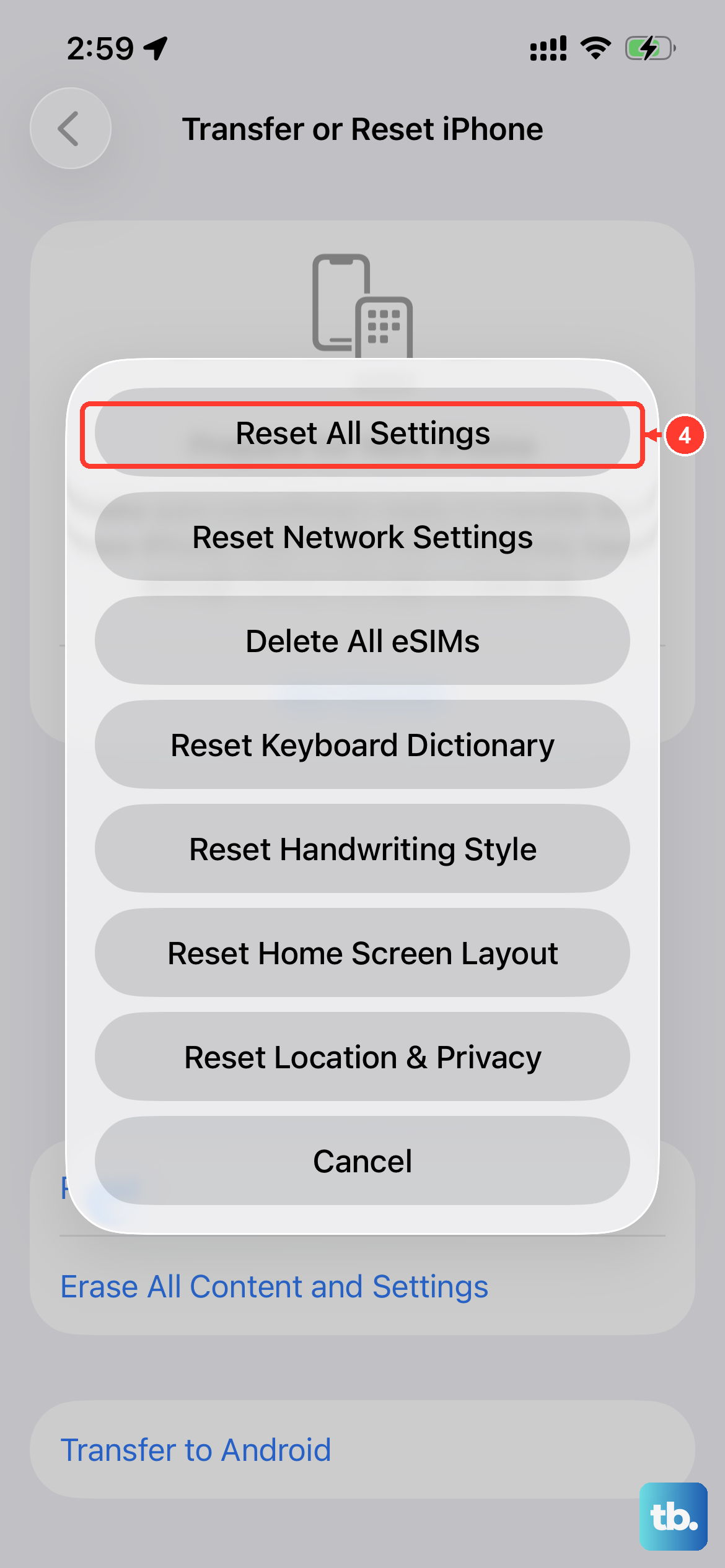
If you've tried everything and the drain is still mysterious, a settings reset can clear out any software glitches. This won't delete your photos or apps, but it will reset Wi-Fi passwords, wallpaper, and preferences back to default.
Go to Settings > General > Transfer or Reset iPhone > Reset, and choose Reset All Settings. You'll need to re-enter passwords and reconfigure some things, but it often resolves persistent issues.
Perform a Force Restart
This clears the phone's temporary memory and can stop errant processes. For the iPhone SE 4, quickly press and release the Volume Up button, then quickly press and release the Volume Down button. Finally, press and hold the Side button until you see the Apple logo appear, then release.
Consider Your Charging Habits
Using a low-power charger or a worn-out cable can mean your phone struggles to get a full, efficient charge. Always use a certified USB-C cable and that 20W PD charger for best results. Also, try to avoid letting the battery consistently drop to 0%; keeping it between 20% and 80% is ideal for longevity.