When your iPhone Bluetooth won't connect or pair, it is usually a small glitch rather than a hardware fault. The fix can be as simple as toggling a setting, or it can mean forgetting and re-pairing the accessory after a recent iOS update.
This guide is current for iOS 26 and works the same way on older iPhones. Start with the 30-second quick fixes, use the table to match your exact symptom to a likely cause, then work through the ordered steps from easy to advanced.
Try these quick fixes first
Most Bluetooth problems clear in under a minute. Run through this short list before anything else.
- Open Control Center and tap the Bluetooth icon off, wait about ten seconds, then tap it back on.
- Move your iPhone and the accessory close together, with nothing solid between them.
- Make sure the accessory is on, fully charged or plugged in, and in pairing mode.
- Turn the accessory off and back on again.
If the device still will not appear or stay connected, use the table below to find the most likely cause for your situation.
Match your symptom to the fix
Bluetooth problems look similar but often have different causes. Use this table to jump to the step most likely to help you.
| Symptom | Most likely cause | Fix to try |
|---|---|---|
| Device does not show in the list | Accessory not in pairing mode or too far | Put it in discovery mode, then re-pair (Fix 6) |
| Device shows but will not connect | Stale pairing record | Forget the device and pair again (Fix 5) |
| Bluetooth keeps disconnecting | 2.4GHz Wi-Fi interference or low battery | Reduce interference and charge both (Fix 8) |
| AirPods will not pair | AirPods need re-pairing or a reset | Re-pair or reset AirPods (Fix 10) |
| CarPlay or car audio fails | Saved car profile or Wi-Fi off | Forget the car and reconnect (Fix 11) |
| Problem started after an update | Software glitch from the update | Update again, then re-pair (Fix 13) |
| Bluetooth is grayed out | Restriction or deeper software issue | Check Screen Time, then reset settings (Fix 12, 14) |
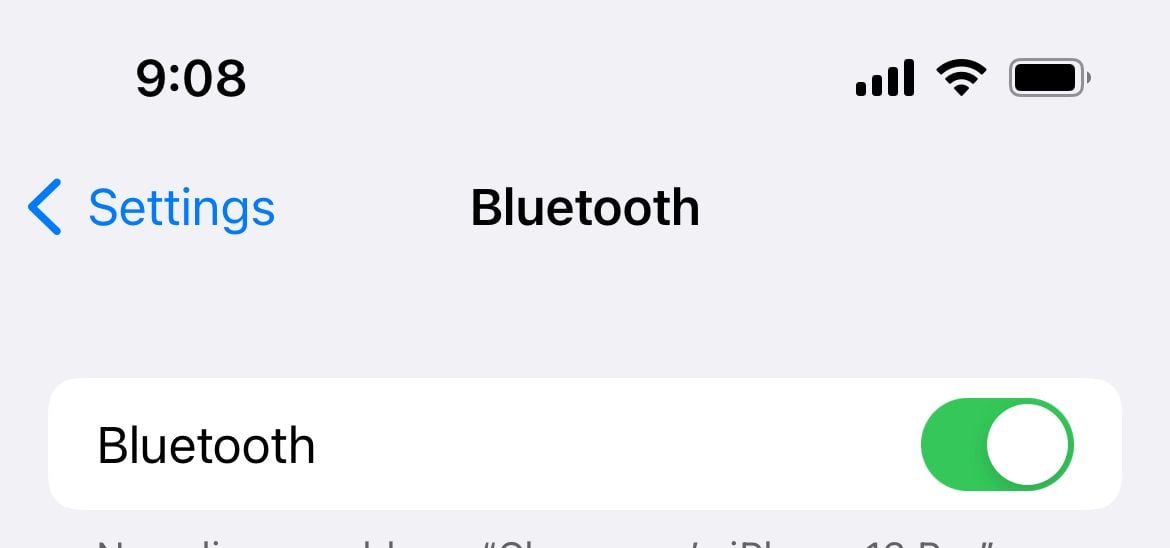
Toggle Bluetooth off and on
Start with the simplest reset of the connection. Open Control Center by swiping down from the top-right corner of the screen, then tap the Bluetooth icon to turn it off.
Wait about ten seconds, then tap the icon again to turn Bluetooth back on. You can also do this in Settings > Bluetooth by switching the toggle off and on.
Toggle Wi-Fi and Airplane mode
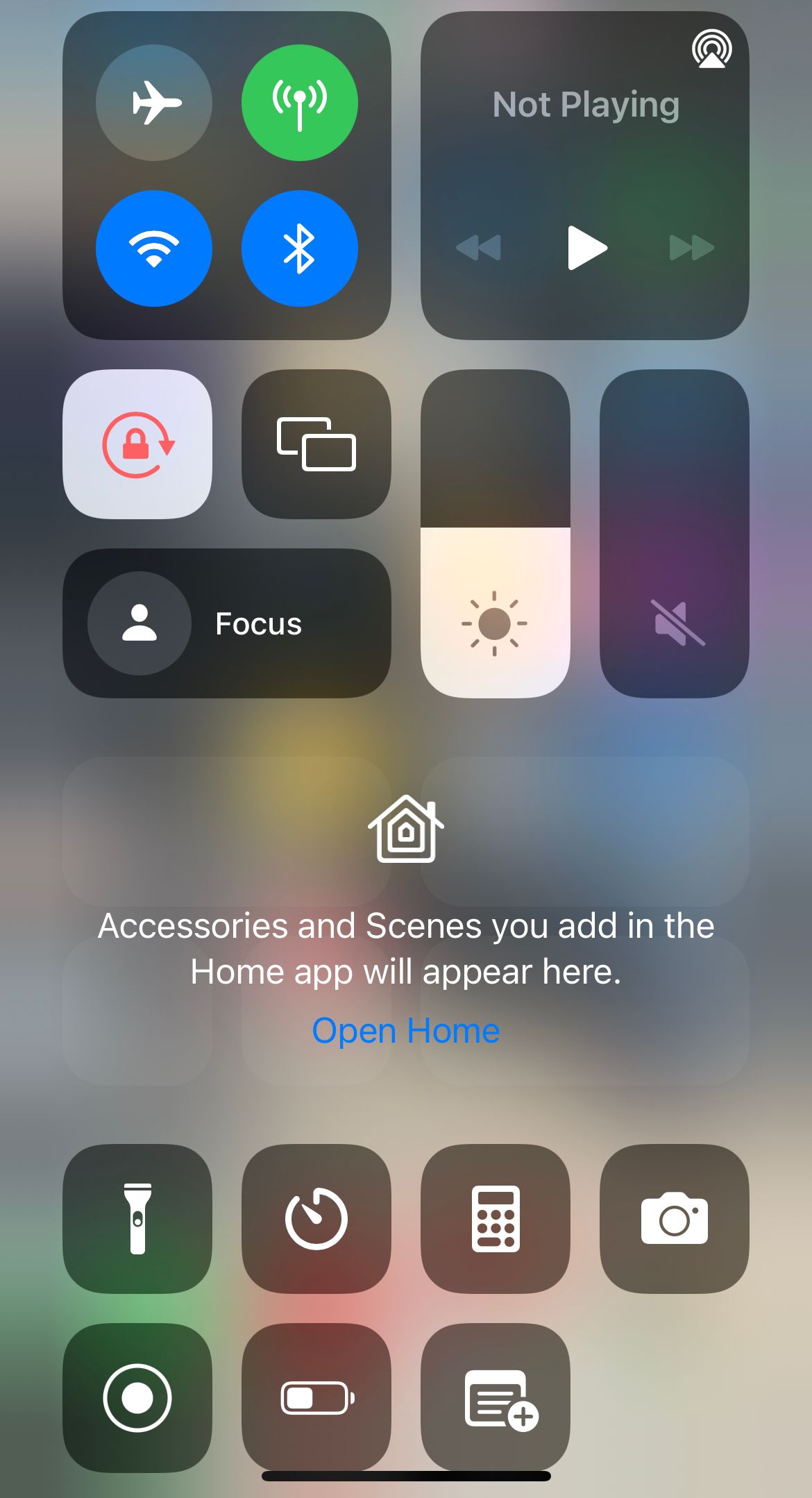
Refreshing your other radios can clear a stuck Bluetooth stack. Open Control Center to start.
- Tap the Wi-Fi icon off, wait a few seconds, then tap it back on.
- If that does not help, tap the Airplane mode icon on, leave it on for about ten seconds, then turn it off.
- Try to connect your accessory again once both radios are back on.
Restart your iPhone and the accessory
A restart clears temporary software faults on both ends of the connection. Restart your iPhone first.
- Press and hold the side button and either volume button until the power-off slider appears.
- Drag the slider, wait about 30 seconds, then hold the side button to turn the iPhone back on.
- Power your Bluetooth accessory off and on as well, then try to pair again.
Force restart if your iPhone is frozen
If the screen is unresponsive or a normal restart does not help, force restart the iPhone. The steps depend on your model.
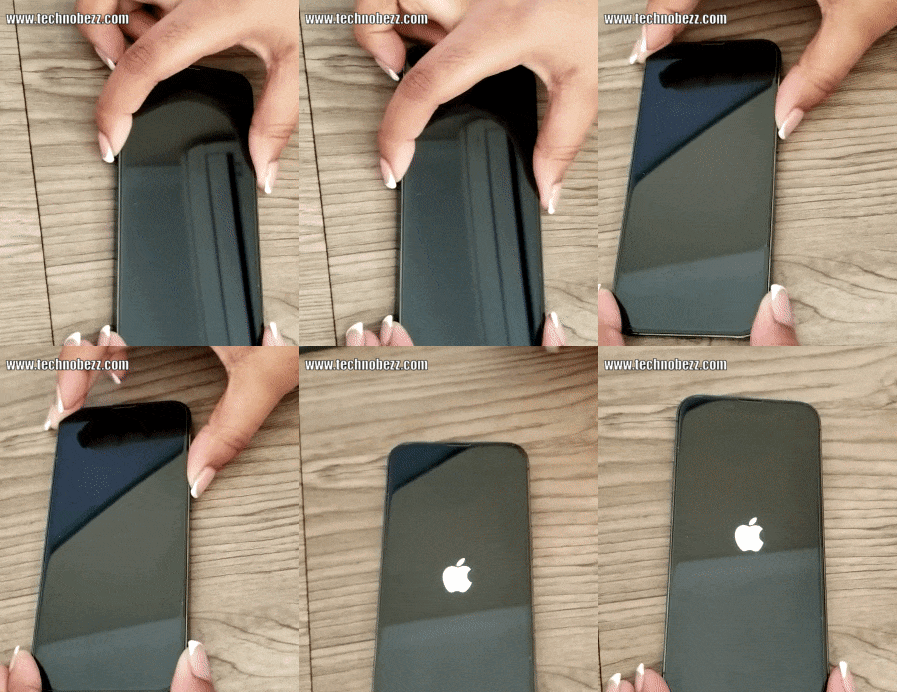
iPhone 8 or later, including all Face ID models:
- Press and quickly release the volume up button.
- Press and quickly release the volume down button.
- Press and hold the side button until the Apple logo appears, then release.
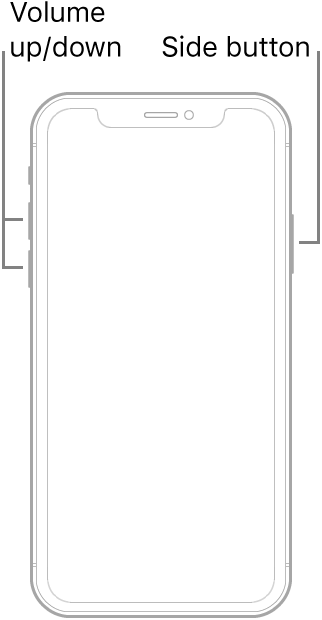
iPhone 7 and iPhone 7 Plus:
- Press and hold the volume down button and the side button together.
- Release both when the Apple logo appears.
iPhone 6s, iPhone SE (1st generation) and earlier:
- Press and hold the Home button and the top or side button together.
- Release both when the Apple logo appears.
Forget the device and pair it again
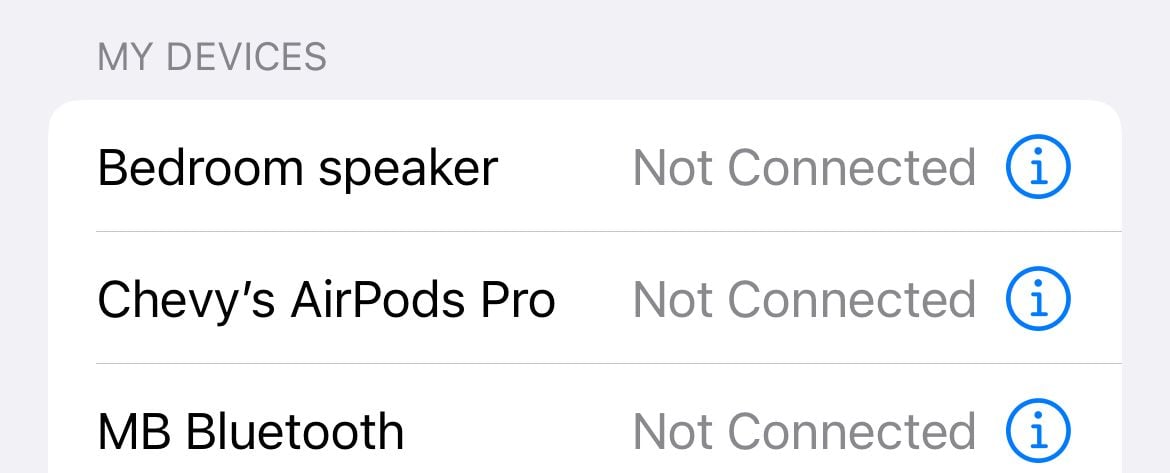
If a device shows in your list but will not connect, the saved pairing record may be corrupt. Removing it and pairing fresh fixes most stubborn cases.
- Go to Settings > Bluetooth.
- Tap the info button (i) next to the accessory you cannot connect to.
- Tap Forget This Device, then tap again to confirm.
- Put the accessory back into pairing mode and connect it again.
Note that forgetting an accessory unpairs it from every device signed in to your Apple Account, so you may need to re-add it elsewhere too.
Put the accessory in discovery mode
If the device never appears in the list at all, it is probably not broadcasting. Most accessories need to be placed in pairing or discovery mode each time you connect them to something new.
Check the accessory's manual for the exact method, since it varies by brand. It is often a button you hold until an LED flashes, which signals the device is discoverable.
Unpair the accessory from other devices
Many headsets, speakers and wearables can only hold an active link to one device at a time. If your accessory is connected to another phone, tablet or laptop, it may refuse your iPhone.
Turn off Bluetooth on those other devices, or unpair the accessory from them, then try connecting to your iPhone again. This is a common cause when something paired fine yesterday but will not today.
Stop Bluetooth from disconnecting
Bluetooth and 2.4GHz Wi-Fi share the same radio band, so they can interfere with each other and cause drops. A few changes usually steady the connection.
- Move closer to the accessory and clear obstacles like walls, microwaves or routers between them.
- If your router broadcasts both bands, connect your iPhone to the 5GHz network to ease 2.4GHz congestion.
- Charge both the iPhone and the accessory, since low battery on either side causes dropouts.
Check that the device works with another phone
To find out whether the fault is the iPhone or the accessory, pair the accessory with a different phone or tablet. If it connects there with no trouble, focus your effort on the iPhone.
If it fails on every device, the accessory itself is likely the problem. Check its battery, firmware and the manufacturer's support page before going further.
Re-pair or reset your AirPods
AirPods need their own pairing routine. First put both AirPods in the case, charge them, and make sure the iPhone is on the latest iOS.
- Open the lid next to your iPhone and wait for the setup prompt, then tap Connect.
- If no prompt appears, put the AirPods in pairing mode. On AirPods 4 and AirPods Pro 3 double-tap the front of the case, and on other models hold the setup button on the back, until the status light flashes white.
- Open Settings > Bluetooth and tap your AirPods in the list to finish connecting.
If they still will not pair, reset them. Go to Settings > Bluetooth, tap the info button (i) next to your AirPods, then tap Forget This Device. With the lid open, on AirPods and AirPods Pro models with a setup button hold that button for about 15 seconds until the light flashes amber and then white. On AirPods 4 and AirPods Pro 3, double-tap the front of the case through each light stage until it flashes amber and then white, then set them up again.
Fix CarPlay and car Bluetooth
Car connections rely on a saved profile in your car and on your iPhone, and either side can hold a bad record. Wireless CarPlay also needs both Bluetooth and Wi-Fi switched on.
- Make sure Bluetooth and Wi-Fi are both on in Settings.
- Go to Settings > General > CarPlay, tap your car, then tap Forget This Car.
- Restart your iPhone and your car, then set up CarPlay again from scratch.
If a wired connection drops, try a different high-quality cable, since a worn or non-compliant cable is a frequent cause.
Check for restrictions and permissions
If Bluetooth is grayed out, or a specific app cannot use a Bluetooth accessory, a restriction or permission may be blocking it.
- Go to Settings > Privacy & Security > Bluetooth and make sure the relevant app is allowed.
- For CarPlay, go to Settings > Screen Time > Content & Privacy Restrictions, and if restrictions are on, open Allowed Apps and confirm CarPlay is enabled.
Once the right access is granted, attempt the connection again.
Update iOS after a problematic release
If your trouble began right after an update, the update itself may carry a bug, and Apple often ships a quick follow-up fix. Keeping iOS current is the most reliable long-term safeguard.
- Connect to Wi-Fi and charge your iPhone, then go to Settings > General > Software Update.
- Tap Download and Install, or Install Now if it is already downloaded.
After updating, forget and re-pair the accessory so it registers cleanly with the new software.

Reset network settings
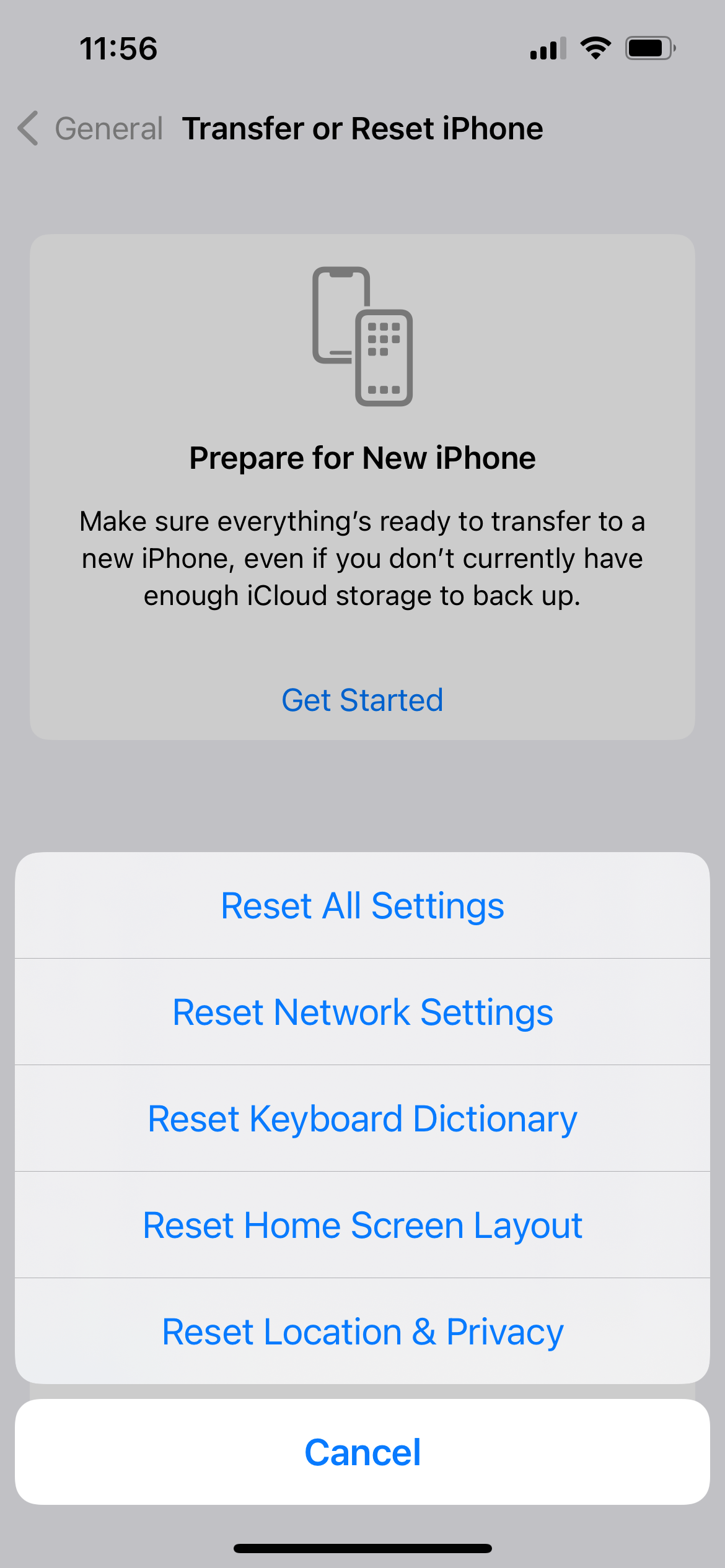
Resetting network settings clears Bluetooth pairings along with Wi-Fi and cellular configurations, which often resolves problems the earlier steps could not. It does not delete your photos, messages or apps.
- Go to Settings > General > Transfer or Reset iPhone > Reset.
- Tap Reset Network Settings and enter your passcode.
- Confirm, then let the iPhone restart.
Be aware that this erases saved Wi-Fi networks and passwords, so have those ready before you start. Afterward, pair your Bluetooth accessory again.
Reset all settings as a last resort
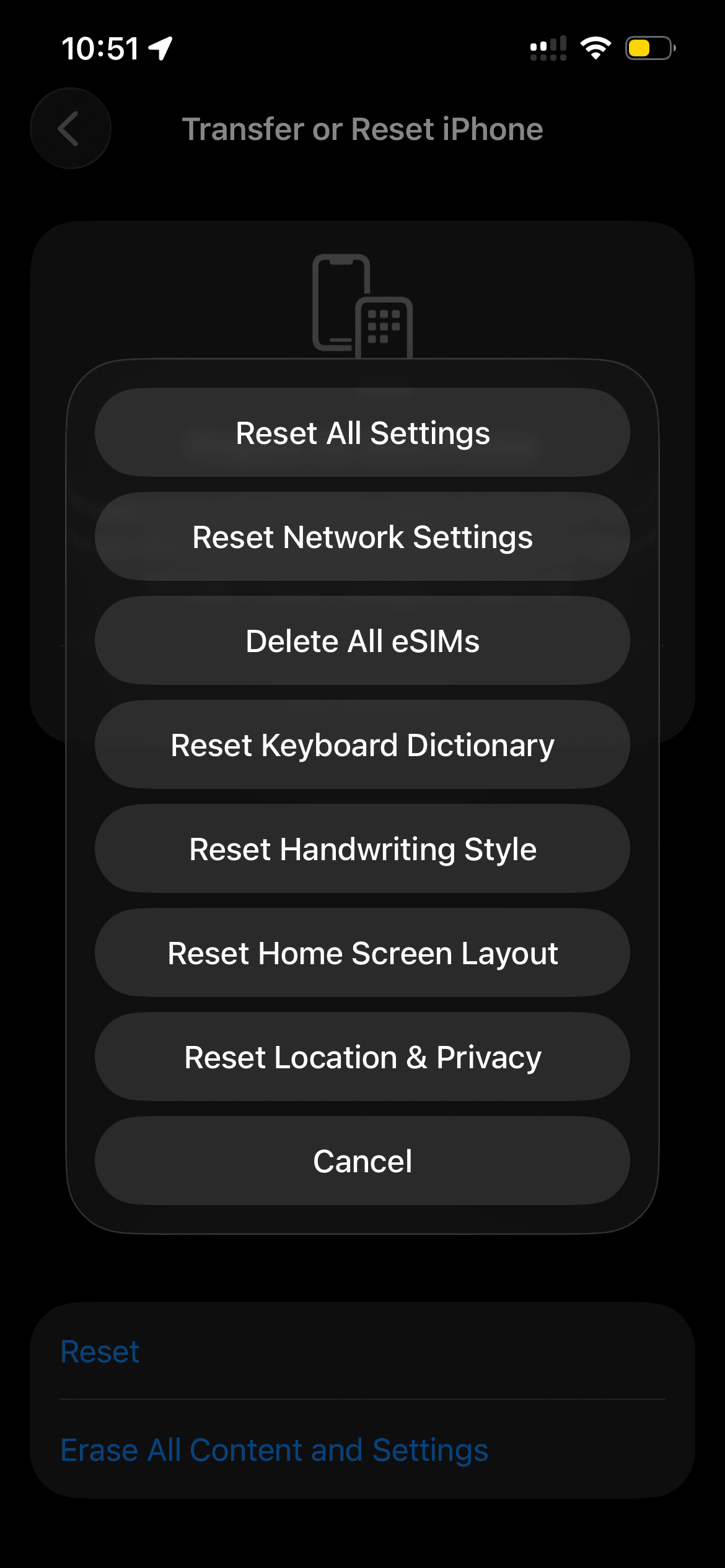
If nothing above works, resetting all settings returns every preference to default without touching your personal data. This is a strong option when Bluetooth remains broken across every accessory.
- Go to Settings > General > Transfer or Reset iPhone > Reset.
- Tap Reset All Settings and enter your passcode.
- Confirm and wait for the iPhone to restart.
If your iPhone still will not connect to Bluetooth after this, or Bluetooth stays grayed out, contact Apple Support, since a persistent failure across all devices can point to a hardware issue. If you also use an Android device with similar trouble, our guide to Android Bluetooth problems covers that platform separately.
Frequently Asked Questions
Why won't my iPhone connect to Bluetooth after an update?
An update can leave old pairing records out of sync with the new software. Forget the device in Settings > Bluetooth, restart your iPhone, then pair it again. If the bug persists, check for a follow-up iOS update.
Why does my iPhone Bluetooth keep disconnecting?
The usual culprits are 2.4GHz Wi-Fi interference, distance, obstacles and low battery on either device. Move closer, charge both devices, and if possible switch your iPhone to a 5GHz Wi-Fi network to reduce interference.
How do I reset Bluetooth on my iPhone?
There is no single Bluetooth reset button. Toggle Bluetooth off and on in Control Center, forget the problem device, then re-pair it. For a deeper reset, use Reset Network Settings, which clears all Bluetooth pairings.
Does Reset Network Settings delete my data?
No. It only clears network configurations such as Wi-Fi networks and passwords, Bluetooth pairings and cellular settings. Your photos, messages, apps and other personal data stay on the iPhone.
Why won't my AirPods pair with my iPhone?
Make sure both AirPods are charged in the case and your iPhone is on the latest iOS. Forget the AirPods in Settings > Bluetooth, then put them in pairing mode by double-tapping the front of the case on AirPods 4 and AirPods Pro 3, or holding the setup button on older models, until the light flashes white and you can re-pair them.
Why is my iPhone Bluetooth grayed out?
A grayed-out Bluetooth toggle often means a restriction or a software fault. Check Settings > Screen Time > Content & Privacy Restrictions, then try a restart and Reset All Settings. If it stays grayed out, contact Apple Support.
First published October 15, 2025. Last updated June 4, 2026.