
So your iPhone 17e won't charge. You plug it in and nothing happens, or maybe it just sits there stuck at a low percentage. It's a frustrating spot to be in, especially with a brand new phone. The good news is, this is almost always something you can fix yourself without a trip to the store.
Since the iPhone 17e is a new model, there might be a few early software bugs to work out. But the fixes are generally the same as for any modern iPhone. Let's start with the quickest solutions and work our way through.
Force Restart Your iPhone 17e
This should always be your first move. A force restart clears out any temporary software glitches that could be interfering with the charging system. It's fast, harmless, and works surprisingly often.
For the iPhone 17e, the process is the same as recent models. Press and quickly release the Volume Up button. Then press and quickly release the Volume Down button. Finally, press and hold the Side button until you see the Apple logo appear on the screen.
Once it boots back up, plug it in again. You should see the charging indicator if the restart did the trick.
Inspect and Clean the USB-C Port
This is the single most common cause of charging problems. The USB-C port on your iPhone 17e, while robust, is a magnet for pocket lint and dust. Over just a few weeks, it can pack in enough debris to block the cable from making a proper connection.
Grab a bright light and look directly into the port. If you see any fuzz or dark material crammed in there, you've found your culprit. Turn the phone off first for safety. Then, use a dry wooden or plastic toothpick to gently scrape the debris out.
Avoid using anything metal, like a paperclip, as it can damage the delicate gold contacts inside. A quick blast of compressed air can help, but don't hold the nozzle too close. After cleaning, try your cable again.
Test Your Cable, Adapter, and Outlet
You need to rule out a faulty accessory. Start by trying a different USB-C cable, preferably one you know works with another device. The iPhone 17e uses a standard USB-C port, so any good quality cable should work, but Apple-certified ones are most reliable.
Next, try a different power adapter. If you were using a wall block, try plugging the cable into a computer's USB-C port instead. Also, test a different wall outlet entirely. Sometimes the issue is as simple as a dead power strip.
Finally, take your iPhone 17e out of its case. Thick cases, especially those with metal plates or magnets not designed for MagSafe, can sometimes prevent the cable from seating fully or interfere with charging detection.
Check for Software Updates
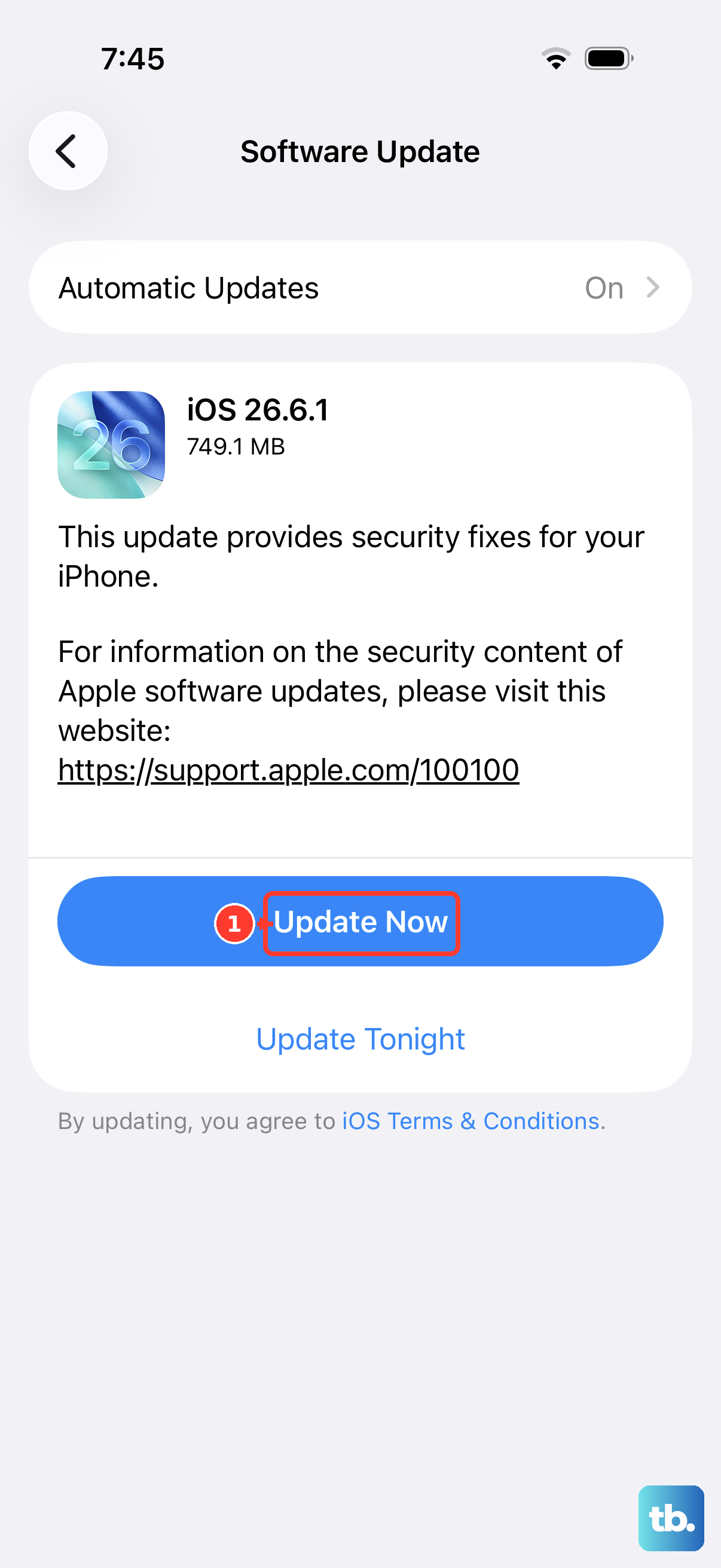
Your iPhone 17e runs iOS 26. As a brand new device released in early 2026, it's prone to early software bugs that Apple patches quickly. A charging issue could easily be resolved in an update you haven't installed yet.
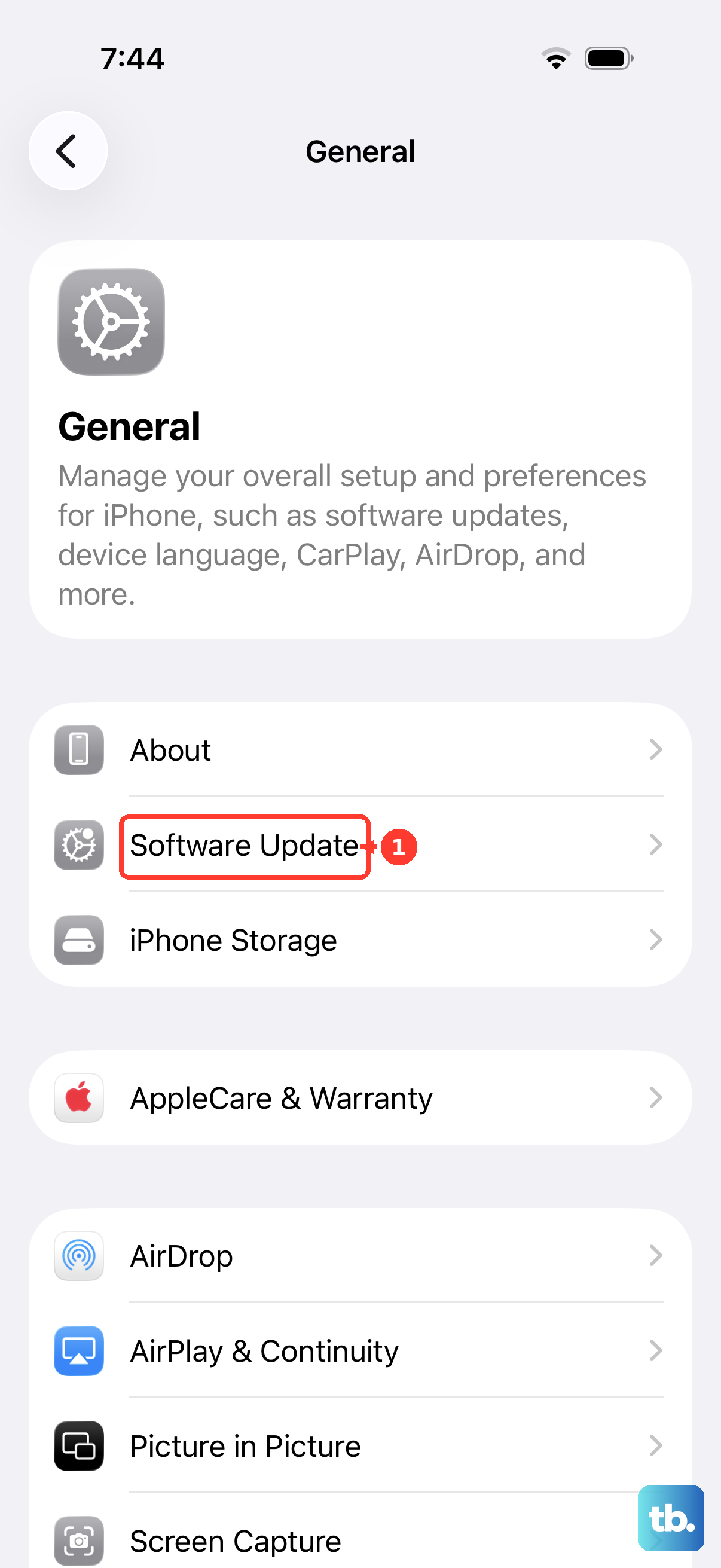
Go to Settings > General > Software Update. If an update is available, download and install it. Make sure your phone has enough battery to complete the update, or plug it in during the process. If the phone won't turn on to check for updates, you can update it via a computer.
Understand the Charge Limit Feature
If your iPhone 17e is charging but seems to stop at 80%, this is almost certainly intentional. Apple includes a battery health feature that limits the maximum charge to preserve the battery's lifespan over time.
To check this, go to Settings > Battery > Charging. Here, you'll see the Charge Limit option. You can adjust it up to 100% if you need a full charge for the day ahead. There's also Optimized Battery Charging, which learns your schedule and waits to finish charging past 80% until you need it.
Let a Dead Battery Sit on the Charger
If your iPhone 17e's battery was completely drained, it won't show any sign of life immediately when plugged in. This is normal behavior for lithium-ion batteries. Don't panic.
Connect it to a known-good wall charger (not a low-power computer port) and leave it alone for at least 30 minutes. After that time, try pressing the side button. You should see a low-battery icon or the charging indicator. If the screen is still black, try a force restart while it remains plugged in.
Try MagSafe or Qi2 Wireless Charging
This is a great diagnostic step. The iPhone 17e supports both MagSafe and the newer Qi2 standard. If wireless charging works but your USB-C cable doesn't, you've isolated the problem to the physical port or your cable.
When using MagSafe, ensure the charger snaps into place with its magnets. Use at least a 20W adapter to get the full 15W charging speed. Be aware that the A19 chip can run warm during intensive use, and if the phone gets too hot during wireless charging, it will slow down or pause to protect itself.
Charge with the Phone Powered Off
Sometimes a background app or process can cause enough system activity to interfere with charging. Turning the phone off eliminates all that. Press and hold the Side button and either volume button, then slide to power off.
Once the screen is completely black, plug in your charger. If it starts charging normally, you know the issue is software-related. This method also gives you the absolute fastest charge, as zero battery is being used by the screen or iOS.
Update or Restore Using a Computer
If you can't get into Settings because the phone won't turn on, you can try updating the software via a Mac or PC. This can fix deeper system corruption. Connect your iPhone 17e to your computer with a USB-C cable.
On a Mac with macOS Catalina or later, open Finder. On a PC or older Mac, open iTunes or the Apple Devices app. Look for your iPhone and see if the option to "Update" is available. This will reinstall iOS without erasing your data. If an update doesn't work, a full "Restore" is the last software step, but remember to back up first if you can.