
If people are struggling to hear you on your new iPhone 17e, it can turn a simple call into a frustrating experience. This issue can pop up in phone calls, FaceTime, or when you're trying to use Siri. Since the 17e is a brand new model, some early software bugs might be at play, but there are several straightforward things you can check and fix yourself.
Let's start with a quick test to pinpoint the problem. Open the Voice Memos app, tap the red record button, and speak for a few seconds. Play it back. If your voice sounds muffled or isn't there at all, you've confirmed the microphone issue.
Remove Your Case and Check for Blockages
This is the easiest thing to try first. Some cases, especially rugged ones, can partially cover the microphone ports. Take your iPhone 17e out of its case and try a call or voice memo again.
While the case is off, take a quick look at the microphone openings. Your phone has several: one at the bottom next to the USB-C port, one at the top near the front camera, and others near the rear camera. Use a dry, soft-bristled brush to gently clear any lint or debris you see.
Disconnect Any Bluetooth Audio Devices
If your AirPods or another Bluetooth headset are connected, your iPhone 17e might be trying to use their microphone instead of its own. Swipe down from the top-right corner to open Control Center, tap the Bluetooth icon to turn it off temporarily, and then test your built-in mic.
You can also go into Settings > Bluetooth, tap the info icon next to your connected device, and select Disconnect. This is a common oversight, especially if you use wireless audio frequently.
Restart and Force Restart Your iPhone 17e
A simple restart clears out temporary glitches that can affect the microphone. Press and hold the Side button and either Volume button until the power-off slider appears, slide it, wait 30 seconds, then press the Side button to turn it back on.
If a normal restart doesn't help, try a force restart. This is slightly different on the iPhone 17e. Quickly press and release the Volume Up button, then quickly press and release the Volume Down button. Finally, press and hold the Side button until you see the Apple logo appear, then let go.
Check App-Specific Microphone Permissions
Sometimes the problem is isolated to one app, like Zoom, WhatsApp, or a social media app. That app might not have permission to use your mic. To check, open Settings, scroll down and tap Privacy & Security, then select Microphone.
You'll see a list of all apps that have requested microphone access. Make sure the toggle is switched on (green) for the app giving you trouble. If it's off, turn it on and test the app again.
Close and Reopen the Problem App
If an app has permission but the mic still isn't working within it, the app itself might have frozen. Swipe up from the bottom of the screen and pause in the middle to enter the app switcher. Find the app's preview and swipe it up and off the top of the screen to close it completely.
Then, go back to your Home Screen and relaunch the app. This forces it to start fresh and can clear up any temporary audio bugs it was experiencing.
Update to the Latest iOS Version
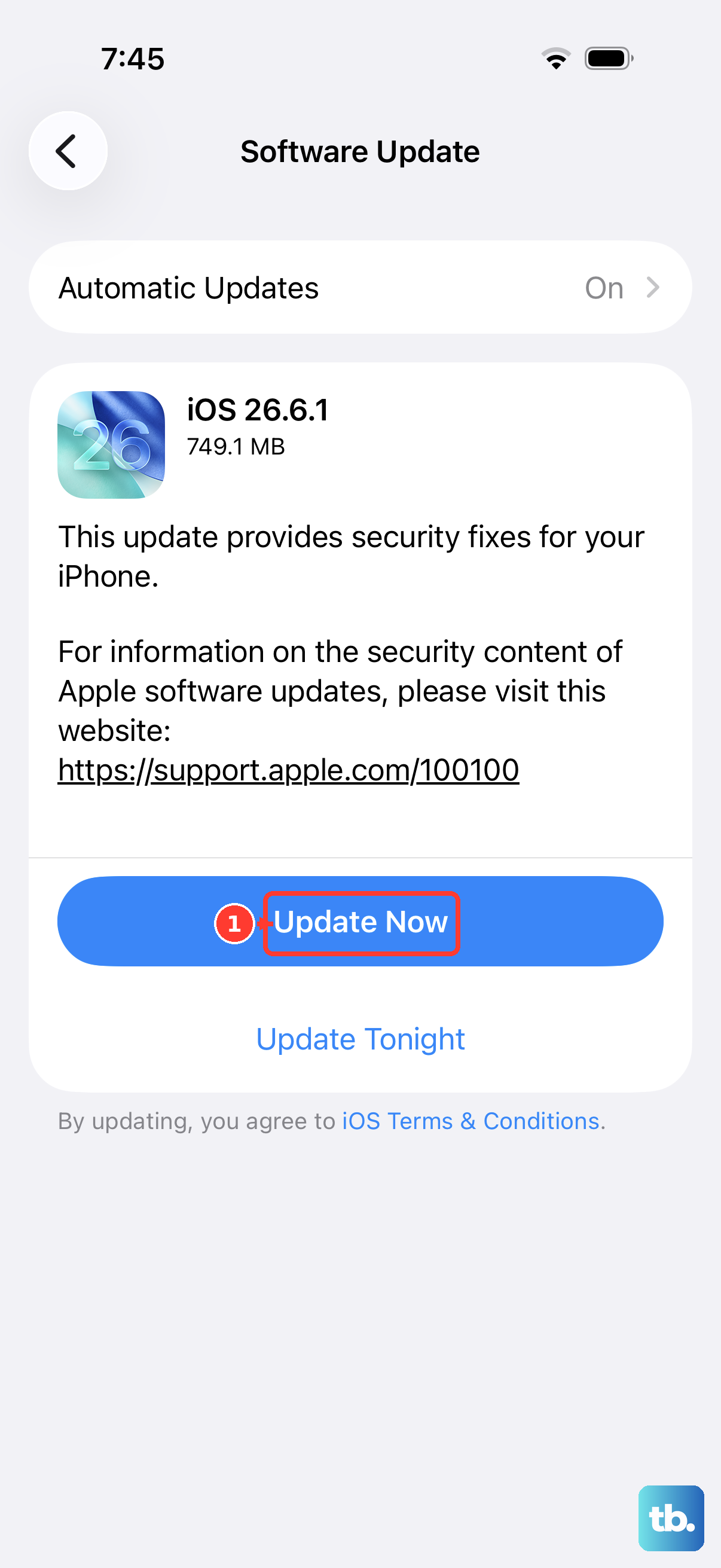
Given that the iPhone 17e is new, Apple is likely releasing iOS 26 updates to squash early bugs, including potential audio issues. Keeping your software current is crucial. Go to Settings > General > Software Update.
If an update is available, tap Download and Install. Make sure your phone is connected to Wi-Fi and has sufficient battery, or plug it into its 20W charger. I've seen minor microphone glitches get resolved with a simple point-update more times than I can count.
Check Audio Settings in Accessibility
There's a setting designed to reduce background noise during calls that can sometimes interfere. The older Phone Noise Cancellation toggle was removed starting with the iPhone 13, so it is not present on the iPhone 17e.
Instead, during an active call or FaceTime, open Control Center, tap Mic Mode, and choose Voice Isolation so your iPhone prioritizes your voice and reduces background noise. You can switch back to Standard later if it doesn't help.
Reset All Settings on Your Device
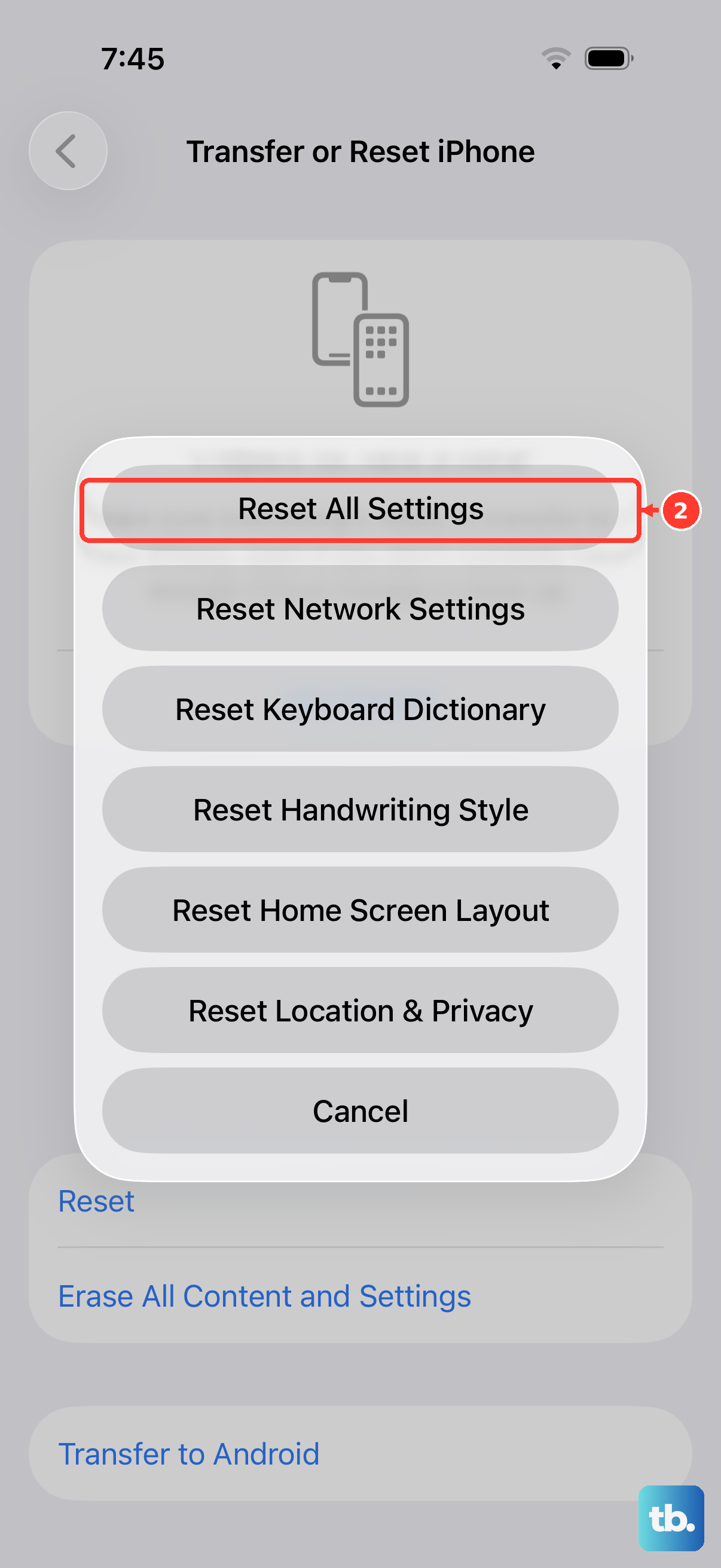
This is a more thorough step that won't delete your photos, messages, or apps, but it will reset all your preferences. Things like Wi-Fi passwords, wallpaper, and notification settings will revert to defaults, which can fix a misconfigured audio setting.
To do this, go to Settings > General > Transfer or Reset iPhone. Tap Reset, then choose Reset All Settings. You'll need to enter your passcode to confirm. After the phone reboots, test your microphone immediately.
Restore Your iPhone 17e via Computer
If you're still having issues, restoring the device software can address deeper corruption. First, make sure you have a recent iCloud or computer backup. Then, connect your iPhone 17e to a Mac or PC using a USB-C cable.
On a Mac with macOS Catalina or later, open Finder. On a PC or older Mac, open iTunes. Select your iPhone, and in the summary panel, click Restore iPhone. This will wipe the device and install a fresh copy of iOS 26. After it's done, you can set it up as new or from your backup to test the microphone.