
If your iPhone 17e is feeling sluggish, you're not imagining things. Even with the A19 chip, low storage, an unresponsive app, or power-saving settings can make it feel less snappy than it should. I'd start with a simple restart, as that clears out temporary glitches that can slow things down.
For the iPhone 17e, press and quickly release the Volume Up button, press and quickly release the Volume Down button, then press and hold the Side button until you see the Apple logo. If the screen isn't responding, this force restart can help you get the phone responding again.
Read more - Why Is My iPhone Battery Draining So Fast? (And How to Fix It)
Check for iOS Updates
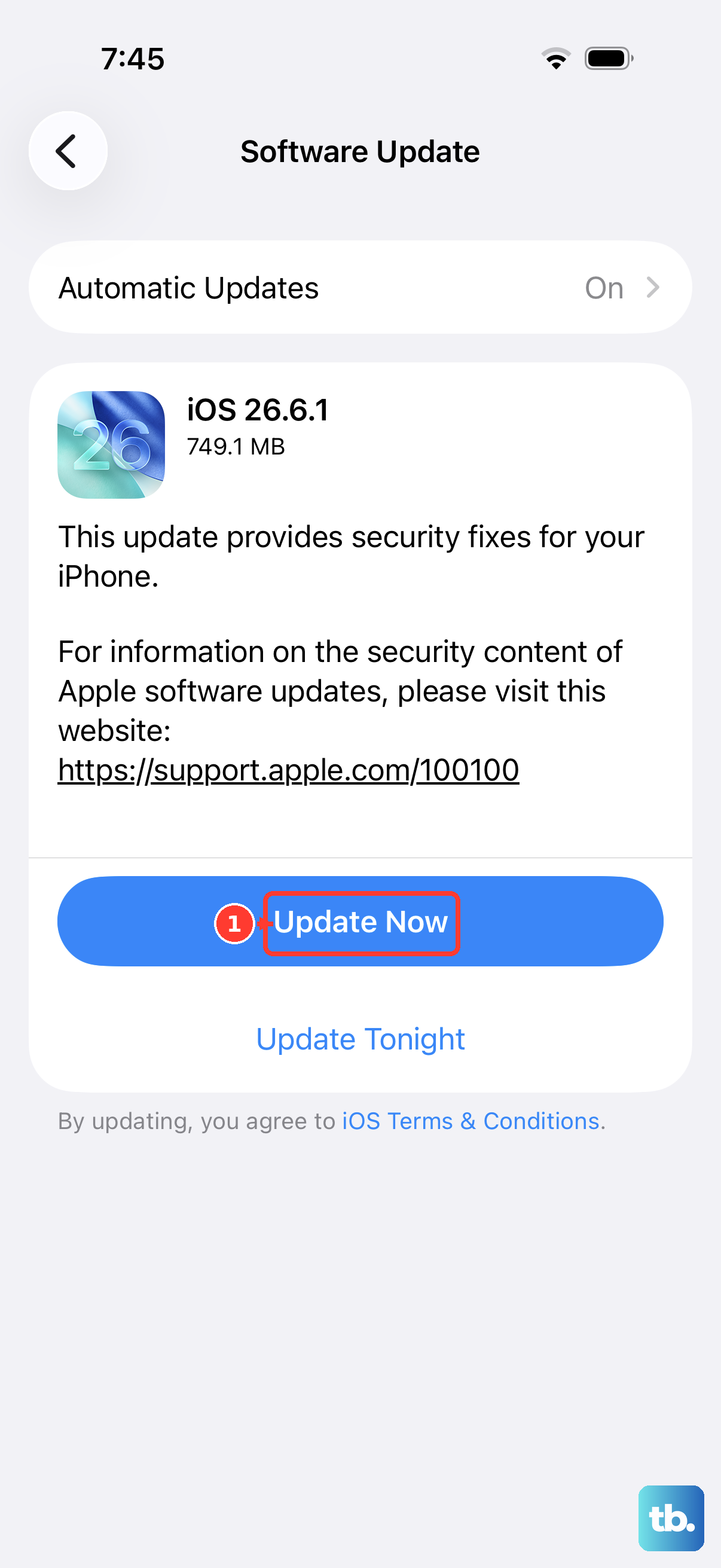
Check that your iPhone 17e is running the latest version of iOS. Back up your phone, connect it to power and Wi-Fi, then go to Settings > General > Software Update. If an update is available, tap Download and Install and follow the onscreen instructions.
Manage Your iPhone 17e's Storage
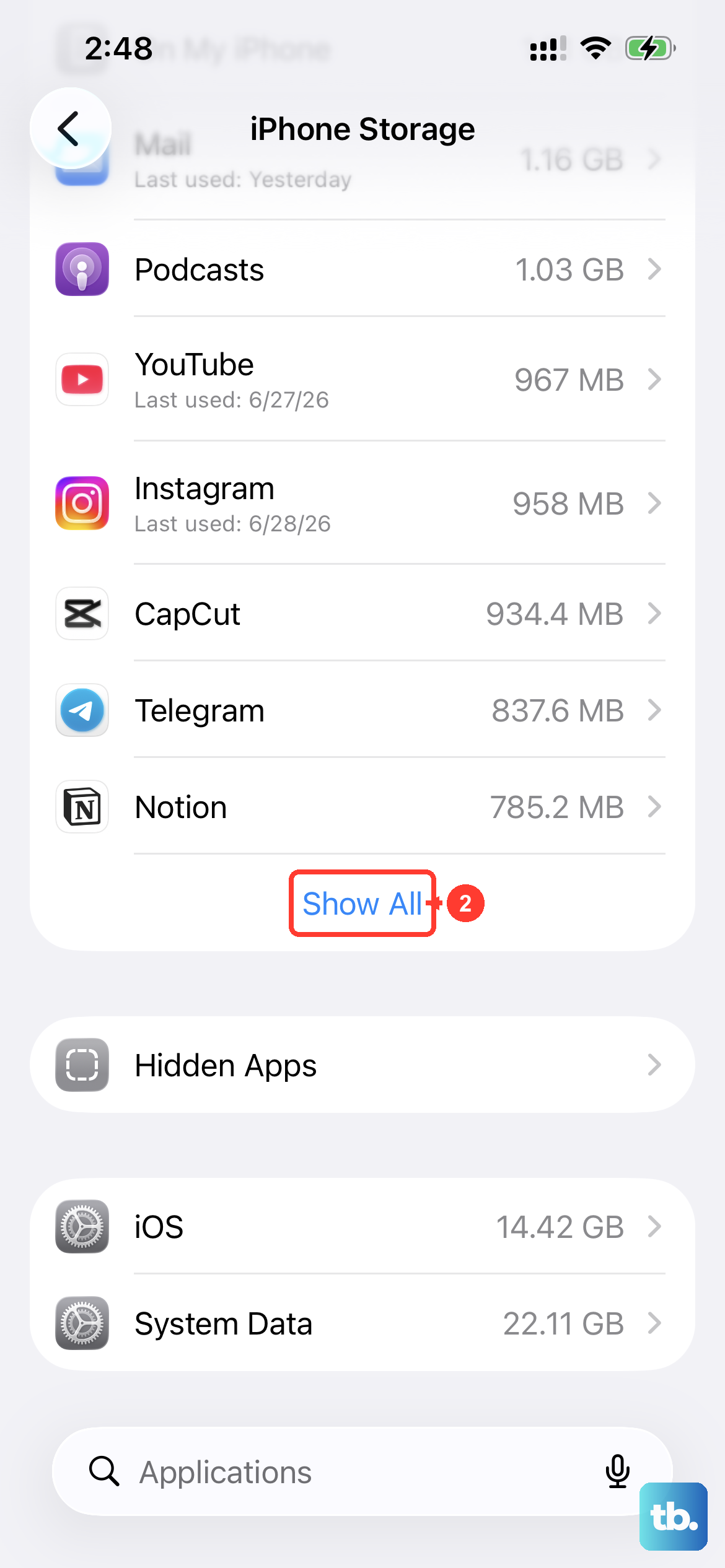
The iPhone 17e starts with a healthy amount of storage, but filling it up too quickly can cause lag. Head to Settings > General > iPhone Storage. The system will show you recommendations, like reviewing large attachments or enabling iCloud Photos.
For a quick win, offload apps you rarely use. This removes the app but keeps its documents and data, freeing up space instantly. In Settings > General > iPhone Storage, enable Offload Unused Apps if that recommendation appears, or tap an app and choose Offload App.
Review Background App Refresh
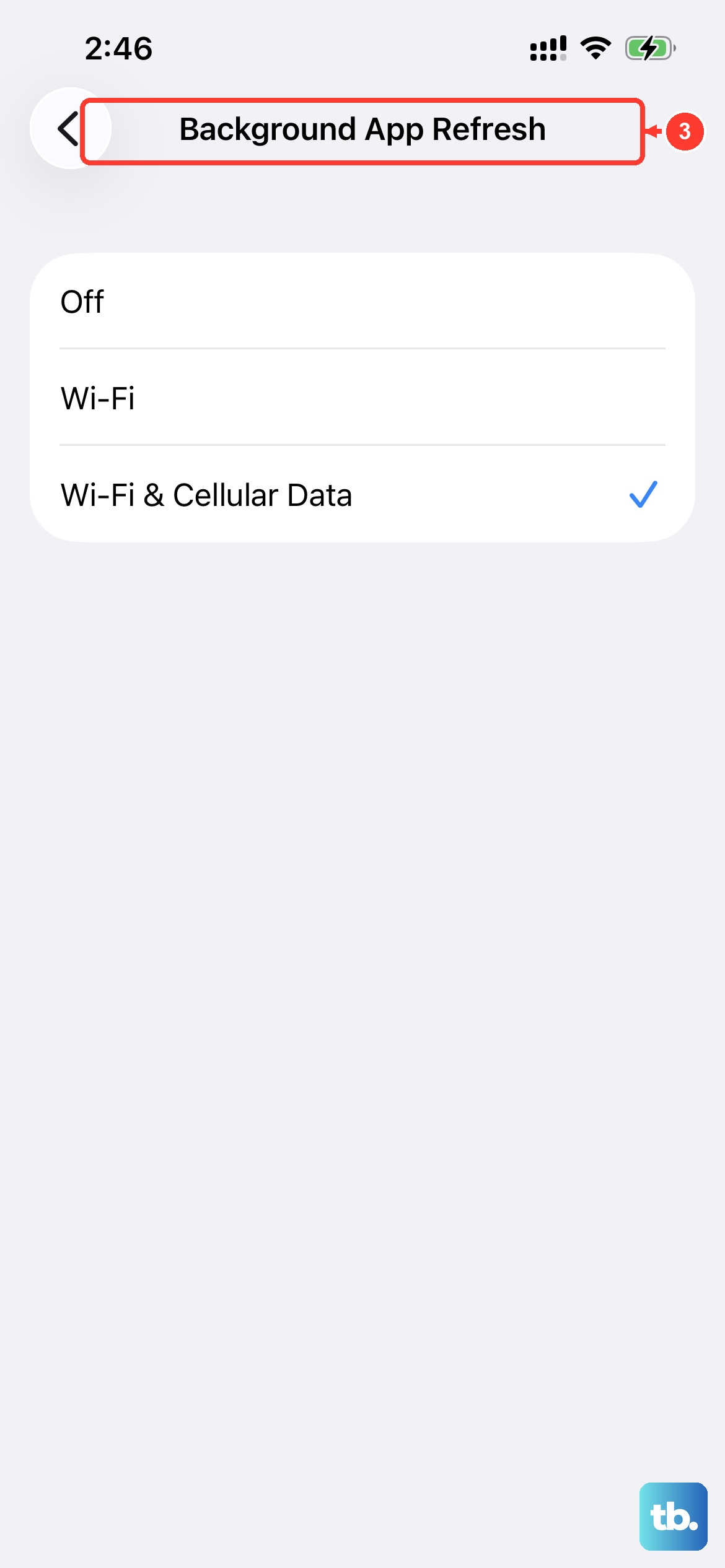
Apps constantly updating in the background is a common drain. On your iPhone 17e, go to Settings > General > Background App Refresh. You can turn it off entirely or just for specific apps that don't need live updates, like games or utility tools.
Reducing background activity can help save battery life. Also check Settings > Battery > Power Mode and turn off Low Power Mode if you need full performance. Low Power Mode turns off Background App Refresh, but it also makes some features work more slowly.
Close Apps the Right Way
Close an app if it isn't responding. Force closing apps unnecessarily can slow things down because reopening them requires their data to reload. On your iPhone 17e, swipe up from the bottom of the screen and pause in the middle. Swipe left or right to find the app, then swipe it up and off the top of the screen to close it.
Optimize Visual Settings
While the iPhone 17e doesn't have the ProMotion display of the Pro models, you can still reduce some visual effects for a perceived speed boost. Go to Settings > Accessibility > Motion and turn on "Reduce Motion." This replaces some zoom animations with simpler crossfades.
You can also try Settings > Accessibility > Display & Text Size and toggle on "Reduce Transparency." This makes some backgrounds solid, which can feel quicker.
Check Battery Health and Usage
A battery that has lost capacity and peak performance may contribute to slowdowns. Go to Settings > Battery > Battery Health and check Maximum Capacity and Peak Performance Capability. If the screen recommends battery replacement, arrange to have the battery checked.
Also check Settings > Battery. The Daily Usage chart compares today's battery use with the last seven days, and App and System Activity shows which apps used the most battery today. If a power-hungry app is also misbehaving, an app update or restart might help.
Clear Safari's Cache and Data
If Safari is having trouble loading websites, try clearing its history and website data. Go to Settings > Apps > Safari > Clear History and Website Data, choose a timeframe, then tap Clear History. This can log you out of websites, so make sure you know your login details before proceeding.
Reset All Settings
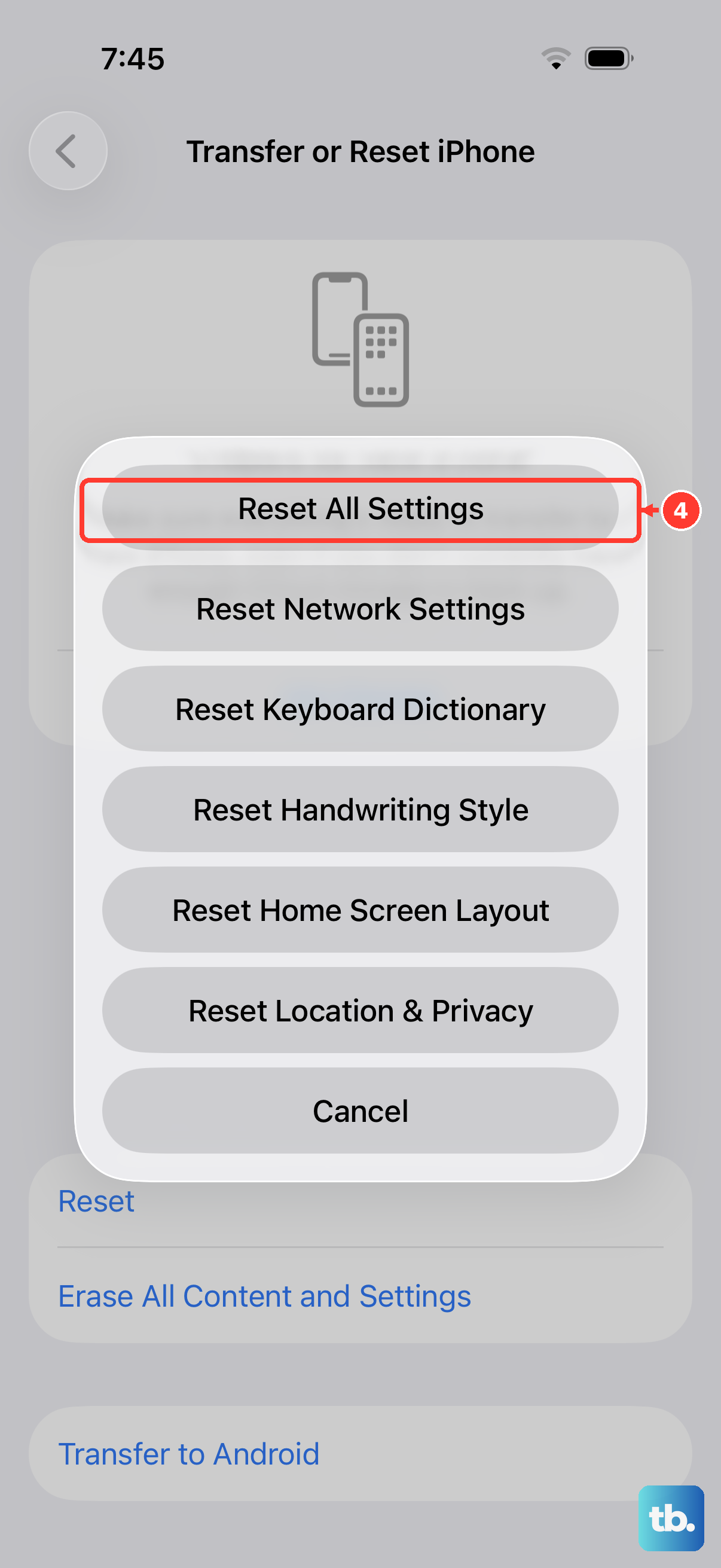
If your iPhone 17e is still slow after the earlier checks, you can try resetting its settings. It resets all your preferences, like Wi-Fi passwords, wallpaper, and privacy settings, back to default without deleting any of your personal data or apps.
Go to Settings > General > Transfer or Reset iPhone. Tap Reset and then choose Reset All Settings. You'll need to enter your passcode. Afterward, you'll need to rejoin Wi-Fi networks, re-pair Bluetooth devices and any Apple Watch, and set up Face ID and notification preferences again.
Monitor for Overheating
Your iPhone 17e may run slower when it gets too hot or too cold. If it feels hot and is slowing down, pause intensive tasks and move it to a place with a more moderate temperature.
Take it off its MagSafe or USB-C charger, close any demanding apps, and let it cool down. Avoid using thick cases during heavy gaming or video editing sessions. Performance may improve once the phone returns to a moderate temperature.