
A frozen iPhone 17e that won't respond to your taps or swipes is incredibly frustrating. The screen might be stuck on an app, the lock screen, or just show a static image. Since this is a brand new model, some early software bugs are possible, but most freezes are temporary and fixable without losing your data.
Force Restart Your iPhone 17e
This is almost always the first thing you should try. The process is quick and won't erase anything. Quickly press and release the Volume Up button, then quickly press and release the Volume Down button. Finally, press and hold the Side button and keep holding it until you see the Apple logo appear on the screen. Don't let go too soon, even if it takes 15-20 seconds.
Give It a Minute to Catch Up
Your new iPhone 17e has a powerful A19 chip, but it can get bogged down. If it's processing a big photo library sync after setup or a background update, it might seem frozen. I'd give it a solid 5-10 minutes, especially if the back feels warm to the touch. If the screen is still completely dead after that, then move on to the force restart.
Plug It In to Charge
A battery that's completely drained can make the phone act unresponsive. Grab your USB-C cable and a 20W or higher charger, plug it in, and wait at least 15 minutes. The iPhone 17e supports faster MagSafe and Qi2 wireless charging too, but a wired connection is best for this initial power-up if the battery is critically low.
Close the Problem App
If the rest of the phone works but one app is frozen, you can force close it. Swipe up from the very bottom of the screen and pause in the middle to bring up the app switcher. Find the frozen app's preview and swipe it all the way up and off the top of the screen to close it. You can then relaunch it from your Home Screen.
Check Your Available Storage
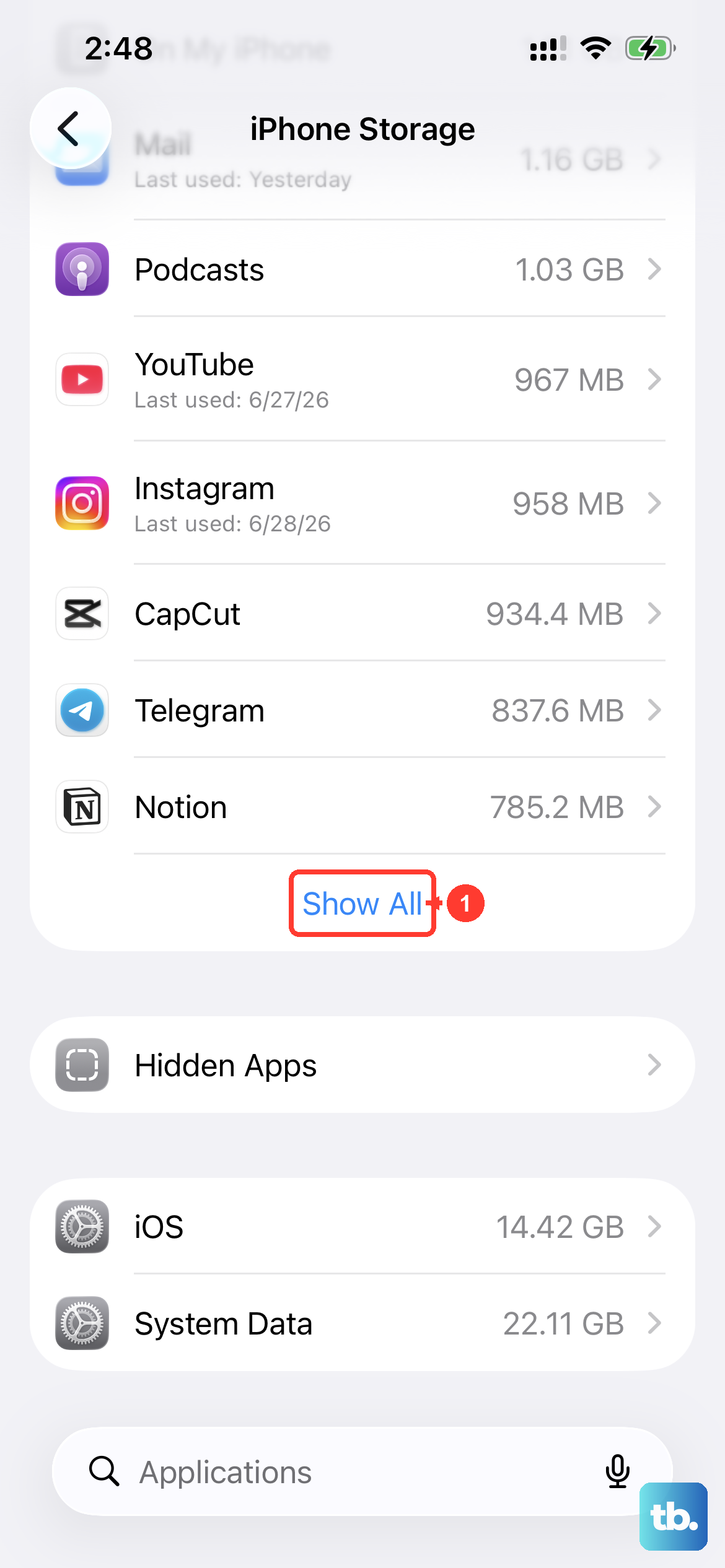
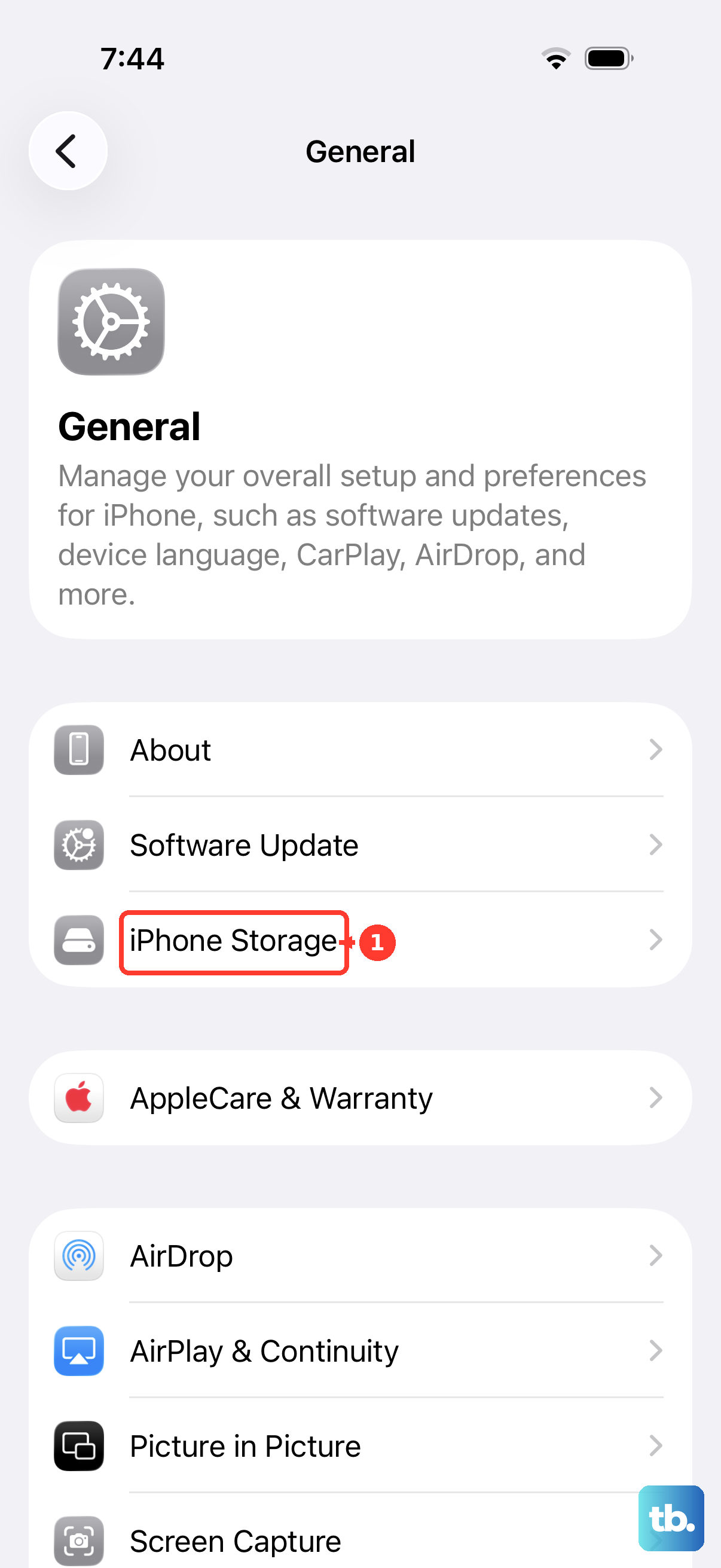
When your phone's storage is completely full, the system has no room to operate and can freeze. If you can get into Settings, go to Settings > General > iPhone Storage. See how much free space you have. Try to keep at least 3-4 GB free by offloading unused apps or clearing old messages to prevent this issue.
Install the Latest iOS Update
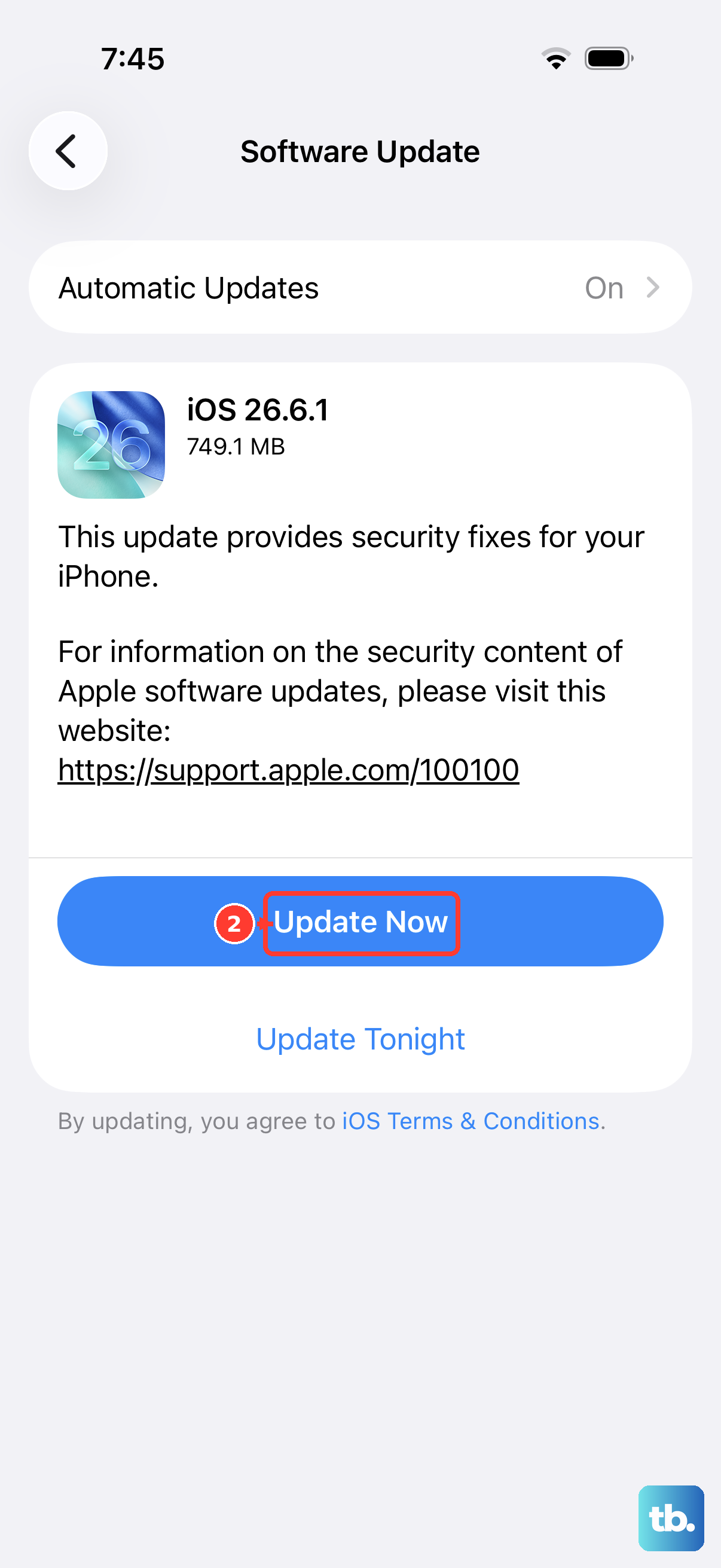
Since the iPhone 17e is new, Apple is likely releasing iOS 26 updates to squash early bugs. After you get the phone restarted, head to Settings > General > Software Update and install any available update. If the phone freezes during the update process itself, you'll need to use a computer to restore it.
Reset All Your Settings
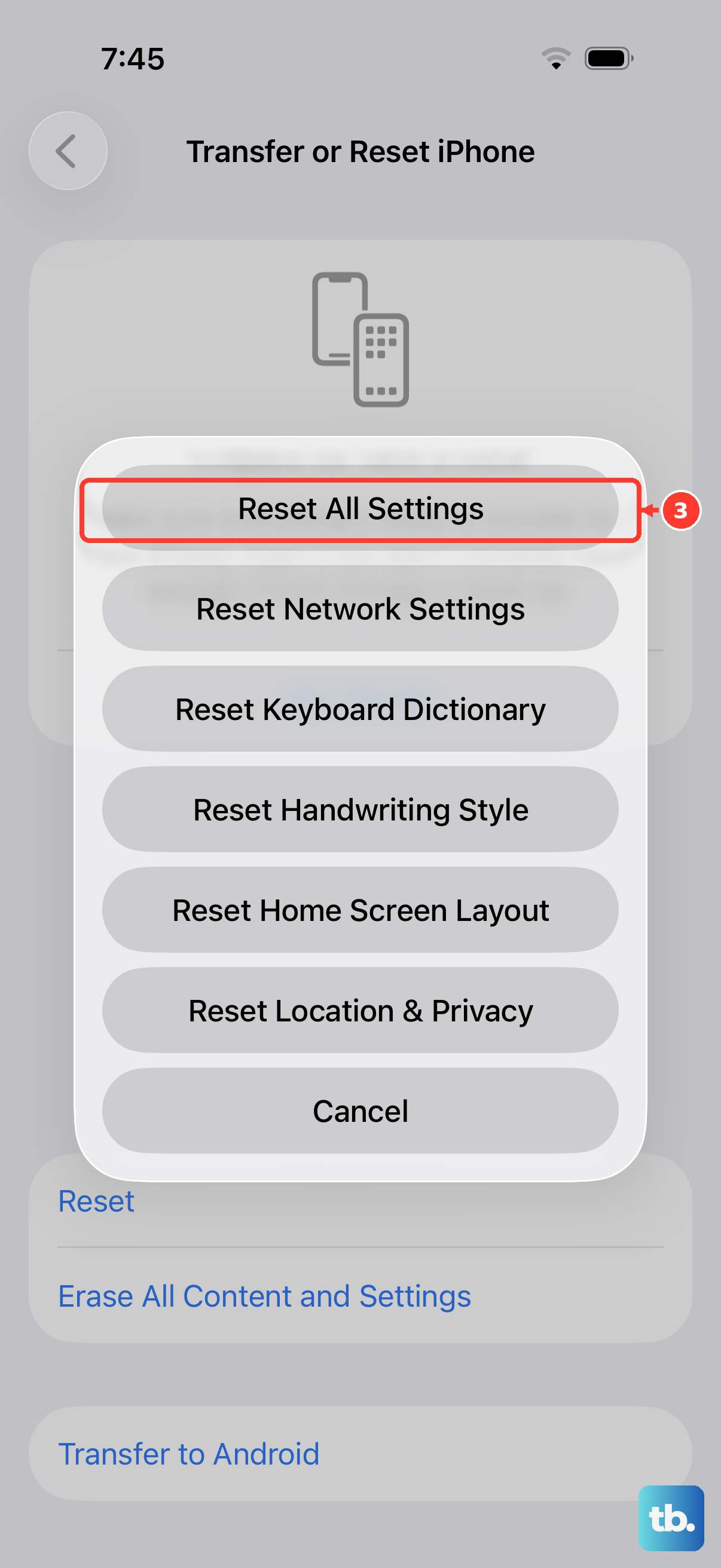
Repeated freezing can sometimes be traced back to a corrupted system preference. You can fix this without touching your photos or apps. Go to Settings > General > Transfer or Reset iPhone > Reset > Reset All Settings. You'll need to re-enter your Wi-Fi passwords and reconfigure things like display brightness, but it often stops the freezing.
Restore Using a Mac or PC
For a phone that won't come out of a frozen state at all, you'll need a computer. Connect your iPhone 17e to your Mac or PC with a USB-C cable. Put it into recovery mode by quickly pressing Volume Up, then Volume Down, then holding the Side button until you see the recovery mode screen. In Finder or iTunes, choose Update first. This tries to reinstall iOS without erasing your data. If that fails, you may have to choose Restore.
Let an Overheated Phone Cool Down
The A19 chip can run warm during intensive tasks, and an overheating phone will protectively slow down or freeze. If the back of your iPhone 17e feels hot, take it out of its case and move it away from direct sunlight. Let it sit for 15-20 minutes to cool down before trying to use or charge it again.