
When your iPhone 17's Settings app won't open, it's usually a temporary software hiccup. The app might freeze, crash back to the Home Screen, or just refuse to launch. I'd start with a simple restart, as that clears the system's working memory and often gets things moving again.
Force Restart Your iPhone 17
If a normal restart doesn't help, a force restart is the next step. This is different from just turning your phone off and on. It forces the entire system to reboot and can clear more stubborn glitches.
On the iPhone 17, you do this by quickly pressing and releasing the Volume Up button, then quickly pressing and releasing the Volume Down button. Finally, press and hold the Side button until you see the Apple logo appear on the screen.
Check for an iOS Update
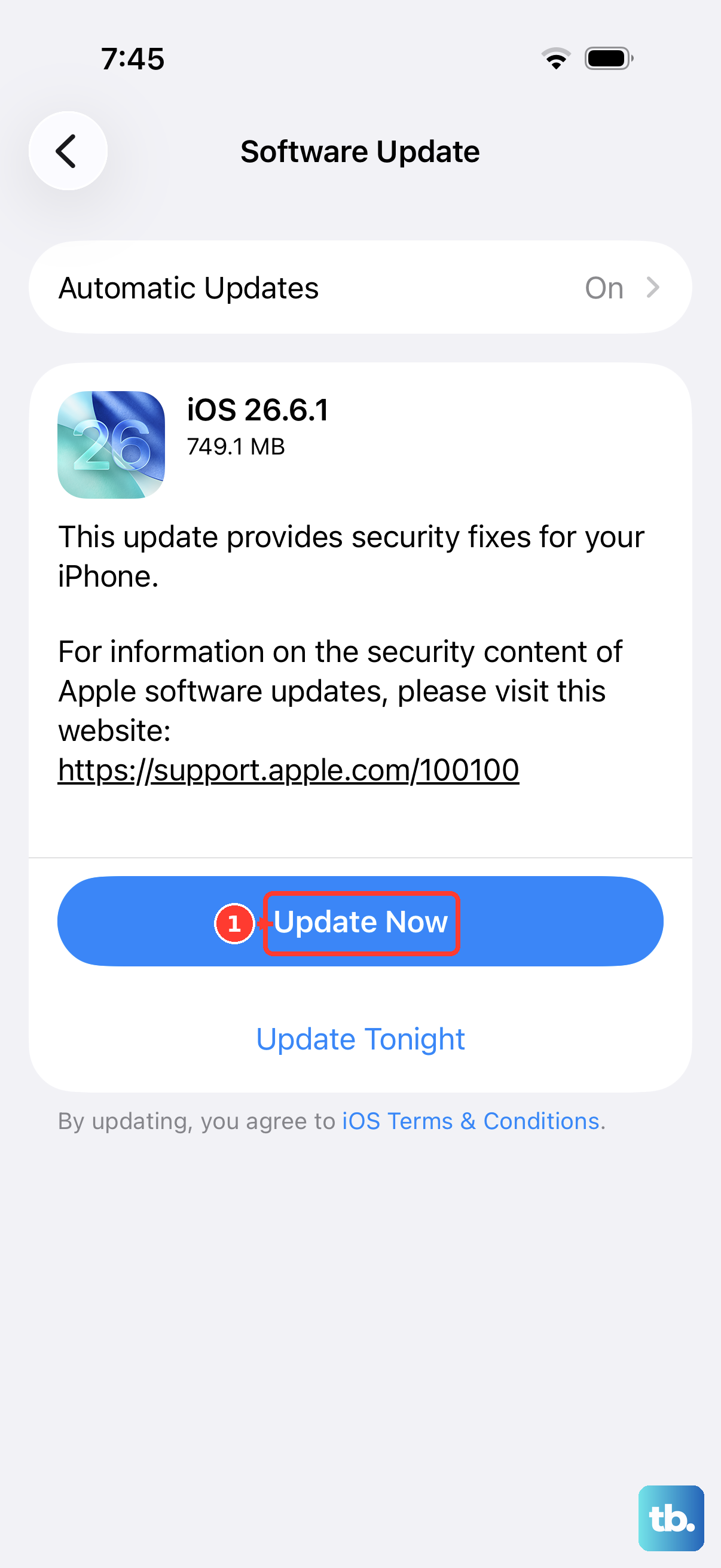
Since you're running iOS 26, it's possible a recent update introduced a bug that's affecting the Settings app. Apple is usually quick to patch these issues. You can check for an update even if Settings won't open by using Siri.
Just say, "Hey Siri, check for software updates." If an update is available, Siri can guide you through the process. Alternatively, you can connect your iPhone to a computer with Finder (Mac) or iTunes (PC) to check for and install updates there.
Free Up Storage Space
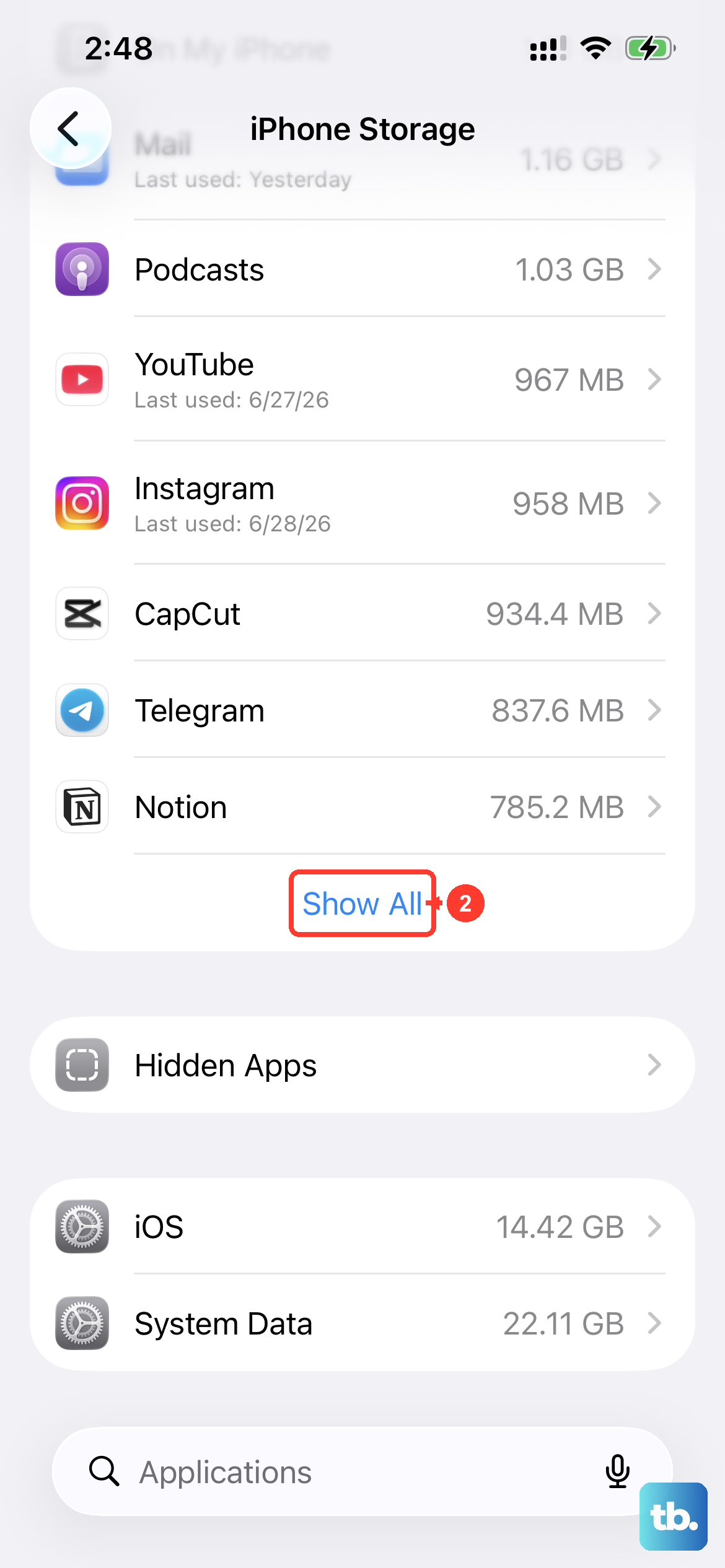
An iPhone that's critically low on storage can cause system apps like Settings to malfunction. You can check your storage without opening Settings by going to the Apple Store app, tapping your profile picture, and then tapping "Account." Your available storage might be listed there.
If you're low, try offloading some large videos or apps directly from the Home Screen. Press and hold an app icon, tap "Remove App," and then choose "Offload App" to delete the app but keep its data.
Reset All Settings
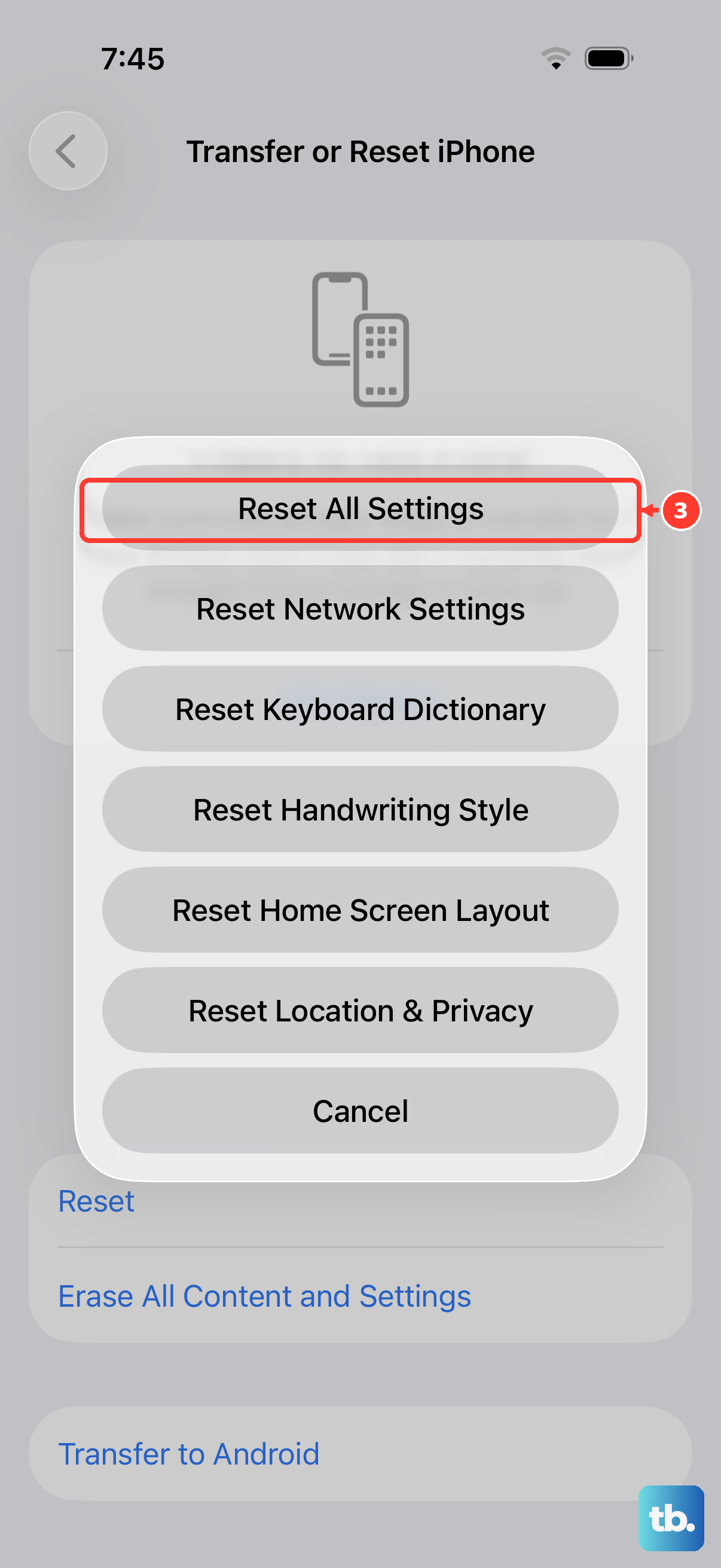
This is a more involved step, but it doesn't delete your personal data like photos or messages. It resets all your system settings, like Wi-Fi passwords, wallpaper, and privacy permissions, back to their defaults. This can fix a corrupted preference file that's stopping Settings from opening.
Since you can't access Settings normally, you'll need to use the Recovery Mode method. Connect your iPhone 17 to your computer and open Finder or iTunes. Perform a force restart, but keep holding the Side button until you see the Recovery Mode screen on your phone.
On your computer, you'll see an option to "Restore" or "Update." Choose "Update." Your computer will reinstall iOS 26 without erasing your data. This process can take a while, but it often resolves deep-seated software issues.
Consider a Recent App Installation
Sometimes, a third-party app you've recently installed can cause conflicts with system services. If the Settings app stopped working after you downloaded something new, that's a clue.
Try booting your iPhone 17 into Safe Mode. You can do this by turning off your phone, then turning it back on and immediately holding the Volume Down button until you see the lock screen. If Settings opens fine in Safe Mode, you'll know a third-party app is the culprit, and you can start removing recent downloads.
For most people, the force restart or the computer-based update fixes the problem. These issues are almost always software-related and don't indicate a hardware problem with your iPhone 17. If you're still stuck after trying these steps, using the Recovery Mode restore option (which *will* erase your data, so have a backup) is a reliable final step to get your phone back to normal.