
When your iPhone 17 Pro won't charge on a MagSafe or Qi2 pad, it's frustrating because you expect that magnetic snap to just work. I've found it's almost always a simple alignment issue, a case problem, or a temporary software hiccup that you can fix in a minute.
Center It on the Charger
Wireless charging, even with MagSafe's magnets, needs the coils to line up perfectly. Place your iPhone 17 Pro dead center on the charging pad. You should feel the MagSafe magnets pull it into the right spot and see the charging animation appear on your screen. If you're using a standard Qi2 pad without magnets, take an extra second to make sure the phone isn't crooked.
Take the Case Off
This is the most common fix. Pop your case off and try charging the bare phone. Thick cases, especially ones with built-in card wallets or metal plates for car mounts, can block the charging signal. The iPhone 17 Pro is known to be a bit sensitive with third-party cases, so even a slightly misaligned magnet ring in a case can cause problems.
Check Your Power Source
Your wireless charger itself might not be getting enough power. Make sure it's plugged into a working outlet. For the fastest 25W MagSafe charging, you need to use a compatible 30W-or-higher USB-C Power Delivery adapter, like Apple's 40W Dynamic Power Adapter. A weak or underpowered brick can cause the charger to fail or charge extremely slowly.
Force Restart Your Phone
A quick software refresh can clear the glitch. Press and quickly release the Volume Up button, then press and quickly release the Volume Down button. Finally, press and hold the Side button until you see the Apple logo appear, then let go. This force restart doesn't erase any data and often gets wireless charging working again immediately.
Clean the Phone and Charger
Wipe down the entire back glass of your iPhone 17 Pro with a soft, dry cloth. Pay special attention to the center area where the charging coil is. Also, give the surface of your charging pad a good wipe. Dust, lint, or even a thin film of oil from your hands can be enough to disrupt the connection.
Update to the Latest iOS
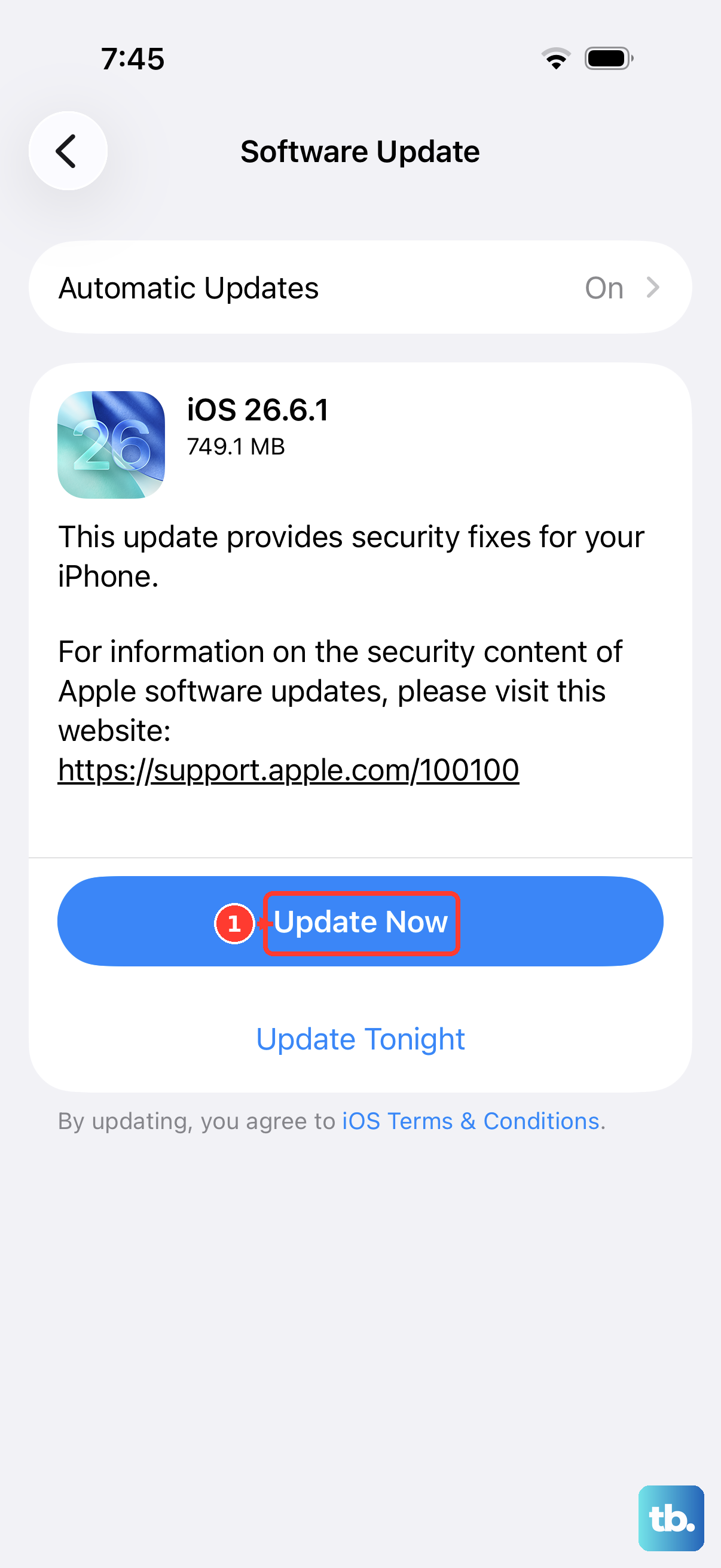
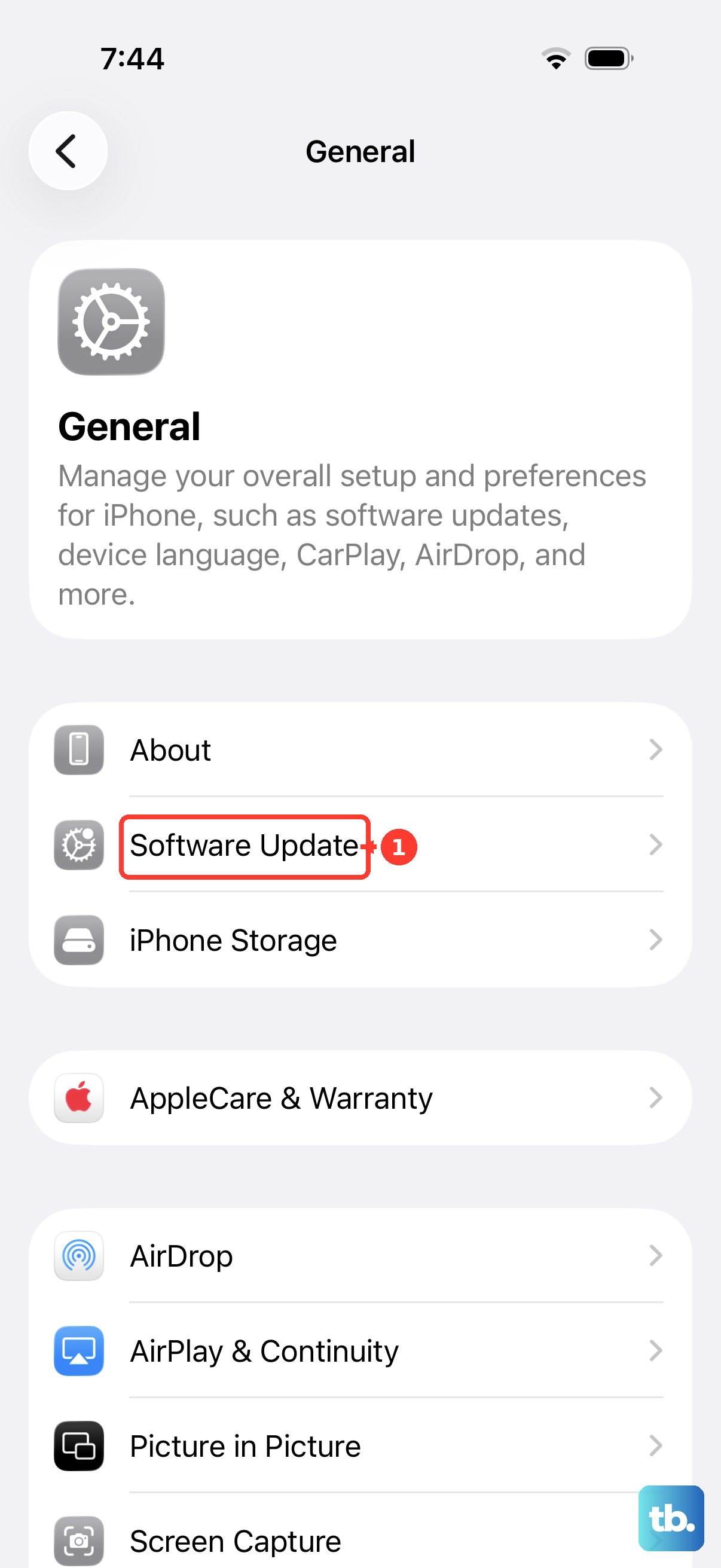
Head to Settings > General > Software Update. If there's an update available for iOS 26, install it. Apple routinely releases updates that fix bugs related to power management and peripheral connectivity, including wireless charging. It's a good habit to keep your phone updated.
Let It Cool Down
The iPhone 17 Pro can get warm during fast charging, and if it gets too hot, it will stop charging to protect the battery. This is more likely if you're using the phone while it's on the charger or if the room is very warm. If the back feels hot to the touch, take it off the pad, let everything cool for ten minutes, and try again.
Check Your Battery Settings
Go to Settings > Battery > Charging. Look at the "Charge Limit" setting. If Optimized Battery Charging is active and has learned your routine, it might intentionally hold your charge at 80% overnight. This isn't a fault, it's a feature to prolong battery health. You can temporarily turn it off here to see if the phone will charge past 80%.
Test With a Different Charger
If you have access to another MagSafe or Qi2-certified charger, try it. If your iPhone 17 Pro charges fine on a different pad, then your original charger is likely the problem. If it still refuses to charge on any wireless pad, you've ruled out the accessories. For the fastest, most reliable experience, I'd recommend using an official MagSafe charger or a certified Qi2 model with a good power adapter.