
If your iPhone 17 Pro is getting uncomfortably warm, you're not alone. It's a common issue, especially with the powerful A19 Pro chip and fast charging capabilities. A little warmth during heavy use or fast charging is normal, but if it's getting hot enough to trigger a temperature warning or shut down apps, there are a few things you can do to cool it down.
I'd start by taking it out of its case and moving it out of direct sunlight. Those two simple steps can make a big difference right away. If it's still hot, a force restart is often the quickest fix. Just press and quickly release the Volume Up button, press and quickly release the Volume Down button, then press and hold the Side button until you see the Apple logo appear.
Check Your Charging Setup
The iPhone 17 Pro can get noticeably warm during its maximum 40W fast charging. This is by design, but your charger and cable matter. For the fastest speed, you need Apple's specific 40W Dynamic Power Adapter (Model A3351) and a high-quality USB-C cable that supports the necessary power delivery.
If you're using a standard USB-C PD charger, you'll be limited to around 30W, which can still generate heat but usually less. Wireless charging, especially at the full 25W MagSafe speed, also creates more heat than wired charging. If your phone is overheating, try switching to a slower, standard 20W charger or even a 5W one temporarily to see if the temperature drops.
Also, head to Settings > Battery > Charging. The "Optimized Battery Charging" feature holds your charge at 80% by default to reduce long-term wear, but the phone can get warm while managing this limit. You can temporarily turn this off if you need a full charge immediately and are monitoring the heat.
Update iOS and Manage Background Activity
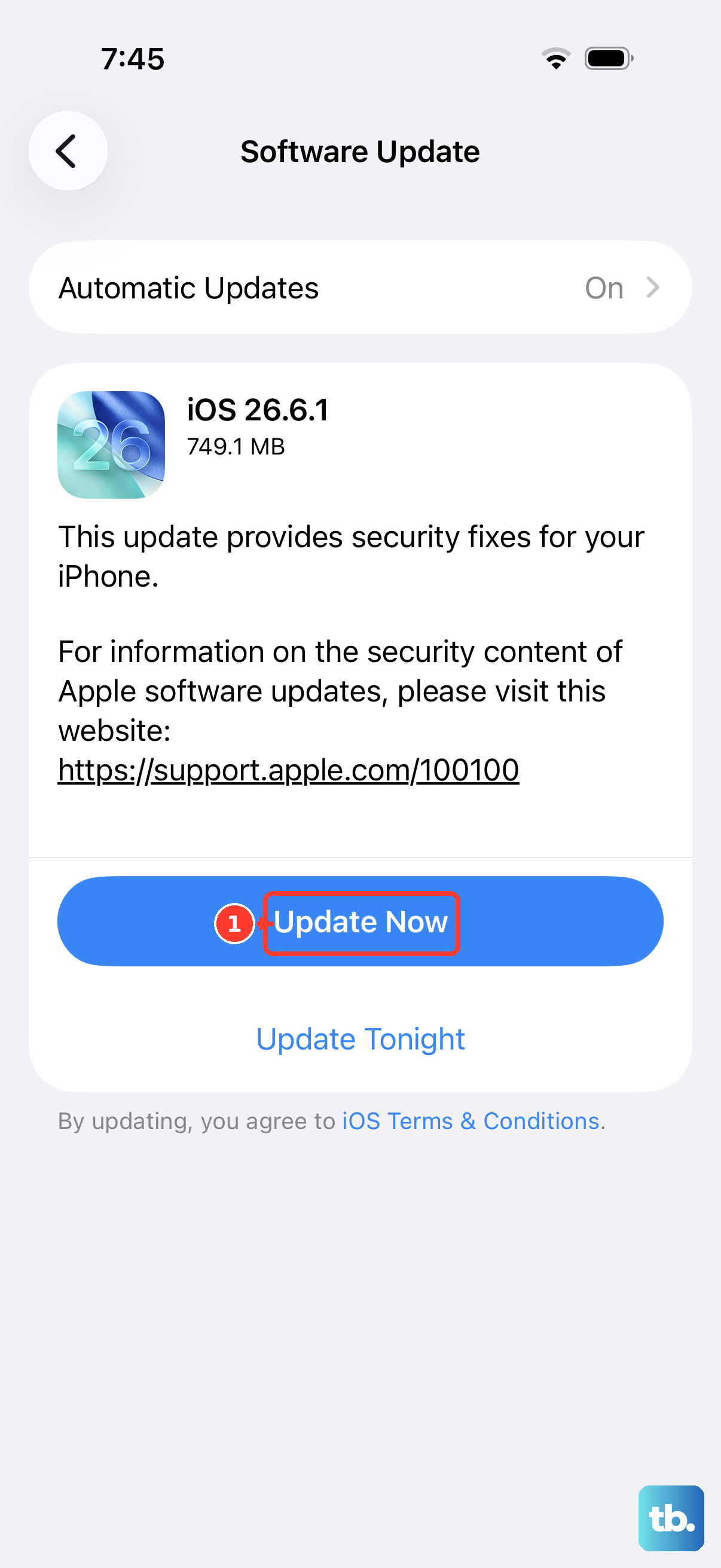
Make sure you're running the latest version of iOS 26. Apple frequently releases updates that include thermal management improvements and bug fixes that might be causing your processor to work overtime. Go to Settings > General > Software Update to check.
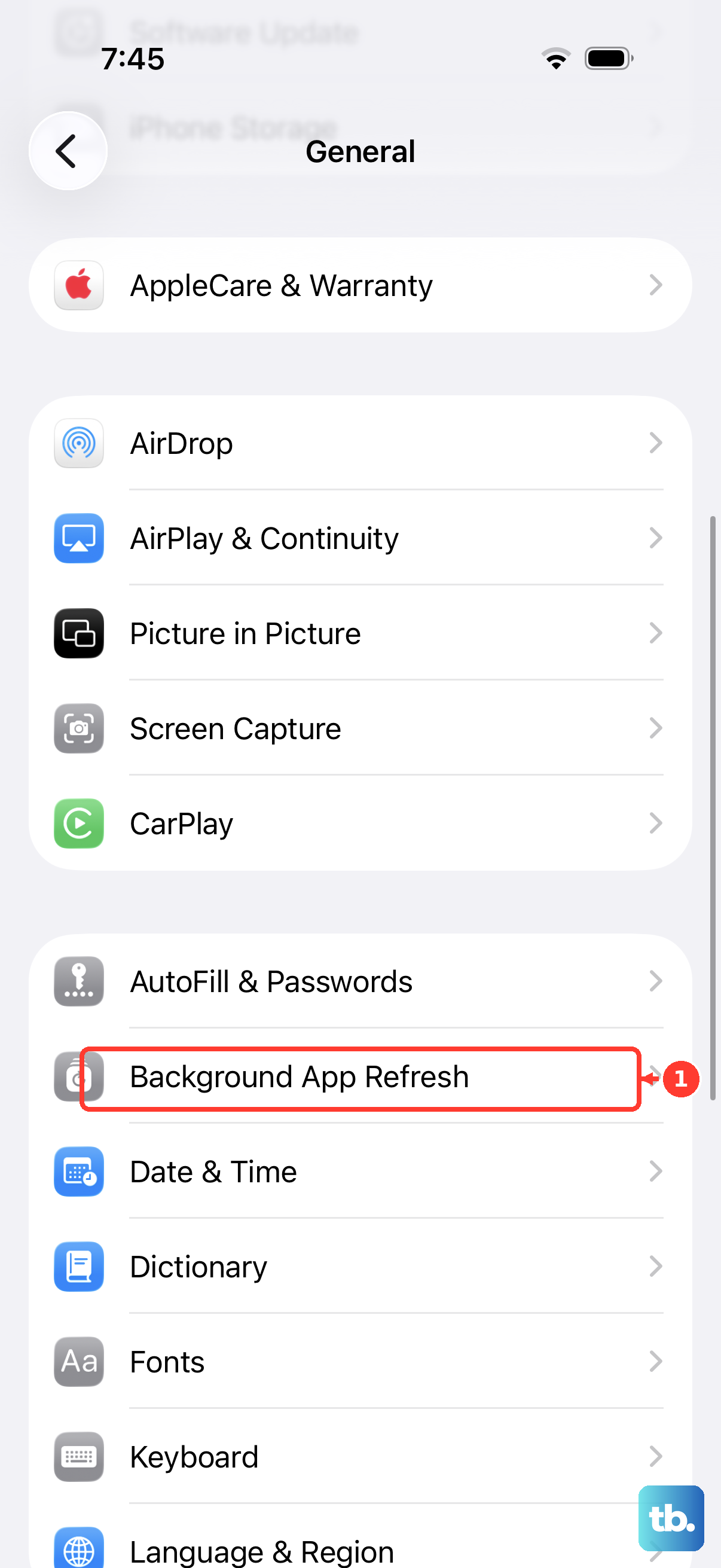
Next, look at what's running in the background. Some apps, particularly social media, navigation, and augmented reality apps, can keep the GPS, camera, and processor active even when you're not using them. Go to Settings > General > Background App Refresh. You can turn this off entirely or just for the most demanding apps.
Also, check your battery usage in Settings > Battery. Look for any apps showing high background activity. If you see one, force close it by swiping up from the bottom of the screen (or double-clicking the Side button on older navigation styles) and swiping the app's preview away.
Adjust Display and Connectivity Settings
Your display is a major source of heat. Turning down the brightness can have an immediate cooling effect. You can also enable Auto-Brightness in Settings > Accessibility > Display & Text Size to let the phone manage it.
Consider reducing the screen's refresh rate. While the ProMotion 120Hz display is smooth, it uses more power. Go to Settings > Accessibility > Motion and toggle on "Limit Frame Rate" to cap it at 60Hz.
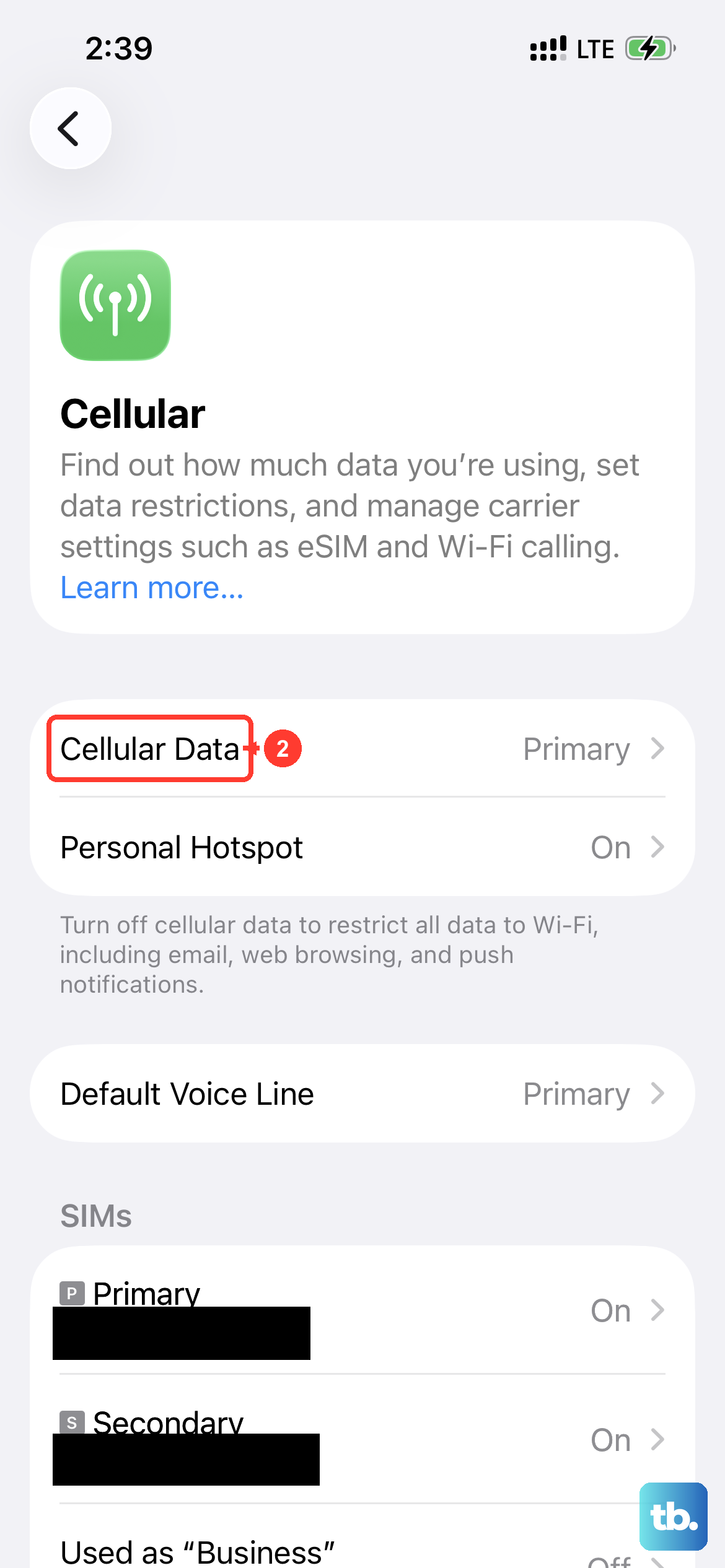
Wireless radios generate heat when searching for a signal. If you're in an area with poor cellular service, your phone works harder. Try enabling Airplane Mode from the Control Center for a few minutes. Also, turn off Bluetooth and Wi-Fi if you're not using them. If you're streaming high-quality video or downloading large files over cellular data, switching to Wi-Fi or pausing the download can help.
Evaluate Your Case and Environment
A thick or poorly designed case can trap heat like a blanket. Take your iPhone 17 Pro out of its case when you notice it getting hot, especially while charging or gaming. If the problem stops, you might need a case with better ventilation.
Be mindful of MagSafe compatibility. Third-party cases that aren't perfectly aligned with the MagSafe charging coil can cause inefficient charging, which wastes energy as heat. Apple's own cases or certified MagSafe cases are your safest bet.
Never leave your phone in direct sunlight, like on a car dashboard or by a window. Ambient temperature has a huge impact. Avoid using it for intensive tasks in hot environments, and don't charge it under your pillow or blanket where heat can't dissipate.
Reset All Settings
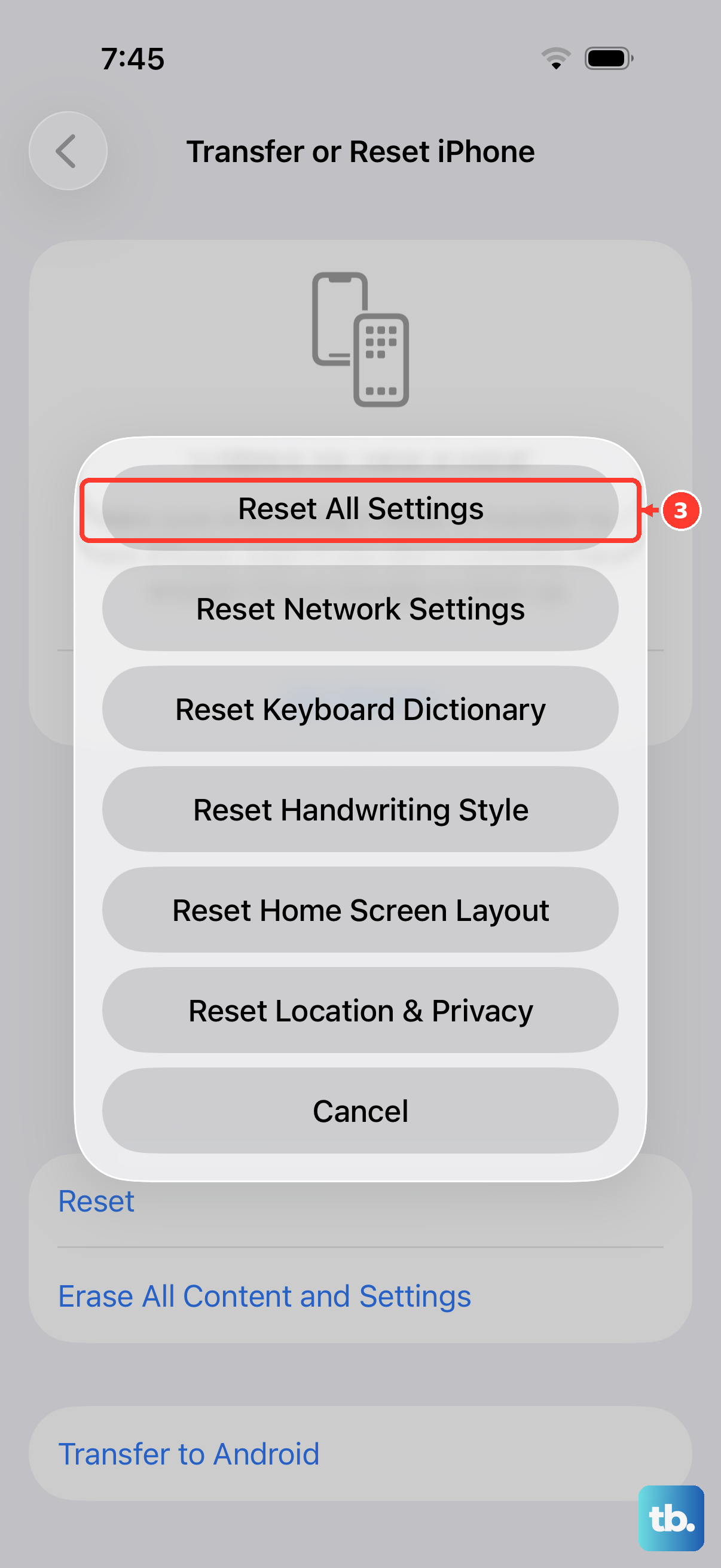
If you've tried everything else and the overheating persists, a software glitch in your preferences might be the culprit. Resetting all settings can clear this up without erasing your personal data like photos and messages.
Go to Settings > General > Transfer or Reset iPhone > Reset. Then, tap "Reset All Settings." You'll need to re-enter your Wi-Fi passwords and reconfigure things like display brightness and privacy settings, but it often resolves persistent performance and heating issues.